
Last updated: May 13, 2026
A webinar registration form is easy to create.
The fragile part starts after someone signs up.
Did the confirmation email go out? Should the join link be sent immediately or closer to the event? Where does cancellation live? On the event day, which list is the source of truth: FORMLOVA, Google Sheets, Zoom, Teams, or a CSV someone exported yesterday? After the webinar, who gets the recording, who gets a survey, and who should be routed to a sales conversation?
While building FORMLOVA, I have repeatedly seen that webinar operations do not fail only because a form is missing a field. They fail because attendee state is scattered. Registered, confirmed, reminded, attended, no-show, follow-up target. If those states are spread across form responses, email history, calendar invites, and webinar reports, the team has to reconstruct the workflow every time.
This guide treats webinar registration as attendee management. It covers the registration form, confirmation email, reminders, attendee list, attendance status, no-show follow-up, and the boundary between webinar platforms and a form operations layer.
If you want the broader model for notifications, spreadsheet sync, conditional branches, and team handoff after form submission, read the FORMLOVA form automation guide alongside this article. This webinar workflow is one concrete use case inside that larger automation pattern.
Quick Answer: Manage the State After Signup
The first design decision is not the form fields.
It is the attendee state you need after signup.
| State | What you need to know | Common failure |
|---|---|---|
| Registered | Who signed up | Duplicate registrations, over-capacity, typo in email |
| Confirmed | Whether the confirmation email was sent | Missing join link, unclear next step |
| Reminded | Whether pre-event reminders were sent | Forgotten day-before or one-hour reminder |
| Attended / no-show | Whether the person joined | Webinar report and form list do not match |
| Follow-up target | What should happen next | Everyone receives the same email, high-intent leads are missed |
A useful webinar registration form collects two kinds of information:
- information needed to accept the registration
- information needed to move the attendee through the workflow later
Name and email may be enough to accept a signup. They are not always enough to segment follow-up. For a B2B webinar, company, role, reason for attending, and evaluation stage can change what happens after the event.
But asking too much too early creates friction. Phone number, team size, budget, detailed problem statement, timeline, and a required open-ended note can turn a simple webinar form into a sales qualification survey.
Start with the smallest field set that supports the workflow. Then make the post-signup states explicit.
Think in Five Attendee States
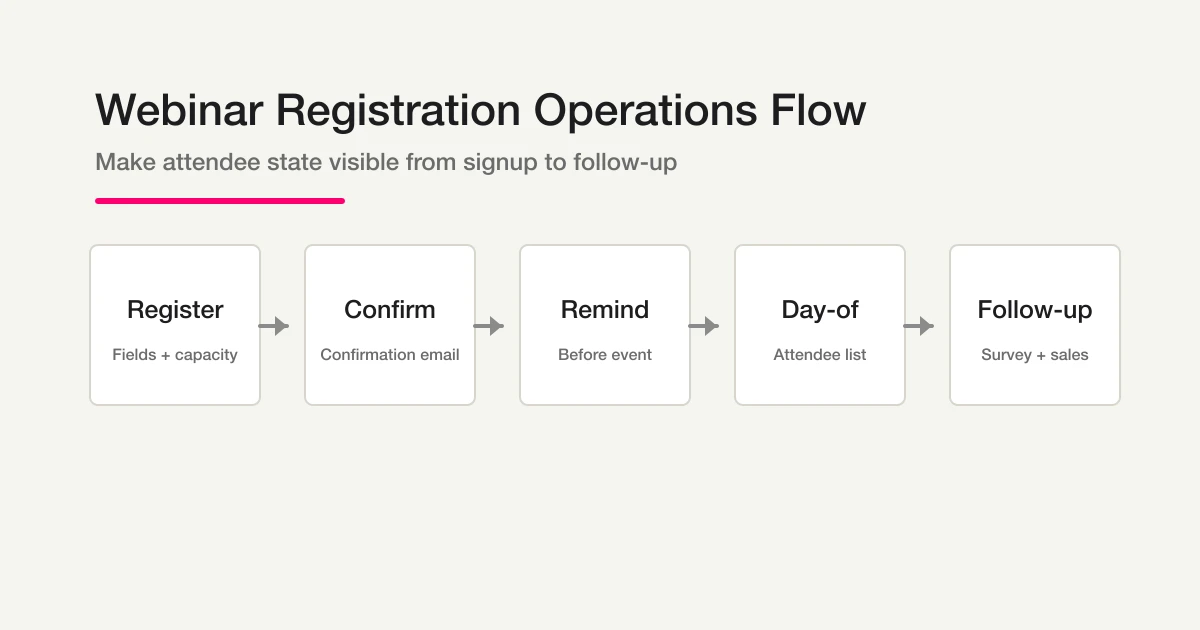
Webinar registration management is easier when you separate it into five states.
| Phase | What happens | Common failure |
|---|---|---|
| Register | Build the form, collect required fields, set capacity | Missing fields, duplicate registrations, over-capacity signups |
| Confirm | Send the confirmation email | Missing join link, no clear next step, support questions |
| Remind | Send pre-event reminders | Manual sending, inconsistent timing, low attendance |
| Day-of | Prepare the attendee list | Stale CSVs, unclear attendance status |
| Follow up | Send recordings, surveys, sales or resource links | One generic email to everyone, missed high-intent leads |
This model also makes tool selection clearer.
Zoom and Microsoft Teams both support webinar registration and webinar emails. Zoom's official help explains registrant management, approval, confirmation email resend, registration reports, and webinar email templates. Microsoft Teams documentation describes attendee registration emails, pending approval, waitlisting, cancellation, reminders, and recording emails.
That means a streaming platform may be enough for simple webinars.
But when registration data needs to drive follow-up, spreadsheet exports, team handoff, paid events, or conditional communication, the form operations layer becomes important. FORMLOVA is built for that layer. You can still use Zoom, Teams, or Google Meet for the actual session.
| Job | Best handled by |
|---|---|
| Video, audio, screen share, webinar room | Zoom / Teams / Google Meet |
| Registration fields, response management, emails, reminders, exports, follow-up | FORMLOVA |
Choose Registration Fields
Start with the smallest field set that supports the event.
For a simple free webinar:
Name
Email
Company
Reason for attending
Consent checkbox
For a B2B product webinar:
Name
Email
Company
Role
Interest area
Current evaluation stage
Question for the speaker
Consent checkbox
For an in-person seminar:
Name
Email
Company
Number of attendees
Accessibility or dietary notes
Receipt requirement
Consent checkbox
For a paid seminar:
Name
Email
Company
Ticket type
Receipt name
Cancellation policy acceptance
Consent checkbox
In FORMLOVA, paid event support is available on the Premium plan through Stripe Connect. The fee rate is 4.6%. If payment is part of the workflow, design the confirmation email, receipt handling, cancellation policy, and payment status at the same time as the form.
Required vs Optional Fields
Do not make every field required.
Required fields should be the minimum information needed to register and operate the event. Optional fields can help sales, customer success, recruiting, or community teams, but they should not block signup unless the event truly requires them.
| Usually required | Usually optional |
|---|---|
| Name | Phone number |
| Detailed question | |
| Company | Budget |
| Consent checkbox | Purchase timeline |
| Attendance format | Free-text context |
If a field is mostly useful for internal prioritization, make it a short multiple-choice question instead of a required free-text answer.
Create the Form in FORMLOVA
In FORMLOVA, you can start from a plain-language request.
Create a webinar registration form.
Fields: name, email, company, role, reason for attending, consent checkbox.
Capacity: 100 attendees.
FORMLOVA creates a draft form first. You can review the preview before publishing.
Then refine the fields:
Make "reason for attending" a dropdown.
Options: researching, evaluating tools, looking for a demo, partner interest.
Add event details:
Set the webinar title to "How to Operate Forms with AI".
Set the event date to May 15, 2026 at 2:00 PM JST.
Add attendance format if needed:
Add an attendance format field.
Options: live webinar, recording only, in-person seminar.
The important part is that you do not have to finish the full specification before starting. Create the draft, inspect it, then adjust it through conversation.
For the creation flow in more detail, see Draft a Form in One Shot with FORMLOVA.
Write the Confirmation Email
Every webinar registration workflow needs a clear confirmation email.
A confirmation email answers three questions:
Did my registration go through?
What happens next?
Where do I go if something is wrong?
A simple template:
Subject: Your registration is confirmed for {webinar_title}

Hi {name},

Thanks for registering for {webinar_title}.
Your registration has been received.

Event details:
Date and time: {event_datetime}
Format: {event_format}
Join link: {join_url}

We will send a reminder before the event.
If you need to update your registration, contact us at {contact_email}.
For an in-person seminar, replace the join link with venue address, reception time, and emergency contact. For a paid seminar, include payment status, receipt notes, and cancellation policy.
In FORMLOVA, custom auto-reply emails are available on the Standard plan and above. The Standard plan is 1,480 yen/month. You can ask:
Create a confirmation email for this webinar registration form.
Include the event title, date, join link, and contact email.
Keep it professional and concise.
Then refine:
Add a calendar reminder line.
Move the join link closer to the top.
Make the subject clearer.
For more examples, see Form Auto-Reply Email Examples.
Set Reminder Emails
Registration does not guarantee attendance.
People forget. Calendars get crowded. The join link gets buried. Reminder emails reduce that friction.
A practical schedule:
| Timing | Purpose | Content |
|---|---|---|
| 3 days before | Rebuild intent | Topic, agenda, preparation |
| 1 day before | Bring the event back to mind | Time, join link, venue or access notes |
| 1 hour before | Remove last-minute friction | Join link, contact point, start time |
Not every webinar needs all three. For a small free webinar, the day-before and one-hour reminders may be enough. For a paid seminar, workshop, or event with preparation, add the three-day reminder.
In FORMLOVA:
Set reminders for this webinar.
Send one reminder the day before at 6 PM and another one hour before the event.
Include the join link and support email.
Reminder emails require the Standard plan or above.
If the event details change, adjust the schedule through chat:
Change the final reminder to 30 minutes before the event.
Add the preparation document URL to the day-before reminder.
The point is to remove reminders from memory. If sending the email depends on someone remembering it during event prep, it will eventually be missed.
Prepare the Attendee List
Before the webinar starts, your team needs an attendee list.
For online webinars, you may need to compare the registration list with the streaming platform's attendee report. For in-person seminars, you may need a reception list. For B2B webinars, the sales team may want company names and interest stages before the event.
The key decision is the source of truth.
If the form table is the source of truth for signup, then registration time, email, reason for attending, and cancellation state should live in FORMLOVA or Google Sheets. If the Zoom or Teams report is the source of truth for attendance, then attended/no-show status should come from that report.
The weak pattern is exporting a CSV, editing copies of it, and treating the copied file as the attendee list. When nobody knows which file is current, the team cannot tell whether a person registered, received the join link, or actually attended.
In FORMLOVA, CSV export is available on all plans:
Export the attendee list as CSV.
Include name, email, company, role, reason for attending, and registration time.
If multiple people need a live list, use Google Sheets sync on the Standard plan and above:
Connect this registration form to Google Sheets.
Add a new row whenever someone registers.
Good attendee-list columns:
| Column | Why it helps |
|---|---|
| Name | Reception and identity |
| Contact and matching | |
| Company | Team handoff |
| Attendance format | Live, recording, in-person |
| Interest stage | Follow-up segmentation |
| Status | Registered, attended, no-show, cancelled |
For the export workflow, see Export Responses to CSV or Sync Them to Google Sheets.
Design Post-Webinar Follow-Up
The most valuable part of a webinar often happens after the session.
Send the recording. Send the slides. Ask for feedback. Invite high-intent attendees to a demo. Send no-shows a catch-up link. Route partner inquiries differently from product evaluation leads.
The registration form should collect the signals that make this possible.
For example:
| Registration answer | Follow-up |
|---|---|
| Just researching | Recording, slides, next webinar |
| Evaluating tools | Demo link, comparison guide, pricing page |
| Partner interest | Partner contact route |
| Asked a question | Speaker reply or related resource |
You can also separate follow-up by attendance state.
| Attendee state | Follow-up |
|---|---|
| Attended | Thank-you email, slides, survey, next step |
| No-show | Recording, summary, next session |
| High intent | Demo invitation, case study, comparison page |
| Low intent | Newsletter or future webinar invite |
In FORMLOVA, conditional emails are available on Standard and above.
Send a demo invitation to people who selected "looking for a demo".
Send the recording and slides to everyone else.
This is better than sending the same sales email to every registrant.
The form should not feel heavy, but it should capture enough context to make follow-up respectful.
When Zoom or Teams Registration Is Enough
Use built-in Zoom or Teams registration when the webinar is simple.
It may be enough when:
- The event is one-off
- The default registration page is acceptable
- Standard confirmation and reminder emails are enough
- You do not need response-based follow-up
- You do not need a separate landing page workflow
- You only need the streaming platform's attendee report
Use a form operations layer such as FORMLOVA when:
- Registration lives on your own site or campaign page
- Field design needs to match your business workflow
- Confirmation emails need custom wording
- Attendee data needs to go to a spreadsheet or team workflow
- Follow-up depends on attendee answers
- You need the same process across multiple event types
- Paid seminars or future workflow automation may be added
This is not a competition between tools. It is a boundary question.
The webinar platform runs the session. The form operations layer manages the relationship around the session.
Use Workflow Place Recipes
FORMLOVA includes Workflow Place, a library of reusable operational recipes.
For webinar registration management, start with these:
| Recipe | Best for | Plan |
|---|---|---|
| Slack Notification + Sheets Log | Catching new registrations and keeping an attendee log | Free |
| Event Remind + Follow-up | Adding reminders and post-event emails to an existing flow | Standard and above |
| Seminar Full Flow | Registration, reminders, and post-event survey in one workflow | Standard and above |
If this is your first webinar workflow, start with a recipe. After the first run, adjust the fields and emails to match your real event process.
For more, see How to Find and Apply Recipes from Workflow Place.
FAQ
Can I manage webinar attendees with Google Forms?
Yes, for simple signup. The question is what happens after signup. If you need custom confirmation emails, reminders, attendee status, exports, and segmented follow-up, choose a tool that handles post-submission operations.
Is a webinar registration form different from a seminar registration form?
The core is similar. The day-of information changes. A webinar needs a join link, viewing environment, recording policy, and reminder timing. An in-person seminar needs venue address, reception time, accessibility notes, and emergency contact.
Should I include the Zoom join link in the confirmation email?
Usually, yes, if the email is sent only to the registrant. Zoom's own registration flow sends join information through the confirmation email. Avoid publishing the join link on a public page unless that is intentional.
How many reminder emails should I send?
For many webinars, one day before and one hour before is enough. Add a three-day reminder when the event requires preparation, payment, travel, or workshop materials.
What can I do on the free plan?
You can create forms, collect responses, view responses, search, manage statuses, and export CSV files on the free plan. Custom auto-replies, reminders, conditional emails, and Google Sheets sync require Standard or above.
Can FORMLOVA handle paid seminars?
Paid event support is available on the Premium plan through Stripe Connect. The fee rate is 4.6%. If you use paid registration, include payment status, receipt notes, cancellation policy, and refund instructions in the form and confirmation email.
If payment collection, unpaid provisional signups, receipts, or cancellation handling are the main concern, use the Payment Form Guide alongside this webinar registration workflow.
Official Sources Checked
- Zoom Support: Managing meeting and webinar registration (checked May 13, 2026)
- Zoom Support: Customizing webinar email templates and settings (checked May 13, 2026)
- Microsoft Support: Manage webinar emails in Microsoft Teams (checked May 13, 2026)
Summary
Webinar registration management is not just collecting names and emails.
Design the full path: registration, confirmation, reminders, attendee list, attendance status, and follow-up.
Start small:
Create a webinar registration form.
Fields: name, email, company, reason for attending, consent checkbox.
Capacity: 100 attendees.
Then add the operational layer when you need it: custom confirmation emails, reminder timing, CSV export, Google Sheets sync, and conditional follow-up.
FORMLOVA lets you start with the registration form for free, then move into Standard when the communication workflow matters. The goal is not just to collect registrations. The goal is to make sure every registrant knows what happens next.
If you run webinars repeatedly, standardize the workflow as triggers, actions, branches, and sync destinations. The form automation guide explains that model in more detail, so the event process does not depend on one person remembering every manual step.
Related Articles
- Draft a Form in One Shot with FORMLOVA
- Form Field Examples Guide
- Registration Form Guide
- Event Registration Form Guide
- How to Set Up Form Auto-Reply Emails
- Form Auto-Reply Email Examples
- Export Responses to CSV or Sync Them to Google Sheets
- FORMLOVA Form Automation Guide
- How to Find and Apply Recipes from Workflow Place
- How FORMLOVA Compares to Major Form Services
Disclosure and Verification
Disclosure: I work on FORMLOVA. This guide uses FORMLOVA examples, but the registration and attendee-management principles apply to most webinar and seminar workflows. I also checked official Zoom and Microsoft Teams documentation for current webinar registration and email behavior.