
Last updated: June 26, 2026
Note: CSV export is available on all plans. Google Sheets sync requires the Standard plan or above.
Once responses start coming in, the next question is where that data should live. Sometimes you just want to pull the current responses into a file and inspect them right away. Other times you want every new response to keep flowing into a shared spreadsheet automatically. FORMLOVA supports both patterns. In this guide, I will show the two flows side by side: exporting the existing responses as CSV, and connecting the form to Google Sheets for ongoing sync.
If you want the broader sequence from form planning to launch and post-submission work, start with the parent form creation guide. If you are designing the full post-submit workflow across auto-replies, status management, routing, Google Sheets sync, and reminders, use the form automation guide to see where data handoff fits. If you are starting from Google Forms CSV export or official help searches, read Google Forms CSV Export Official Help first so the CSV-versus-Sheets decision is clearer.
This article focuses on the data handoff decision: export a snapshot once, or keep future responses syncing into a spreadsheet.
Quick Answer: Export Google Forms Responses to CSV
In Google Forms, the built-in CSV export path is:
Open the form
Click Responses
Click More
Choose Download responses (.csv)
Google's official help also shows the adjacent Google Sheets path: open the form, click Responses, then choose View in Sheets.
Use CSV when you need a one-time download of current responses. Use Google Sheets when the team needs a shared spreadsheet view or an ongoing destination for future responses.
If your question is only the Google Forms menu path, read Google Forms CSV Export Official Help. The rest of this guide explains how FORMLOVA handles the same CSV-versus-Sheets decision for operational forms.
If You Want the Data Right Away, CSV Is the Fastest Path
The first prompt in this example was:
Export the responses as CSV.
FORMLOVA replied by saying it would write out the already retrieved data directly as CSV, then confirmed that all 12 responses had been exported.
That is the value of the CSV path. It is immediate. You do not need an extra authorization step just to get the current response list into a tabular file.
I think that speed matters a lot in real operations. Sometimes the next action is simply “show me everything in a spreadsheet now.” In that moment, CSV is the cleanest option. If you need to narrow the set before exporting, start with the guide to view, filter, and update response status so the table contains the responses you actually want to review.
The CSV Opens as a Straightforward Response Table
Once opened, the CSV showed the responses as a flat table. In this example, the exported columns included:
- response ID
- status
- submitted time
- name
- email address
- phone number
- participant count
- notes
That structure is already enough for a lot of day-to-day work. You can sort it, filter it, share it, or hand it off to someone else immediately.
This is why CSV is worth showing separately in the guide. Its job is not long-term synchronization. Its job is to let you take the current response set with you right now.
If You Want Ongoing Sync, Google Sheets Is the Better Fit
The second prompt in this example was:
I want to connect Google Sheets.
FORMLOVA then returned a Google authorization URL and asked the user to complete the Google account authentication flow in the browser. It also explained what happens next: once the authorization is complete, new responses for that form will automatically sync into Google Sheets.
That is the key difference from CSV. CSV is a one-time export of the current data. Google Sheets sync is an ongoing connection for future responses.
This is the point that should be made explicit: the sync only starts after the connection is in place. If you connect Google Sheets later, you should not assume that previously collected responses will automatically backfill into the sheet. The safe mental model is that Google Sheets sync is for responses that arrive after the integration is authorized.
That distinction is the main thing I want the article to make clear. Both end up in a table, but they serve different operational needs. CSV is for immediate extraction. Google Sheets is for continuous sync.
As a note for the guide itself, the full authorization URL and tokenized state value should not be reproduced verbatim in the article.
After Authentication, New Responses Continue Appearing in the Sheet
In the synced Google Sheet, the response data appeared in the same general tabular structure as the CSV export. The difference is that this sheet is not just a snapshot. It becomes the continuing destination for new responses.
That makes the Sheets path more useful when the form stays active and the team wants a shared operational view. Instead of re-exporting every time, you can simply open the spreadsheet and keep working from there. If you need to confirm whether the connection is still active later, use the guide to check the current status in chat and in the dashboard.
In the example screenshots, the dashboard also showed that Google Sheets was connected. That is useful because the setup starts in chat, but the connection state can still be checked visually afterward.
CSV and Google Sheets Make Sense When You Treat Them as Two Different Jobs
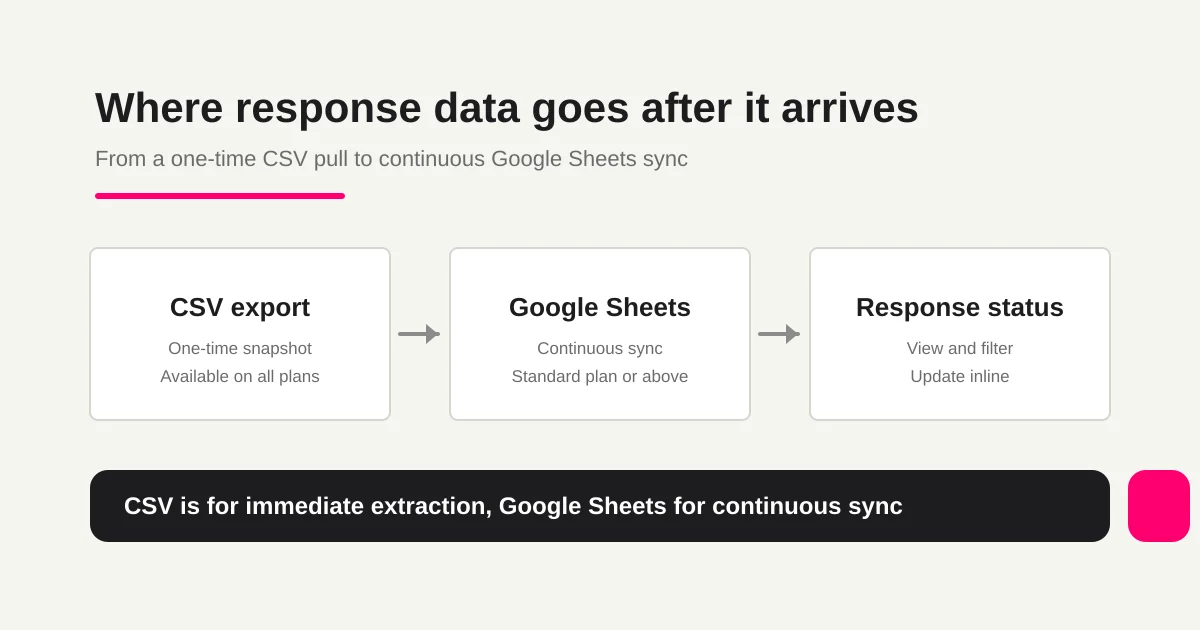
In practice, the easiest way to think about this guide is:
-
CSV
- export the current responses once
- best when you need the data immediately
- available on all plans
-
Google Sheets
- keep future responses syncing automatically
- works best when connected before new responses arrive
- best when the spreadsheet is part of the ongoing workflow
- requires Standard or above
I think that framing removes most of the confusion. If you only need to pull the list now, use CSV. If you want the spreadsheet to keep updating over time, use Google Sheets.
That is why these two flows belong in the same guide. They solve adjacent problems, but not identical ones.
These Are the Two Prompts to Remember
If you want the shortest version of this guide, remember these two prompts:
Export the responses as CSV.I want to connect Google Sheets.
Together, they cover the two most common ways to get response data out of the form flow and into a table.
That makes this a natural next step after response viewing, filtering, and status updates. Once you know how to inspect and manage responses, the next question is how to carry that data into your broader workflow. CSV and Google Sheets are the two cleanest answers. If submitters also need immediate confirmation, prepare the form auto-reply email examples before launch so the internal spreadsheet flow and the external email flow stay aligned. For the larger workflow across routing, reminders, and status changes, use the FORMLOVA form automation guide.
Related Workflows You Can Use
If the goal is to stop exporting manually, Slack Notification + Sheets Log is the closest Workflow Place route. It sends the response to Slack while keeping a Sheets record, so export becomes a fallback rather than the daily operating path.
For review cycles, add Weekly Inquiry Status Report or AI Response Report. Those workflows turn the table of responses into a recurring operational summary.
Related Articles
- Form Creation Guide
- FORMLOVA Form Automation Guide
- Check the Current Status in Chat and in the Dashboard
- View, Filter, and Update Response Status
- Google Forms CSV Export Official Help
- Form Auto-Reply Email Examples
Disclosure and Verification
This article is part of the FORMLOVA product blog. The author is the developer of FORMLOVA. Product facts, pricing, limits, and comparison claims should be checked against the current FORMLOVA spec, plan definitions, and relevant primary sources before publication or major updates. For privacy, hiring, legal, medical, or financial workflows, follow your organization's policies and specialist review.
Google Forms response export and Sheets behavior were rechecked against Google Docs Editors Help on June 26, 2026. The 2026-06-23 90d Search Console export showed this page receiving early impressions for google forms export to csv and google forms export responses csv, so the title, meta description, and first answer now acknowledge that path while routing detailed Google Forms troubleshooting to the dedicated official-help article.