
Last updated: June 18, 2026
Note: In FORMLOVA, custom auto-reply email creation, editing, and test sending are available on the Standard plan and above. The Free plan still includes form creation, response collection, response viewing, search, status management, and CSV / Excel export.
When someone submits a form, they immediately want to know three things.
Did the submission go through? What happens next? Who should they contact if something is wrong?
That is the job of a form auto-reply email.
It does not need to be clever. It does not need to sound like a marketing campaign. It needs to confirm receipt, reduce uncertainty, and set the next expectation.
This guide gives you reusable auto-reply email examples for five common form types: contact forms, resource download forms, webinar registrations, job applications, and survey responses. It also explains how to draft, refine, and test those emails in FORMLOVA. If you need the setup flow before examples, read How to Set Up Form Auto-Reply Emails.
In this article, "auto-reply email" and "confirmation email" point to the same operational moment: the message sent right after a form submission. A registration confirmation email is the version that confirms a signup, booking, application, or event registration. The setup flow lives in How to Set Up Form Auto-Reply Emails, and the on-screen post-submit message lives in the Form Thank You Page Guide.
If you want the full sequence from form planning to launch and post-submission operations, start with the parent form creation guide. If you are thinking beyond the first confirmation email into routing, Google Sheets sync, reminders, and status workflows, use the form automation guide as the broader map.
This article is the email-specific guide inside that workflow cluster.
Quick Answer: Use This Basic Structure
Most form auto-reply emails can start with this structure:
Subject: We received your [request / inquiry / registration]

Hi {name},

Thanks for submitting the form.
We received your information and will review it shortly.

What happens next:
{next step and expected timing}

If you need to update anything, reply to this email or contact us at {contact email}.
The exact wording changes by use case, but the purpose stays the same.
The email should say:
We received it.
Here is what happens next.
Here is how to reach us.
If the email does those three things clearly, it is already useful.
What Every Form Auto-Reply Email Should Include
Every form confirmation email should include five parts.
| Part | Purpose | Example |
|---|---|---|
| Subject line | Make the email identifiable in the inbox | We received your inquiry |
| Thank-you line | Acknowledge the submission | Thanks for contacting us |
| Confirmation | Explain what was received | Your request has been submitted |
| Next step | Set expectations | We usually reply within two business days |
| Contact point | Give a way to correct or follow up | Reply to this email or contact support@example.com |
The most common mistake is writing a polite message that does not set expectations.
"Thank you for your submission" is not enough if the respondent needs to know when someone will reply, whether a download link is coming, or whether a webinar link will be sent later.
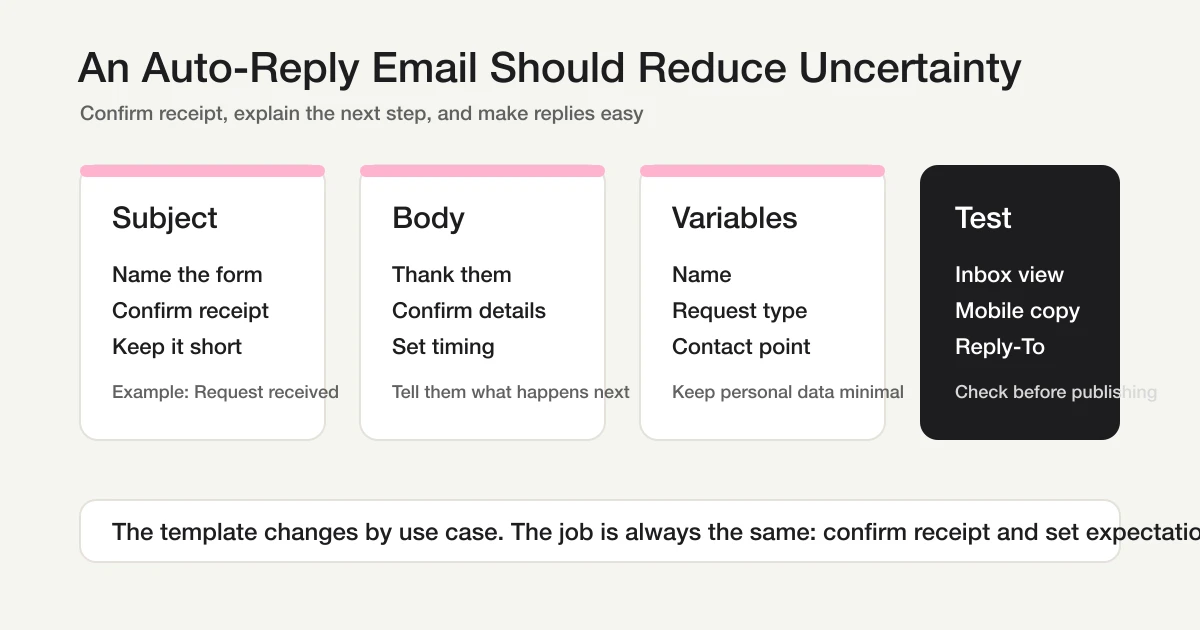
A good auto-reply email confirms receipt, explains the next step, and makes it easy to contact the sender.
Example 1: Contact Form Auto-Reply Email
For a contact form, the most important detail is the response time.
Subject: We received your inquiry

Hi {name},

Thanks for contacting us.
We received your message and our team will review it shortly.

We usually reply within two business days.
Depending on the topic, it may take a little longer to investigate.

Your message:
{message}

If this is urgent, please contact us at support@example.com.
This works because it tells the sender how long to wait.
Avoid vague lines like "We will get back to you soon" unless "soon" is acceptable in your business. A real expectation, such as one business day, two business days, or within the week, reduces follow-up emails.
Basic Registration Confirmation Email Template
For registration forms, the confirmation email should work as a receipt the respondent can find later.
Include the fact that the registration was received, the submitted details, the next step, and a contact path for changes or cancellation.
Subject: Your registration has been received

Hi {name},

Thanks for registering.
We received your registration with the following details:

Registration: {registration_name}
Date: {date}
Name: {name}
Email: {email}

We will send the next instructions by {next_instruction_date}.
If you need to update or cancel your registration, reply to this email.

Thank you.
This template works for webinars, events, consultations, demo requests, and application flows. Do not make it identical to the thank-you page. The thank-you page reassures the respondent immediately on screen. The confirmation email is the searchable receipt they can return to later.
Example 2: Resource Download or Demo Request
For a resource download form, decide whether the asset should be delivered immediately or after review.
If the download can be sent immediately, use:
Subject: Your requested resource is ready

Hi {name},

Thanks for requesting the resource.
You can access it here:

{download_url}

We may follow up if your request includes questions about implementation, pricing, or fit.

If you have trouble accessing the file, reply to this email.
If a sales or support team should review the request first, use:
Subject: We received your resource request

Hi {name},

Thanks for your request.
Our team will review the information you submitted and send the appropriate resource shortly.

We usually follow up within one business day.

Submitted details:
Company: {company}
Use case: {use_case}

If you need the resource urgently, contact us at sales@example.com.
The key decision is whether the download link is safe to send automatically. Public brochures and generic guides are usually fine. Private pricing sheets, partner materials, or proposal documents may need review.
Example 3: Webinar Registration Confirmation
For a webinar registration form, tell people whether the joining link is included now or later.
Subject: Your webinar registration is confirmed

Hi {name},

Thanks for registering for {webinar_title}.
We received your registration.

Webinar details:
Date: {date}
Time: {time}
Format: Online

We will send the joining link before the event.
Please join a few minutes early so you have time to check your connection.

If you need to cancel or update your registration, reply to this email.
Do not assume the joining link always belongs in the first auto-reply.
For small internal events, including it immediately may be fine. For public webinars, paid events, or limited-seat sessions, it may be safer to send the link after review or in a reminder email closer to the date.
Example 4: Job Application Confirmation
For job applications, the email should feel calm and professional.
Subject: We received your application

Hi {name},

Thank you for applying for the {role} position at {company}.
We received your application and will review your materials.

If your background matches the next step in the process, our team will contact you with more information.
We usually send next-step updates within five business days.

Submitted role:
{role}

If you need to update your application, contact us at recruiting@example.com.
Be careful with promises.
Some hiring teams reply to every applicant. Others only contact candidates who move forward. Either approach can work, but the confirmation email should say what applicants can expect.
Example 5: Survey Response Confirmation
For a survey, keep the auto-reply simple.
Subject: Thanks for completing the survey

Hi {name},

Thank you for sharing your feedback.
We received your response and will use it to improve our product and communication.

If we need to clarify anything, we may contact you separately.

Thanks again for your time.
Avoid copying the full survey response into the email unless there is a clear reason.
Survey responses may contain sensitive or personal information. A short confirmation is usually safer than a full transcript.
Step 1: Ask FORMLOVA to Draft the Auto-Reply
In FORMLOVA, the first prompt can be short.
Create an auto-reply email for a contact form.
The response time should be two business days.
For a webinar:
Create an auto-reply email for a webinar registration form.
Do not include the joining link yet. Say it will be sent before the event.
For a resource request:
Create an auto-reply email for a resource download form.
Include the download URL near the top.
You do not need to write the full email yourself. Give FORMLOVA the use case, timing, and any important policy decision.
Step 2: Review the Subject and Structure
After the draft is created, review structure before wording.
Check:
[ ] Does the subject name the form or request?
[ ] Does the first paragraph confirm receipt?
[ ] Does the email explain the next step?
[ ] Is there a real contact point?
[ ] Are merge fields used safely?
If the structure is wrong, fix that first.
Good follow-up prompts are direct:
Add the expected response time.
Move the contact email to the end.
Remove the full message transcript.
Make the webinar joining link a later reminder, not part of this email.
Step 3: Adjust Tone Through Conversation
Different forms need different tones.
A contact form should be clear and helpful. A webinar confirmation can be warmer. A job application email should be respectful and careful. A survey confirmation can be short.
In FORMLOVA, you can adjust tone with short prompts:
Make it a little warmer.
Make it more professional.
Shorten it for mobile reading.
Keep it polite but less formal.
Make the next step more obvious.
The key is to name the direction. "Make it better" is vague. "Make it shorter and move the response time higher" is useful.
Step 4: Use Merge Fields Carefully
Merge fields make auto-replies feel relevant, but they also create risk.
Good fields to include:
Name
Company
Requested resource
Webinar title
Selected session
Application role
Support category
Fields to avoid including by default:
Phone number
Address
Long free-text answers
Sensitive support details
Uploaded file information
Anything confidential
Remember that an auto-reply email stays in the recipient's inbox. If it is forwarded or accessed later, the information is still there.
Only include the data the recipient actually needs to verify.
Step 5: Send a Test Email Before Publishing
Always test the auto-reply.
The preview inside the form builder is not enough. You need to see the message in a real inbox.
Test:
[ ] Subject length
[ ] Sender name
[ ] Reply-To address
[ ] Mobile readability
[ ] Empty or broken merge fields
[ ] Clickable links
[ ] Contact email
[ ] Whether the message matches the form's promise
Reply-To is especially important.
If the email says "reply to this email" but the sender is no-reply, the workflow is broken. Either make replies work or send people to a clear support address.
Common Mistakes to Avoid
The most common auto-reply mistake is being polite but not useful.
This kind of email looks acceptable at first:
Subject: Thank you

Thank you for your submission.
We will contact you if needed.
The problem is that it does not answer the respondent's real question. They still do not know what was received, when to expect a response, or what to do if they need to update their information.
Another common mistake is promising too much.
Do not write "We will reply today" unless your team can consistently do that. A safer line is "We usually reply within two business days." If your response time varies by category, say that directly.
The third mistake is putting too much information into the auto-reply.
It can be tempting to include every submitted answer so the respondent has a full record. But many forms collect sensitive information. Long free-text answers, phone numbers, addresses, and confidential details should not automatically be repeated in email unless the respondent truly needs that record.
The fourth mistake is mixing the confirmation email with the sales email.
An auto-reply should confirm receipt first. You can include one useful next step, such as a download link or calendar reminder, but do not overload the message with a full pitch, multiple CTAs, and unrelated product copy. The respondent just submitted a form. Respect that context.
Auto-Reply vs Follow-Up Email
An auto-reply and a follow-up email are not the same thing.
An auto-reply is immediate. It is sent right after submission. Its job is to confirm that the form was received and set expectations.
A follow-up email happens later. It can depend on timing, answers, lead status, event date, or team review.
For example:
Auto-reply: We received your webinar registration.
Follow-up: Here is the joining link for tomorrow's webinar.

Auto-reply: We received your contact request.
Follow-up: Based on your message, here are two available meeting times.

Auto-reply: Your application was received.
Follow-up: We would like to invite you to the next interview step.
This separation keeps the first email simple.
If you try to make the auto-reply handle every future action, the message becomes too long and too fragile. Start with confirmation. Then use follow-up emails, reminders, or workflows for later steps.
In FORMLOVA, this is also how the product boundary is designed. The first operation is confirming the submission. As the workflow becomes more important, you can add reminders, conditional emails, response status updates, and analysis.
Free vs Paid in FORMLOVA
FORMLOVA's Free plan includes unlimited forms and responses, full response viewing, response search, status management, CSV / Excel export, and basic analytics.
Custom auto-reply emails, reminders, conditional emails, and email branding belong to the Standard plan and above.
The boundary is:
Free: create, collect, view, and export
Standard and above: communicate, follow up, and operate
If you only receive a few submissions, manual replies may be enough.
If every submission should receive an immediate response, if a webinar link or resource link must be sent reliably, or if your team is starting to miss follow-ups, auto-replies are worth setting up.
Related Workflows You Can Use
For inquiry forms, Category-based Inquiry Auto-reply is the closest ready-to-use route. It keeps the thank-you message tied to the category the respondent selected instead of sending one generic reply to every submission.
If the form is closer to a reservation or event flow, use Gmail Reservation Confirmation or Event Reminder + Follow-up. Those recipes make the auto-reply part of the operating sequence, not just a mail template.
FAQ
What should a form auto-reply email say?
It should confirm receipt, thank the respondent, explain the next step, and provide a contact point. For contact forms, include a response-time expectation. For webinar registrations, explain how the joining link will be sent. For job applications, explain the hiring team's next-step policy.
What is a good subject line for an auto-reply email?
Use a subject that identifies the form and confirms receipt. Examples include "We received your inquiry," "Your webinar registration is confirmed," "Your requested resource is ready," and "We received your application."
Should I include all submitted answers in the auto-reply?
Usually no. Include only the fields the respondent needs to verify. Avoid sending long free-text answers, sensitive information, addresses, phone numbers, or confidential details unless there is a clear operational reason.
Can I create auto-reply emails on FORMLOVA's Free plan?
Custom auto-reply emails are available on the Standard plan and above. The Free plan still includes unlimited forms and responses, response viewing, search, status management, CSV / Excel export, and basic analytics.
How is an auto-reply different from a follow-up email?
An auto-reply confirms receipt immediately after submission. A follow-up email happens later and may depend on the respondent's answers, event timing, lead status, or team workflow.
Should a confirmation email use the same copy as the thank-you page?
No. The thank-you page can be short because it appears immediately after submission. The confirmation email should be useful later: include the submitted registration context, the next step, and the contact path for updates or cancellation. For the screen-side message, use the Form Thank You Page Guide.
References
- Jotform: Autoresponder Emails
- Jotform: How to Set Up an Autoresponder Email?
- Typeform Help Center: How to send follow-up emails in Typeform
- Typeform Help Center: Send messages to your respondents or yourself
Disclosure and Verification
This guide explains reusable auto-reply and confirmation email examples for forms. I work on FORMLOVA, so I include the FORMLOVA workflow. I also checked official examples of autoresponder and follow-up email functionality from Jotform and Typeform on April 28, 2026. On June 18, 2026, I added a registration confirmation template and FAQ boundary for the confirmation-email search intent.