
Last updated: June 23, 2026
Claude Code already sits in your terminal while you review pull requests, watch CI logs, and reason through release notes. What it does not do out of the box is ship the feedback form, the auto-reply email, or the Slack notification you need after a release. A single claude mcp add command closes that gap.
FORMLOVA exposes a remote Model Context Protocol server that Claude Code can register with one CLI command. Pick a scope -- project, user, or local -- complete a short OAuth flow, and the same terminal session can create a form draft, run the publish review, triage responses, and rewrite the auto-reply email. No JSON file to hand-edit, no Bearer token, no extra binary. This guide covers the connection, the scope decision with correct file paths, the first conversation, the publish review, the operations that follow, and where Claude Code and Claude Desktop should each get the work.
The One-Command Setup -- What This Guide Covers
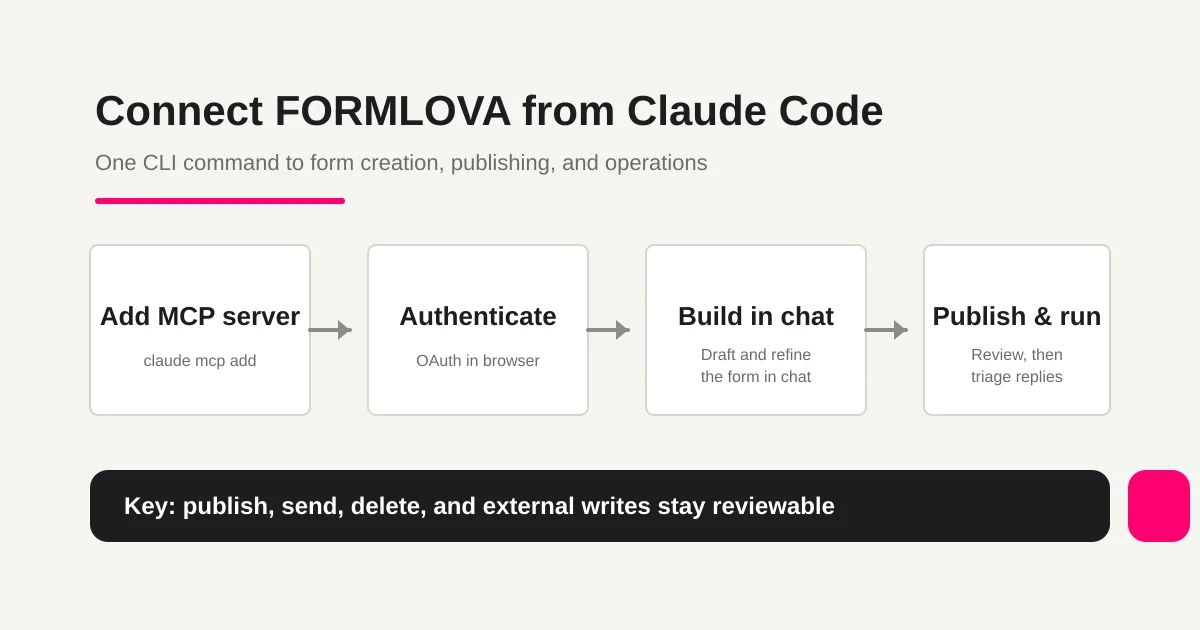
There are three things to do before Claude Code can build forms for you from the terminal.
- Run
claude mcp add --transport http formlova https://formlova.com/api/mcpwith a scope flag. - Open a Claude Code session in the same directory and trigger any FORMLOVA tool. A browser tab opens, you sign in to FORMLOVA, and approve the OAuth prompt.
- In the same session, say "Create a post-release feedback form." A private draft and a preview URL come back in the same reply.
That is it. The flow usually takes under five minutes because Claude Code supports remote MCP servers natively and FORMLOVA's authentication is OAuth-based. The rest of this guide is about choosing the right scope, refining the draft, passing the server-side publish review, and running the small operations that follow.
What claude mcp add Does -- And How It Differs From Claude Desktop
MCP stands for Model Context Protocol. It is an open standard that lets an AI client -- Claude in this case -- talk to outside systems through a well-defined interface. The model does not screen-scrape your form service; it calls named tools, receives structured results, and shows them back to you.
Claude Code is the CLI Claude client that lives inside your terminal. Its MCP management is concentrated in the claude mcp subcommand family: add, list, remove, get. Claude Desktop walks you through Settings > Connectors > Add custom connector in a GUI; Claude Code does the same thing as one line of shell.
The mechanical difference is small. The workflow difference is not. The terminal where you read CI output, run migrations, and open pull requests is also where you create the feedback form, edit the auto-reply email, and add a Slack notification rule. The IDE-to-CLI loop absorbs the form work without a context switch.
There is one more difference that does not exist on Claude Desktop. Claude Code lets you choose a scope for each MCP server -- project, user, or local. That single choice decides whether your team shares the connector through git, whether you carry it across every project on your machine, or whether the entry stays scoped to one project for your account. The deeper rationale for putting this work next to publish, not before it, is in Most form tools stop at creation.
Adding FORMLOVA to Claude Code
The steps below are the same on macOS, Linux, and Windows under WSL. Make sure the Claude Code CLI is on your PATH -- claude --version should print a version string. As of May 2026, Claude Code is available on Claude Pro and higher tiers; Anthropic adjusts plan availability from time to time, so check the official Claude Code overview if your tier looks different.
1. Confirm the FORMLOVA MCP Server URL
FORMLOVA exposes one URL for every MCP client.
https://formlova.com/api/mcp
No trailing slash. No /api/sse -- that was an older transport convention and is not the FORMLOVA endpoint. Whether you connect Claude Code, Claude Desktop, ChatGPT, Cursor, or Gemini CLI, this is the URL. If you do not have a FORMLOVA account yet, sign up on the FORMLOVA setup page first; the OAuth screen in the next step expects you to be able to sign in.
2. Run claude mcp add With a Scope
From inside the project directory, run:
claude mcp add --transport http formlova https://formlova.com/api/mcp --scope project
formlova is the server name shown in claude mcp list, https://formlova.com/api/mcp is the remote endpoint, --transport http tells Claude Code to speak streamable HTTP, and --scope project decides where the entry is written. Omit the flag and Claude Code defaults to --scope local, which keeps the entry private to your account inside the current project.
There is also an install helper for scripting setup across several clients at once:
npx -y formlova-mcp install --client claude-code --scope project --yes
It writes the same configuration the CLI would write -- convenient for CI scripts or onboarding docs.
3. Authorize the Connection with OAuth
After the command succeeds, exit any running Claude Code session in that directory and start a new one with claude. The first time you ask for a FORMLOVA tool -- "Create a post-release feedback form," for instance -- a browser tab opens automatically. Sign in to FORMLOVA, the OAuth approval screen lists the scopes Claude Code is asking for, click Authorize, and the tab closes itself. The next message in your Claude Code session sees the FORMLOVA tools.
Run claude mcp list to confirm. The line for formlova should report connected. The full surface is 151 tools across 24 categories -- forms, responses, analytics, emails, webhooks, workflows, recipes, and more -- but you do not need to memorize any of them. Claude picks the right tool from what you ask, and most days you touch only two or three.
Choosing a Scope -- project / user / local
This is the part of Claude Code that has no counterpart on Claude Desktop. The same claude mcp add command writes to a different file depending on the scope flag, and that file decides who else sees the connector.
--scope project writes the entry to .mcp.json at the project root, directly next to package.json or pyproject.toml. Commit it to git and every teammate who clones the repository sees the FORMLOVA connector the moment they run claude in that directory. The right choice for any form that belongs to the project itself.
--scope user writes the entry to ~/.claude.json in your home directory. Every project you open with Claude Code on this machine inherits the FORMLOVA connector. Use this for personal forms that travel with you: blog surveys, a portfolio feedback form, an event signup you run from your laptop.
--scope local is the default. It also writes to ~/.claude.json, but inside a per-project key, so the entry only appears when you are working in that one project. This is not a temporary or session-only mode -- it is a persistent setting scoped to both your account and the current project. Useful when you want a connector that does not follow you into other repositories and you also do not want to share it with teammates.
OAuth credentials are stored per-user regardless of scope. So even if you commit .mcp.json to git and the whole team uses the same project-scoped connector, every teammate signs in with their own FORMLOVA account on first use. Permissions stay separated even when the configuration is shared.
Your First Conversation -- Drafting a Form From the Terminal
Once the connector is live, talking to FORMLOVA looks nothing like a configuration file. Short prompts are enough.
Create a post-release feedback form.
Claude calls the FORMLOVA creation tool, picks a sensible starting field set, and returns a private draft plus a preview URL.
Created a private post-release feedback form draft.

Fields:
- Overall satisfaction (required, 5-point scale)
- Most valuable feature in this release (required, select)
- What would you like us to improve (optional, long text)
- Any bugs to report (optional, long text)
- Email for follow-up (optional)
- Consent to data use (required)

Preview URL: https://formlova.com/preview/...
Open the preview URL in a browser tab. Title, field order, required and optional badges, consent checkbox, submit button -- you see what a respondent will see. The terminal stays in view, your editor stays in view, and the preview tab updates in place as you ask for changes.
The refinement loop is short and specific.
Add a heading "About this release" above the satisfaction question.
Cap the "improve" field at 500 characters.
Add helper text under email: "Optional. Only fill in if you want a reply."
Each instruction lands as a tool call. Reopen the same preview URL to see the updated state. You are not designing the form in your head and writing a spec -- you are reacting to a live preview and only saying what is wrong. The general "from one prompt to a draft" workflow that works in any MCP client is in ChatGPT form builder guide -- create a private draft from one short prompt.
Reviewing the Preview Before Publishing
Asking Claude to publish does not publish the form immediately. FORMLOVA runs a server-side checklist, and if any blocking item is missing the response comes back with the gaps and preview URLs instead of a public URL.
Publish this form.
A typical first reply:
There are items to confirm before publishing.

- Preview URL: https://formlova.com/preview/...
- Thank-you page preview: https://formlova.com/preview/.../thankyou
- Duplicate submission prevention: not set
- Privacy policy URL: not set
- Sales-email auto-detection: not confirmed (text input fields present)
Open both preview URLs in separate browser tabs. Walk through the form as a respondent would, then check the thank-you page. When you have looked at both, return to the terminal and answer all the blocking items in one short message.
Both previews look good. Prevent duplicate submissions by email.
Privacy policy URL: https://example.com/privacy.
Enable sales-email detection.
Publish now.
Claude requests a confirmation token, the server validates the checklist, and the form publishes. The public URL comes back in the same reply. This handshake is enforced by the FORMLOVA server, so the publish call refuses to act on missing blockers regardless of what the client says. The full review flow with annotated screenshots is in Review a form before publishing.
Post-Publish Operations You Can Run From the Terminal
Most form tutorials end at the moment a form goes live. The actual work begins right after, when responses arrive and small operational tasks pile up. Claude Code keeps that work inside the same terminal session.
Filter and Triage Responses
When a release ships, responses arrive in bursts. Reading every row is rarely the right move. Ask Claude for a slice that fits the next decision.
Show this week's feedback with satisfaction of 3 or lower.
List only the responses that mention bugs and summarize them.
Exclude likely sales pitches and show only real feedback.
Each request returns a structured table in the terminal. Click into a single response, change its status, or add an internal note from the same chat. Because Claude Code lives in your dev environment, the jump from "interesting feedback" to "open a GitHub issue" stays in one thread. The See-Route-Act loop is covered in How to view, filter, and manage form responses.
Tune Auto-Reply Emails
On the standard plan and higher, auto-reply emails are fully customizable. For a post-release form, "Thanks for the feedback -- we will consider it for the next release" is usually the right tone.
Update this form's auto-reply to say
"Thanks for using the new release. We'll review your feedback for the next iteration."
Open with "Thanks for trying the release."
Sign it from the engineering team.
Send a test to my address when you're happy with it.
Claude shows the proposed copy as a preview and asks, "Save this version?" Nothing changes on the live form until you say yes. The preview-then-save handshake matters because a careless edit to an auto-reply is the kind of mistake every recipient sees in their inbox.
Add Automations from Workflow Place
When the request becomes "I want this to happen automatically," it is time to look at Workflow Place -- the shared catalog of FORMLOVA recipes. Some run entirely inside FORMLOVA; others orchestrate other MCP servers like Slack, HubSpot, or Notion.
Find a workflow recipe that posts new feedback responses to Slack.
Show me recipes that send a follow-up email three days after submission.
Claude lists candidates, you pick one, and the recipe's prompt template can be applied to your form. Because Claude Code is a CLI, the execution log stays alongside the rest of your work. The full reading order is in How to find and apply Workflow Place recipes from chat.
Treat Workflow Kickoff Like a Release Operation
Claude Code belongs close to releases, so it is tempting to let the terminal run every next step at once. Keep the same discipline you use for deployment: prepare first, apply after review.
| Terminal request | Claude Code should prepare | Human review before |
|---|---|---|
| "Notify Slack for each beta signup" | Field mapping and workflow recipe | Saving the active workflow |
| "Create follow-up emails for low scores" | Segment, draft copy, schedule proposal | Sending or scheduling email |
| "Open issues for responses mentioning bugs" | Summary and candidate issue text | Creating issues outside FORMLOVA |
| "Send qualified leads to CRM" | Contact payload and duplicate check | External CRM write |
The remote MCP connector gives Claude Code a real operations surface. That is exactly why write actions need explicit checkpoints: FORMLOVA can classify, summarize, route, and prepare the next action, while publish, send, delete, and external writes stay reviewable.
Claude Desktop vs Claude Code -- When to Use Each
If you use both clients, the question is not "which one is better." It is "which one belongs to which kind of work."
| Dimension | Claude Desktop | Claude Code |
|---|---|---|
| Input surface | GUI chat window | Terminal CLI |
| Adding the connector | Settings > Connectors > Add custom connector | claude mcp add one-liner |
| Configuration location | App-level, per machine | .mcp.json or ~/.claude.json (three scopes) |
| Team sharing | Each member adds their own | Commit .mcp.json to git |
| Best fit | Operators, non-engineers, general chat | Engineers, release work, IDE/CLI loops |
| Less suited for | Teams who want shared config | People who never open a terminal |
The connector, the URL, and the 151 tools across 24 categories are the same. What differs is how you reach the conversation and how you distribute the configuration. In practice, post-release feedback forms fit Claude Code under a project scope so the engineering team shares them, while general inquiry forms fit Claude Desktop because non-engineer teammates handle the responses. The GUI walkthrough is in Claude Desktop FORMLOVA Guide -- From Connector Setup to Form Operations.
Troubleshooting -- CLI-Specific Failure Modes
Most issues fall into a small set of buckets, different from the Claude Desktop ones. Check them in order.
claude mcp add says "command not found." The CLI is not on your PATH. Run which claude (or where claude on Windows); if it returns nothing, install Claude Code following the Anthropic instructions and reopen the terminal.
The command succeeds, but claude mcp list does not show formlova. The entry was probably written to a different scope than expected. Open both .mcp.json at the project root and ~/.claude.json in your home directory -- the entry is in one of them. If you intended project scope but ran the command outside the project directory, re-run with an explicit --scope project flag from inside the project root.
The OAuth screen never opens. A popup blocker is the most common cause. Allow popups for formlova.com and trigger a FORMLOVA tool again. If you are running Claude Code over SSH or in a headless container, the browser cannot open -- complete OAuth once on a machine with a browser, then either use that machine for FORMLOVA work or move the credential file as documented.
An "Unauthorized" error appears. Your OAuth session has expired or did not complete cleanly. Run claude mcp remove formlova, then claude mcp add again, and walk through OAuth one more time.
The tool list is empty or partial. Quit Claude Code and restart it. Tool discovery can take a moment after the first connection. If still incomplete after restart, remove the connector and add it again.
Claude replies in English even though you typed Japanese (or the reverse). That preference lives in your FORMLOVA profile. Say "Set my profile language to English" in chat and the next reply switches. The full list against the live product is on the FORMLOVA setup page troubleshooting section.
Plan Boundary -- What Each Tier Unlocks
The connector works on every FORMLOVA plan, including the free one. Differences show up in what the tools can do after you connect. Prices are in JPY because FORMLOVA bills in JPY; your bank handles the conversion if you pay from another currency.
| Capability | free (¥0) | standard (¥1,480/month) | premium (¥3,980/month) |
|---|---|---|---|
| Connect Claude Code via MCP | Yes | Yes | Yes |
| Form creation, preview, and publish | Yes | Yes | Yes |
| Response list, search, and CSV / Excel export | Yes | Yes | Yes |
| Customize auto-reply emails | No | Yes | Yes |
| Reminder emails | No | Yes | Yes |
| Advanced analytics, traffic analysis, PDF reports | No | Yes | Yes |
| Bulk email to mailing lists | No | No | Yes |
| Stripe Connect (paid events) | No | No | Yes |
| Team management and audit logs | No | No | Yes |
| Monthly email send limit | 100 | 1,000 | 10,000 |
The free plan covers the full end-to-end evaluation: create a feedback form, run the publish review, collect responses, export to CSV, triage from the terminal. Most teams upgrade to standard the first time they want to rewrite the auto-reply email or schedule reminders. Premium comes in when bulk sends, paid events, or shared audit logs arrive. There is no need to commit before those tasks show up in your operations.
Related Workflows You Can Use
After Claude Code creates and reviews the form, Slack Notification + Sheets Log is the fastest operational route to add from the same terminal workflow. It gives the team a live notification and a structured record without asking someone to watch the dashboard manually.
For follow-up-heavy forms, add Unhandled Response Reminder or AI Response Report. Those recipes turn the CLI setup into an actual post-publish operating loop.
FAQ
Should I use project, user, or local scope?
Pick project if the form belongs to the team -- .mcp.json at the project root can be committed to git so every teammate sees the connector after cloning. Pick user if the form is yours and is not tied to one repository -- the entry in ~/.claude.json follows you everywhere. Pick local (the default) when the form is yours and you want it scoped to one project only; it also lives in ~/.claude.json, but inside a per-project key. OAuth credentials are stored per-user regardless of scope, so shared configuration never means shared permissions.
Will adding FORMLOVA interfere with my other MCP servers?
No. Claude Code supports multiple MCP servers side by side, and claude mcp list shows them all with their own status. If you already have GitHub, Supabase, or a database MCP server registered, they keep working unchanged. Claude routes each request to the right server based on the conversation.
Where exactly does each scope write the config?
--scope project writes to .mcp.json at the project root (no .claude/ directory). --scope user writes to ~/.claude.json in your home directory. --scope local, the default, also writes to ~/.claude.json but inside a per-project key so the entry only appears for that one project. Knowing the exact file lets you inspect or move entries by hand.
Does claude mcp add touch my shell config files?
No. claude mcp add writes only to .mcp.json or ~/.claude.json. It does not modify .zshrc, .bashrc, .profile, or any other shell startup file. No new environment variables, no PATH changes, no aliases. Your existing dotfiles are untouched.
Can I use Claude Code with FORMLOVA in CI environments?
Not as a recommended workflow. The current MCP authentication requires a browser-based OAuth flow, which is interactive by nature. Moving authenticated state into CI has both an expiry problem -- tokens rotate -- and a security problem. For non-interactive automation that needs to talk to FORMLOVA from CI, use a separate FORMLOVA-supported approach designed for that environment rather than carrying an OAuth session across machines.
Can Claude Code publish a form or send a bulk email without my approval?
No. Any operation with real-world impact -- publish, unpublish, delete, send bulk email, send a filtered reply -- is gated server-side. FORMLOVA returns a confirmation token request and refuses to act unless the request carries explicit approval. The protection is enforced by the FORMLOVA MCP server, not by the model's prompt, so it works even if Claude misreads your message.
Related Articles
- MCP Form Service Guide -- From AI Creation to Form Operations
- Claude Desktop FORMLOVA Guide -- From Connector Setup to Form Operations
- Cursor FORMLOVA Guide -- From IDE MCP Setup to Form Creation, Publishing, and Operations
- FORMLOVA with ChatGPT Guide -- Developer-Mode Custom Connector to Form Operations
- FORMLOVA with Gemini CLI Guide -- One
gemini mcp addCommand to Form Operations - ChatGPT Form Builder Guide -- Create a Private Draft Form From One Short Prompt
- Review a Form Before Publishing with FORMLOVA
- Find a Recipe in Workflow Place and Set It Up From Chat
References
- Anthropic: Claude Code -- Model Context Protocol (accessed 2026-05-18)
- Anthropic: Claude Code overview (accessed 2026-05-18)
- Model Context Protocol: Introduction (accessed 2026-05-18)
- FORMLOVA setup guide (accessed 2026-05-18)
Disclosure and Verification
This guide is written by the FORMLOVA development team. The Claude Code connection steps were verified against Anthropic's official Claude Code MCP documentation, the Model Context Protocol specification, and the FORMLOVA setup page on May 18, 2026, then walked through end to end against the live product before publication. Claude Code's subcommand surface, remote MCP availability, and configuration file paths can change on Anthropic's side without notice; before adopting this workflow for production use, confirm the current state in the linked Anthropic documentation.