
Last updated: 2026-05-13
Google Forms connected to Google Sheets, with Apps Script adding a Slack notification or auto-reply, is a very reasonable starting point.
The problem is not that this stack is weak. The problem is that it works well enough to absorb more and more operational responsibility.
First the form collects responses. Then the Sheet becomes the shared view. Then Apps Script sends a notification. Then someone adds an owner column, a status column, an exclusion rule, a retry log, an auto-reply condition, a weekly report tab, and a Slack channel rule.
At that point, the question is no longer "Can Google Forms collect the response?"
The question is:
Where does the operation actually live?
This article is a decision guide for teams using Google Forms, Google Sheets, and Apps Script. It is not a code tutorial. It explains when the stack is enough, where it starts to become a small operations system, and how to separate notifications, auto-replies, Sheets, ownership, and response status before the workflow becomes hard to maintain.
The short answer
Before adding more Apps Script, decide the source of truth.
| Decision | Google Forms + Sheets + Apps Script is usually fine | Consider separating the operations layer |
|---|---|---|
| Response record | One Sheet is enough | The response is split across Sheets, Slack, tabs, and notes |
| Notification | Notify every response or a few simple categories | Category, priority, owner, and exclusion rules keep changing |
| Auto-reply | One fixed receipt is enough | Different responses need different copy, logs, and failure checks |
| Status | One person updates a few rows manually | New, in progress, done, excluded, and owner are team workflow states |
| Ownership | One small team watches the Sheet | Multiple people or teams need assignment rules |
| Reporting | Filters or pivots are enough | Exclusions, unresolved counts, conversion reports, and weekly views matter |
| Maintenance | The script owner is available and the rules are stable | The person who wrote the script is no longer the only operator |
If the right-hand column is becoming normal, you do not necessarily need to abandon Google Forms.
You do need to stop treating the form, Sheet, script, notification, and status as one undifferentiated system.
How this page fits the rest of the cluster
Several FORMLOVA articles touch the same area, so the boundary matters.
| If you want to know... | Read this |
|---|---|
| Whether Google Forms + Sheets + Apps Script is still enough | This article |
| How to send Google Forms responses to Slack, Sheets, Gmail, or Trello | How to Send Google Forms Responses to Slack |
| Why Google Forms auto-replies are not delivered | Google Forms Auto-Reply Not Delivered |
| How to make a booking form in Google Forms | How to Make a Booking Form in Google Forms |
| How to set up form auto-reply emails | How to Set Up Form Auto-Reply Emails |
| How response status should work | How to View, Filter, and Manage Response Status |
| How CSV export and Google Sheets sync fit | Export Form Responses to CSV or Google Sheets |
| How form automation fits together | How to Start Form Automation with FORMLOVA |
This page owns the decision boundary. The linked pages own implementation details.
When Google Forms + Sheets is enough
Google's own help center shows the basic response-management path clearly: view responses in Forms, view all responses in a spreadsheet, download responses as CSV, turn new-response notifications on or off, stop collecting responses, collect email addresses, and send responders a copy of their response when the required email settings are in place.
That is already enough for many workflows.
For internal surveys, lightweight event signups, school or community intake, simple feedback forms, and low-volume requests, the simple version is often the most pragmatic option.
Someone submits the form.
The response lands in Google Sheets.
One person or a small team checks the Sheet.
If needed, they filter or export the data.
There is no need to move to a dedicated response-operations tool just because a workflow uses Google Forms.
I would keep the Google Forms + Sheets setup when these conditions are true:
| Condition | Why it matters |
|---|---|
| Volume is low | Manual review is still reliable |
| The response fields are stable | Script and reporting logic are unlikely to break |
| One team owns the workflow | There is little ambiguity about who replies |
| The Sheet is an acceptable source of truth | Everyone knows where to look |
| Auto-replies are simple | A fixed receipt or response copy is enough |
| The script owner is known | Someone can fix triggers, webhooks, and quotas |
The point is not to replace a stack that is still working.
The point is to notice when the stack has become something else.
Five signs the workflow has become operations
The stack usually becomes heavy in small steps, not one dramatic failure.
Here are the signs I watch for while building FORMLOVA and writing about form operations.
| Sign | What it means | Risk |
|---|---|---|
| Columns keep appearing | The Sheet is no longer just response storage | Renaming or moving a column becomes a system change |
| Apps Script grows quietly | Notification, auto-reply, routing, exclusion, and reporting rules live in code | Only the original maintainer understands the workflow |
| Slack gets noisy | Notification is being used as the workflow surface | Important responses become easy to miss |
| Status words are informal | "New", "handled", "done", and "excluded" mean different things to different people | Missed follow-up and duplicate replies |
| Reporting tabs multiply | Every question creates another view | Nobody knows which number is the reliable one |
None of these signs mean Google Forms is bad.
They mean the team has moved from response collection into response operations.
Response operations are the work after submission:
- deciding whether a response needs action
- notifying the right person
- assigning an owner
- sending or checking an auto-reply
- moving the status forward
- excluding test or sales-pitch submissions from reporting
- reviewing unresolved responses later
- proving what happened when someone asks
That work can live in Sheets and Apps Script for a while. But if it lives there, it needs the same seriousness as any other operational system.
Apps Script is useful, but it hides rules easily
Apps Script can run on form-submission events through installable triggers. UrlFetchApp.fetch() can send HTTP requests. Slack Incoming Webhooks can post JSON payloads to a selected channel through a generated webhook URL.
That makes a very practical first automation:
Form submitted
-> Apps Script trigger
-> UrlFetchApp
-> Slack Incoming Webhook
-> Channel notification
That is useful.
The issue begins when the code stops being a notification helper and becomes the workflow brain.
If the inquiry type is pricing, notify sales.
If the free text looks like a sales pitch, do not notify.
If the category is hiring, send a different auto-reply.
If the response is urgent, add a special status.
If Slack failed, write an error into the Sheet.
Each rule is small. Together, they define the operation.
That is where teams get into trouble. The Sheet looks like the system, but the real behavior is inside Apps Script. The Slack channel looks like the handoff, but the actual status may still be blank. The auto-reply looks like confirmation, but nobody may be checking whether it sent.
If you keep this setup, make three things visible outside the script:
| Make visible | Why |
|---|---|
| Trigger conditions | The team should know which responses cause actions |
| Failure checks | A failed notification or auto-reply should not disappear |
| Change ownership | Someone must know who can edit columns, scripts, triggers, and webhook URLs |
The best Apps Script workflows are not just clever code. They are maintainable operations.
Slack notification is awareness, not ownership
Sending a form response to Slack is often the first improvement because it produces an immediate feeling of progress.
The channel lights up. The team sees the inquiry. Nobody has to keep refreshing the Sheet.
But a Slack message is only awareness.
These are different states:
Posted to Slack
Read by someone
Assigned to someone
Reply started
Reply completed
Excluded from reporting
When those states are not modeled, a response can still leak through the process.
A composite example:
A pricing inquiry appears in Slack. One teammate adds an emoji reaction. Another teammate assumes that means the inquiry is being handled. Later, during a weekly review, the same response is still in the Sheet with no owner and no reply. The notification worked. The operation failed.
That is why the Slack message should usually link back to a record and include an initial status or owner when possible.
For the implementation side, use the dedicated form response Slack notification guide. For this decision page, the rule is simpler:
Slack is where the team notices the response. It should not be the only place where the response exists.
Auto-reply is product state, not just email copy
Auto-reply emails are easy to underestimate because they look like copywriting.
But in form operations, an auto-reply is part of product state.
It tells the sender:
- the submission was received
- what happens next
- whether they should wait, reply, book, pay, or prepare something
- which address or person will contact them
For the operator, the important questions are operational:
| Question | Why it matters |
|---|---|
| Which field is the recipient? | The email address may be verified, user-entered, or malformed |
| Which responses receive it? | Not every submission should get the same message |
| Was it sent? | A receipt nobody checks is weak confirmation |
| What happens on failure? | The team needs a way to notice and recover |
| Can the copy change safely? | Copy changes can alter expectations and support load |
Google Forms can send responders a copy of their responses when the relevant email collection and response-copy settings are used. For custom receipts, teams often use Apps Script, add-ons, or a form service with auto-reply features.
The implementation choice matters less than the boundary:
Do not treat the auto-reply as just text. Treat it as a state transition from "submitted" to "acknowledged".
The setup details live in How to Set Up Form Auto-Reply Emails.
Status needs a definition, not just color
The operational failure that matters most is not always "the form did not receive the response."
Often it is:
The response arrived, but nobody handled it.
That is why response status exists.
A small workflow may only need four statuses:
| Status | Meaning |
|---|---|
| New | Nobody has taken responsibility yet |
| In progress | Someone is actively handling it |
| Done | The reply or work is complete |
| Excluded | Test, sales pitch, duplicate, or out of scope |
The important part is not the labels. It is the definition behind each label.
If "done" means "someone saw the Slack message" to one person and "the customer received a reply" to another, the status is not a reliable operational signal.
In Sheets, this can start as a column. That is fine. But as soon as multiple people use the status column, define:
- who can change status
- when each status changes
- whether excluded responses affect reporting
- how unresolved responses are reviewed
- where the team sees the current owner
If the team wants that directly in the form service, see the response status guide.
A checklist before you keep everything in GAS
Keeping Google Forms + Sheets + Apps Script is a valid decision when the team understands the contract.
Before you continue, write down the answers to these questions.
| Question | Good enough answer |
|---|---|
| What is the source of truth? | Google Sheets, the form service, CRM, or another named system |
| Which columns are operational? | Status, owner, notified_at, last_error, excluded, reply_at |
| Who can edit those columns? | Named roles, not "anyone with access" |
| Who owns Apps Script? | A person or team that can fix triggers and errors |
| Where are secrets stored? | Not in public code, screenshots, or shared docs |
| How are failures reviewed? | Execution logs, error columns, alerts, or periodic checks |
| What counts in reports? | Clear inclusion and exclusion rules |
| What happens when the maintainer leaves? | A handoff doc and access model exist |
If those answers feel too heavy for the form, the workflow probably does not need much automation.
If those answers are required for the form to run safely, then the form has become operational infrastructure.
When to separate the operations layer
I would consider separating the operations layer when at least two or three of these are true:
| Situation | Why separation helps |
|---|---|
| Response status is business-critical | Status should be visible and auditable, not hidden in a color or note |
| Multiple people handle responses | Ownership needs to be explicit |
| Notifications are conditional | Rules need to be visible and changeable |
| Auto-replies vary by response | Copy, send history, and failure checks matter |
| Some responses should be excluded | Analytics and reporting need stable definitions |
| The workflow is customer-facing | Missed replies have real business cost |
| The script owner is a bottleneck | Operations should not depend on one person remembering how the Sheet works |
This does not always mean replacing Google Forms immediately.
It may mean:
- keeping Google Forms for intake
- keeping Sheets for export and shared review
- moving status and ownership into a dedicated response-management surface
- moving notifications and auto-replies into rules that are visible to operators
- keeping Apps Script only for simple side effects
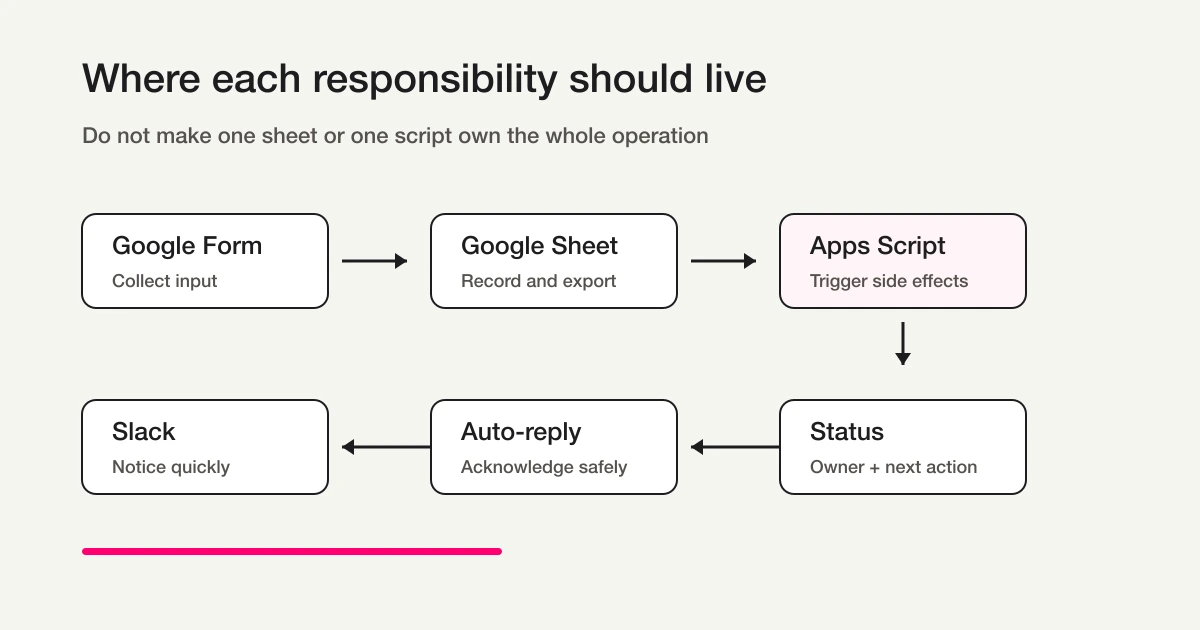
The migration path does not have to be dramatic. The important move is conceptual: separate intake, record, notification, acknowledgement, ownership, status, and reporting.
Why FORMLOVA separates these responsibilities
FORMLOVA is not built around the idea that every team must stop using Google Forms.
The premise is more specific:
Many forms are easy to create, but the work after submission is where teams start to lose clarity.
So FORMLOVA treats the response as an operational object, not only a row.
The form collects input.
The response list shows the current state.
Status explains the next action.
Notifications create awareness.
Auto-replies acknowledge the sender.
Sheets remains useful for export and analysis.
Chat and MCP workflows help operators ask for changes without hunting through settings.
That separation is the product lesson behind this article.
If a team only needs a simple collection form, Google Forms may be the better default. If the team needs ownership, filtered notifications, response status, auto-replies, exclusions, reports, and chat-driven operations, then the problem is no longer just form creation.
It is response operations.
Related Workflows You Can Use
If you want to keep the useful parts of Google Forms, Sheets, and Apps Script while making the route explicit, start with Slack Notification + Sheets Log. It turns a new response into both a Slack summary and a Google Sheets operations row.
If ownership and unresolved responses matter, Weekly Inquiry Status Report helps the team review what is still open. For periodic summaries, AI Response Report turns response content into an internal report.
Final decision table
Use this as the closing check.
| What you need | Likely fit |
|---|---|
| Collect simple responses | Google Forms alone may be enough |
| Store and review in a table | Google Forms + Google Sheets |
| Send a basic Slack notification | Apps Script, an add-on, or a form-service notification |
| Send a fixed receipt | Google Forms response copy, Apps Script, or auto-reply feature |
| Manage owner, status, exclusions, and follow-up | Response operations layer |
| Ask for response changes, reporting, and workflows from chat | FORMLOVA-style form operations |
The practical rule is:
Keep Google Forms + Sheets + Apps Script when the workflow is simple and maintainable.
Separate the operations layer when the Sheet and script have become the system that decides what happens next.
Read next
-
How to Delete Google Forms Responses and Check Both Storage Locations
-
Google Forms Date and Time Questions: Choose the Right Input
-
Print a Google Form or Save It as PDF: What to Check Before Sharing
-
Google Forms Grids: Rows, Columns, and Answer Rules Explained
-
Google Forms Response Validation: Rules, Examples, and Boundary Tests
-
How to Create a Google Forms Prefilled Link and Check It Before Sharing
-
How to Embed a Google Form and Check That Visitors Can Submit It
After assigning operational responsibilities, apply the actual permissions with the Google Forms response-sharing guide.
-
Google Forms Conditional Logic -- Section Branching, Testing, and Limits
-
How to Set a Google Forms Close Date or Response Limit -- Current 2026 Steps
-
How to Make Google Forms Responses Anonymous -- Settings, Identity Risks, and Verification
-
How to Use Google Forms -- Create Questions, Collect Responses, and Understand the Limits
-
Google Forms Multiple Answers -- Checkboxes, Selection Limits, and Analysis
Official sources checked
- Google Docs Editors Help: View & manage form responses
- Google Apps Script: Installable triggers
- Google Apps Script: UrlFetchApp
- Google Apps Script: Quotas for Google Services
- Slack Developer Docs: Sending messages using incoming webhooks
Disclosure and Verification
This article is written for teams using Google Forms with Google Sheets and Apps Script. The author is the developer of FORMLOVA. Google Forms, Apps Script, and Slack documentation were checked on May 13, 2026. Quotas, trigger behavior, email delivery behavior, and Slack webhook behavior can change, so confirm the current official documentation before implementing production workflows.