
Last updated: July 2, 2026
To download Google Forms responses as CSV, open the form, go to Responses, click the More menu, and choose Download responses (.csv). This is the same menu path documented in Google's official help.
If you want the live spreadsheet path instead, use Responses -> View in Sheets.
The harder question is what happens after the download. Excel may misread encoding. A CSV file does not update when new responses arrive. Shared files become hard to version. And once several people need to track response status, a downloaded file stops being an operating system.
This guide covers the Google Forms CSV export flow, when to use the official Google Sheets path instead, common CSV issues, response-volume caveats, and how FORMLOVA handles exports and response management when CSV is no longer enough.
If you only need the FORMLOVA-specific steps, read Export Responses to CSV or Sync Them to Google Sheets. This article starts from the Google Forms search intent.
If CSV export has become a weekly task, start free with FORMLOVA to test response search, status management, and exports before rebuilding the whole workflow. If you want to operate exports and response review from an AI client, use the FORMLOVA setup guide.
The Menu Path in One Screen
Use these steps when you only need the current Google Forms response data as a file:
Google Forms
-> open your form
-> Responses
-> More
-> Download responses (.csv)
Use the Sheets route when you want the response table to keep updating:
Google Forms
-> open your form
-> Responses
-> View in Sheets
This article is not Google Support. It gives the official menu path, then covers the practical issues the official help page cannot solve for your team: Excel encoding, repeated exports, response limits, permissions, status tracking, and the point where CSV becomes too weak for day-to-day operations.
Quick Answer: Use CSV for One-Time Export, Sheets for Ongoing Tracking
Google Forms gives you two common ways to move responses into a table workflow.
| Method | Best for | Watch out for |
|---|---|---|
| CSV download | Exporting the responses you have right now | The file is static, and Excel may misread encoding |
| Google Sheets connection | Tracking incoming responses in a shared table | Form and sheet permissions need to be managed together |
The official help path answers the first click. It does not fully answer what to do with the file after export.
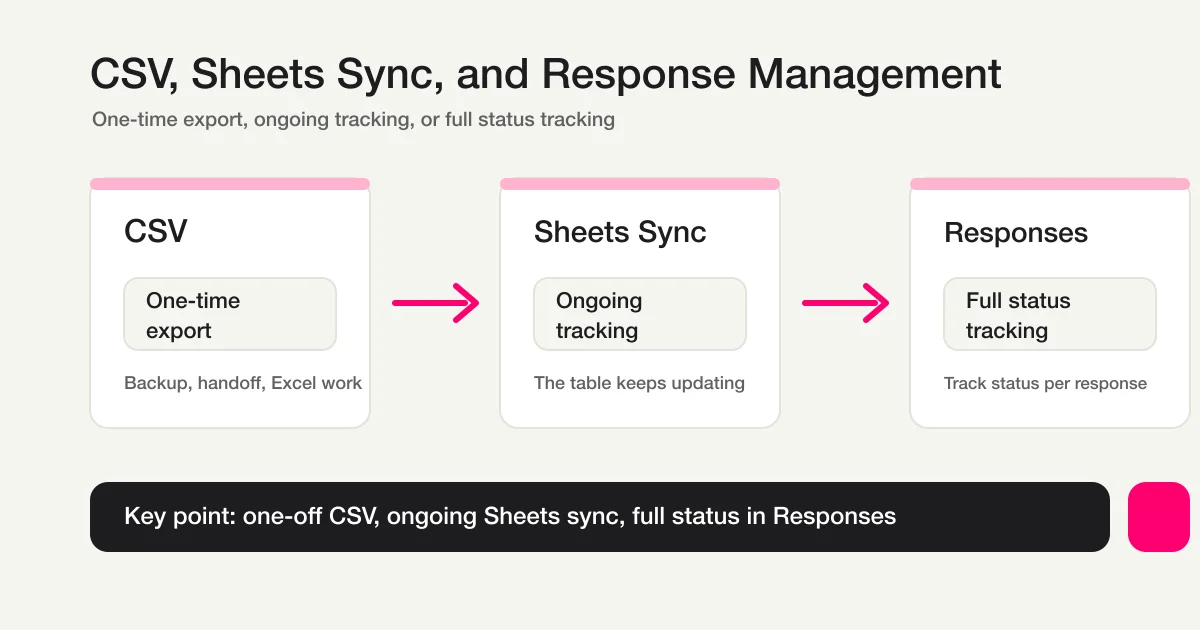
CSV is a snapshot. It is useful for backups, handoff, Excel work, external imports, and one-off analysis.
Google Sheets is a live working surface. It is useful when a team wants to filter, calculate, chart, and share the same response table over time.
Neither is universally better.
Use CSV when you need a file. Use Google Sheets when responses will keep arriving. Use response status management when the real problem is not exporting data but tracking what happened to each submission.
If the Sheet is also gaining Apps Script, Slack notifications, auto-replies, owner columns, and status rules, the problem is no longer just export. Use Google Forms + Sheets + Apps Script Operations to decide where the source of truth should live.
If You Searched for "Google Forms CSV Export Official Help"
Search Console shows that most readers are not only asking for "CSV export." They are asking for the official Google Help or official support path.
Use this table to match the query to the answer.
| Search phrase | Direct answer | What to check next |
|---|---|---|
| google forms download responses csv official help | Responses -> More -> Download responses (.csv) | Open the file safely in Excel or Sheets |
| google forms export responses csv official support | Same CSV download path in Google Forms | Remember that CSV is a snapshot, not a live sync |
| google forms export responses to google sheets official help | Responses -> View in Sheets | Confirm form and spreadsheet permissions separately |
| google forms export responses to spreadsheet csv official help | Use Sheets for the live table, CSV for the file snapshot | Decide whether the team needs a working table or a handoff file |
| how to export google forms responses to csv | Open the form, click Responses, then Download responses (.csv) | Check response volume and timestamp sorting if the form is large |
That official path is enough when you need a file once.
It is not enough when you need ownership, status, repeated exports, unresolved-response review, or a reliable weekly operations table.
How to Download Google Forms Responses as CSV
Google's official help explains how to download responses as a CSV file from the Responses screen.
The flow is:
1. Open the form in Google Forms.
2. Click Responses.
3. Click the More icon.
4. Click Download responses (.csv).
That exports the current response data as a CSV file.
CSV is a plain text table format. You can open it in Excel, Google Sheets, Numbers, a database tool, a CRM, or a BI tool. It is also a simple backup format.
The limitation is just as important: a CSV file is not live. If new responses arrive after export, the file does not update. To get the latest data, you export again.
That is the main difference between CSV export and Google Sheets connection.
How Google Forms Connects Responses to Google Sheets
Google Forms can also show responses in Google Sheets.
In the official Google Forms response view, you can click View in Sheets from the Responses tab. That creates or opens a linked spreadsheet for form responses.
Think of the difference this way:
CSV: export the current data as a file
Sheets: work with responses in a live spreadsheet
Google Sheets gives you filters, formulas, charts, sharing, permissions, and secondary analysis tabs. It is often better for attendee lists, contact requests, survey summaries, and operational review.
But permissions matter. Google's help notes that collaborators on a form may also have access to the linked response spreadsheet. If you remove a collaborator, you may need to remove access from both the form and the spreadsheet.
Treat the form and the response sheet as separate permission surfaces.
Common CSV Problems: Encoding, Mojibake, Dates, and Versioning
Google Forms CSV export is useful, but practical issues appear in real workflows.
| Problem | When it happens | Safer approach |
|---|---|---|
| Garbled characters | Excel opens a UTF-8 CSV with the wrong assumptions | Import as UTF-8 or open in Google Sheets |
| Date or number changes | Excel guesses data types automatically | Use the text/CSV import flow and review column types |
| Version confusion | The team downloads and shares multiple files | Put timestamps in filenames or move to Sheets |
Encoding is the common issue for non-English responses.
Microsoft's support documentation explains that UTF-8 CSV files open correctly in Excel when saved with a BOM, and Excel also provides import flows for text/CSV files. In practice, double-clicking a CSV is less controlled than importing it.
A safer workflow:
Keep the original CSV unchanged.
Open it in Google Sheets, or import it into Excel as text/CSV.
Check character encoding, date columns, and email columns before saving.
Do not overwrite the original file after opening a garbled version. Keep a clean copy.
How to Diagnose Mojibake in Excel, Sheets, and Legacy Systems
When a Google Forms CSV looks garbled, assume the file was opened with the wrong encoding before assuming the export is broken.
For multilingual or Japanese responses, the practical issue is often UTF-8 versus Shift_JIS.
| Where you open it | First thing to try | Notes |
|---|---|---|
| Excel on Windows | Use Data import / Text or CSV import instead of double-clicking | Choose UTF-8 when the import flow offers encoding |
| Excel on Mac | If direct open garbles the file, use import or open it in Google Sheets first | Behavior can vary by Excel version, so do not rely on double-click testing only |
| Google Sheets | Open the CSV in Sheets and confirm whether the characters are readable | If Sheets reads it correctly, the CSV is probably fine and Excel is the weak link |
| Legacy internal system | Check whether the destination expects Shift_JIS | Convert only a copy when the receiving system requires Shift_JIS |
Keep the original Google Forms CSV untouched.
Create a working copy before conversion. If you save a garbled file over the original, the recovery path gets harder.
Use this order:
1. Keep the original CSV.
2. Open it in Google Sheets to confirm the characters.
3. In Excel, import it as UTF-8 instead of double-clicking.
4. If the destination system expects Shift_JIS, create a converted copy.
5. Check dates, postal codes, phone numbers, and leading zeros after import.
Shift_JIS conversion is usually for older internal systems or business tools that require it. Do not make Shift_JIS the default just because Excel once displayed mojibake. If Google Sheets reads the file correctly, keeping UTF-8 is often safer.
Also separate encoding from type conversion. Phone numbers, postal codes, member IDs, and other values with leading zeros can break even after the encoding is fixed because Excel guesses data types. Review column types during import.
Response Volume Caveats in Google Forms
Google Forms works well for many everyday forms, but response volume can affect parts of the response UI.
Google's official help lists several volume-related caveats:
| Response volume | Possible behavior |
|---|---|
| Over 10,000 responses | Individual views may not appear, and CSV downloads may not sort by submission timestamp |
| Over 50,000 responses | Response summaries may not appear |
| Over 100,000 responses | Responses may not sync with Sheets |
This does not matter for every form.
But if the form is tied to a campaign, school, event, hiring process, government intake, or high-volume survey, decide early how response data will be handled.
CSV is strong for extraction. It is weak for action tracking. Once the question becomes "who is unhandled, who was replied to, who should be routed to sales, and which entries should be excluded from reports," files become the wrong level of abstraction.
Export CSV, Excel, or JSON in FORMLOVA
FORMLOVA supports CSV / Excel exports on every plan.
The Free plan can create forms, collect unlimited responses, view responses, search responses, update status, and export CSV / Excel. The design principle is simple: response data should not be locked behind a paid tier.
You can ask:
Export this form's responses as CSV.
For spreadsheet handoff:
Export the attendee list as Excel.
For developer workflows:
Export the response data as JSON.
CSV is lightweight. Excel is familiar for internal handoff. JSON is useful for developer workflows and external processing.
The practical FORMLOVA walkthrough is covered in Export Responses to CSV or Sync Them to Google Sheets.
Use Google Sheets Sync When Manual CSV Becomes Repetitive
If you export CSV files daily, weekly, or after every event, that is a signal.
FORMLOVA Google Sheets sync is available on Standard or higher. Standard is 480 JPY per month.
Use this model:
One-time file handoff: CSV / Excel / JSON export
Ongoing table workflow: Google Sheets sync
Operational tracking: response search and status management
Google Sheets sync helps the team look at a shared table without re-exporting files.
But a spreadsheet is not always the best place to manage every action. Columns can be overwritten. Formulas can break. Sharing can become too broad. Personal data can be copied into uncontrolled files.
That is why it helps to separate the jobs:
| Goal | Best fit |
|---|---|
| Send a one-time file | CSV / Excel |
| Keep a shared table updated | Google Sheets sync |
| Track handled and unhandled responses | FORMLOVA response status |
| Filter, exclude, and analyze responses | FORMLOVA search and analytics |
Exports and sync move data. Status management tracks work.
If your real problem is no longer the CSV file but the weekly work around it, start free with FORMLOVA and test one live form with response search, status, CSV export, and Sheets handoff. To see the MCP operating flow before signing up, view the MCP demo.
When to Move Beyond CSV Management
CSV management is fine when:
Response volume is low.
You only need one final export.
You must send a file externally.
You need a simple backup.
You plan to analyze in Excel or another BI tool.
CSV becomes weak when:
New responses arrive every day.
Several people need to work from the same data.
You need handled and unhandled states.
You need to exclude spam or sales pitches.
You need respondent-level follow-up history.
Nobody knows which file is the latest.
At that point, improving the file workflow is not enough. The response workflow needs structure.
FORMLOVA separates response search, status management, tags, CSV / Excel export, and Google Sheets sync. For the operating workflow, read View, Filter, and Update Response Status and the FORMLOVA Form Automation Guide.
Related Workflows You Can Use
When CSV export becomes a repeated task, Slack Notification + Sheets Log is the natural Workflow Place replacement. New responses are shared immediately and stored in Sheets without waiting for someone to download a file.
For teams reviewing response backlogs, add Weekly Inquiry Status Report or AI Response Report. Those routes keep the spreadsheet useful as an operating record instead of a static archive.
FAQ
Can I download Google Forms responses as CSV?
Yes. Open the form in Google Forms, go to Responses, click the More icon, and choose Download responses (.csv).
Where is the official Google Forms CSV export help?
Google documents CSV export on its "View & manage form responses" help page. The article explains that you open the form, click Responses, open the More menu, and choose Download responses (.csv). It also explains the View in Sheets path.
Why does my Google Forms CSV look garbled in Excel?
Most often, Excel is reading the CSV with the wrong encoding assumptions. Keep the original file, open it in Google Sheets or import it into Excel as text/CSV, and verify UTF-8 handling before saving.
Should I use CSV export or Google Sheets for form responses?
Use CSV for a one-time export or backup. Use Google Sheets when responses will keep arriving and the team needs a shared table. Use response status management when you need to track action on each submission.
Does FORMLOVA export responses on the Free plan?
Yes. FORMLOVA supports CSV / Excel export on every plan. Google Sheets sync is available on Standard or higher.
Can I import Google Forms responses into FORMLOVA?
The usual path is to export or prepare the data first, then map it to the destination format. FORMLOVA supports JSON response import, but you should review field names, field types, consent records, and personal data before importing.
References
- Google Docs Editors Help: View & manage form responses
- Microsoft Support: Opening CSV UTF-8 files correctly in Excel
- formrun: 収集したフォーム回答データを出力する
- Jotform: Google Sheets Integration
Read Next
When stakeholders need a current view instead of a fixed export, compare summary, collaborator, and view-only Sheet access in the Google Forms response-sharing guide.
- Export Responses to CSV or Sync Them to Google Sheets
- View, Filter, and Update Response Status
- FORMLOVA Form Automation Guide
- Google Forms + Sheets + Apps Script Operations
- Google Forms Alternative: Compare 3 Form Services
- How to Set Up Form Auto-Reply Emails
Start free with FORMLOVA | Open the FORMLOVA setup guide | View the MCP demo
Disclosure and Verification
This guide was written after checking official information from each service. The author builds FORMLOVA. Google Forms response export, Google Sheets connection, response-volume caveats, and Excel UTF-8 CSV handling were checked against official sources on June 18, 2026. Pricing, features, and export options may change, so check each service's official pages before making a decision.
Related Articles
- FORMLOVA Form Automation Guide -- Auto-Replies, Routing, Sheets Sync, and MCP Operations
- Google Forms + Sheets + Apps Script Operations -- Where Notifications, Auto-Replies, and Status Should Live
- How to Send Google Forms Responses to Slack -- Sheets, Gmail, Trello, and Follow-Up Design
- Post-Submit Workflow: What Should Happen After a Form Submission
- Form Auto-Reply Email Examples -- Templates for Contact Forms, Downloads, Webinars, and Applications
- View, Filter, and Update Response Status with FORMLOVA