
Last updated: June 26, 2026
A form auto-reply can be enabled and still fail to arrive in the inbox.
The issue may be the recipient field, Google Forms response receipt settings, an Apps Script trigger, authorization, daily email quota, spam filtering, or a form-service setting that was never tested with a real submission.
This guide explains how to set up a useful form auto-reply email, how to decide the recipient, subject, body, and reply-to, how to preview and test the message, and how FORMLOVA keeps the setup and workflow checks together.
If your immediate problem is that a Google Forms response receipt or Apps Script email is not arriving, start with Google Forms Auto-Reply Not Delivered: What to Check First. This page is the parent setup guide, not the detailed Google Forms delivery diagnostic.
If you already know the setup path and only need reusable copy, read the Form Auto-Reply Email Examples guide. This article focuses on setup decisions.
Quick Answer: Google Form Auto Response vs Custom Auto-Reply
If you searched for "google form auto response" or "google form auto reply email," first separate two features.
Google Forms can send respondents a copy of their submitted answers when email collection and response receipts are configured. That is useful as a response receipt.
It is not the same as a custom auto-reply email with your own subject, body, reply-to address, resource links, conditional text, or workflow state.
Use this split:
| Need | Use |
|---|---|
| Send a copy of the submitted answers | Google Forms response receipt |
| Email the form owner when a new response arrives | Google Forms new-response notification |
| Send custom confirmation copy from Google Forms | Apps Script, an add-on, or an integration |
| Draft, preview, test, and manage operational auto-replies | FORMLOVA Standard or higher |
For custom email, the hard part is not only writing the message. You need to know which submitted field receives it, whether the sender is authorized, whether quota applies, and whether the email was tested with a real submission.
Quick Answer: Design the State Before the Copy
When you set up an auto-reply, do not start by polishing the message.
Start with the state the email represents.
| Decision | Why it matters | Where to look |
|---|---|---|
| Recipient email field | The system must know who receives the message | Form settings, email field |
| Subject and body | The respondent should understand receipt and next steps | Email template |
| Reply-to address | Replies should reach a monitored inbox | Email settings |
| Preview | Variables, links, and stale instructions should be caught before saving | Pre-save review |
| Test sending | The inbox rendering and links should be checked | Test email |
| Post-launch state | Sending and response status should be observable | Response and email state |
After that, choose the setup path.
| Method | Best for | Watch out for |
|---|---|---|
| Google Forms response receipt | Sending respondents a copy of their answers | Not ideal for custom confirmation copy, response timing, or conditional messaging |
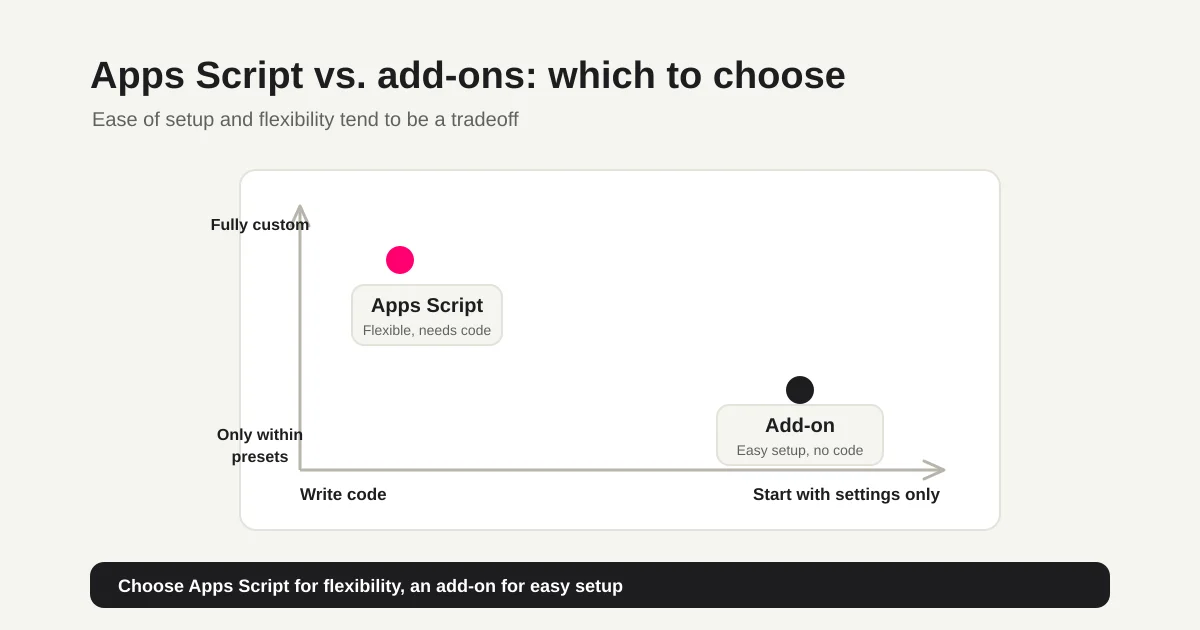
| Google Apps Script | Keeping Google Forms while sending a custom email | Requires script, trigger, authorization, quota, and error maintenance |
| Form-service autoresponder | Setting subject, body, variables, and reply-to in a UI | Free and paid boundaries vary by service |
| FORMLOVA | Creating, adjusting, previewing, and testing the email through chat | Auto-reply customization is available on Standard or higher |
Google Forms response receipts, Apps Script triggers, spam filtering, and quota failures are a separate diagnostic path. Use Google Forms Auto-Reply Not Delivered for that checklist.
These setup paths are not the same feature.
If respondents only need a copy of what they submitted, Google Forms may be enough. If you need a confirmation email that says "we received your request," gives a response timeline, includes a resource link, explains an event URL policy, or routes replies to a support address, treat it as a custom auto-reply.
Checklist When the Email Is Enabled but Not Delivered
Auto-reply failures are often not dramatic. They are small mismatches.
A typical composite example looks like this: the form has a field labeled "Email address," the script expects a field named Email, the function is saved, but no installable trigger was created. The owner tests with a personal Gmail address, sees one successful test, and never checks the company domain where the actual respondents are. Nothing looks broken in the form editor, but the live workflow is not reliable.
Use this checklist before changing the message.
| Symptom | Check first | Likely layer |
|---|---|---|
| Nobody receives the email | Trigger, authorization, sender, quota | The sending process is not running |
| Only some respondents miss it | Email address input, spam filtering, domain policy | Recipient or inbox layer |
| You receive tests, respondents do not | Recipient mapping, variables, test condition | Test does not match production |
| Response receipts arrive, custom copy does not | Apps Script or form-service autoresponder | Custom sender layer |
| Delivery is inconsistent | Quota, concurrent execution, execution logs | Operational reliability |
When I think about this in FORMLOVA, "auto-reply enabled" is not the same as "the respondent received the right message." The useful state is more specific: enabled, mapped to the correct recipient, previewed, approved, tested, and still aligned with the workflow.
Decide These Details Before Opening the Settings Screen
Before editing any tool settings, define the email.
| Decision | Why it matters |
|---|---|
| Recipient email field | The system needs to know which submitted address receives the reply |
| Subject line | The respondent should recognize what was received |
| Body copy | The email should confirm receipt and explain the next step |
| Reply-to address | Replies should go to a monitored inbox |
| Submitted fields to include | Only necessary confirmation details should be repeated |
| Test email | The final email should be checked in a real inbox |
Skipping this step creates technically working but operationally weak email.
For example, "Submission completed" is too vague as a subject line. "We will contact you if needed" does not tell the respondent when to expect a reply. A no-reply address conflicts with copy that says "reply to this email."
The job of an auto-reply is not polished language. It is reducing uncertainty after submission.
What to Check in Google Forms Response Receipts
Google Forms can send response receipts when you collect respondent email addresses. That is useful when the respondent needs a copy of their submitted answers.
Google's help docs describe this as sending responders a copy of their response. To use it, the form must collect email addresses, and the setting for sending responders a copy must be configured. Google also notes that, in some circumstances, expected response receipts may not arrive because of spam filters or other counter-abuse measures.
So the Google Forms built-in path has three checks:
| Check | Meaning |
|---|---|
| Email collection | The form actually has a respondent email address to send to |
| Response receipt setting | The form is configured to send responders a copy |
| Scope of the feature | You are not expecting a fully custom confirmation email from a response receipt |
Do not confuse that with Google Forms notifications for new responses.
Google Forms can notify form editors when a new response arrives. That is an operator notification. Response receipts are respondent-facing. They solve different problems.
| Setting | Recipient | Purpose |
|---|---|---|
| Email notifications for new responses | Form editor or operator | Know that a response arrived |
| Response receipts | Respondent | Give the respondent a copy of what they submitted |
If you searched for "Google Forms notification settings," decide whether you are fixing internal team notification or respondent confirmation. Internal notification belongs with Slack response notification and Post-Submit Workflow. Respondent confirmation belongs here and in the Form Auto-Reply Email Examples.
It is less useful when the message needs to sound like a real operational confirmation:
Thanks for contacting us.
We received your inquiry and usually respond within two business days.
If this is urgent, contact support@example.com.
For that kind of custom email, many teams use Google Apps Script.
What to Check When Apps Script Does Not Send
A typical Apps Script setup looks like this:
1. Collect respondent email addresses in the form.
2. Open Apps Script from the form or linked spreadsheet.
3. Write a function that runs on form submission.
4. Use MailApp or GmailApp to send the email.
5. Create an installable form-submit trigger.
6. Authorize the script and test a real submission.
This can be a good path for teams comfortable with Google Workspace automation. It keeps the workflow close to Google Forms and allows custom logic.
The failure points are usually outside the email copy.
Apps Script installable form-submit triggers can run a function when someone responds to a form. Google's docs distinguish between a form-submit trigger for Google Forms itself and one for Sheets when the form submits to a spreadsheet. That distinction matters because the event data and owner context can differ.
Check these items when the email does not arrive:
| Check | Failure example |
|---|---|
| Trigger | The function exists, but the installable trigger was never created |
| Authorization | The script has not been authorized after trigger setup |
| Event data | The script expects a Sheets row but receives a Forms event, or the reverse |
| Recipient mapping | The field name or column name does not match the submitted email address |
| Quota | MailApp/GmailApp has hit a daily recipient limit |
| Execution logs | Trigger failure emails or execution errors are ignored |
The tradeoff is maintenance:
Someone must own the script.
Trigger failures need to be monitored.
Authorization and sending quotas matter.
Copy changes may require code edits.
Google Forms is not the wrong choice. If response receipts are enough, it is simple. The question is whether your post-submit communication needs to evolve beyond a copy of the submitted answers.
Apps Script is powerful, but the team needs someone who can diagnose which layer failed: form settings, event data, script logic, authorization, quota, or recipient filtering.
If the same Google Forms stack is also carrying Sheets, Slack notifications, and response status, use Google Forms + Sheets + Apps Script Operations to decide where each responsibility should live before adding another script.
Set Up an Auto-Reply in FORMLOVA
In FORMLOVA, auto-reply email creation and customization are available on Standard or higher.
The Free plan can still create forms, collect unlimited responses, view responses, search, update status, and export CSV / Excel files. Sending custom auto-reply emails after submission belongs to the paid operational layer.
Start with a plain instruction:
Set up an auto-reply email for this contact form.
Use the subject "We received your inquiry."
Say that we usually reply within two business days.
Add support@example.com for urgent questions.
FORMLOVA can draft a subject and body such as:
Subject: We received your inquiry

Hi {name},

Thanks for contacting us.
We received your inquiry and will review it shortly.

Our team usually replies within two business days.
If this is urgent, please contact support@example.com.
The important part is not that the first draft is final. The important part is that the form, email, preview, and test flow stay in one conversation.
FORMLOVA shows a preview before saving template changes. That confirmation step is intentional. Auto-reply copy is customer-facing, so the system should not silently change it without review.
I do not treat an auto-reply as just generated copy inside FORMLOVA. It is a product state after submission.
At minimum, these states matter:
The form is published.
The respondent email address is collected.
Auto-reply is enabled.
The template has been approved.
Sender and reply-to are configured.
A test email has been checked before launch.
If any of those states are unclear, the result can be "enabled but not delivered," "delivered to the wrong reply path," or "correct copy sent at the wrong time."
That is why FORMLOVA keeps drafting, preview, approval, test sending, and launch review close together instead of treating the auto-reply as a detached text box.
Adjust the Copy Through Chat
Auto-reply copy usually needs one or two small revisions.
Use direct instructions:
Make it a little warmer.
Make it more formal for B2B inquiries.
Shorten it for mobile.
Move the response timeframe earlier.
Add the resource link near the top.
Do not include the webinar link; say it will be sent one day before the event.
Separate tone changes from operational changes.
"Make it better" is vague. "Shorten it," "make the first paragraph more formal," "move the reply timing above the submitted details," and "remove the join link" are easier to apply safely.
For reusable subjects and body structures by use case, use the Form Auto-Reply Email Examples guide. It covers contact forms, resource requests, webinar registration, job applications, and survey forms.
Send a Test Email Before Publishing
Always send a test email before publishing or before turning the auto-reply on for a live form.
Preview is not enough. You need to see the message in an actual inbox.
Check these items:
| Check | Why |
|---|---|
| Subject | It should be recognizable and not too long |
| Sender name | The respondent should know who sent it |
| Reply-to | Replies should reach the right inbox |
| Body | Receipt and next step should be clear |
| Variables | Name, form title, and links should render correctly |
| URLs | Resource, map, event, and support links should open |
| Mobile view | Paragraphs and links should be easy to scan |
FORMLOVA test emails are not sent to live respondents. They are for checking the template in your own email client. Test subjects are marked as tests, and test emails do not count toward the monthly email quota.
For the broader launch checklist, read Review a Form Before Publishing.
How to Avoid Repeating the Same Delivery Problem
Getting one test email to arrive is not the finish line.
Forms change after launch. The response owner changes. Reply timing changes. Resource links change. Webinar links move from the confirmation email to a reminder email. Hiring and consultation forms collect more sensitive text than expected.
Treat auto-reply as a small operating checklist:
| Timing | Check |
|---|---|
| Before publishing | Test email, recipient, reply-to, body, links |
| After copy changes | Preview, variables, outdated instructions |
| Before events | Whether join links belong in the confirmation or reminder |
| When volume grows | Monthly sends, owner notifications, response time |
| For sensitive forms | Whether submitted personal details are repeated too widely |
A missing email is one failure. A delivered email that no longer matches the real workflow is another.
A Minimal Registration Confirmation Email Example
If you need a registration confirmation email example, do not start with a long message.
The minimum useful email says what was received, what happens next, how to contact you, and what the respondent should not assume yet.
Subject: We received your registration

Hi {Name},

Thank you for registering.
We received your submission.

Our team will review it and usually send the next instructions within two business days.

To change or cancel this registration, reply to this email.
If you cannot find this email later, please also check your spam folder.
For bookings, applications, reviews, and approvals, avoid "confirmed" unless the reservation, seat, or approval is actually confirmed. For events and webinars, decide whether the join URL belongs in the first confirmation email or in a later reminder. For resource requests, decide whether the download link is included here or sent in a separate message.
Separate the screen message from the email. The thank-you page gives immediate reassurance; the auto-reply email gives the respondent a record they can return to. The screen-side model is covered in the Form Thank-You Page Guide.
Email Limits and Plan Boundaries
Auto-replies consume email quota when they are sent to respondents.
Current FORMLOVA plan availability is:
| Plan | Monthly price | Auto-reply emails | Monthly email limit |
|---|---|---|---|
| Free | 0 JPY | Not sent | 100 emails |
| Standard | 480 JPY | Available | 1,000 emails |
| Premium | 980 JPY | Available | 10,000 emails |
The Free plan still has an email limit for the email features available on that plan, but custom auto-reply sending is not included. Standard is often enough for contact forms, resource requests, and moderate webinar registration. Premium is a better fit when several forms send auto-replies, reminders, bulk emails, or follow-up sequences.
Do not automate every message just because you can. High-value inquiries, sensitive support cases, hiring communication, and unusual requests should keep a human review step.
What Comes After the First Auto-Reply
Once the first confirmation email is reliable, the next question is timing and targeting.
| Goal | Feature area |
|---|---|
| Send a reminder before a webinar | Reminder emails |
| Notify different owners by inquiry category | Conditional workflow |
| Follow up only with low-score survey respondents | Conditional email |
| Hand hot resource requests to sales | Response search, status, and notification |
The broader operating model is covered in the FORMLOVA Form Automation Guide. For contact-form operations, read the Contact Form Operations Guide. For webinar registration email flow, read the Webinar Registration Form Guide.
Related Workflows You Can Use
If the reply should change by inquiry type, start with Category-based Inquiry Auto-reply. It uses the response category or message content to choose the first reply and the next operational step.
For reservation or application confirmations through Gmail, use Gmail Reservation Confirmation. If the form is for an event or seminar, Event Reminder + Follow-up connects confirmation, reminders, and post-event follow-up.
FAQ
Can Google Forms send auto-reply emails?
Google Forms can send respondents a copy of their responses when respondent emails are collected. For custom confirmation copy, response timing, resource links, or conditional messages, you usually need Apps Script, an add-on, an external integration, or another form service.
Why did my Google Forms auto-reply not arrive?
First check whether the form collects respondent email addresses and whether response receipts are enabled. Then check spam folders and domain filtering. If you use Apps Script for custom mail, check the installable trigger, authorization, execution logs, recipient mapping, and MailApp/GmailApp sending quota.
Can I set up form auto-replies without Apps Script?
Yes. If a response receipt is enough, Google Forms can handle that without Apps Script. If you need a custom confirmation email without code, use a form service with autoresponder settings or FORMLOVA Standard or higher.
Does FORMLOVA Free include auto-reply emails?
No. FORMLOVA Free includes form creation, response collection, response viewing, search, status management, and CSV / Excel export. Auto-reply email creation and customization are available on Standard or higher.
Should auto-reply emails include all submitted fields?
Usually no. Include only the fields needed for confirmation. Repeating addresses, phone numbers, long free-text answers, and sensitive details increases forwarding and accidental disclosure risk.
Where can I find auto-reply email examples?
Use the Form Auto-Reply Email Examples guide for reusable copy patterns for contact forms, resource requests, webinar registration, job applications, and survey forms.
References
- Google Docs Editors Help: View & manage form responses
- Google Apps Script: Installable triggers
- Google Apps Script: MailApp
- Google Apps Script: Quotas for Google Services
- formrun: 自動返信メールの内容を設定する方法
- formrun: メール配信・自動返信・送信機能
Read Next
When results should go to a team or stakeholder rather than back to the respondent, use the Google Forms response-sharing guide.
- Google Forms Auto-Reply Not Delivered: What to Check First
- Form Auto-Reply Email Examples
- FORMLOVA Form Automation Guide
- Review a Form Before Publishing
- Contact Form Operations Guide
- Webinar Registration Form Guide
Disclosure and Verification
This guide was updated after checking official information from each service as of June 26, 2026. The author builds FORMLOVA. Google Forms response receipts, response notifications, Apps Script installable form-submit triggers, MailApp, Apps Script quotas, and formrun auto-reply documentation were checked against official sources. The 2026-06-23 90d Search Console export showed early English signals for google form auto response, google form auto reply email, and auto reply google form, so the title, meta description, and first answer now address those queries directly. Pricing, features, and email limits may change, so check each service's official pages before making a decision.
Related Articles
- FORMLOVA Form Automation Guide -- Auto-Replies, Routing, Sheets Sync, and MCP Operations
- Google Forms Auto-Reply Not Delivered: What to Check First
- Google Forms + Sheets + Apps Script Operations -- Where Notifications, Auto-Replies, and Status Should Live
- How to Export Google Forms Responses to CSV -- Sheets, Encoding, and FORMLOVA Workflow
- How to Send Form Responses to Slack -- Google Forms, Apps Script, and Follow-Up Design
- Post-Submit Workflow: What Should Happen After a Form Submission
- Form Auto-Reply Email Examples -- Templates for Contact Forms, Downloads, Webinars, and Applications