
Last updated: June 18, 2026
Form automation repeats a defined action after a submission: acknowledge it, notify an owner, record it, or advance its status. Start with one type of inquiry and specify the trigger, responsible person, deadline, and evidence that the action completed.
They search for it because the work after submission is still manual.
Someone submits a contact form. The team needs to confirm receipt, decide whether the message is real, route it to the right owner, update a status, exclude sales pitches from reports, export responses, sync a spreadsheet, remind attendees, or pass a hot lead to sales.
That is the real automation problem.
Form creation is the first step. Form automation is the operating layer after that step.
In this guide, I define form automation as the repeatable handling of post-submit work: replying, sorting, routing, exporting, reminding, analyzing, and safely calling operations from an AI client when MCP is involved.
The goal is not to automate everything. The goal is to automate the parts that are stable enough to repeat, while keeping human review around the parts that affect people, privacy, permissions, or external messages.
The broader reason FORMLOVA keeps chat and operations in the same flow is explained in the FORMLOVA design philosophy. This page turns that philosophy into the practical post-submit automation map.
If you arrived through "AI workflow", start from the same boundary. A form submission can trigger classification, notification, owner suggestions, reply drafts, status updates, and reports. The important design question is which steps AI can assist and which steps need product state, permissions, and human confirmation. The dedicated model is in Post-Submit Workflow.
AI Workflows Turn Form Submissions Into Reviewable Business Decisions
People who search for "AI workflow" or "AI workflow tool" usually want more than an auto-reply.
They want a system that can read an inquiry, classify intent, separate sales pitches from real prospects, suggest an owner, draft a reply, summarize the week, or prepare a sales handoff.
That is where traditional "if A, then B" automation starts to feel limited.
Zapier describes AI workflows as automation with AI-powered steps that can classify, understand intent, extract meaning, and support decisions. Microsoft Forms and Power Automate show the form response as a trigger that feeds details into later actions. n8n has a Form Trigger that starts a workflow when someone submits a form. HubSpot also treats form submission as a starting point for follow-up actions such as sending an email or creating a task.
The market is moving in the same direction: the form is not just a page. It is a workflow entry point.
For a form-based AI workflow, split the responsibilities like this:
| Job | AI can help with | Keep rules or human review around |
|---|---|---|
| Classification | Intent, urgency, sales-pitch likelihood | Final exclusion and important-case handling |
| Summarization | Free-text summaries, weekly trends, owner briefings | Original response retention and audit trail |
| Reply | Drafts, tone adjustment, FAQ suggestions | Actual sending and important customer messages |
| Notification | Owner candidates, priority suggestions | Who receives the notification and when not to notify |
| Handoff | Candidate fields for CRM or Sheets | External sharing, personal data, permissions |
FORMLOVA's goal is not to let AI execute everything.
The goal is to keep responses, status, classification, email, workflows, and MCP operations in one context so AI can read, suggest, and draft while people confirm the actions that affect respondents, records, or external systems.
Use Post-Submit Workflow for the deeper AI workflow model. This 041 guide stays the broader form automation map: which work belongs where.
Sales Automation From Forms Starts Before The CRM
"Form sales automation" is not only about sending every form submission to a CRM.
The important work happens before the handoff.
1. A form response arrives
2. Sales pitches and junk responses are separated
3. Pricing, implementation, resource request, and support intent are classified
4. Company, timeline, budget signal, and free-text context are summarized
5. Only hot leads notify the right owner
6. A reply draft or next action is prepared
7. Status is updated, and clean data can move to Sheets or CRM when needed
If every response goes to sales, the team stops trusting the notification.
If the automation is too strict, real inquiries can be missed.
FORMLOVA's preferred pattern is classification after receipt, not pretending the entry gate can block everything. Responses can be treated as legitimate, sales pitch, or needs review. The sales-specific handoff is covered in Route Post-Publish Responses by Intent and Send Hot Leads to Sales. Category routing belongs in Route Contact Form Inquiries by Category.
The Short Answer -- Automate Reply, Sort, Share, Then Improve
Do not start by building a complicated workflow.
Start by removing uncertainty for the person who submitted the form and for the person who needs to act on the response.
I recommend this order:
| Stage | What To Automate | Why It Matters | Related Guide |
|---|---|---|---|
| Reply | Auto-reply and confirmation emails | The respondent knows the form was received | How to Set Up Form Auto-Reply Emails / Google Forms Auto-Reply Not Delivered / examples |
| Sort | Status, labels, sales email classification | The team knows which responses matter | View, Filter, and Update Response Status |
| Share | Notifications, category routing, Sheets sync | The right person receives the right work | Route Contact Form Inquiries by Category |
| Improve | Reports, CSV, Sheets, lead lists, analytics | The form becomes a learning loop | Export Responses to CSV or Sync Them to Google Sheets / Google Forms CSV export |
This order matters.
If you send all responses directly into a spreadsheet before sorting them, the spreadsheet becomes noisy. If you notify everyone on every submission, the notification channel becomes ignored. If you automate reminders before the confirmation email is clear, respondents still ask the same questions.
Automation should reduce work, not move the mess into another tool.
The Improve stage often stalls on free-text answers: inquiry messages, survey comments, and cancellation reasons pile up unread even when exports run on schedule. Voice of customer analysis with AI can turn that text into tagged, reviewable input for the same learning loop.
Form Automation Covers Seven Kinds Of Work
"Form automation" sounds like one feature.
In practice, it covers at least seven different jobs.
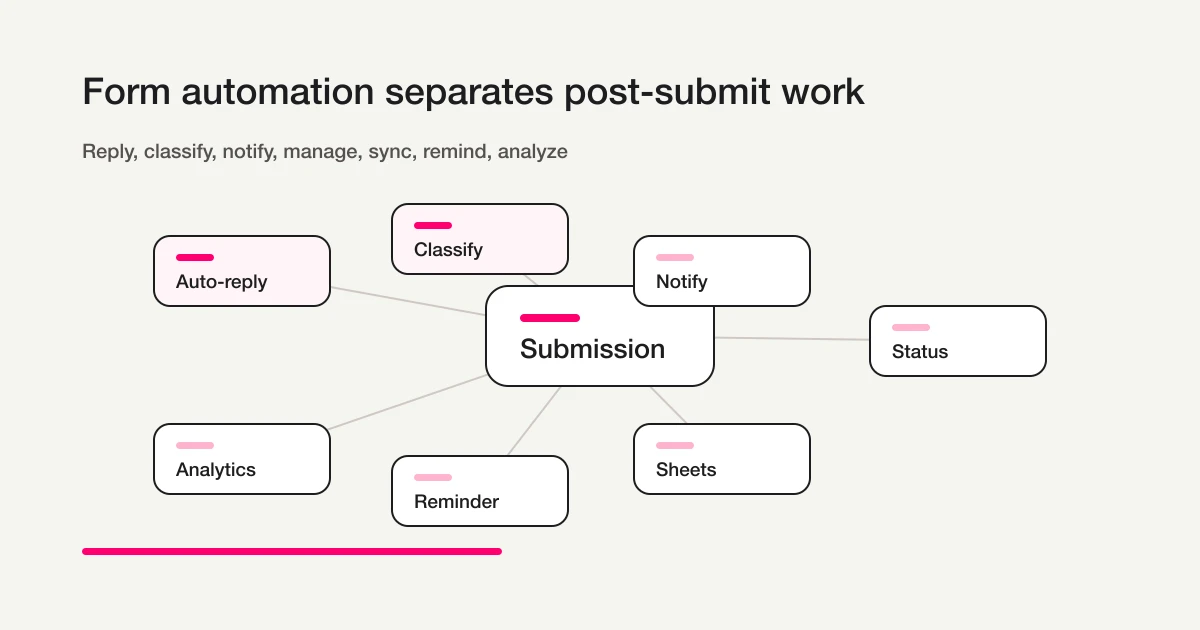
| Automation Type | What It Does | Common Failure |
|---|---|---|
| Auto-reply | Sends a receipt or confirmation email after submission | The message is polite but does not explain the next step |
| Notification | Alerts a team member that a response arrived | Every response goes to everyone |
| Routing | Sends responses to owners based on category or content | The categories are too broad to act on |
| Status management | Tracks new, in_progress, resolved, spam; waiting details belong in notes | The status names are not shared across the team |
| Data handoff | Exports to CSV, Excel, or Google Sheets | Raw data moves before it is cleaned |
| Reminder | Sends event, deadline, or follow-up reminders | The send condition and stop condition are unclear |
| Analysis | Reviews response patterns, conversion, free text, and junk exclusion | Reports include noise and sales pitches |
You do not need all seven on day one.
For a contact form, start with auto-reply, routing, sales email classification, and status management. For a webinar registration form, start with confirmation email, attendee list, reminder, and post-event follow-up. For a lead capture form, start with resource delivery, lead qualification, and sales handoff.
If you are still choosing the type of form, start with the FORMLOVA Form Creation Guide. The form type decides which automation matters.
Every Automation Needs A Trigger
Automation starts with a trigger.
Zapier's official platform documentation describes a trigger as the way an automated workflow starts when an item is added or updated. Microsoft Power Automate explains that cloud flows can start from events, manual actions, or schedules. Make describes scenarios as automation tasks that transfer and transform data between apps or services.
For form operations, the common trigger types are:
| Trigger | Example | Best For |
|---|---|---|
| A response is submitted | A contact inquiry or registration arrives | Auto-reply, notification, initial classification |
| A response matches a condition | Category is "pricing", attendee count is high, source is a campaign | Routing, lead notification, conditional email |
| A status changes | new becomes in_progress; booking cancellation is a separate recorded business change | Team updates, follow-up email, list maintenance |
| A scheduled time arrives | One day before an event, every Monday morning | Reminder, recurring report, weekly summary |
If you do not define the trigger, every automation feels possible.
That is where form workflows become noisy.
For example, "notify the team when a new contact form response arrives" sounds reasonable. But if every sales pitch, vague message, and bot submission reaches the team, the notification becomes less useful every week.
A better rule is:
A new response is submitted
The response is not classified as a sales pitch
The category is Pricing or Implementation
The status is New
Notify the owner
This is still automation, but it is quieter.
Quiet automation lasts longer.
Start With Auto-Reply Emails
If you are choosing the first automation, choose the auto-reply.
It helps the respondent immediately.
After submitting a form, the person wants to know three things:
Was my message received?
What happens next?
Who should I contact if something changes?
That is enough for the first version.
For a contact form, say when the team usually replies. For a resource download form, include the resource link or explain when it will arrive. For a webinar, clarify whether the joining link is included now or sent later. For a job application, explain the next step in the hiring process.
Start with How to Set Up Form Auto-Reply Emails if you need the setup path. If a Google Forms response receipt or Apps Script email is not arriving, use Google Forms Auto-Reply Not Delivered. The Form Auto-Reply Email Examples guide includes reusable patterns for contact forms, resource downloads, webinar registration, job applications, and survey forms.
In FORMLOVA, custom auto-reply emails, reminders, conditional email, and Google Sheets automatic sync are available on Standard and above. Standard is JPY 1,480 per month. Premium is JPY 3,980 per month. The Free plan still includes form creation, response collection, response search, response status management, and CSV / Excel export.
Monthly email limits are 100 on Free, 1,000 on Standard, and 10,000 on Premium. If your form automation depends on reminders or follow-up email, evaluate email volume as part of the workflow, not as an afterthought.
Sort Responses Before Sending Them Everywhere
FORMLOVA response status accepts four values: new, in_progress, resolved, and spam. Record waiting, provisional/confirmed attendance, and responsibility separately in notes, tags while preserving existing tags, form fields, or the agreed operations record. These are not arbitrary status values or a dedicated owner column.
The second automation layer is response sorting.
Unsorted responses are hard to automate.
Imagine a contact form that receives:
A real implementation inquiry
A sales agency pitch
A vague message that needs review
If all three go into the same notification, same spreadsheet, and same report, downstream work becomes messy.
FORMLOVA treats sales email detection as classification rather than hard blocking. A response can be marked as legitimate, sales, or needs review. This lets teams keep the original response while excluding noise from analytics and operational handoff.
Status management is the same kind of foundation.
Use new, in_progress, resolved, and spam as the response status values; record waiting reasons and other business details separately. Once those states exist, filtering and routing become easier. The practical workflow is covered in View, Filter, and Update Response Status.
Keep the first status system small.
FORMLOVA's response-status values are fixed. If the process needs additional business stages, keep a small set of tags, notes, form fields, or separate operational records and define how the team maintains them; do not add arbitrary response-status values.
Routing Works Best When Category And Conditions Are Separate
Contact form automation often depends on routing.
But routing is not the same as adding a category field.
A category is what the respondent chooses. A condition is what the operation uses.
For example, a contact form might include:
Pricing
Implementation
Support
Hiring
Media or partnership
Other
Those categories help.
But a sales notification should probably use more than the category:
Category is Pricing or Implementation
The response is not classified as a sales pitch
The email looks like a business email
The status is New
This kind of rule is more useful because it explains why a notification exists.
Category-only routing sends too much. Condition-only routing becomes difficult to understand. Combining the two creates a workflow that the team can maintain.
For a practical setup, see Route Contact Form Inquiries by Category. For sales handoff specifically, see Route Post-Publish Responses by Intent and Send Hot Leads to Sales.
Treat Google Sheets As An Output, Not The Whole System
Google Sheets is a useful destination for form data.
Google's official help explains that form creators can view responses in Forms, open them in Sheets, and download responses as CSV. A linked spreadsheet can be a practical shared table for a team.
But Sheets should not automatically become the whole operations system.
It is strong as a shared view and secondary analysis surface. It is weaker as the place where every rule lives: status definitions, auto-reply logic, sales pitch exclusion, reminder logic, routing, and permissions.
A healthier split is:
| Responsibility | Keep In FORMLOVA | Use Sheets For |
|---|---|---|
| Response collection | Yes | No |
| Auto-reply and reminders | Yes | No |
| Sales email classification | Yes | No |
| Response status | Yes | Optional shared view |
| Team spreadsheet | Optional | Yes |
| Secondary reporting | Optional | Yes |
In other words, keep operational rules close to the form, then send clean enough data to Sheets when the team needs a table.
The FORMLOVA CSV and Sheets tradeoff is covered in Export Responses to CSV or Sync Them to Google Sheets. If you are starting from Google Forms, use How to Export Google Forms Responses to CSV for the export flow and encoding caveats.
If you are deciding whether Google Forms, Sheets, and Apps Script should also own notifications, auto-replies, and response status, start with Google Forms + Sheets + Apps Script Operations to define the source of truth first.
Start with one pricing-inquiry workflow
Connecting email, a CRM, and notifications at once makes failures hard to locate. For pricing inquiries, establish intake first, review response status second, and add acknowledgement and conditional alerts last. Verify each stage against the same test response rather than treating a notification as proof that the whole workflow worked.
The following is a suggested trial prompt. It is not a record of an executed trial or a verified outcome.
Draft a pricing inquiry form with company, email, request, and desired timing.
Say on the completion screen that the request will be reviewed within two business days.
Do not enable auto-replies or Slack alerts yet.
First list the plan and connection requirements for those later steps.
Before publication, review the fields and acknowledgement. After publication, submit one controlled test and verify retrieval and status. Before adding paid automation, define the recipient, trigger, and failure-monitoring location. An unpublished preview does not demonstrate saved responses or successful external delivery.
Build the intake before adding automation
Use Free to test intake, response search, and status. Custom auto-replies, reminders, and Google Sheets sync require Standard or higher; bulk and sequence emails require Premium or higher.
Sign up free to draft pricing intake
After signing up and verifying your email, connect FORMLOVA to a supported AI client and use the prompt above to create a draft. AI-client access and costs follow that provider’s terms.
Internal Form Operations Vs External Automation Tools
Zapier, Make, and Power Automate are useful tools.
They are especially strong when the workflow needs to cross systems: CRM, Slack, Teams, email platforms, internal databases, support tools, spreadsheets, or BI tools.
The risk is that the form's meaning becomes scattered.
Form service: receives the response
Automation tool: branches the logic
Email tool: sends the message
Spreadsheet: tracks the work
CRM: stores the sales record
That architecture may be right for a mature team.
But it also means a new team member has to ask where the rules live. Why did this notification fire? Where is the auto-reply text? Which responses are excluded from analytics? Which spreadsheet column is the real status?
FORMLOVA is built to keep the form-adjacent operating work in one context: response management, email, classification, analytics, workflows, and MCP access. The current MCP server exposes 174 tools across 24 categories so AI clients can reach not only form creation, but also the work after submission.
For MCP-based email campaign operations, get_email_campaign returns a safe progress summary such as status, counts, and chunk progress without exposing recipient addresses or message bodies. Pause, resume, and cancel through manage_email_campaign require the expected_updated_at value from the latest read to prevent conflicting updates, plus explicit confirmation that identifies the campaign and requested action. Resume also requires a fresh browser re-preview first.
This does not make external automation tools wrong.
It changes where you draw the boundary.
When you are choosing recipes, start with Workflow Place setup from chat to decide which work belongs inside FORMLOVA and which work should move outward. If the immediate need is Slack notification, use Form Response Slack Notification Guide. If the workflow itself is still unclear, return to Post-Submit Workflow first.
| Situation | Better Inside FORMLOVA | Better In External Automation |
|---|---|---|
| Auto-reply | Draft and refine the respondent message in context | Use a separate email infrastructure |
| Response sorting | Use labels, status, and sales pitch exclusion | Sync immediately to a central database |
| Notification | Route by form category and response condition | Send to Slack, Teams, CRM, or many systems |
| Reporting | Analyze with form context | Aggregate into a BI stack |
| MCP operation | Ask an AI client to inspect and operate form workflows | Build broader cross-system automation |
Good automation is not about putting everything in one tool.
It is about putting each decision where it can be understood later.
MCP Changes How Operations Are Called
MCP is not just another integration acronym.
The Model Context Protocol specification describes servers exposing Tools that clients can call, while also emphasizing user consent, data privacy, and tool safety. That matters in form operations because form responses can contain personal information, email operations affect external people, and status or deletion actions can change business records.
The useful pattern is not "let AI do everything."
The useful pattern is controlled operational access.
For example:
Summarize this week's contact form responses, excluding sales pitches.
List resource download submissions with an implementation timeline under three months.
Draft a reminder email for next week's webinar and ask me before sending it.
Prepare a sales handoff summary for Pricing and Implementation inquiries.
These are not only form creation tasks.
They are post-submit operations.
FORMLOVA's MCP direction is to let AI clients call those operations while keeping the human in control of actions that need review. The broader MCP category is explained in FORMLOVA MCP Form Service Guide.
Recommended Automation By Form Type
Different forms need different automation.
| Form Type | Start With | Then Add | Related Guide |
|---|---|---|---|
| Contact form | Auto-reply, category routing, sales pitch classification | Status, owner notification | Contact Form Template |
| Resource download | Receipt email, resource delivery, lead qualification | Sales handoff, Sheets sync | Lead Capture Form Guide |
| Webinar registration | Confirmation email, attendee list | Reminder, post-event follow-up | Webinar Registration Form Guide |
| Event registration | Confirmation email, attendee count | Waitlist, check-in list | Event Registration Form Guide / Event Attendance Reporting Guide |
| Job application | Receipt email, role classification | Candidate status, recruiter handoff | Job Application Form Guide |
| Survey | Response collection, CSV or Sheets | Free-text grouping, improvement list | Survey Form Guide / NPS Form Template / Voice of Customer AI Analysis Guide / How to Summarize Form Responses with ChatGPT and Save Them to OneNote |
If you are unsure where to start, use contact forms as the reference model. They include most of the important automation concepts: confirmation, routing, spam or sales pitch filtering, owner assignment, and status management.
Pre-Automation Checklist
Before building a workflow, answer these questions.
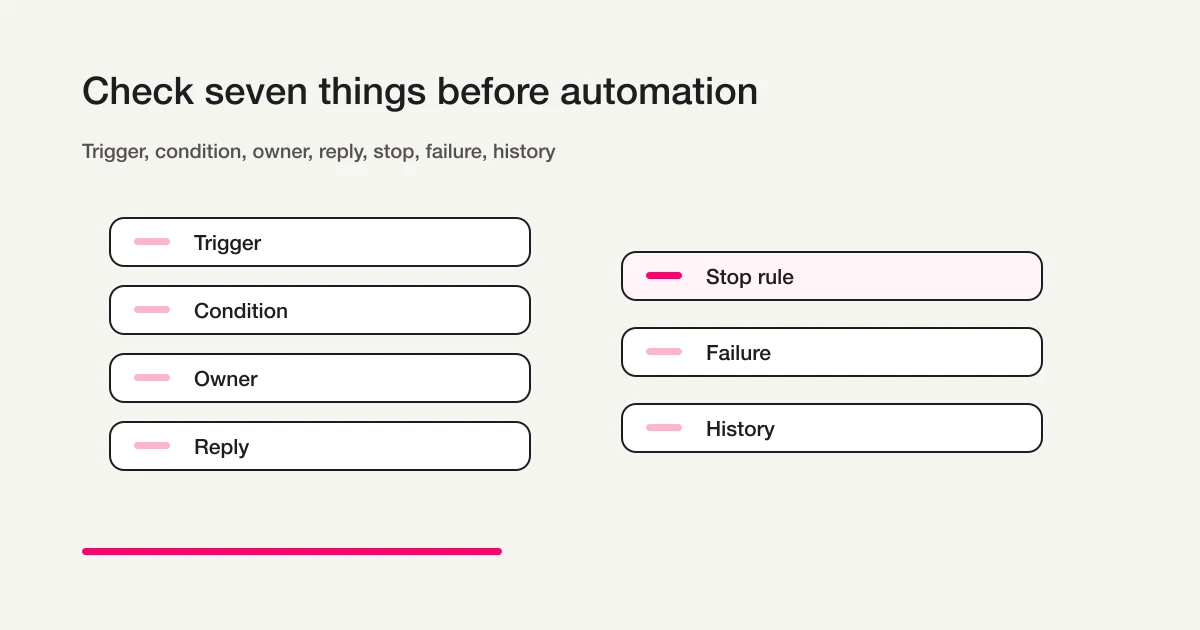
What event starts the automation?
Which responses are included?
Who receives the notification?
What does the respondent receive?
When should the automation stop?
Who notices failure?
Where can the team inspect history later?
The most commonly missed item is the stop condition.
Do not remind cancelled attendees. Do not notify owners about completed responses. Do not include sales pitches in conversion analysis. Do not keep sending follow-up emails after the person has replied.
The second commonly missed item is review.
Email sending, deletion, permission changes, and external data sharing affect real people. Start with reviewable automation: draft the message automatically, then ask for confirmation; identify likely hot leads automatically, then let a human approve the handoff.
That approach is slower than full automation, but it is easier to trust.
Common Mistakes
Most form automation mistakes are design mistakes, not technical mistakes.
The first mistake is notifying everyone.
Notifications are only useful when someone knows they are responsible for the next action. A channel that receives every response eventually becomes background noise.
The second mistake is turning Sheets into the operations brain.
Sheets is useful for sharing and secondary analysis. It is risky as the only place where status, routing, email, exclusion rules, and history are stored. Keep the source of operational truth close to the form where possible.
The third mistake is overloading the auto-reply.
An auto-reply should confirm receipt and explain the next step. It does not need a full sales pitch, multiple CTAs, or unrelated product copy.
The fourth mistake is ignoring exceptions.
Duplicate submissions, cancellations, bad email addresses, unclear free text, sales pitches, and late changes will happen. Leave a human review path for exceptions.
The fifth mistake is treating MCP as permission to skip approval.
The more an AI client can operate, the more important consent, logs, and review become. MCP is useful because it can call real operations. That is exactly why the boundary has to be designed carefully.
Official References Checked
I checked these official sources while writing this guide:
- Google Docs Editors Help: View & manage form responses
- Google Docs Editors Help: Choose where to save form responses
- Zapier: AI workflows
- Zapier Platform Docs: Trigger
- n8n Docs: Form Trigger node
- HubSpot Knowledge Base: Automate form submission actions
- Microsoft Learn: Overview of using Microsoft Forms and Power Automate
- Microsoft Learn: Power Automate Triggers
- Make Developer Hub: Scenarios
- Model Context Protocol Specification
Related Workflows You Can Use
For a first automation example, Event Reminder + Follow-up is easy to understand because confirmation, reminders, and follow-up are connected in one flow.
If notification and records should happen together, use Slack Notification + Sheets Log. If inquiry handling is the starting point, Inquiry Auto-reply + Escalation shows how the reply and owner handoff can live in the same workflow.
FAQ
What should I automate first in a form workflow?
Start with the auto-reply. It gives the respondent immediate confirmation and explains the next step. After that, add response sorting, status management, routing, and data handoff.
Is Google Sheets enough for form automation?
It can be enough for simple reporting and shared tables. It is usually not enough as the whole operations layer if you need classification, status, email, reminders, owner routing, and MCP access. A better pattern is to keep operational rules in the form service and use Sheets as an output.
Do I still need Zapier, Make, or Power Automate?
Sometimes, yes. External automation tools are valuable when a workflow must cross many systems. FORMLOVA focuses on the form-adjacent layer: responses, email, classification, analytics, workflow recipes, and MCP operations.
Which form operations should not be fully automated?
Be careful with deletion, permission changes, bulk email, personal data sharing, and important status transitions. Automate drafts, summaries, candidate lists, and recommendations first. Keep a human approval step before actions that affect people or records.
Can I automate forms on FORMLOVA's Free plan?
The Free plan includes form creation, response collection, response search, status management, and CSV / Excel export. Custom auto-replies, reminders, conditional email, and Google Sheets automatic sync are available on Standard and above. Standard is JPY 1,480 per month, and Premium is JPY 3,980 per month.
Are AI workflows different from form automation?
AI workflows are one layer inside form automation. They help with classification, summaries, reply drafts, priority signals, and recommendations. Form automation is broader: auto-replies, notifications, status, Sheets sync, reminders, analytics, and MCP operations. For sending, deletion, external sharing, and high-impact status changes, keep human review in the loop.
What should sales automation from forms do first?
Do not start by notifying sales about every submission. Start by separating sales pitches, unclear responses, and real implementation inquiries. Then notify sales only for qualified pricing, implementation, or resource-request responses, with a summary, status, and next-action draft.
Conclusion -- Automation Connects The Form To The Business Process
Form automation is not a decorative layer on top of form creation.
It is the design that connects a submitted response to the next business action.
Who receives the message? What does the respondent get back? Which responses are ignored, reviewed, routed, exported, or analyzed? Which actions need approval? Which reports should exclude noise?
Those decisions turn a form into a workflow.
FORMLOVA is built around that idea. Create the form, collect responses, reply, classify, manage status, export, sync, analyze, and operate through MCP when it helps.
Start with one form.
For a contact form, automate the auto-reply, sales pitch classification, and response status. For a webinar, automate confirmation, reminders, and attendee lists. For a resource download form, automate delivery and sales handoff.
If you are still designing the form itself, begin with the FORMLOVA Form Creation Guide. If you are improving abandonment or conversion, use the Form Conversion Optimization Guide before adding more automation. Then return here and add automation in the order that keeps the workflow quiet, understandable, and useful.
Related Articles
- Form Auto-Reply Email Examples -- Templates for Contact Forms, Downloads, Webinars, and Applications
- Google Forms Auto-Reply Not Delivered: What to Check First
- View, Filter, and Update Response Status with FORMLOVA
- Export Responses to CSV or Sync Them to Google Sheets with FORMLOVA
- Check the Current Status in Chat and in the Dashboard with FORMLOVA
- Route Post-Publish Responses by Intent and Send Hot Leads to Sales with FORMLOVA
- Set Up Inquiry Auto-Routing With FORMLOVA Workflows
- Post-Submit Workflow: Use AI After Form Submission for Notifications, Owners, and Replies
- Form Response Slack Notification Guide: From Google Forms Alerts to Team Operations
- AI Workflow Operations Guide
- Chat With Form Responses and Build Response Intelligence
- Design Form Response Notifications for Slack
- Hand Off Form Responses to Sheets, CRM, and Notion
- Apply AI to Business Workflow Improvement
- Build a Safe Contact Form Follow-Up Sequence
- Import Historical Form Responses Safely
- Analyze Form Responses and Turn Findings Into Action
- Build a Form Response Dashboard
- Use ChatGPT Prompts to Analyze Form Responses
- Write a Resource Request Follow-Up Email Sequence
- How to Create a Demo Request Form -- Fields, Handoff, and Follow-Up
Disclosure and Verification
This guide is the parent page for FORMLOVA's form automation cluster. I am the developer of FORMLOVA. I checked Google Forms response management and Sheets documentation, Zapier AI workflow and trigger documentation, n8n Form Trigger, HubSpot form automation, Microsoft Forms + Power Automate, Make scenario documentation, and the Model Context Protocol specification on June 18, 2026. Keyword evidence came from .tmp/formlova-keyword-article-queue-2026-06-17.csv, especially ai ワークフロー volume 590, ai ワークフロー ツール volume 110, and フォーム 営業 自動化 volume 210. External tool behavior and pricing can change, so verify official sources before designing production workflows.