
Last updated: August 10, 2026
Google Forms to Slack follows a simple path: Google Forms receives the submission, Google Sheets keeps the row, Apps Script runs on form submit, and Slack posts the channel notification. Gmail and Trello remain optional side channels for email delivery or task handoff; neither replaces the response record.
Sending Google Forms responses to Slack makes a team faster when the response also stays in a durable record.
A new inquiry becomes visible immediately. A demo request does not sit quietly in an inbox. An event registration can show up in the channel where the operations team already works. If you already use Google Forms, a practical setup is to send responses to Google Sheets, then use Apps Script on the response spreadsheet to post to a Slack Incoming Webhook.
Searchers describe this in several ways: "Google Forms to Slack", "Google Forms Slack integration", "connect Google Forms Google Sheets Slack", "connect Gmail Google Forms Slack", or even "connect Google Forms Slack Trello". The tool names change, but the operating question is the same: where should the response be received, recorded, announced, assigned, and reviewed?
If your exact search was "connect Gmail Google Forms Slack," do not start by wiring every notification channel together. Start by deciding which tool receives, records, alerts, assigns, and follows up.
But a Slack notification is not response management.
A message in Slack does not decide who replies, whether the response is still open, whether a sales pitch was excluded, or where the team can go back later to audit the work. Slack is the place where people notice the response. It should not be the only place where the response exists.
This guide explains how to send Google Forms responses to Slack, how the Google Forms + Google Sheets + Apps Script setup usually works, when Gmail or Trello should be treated as side channels, and how to design the workflow so notifications, records, ownership, and status management fit together.
If you are deciding whether to keep a Google Forms + Sheets + Apps Script stack or move the operational layer elsewhere, start with the parent article, Google Forms + Sheets + Apps Script Operations -- Where Notifications, Auto-Replies, and Status Should Live. This article is the narrower Slack-notification branch. For the full post-submit sequence that includes Slack notification, read Post-Submit Workflow.
If your team already has Slack alerts but still misses follow-up, start free with FORMLOVA to test Slack + Sheets workflows with response status before adding more scripts. If you want to operate the recipe from an AI client, use the FORMLOVA setup guide.
Answer First: Connect Gmail, Google Forms, Sheets, and Slack
The common setup is:
Google Forms receives the response
-> Google Sheets stores the row
-> Apps Script runs on form submit
-> Slack Incoming Webhook posts a channel message
-> Gmail sends only the email copy that actually needs email
If the workflow also mentions Gmail or Trello, keep their roles narrow:
| Search phrase | Best interpretation | Do not make this mistake |
|---|---|---|
| connect Google Forms Google Sheets Slack | Store the row in Sheets and notify Slack from the same submission event | Treat Slack as the only record |
| connect Gmail Google Forms Slack | Use Gmail for respondent or owner email, and Slack for team awareness | Treat email delivery as assignment state |
| connect Google Forms Slack Trello | Notify Slack and create a Trello card only when follow-up is needed | Create cards for every test, spam, or low-value response |
| share Google Forms responses in a Slack channel | Post a concise triage summary with a response link or row reference | Paste every personal-data field into Slack |
So the access-maximized answer is not only "send the response to Slack." It is "send the right response to Slack, keep a durable record, and make the owner/status visible."
The Short Answer
Before you build a Slack notification for form responses, decide these four things.
| Decision | What it means | What happens if you skip it |
|---|---|---|
| Notification rule | Send every response, or only matching responses | Tests, spam, and low-value messages flood the channel |
| Destination | Which channel or team should see it | People get used to ignoring the alert |
| System of record | Google Sheets, FORMLOVA responses, CRM, or another place | The response disappears into Slack history |
| Response status | New, in progress, done, excluded | "Someone saw it" gets confused with "someone handled it" |
The easy Google Forms to Slack version is:
When a Google Forms response is submitted, post it to Slack.
The operational version is:
A new response arrives.
Exclude sales pitches and test submissions.
Notify Slack only for the categories that need action.
Record the same response in Google Sheets or the response list.
Include owner, status, and response URL in the Slack message.
When work starts, move the response from new to in progress.
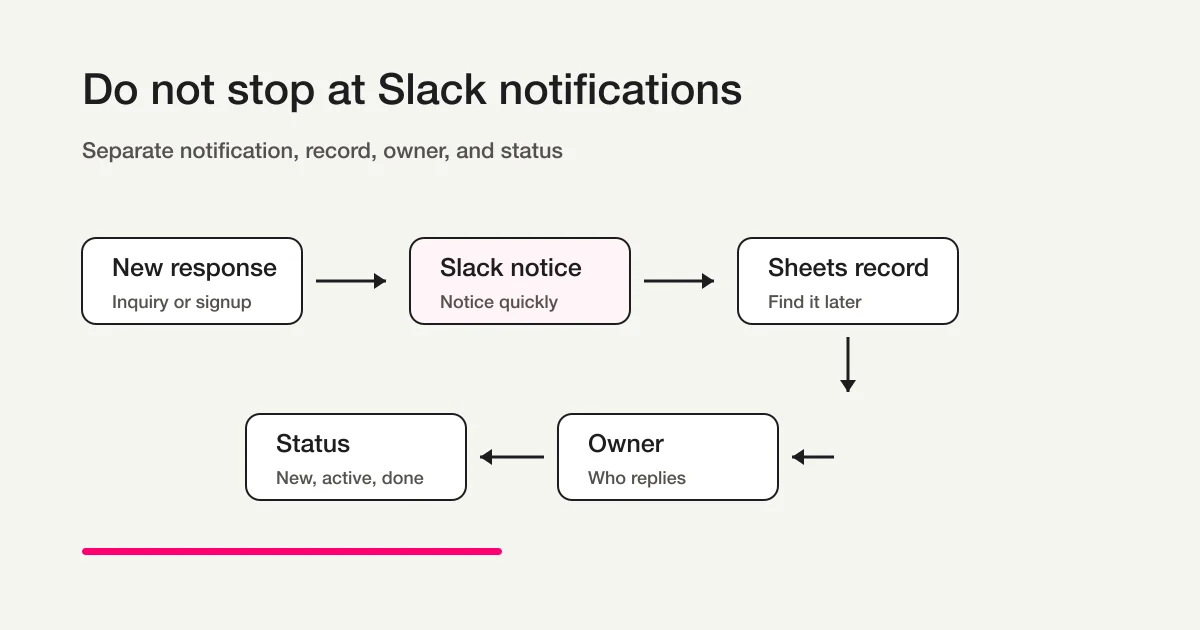
That structure gives each tool a clear job. Slack is for noticing. Sheets or the response list is for going back. Status is for deciding the next action.
If You Searched for Google Forms to Slack, Sheets, Gmail, or Trello
The same underlying workflow can appear under several search phrases. Use the phrase as a clue about which layer is unclear.
| Search phrase | What the reader probably needs | Practical boundary |
|---|---|---|
| google forms to slack | Post each relevant Google Forms response into a Slack channel | Slack is the alert, not the response database |
| connect google forms google sheets slack | Keep the Google Sheets row and send a Slack notification from the same submission event | Sheets is the durable record; Slack is the team signal |
| connect gmail google forms slack | Combine owner email, respondent email, or Gmail notification with team Slack alerts | Gmail is for email delivery or owner awareness, not assignment state |
| connect google forms slack trello | Notify the team in Slack and create a task card for follow-up | Trello can hold the task, but the form response still needs a source of truth |
| share google forms responses in a slack channel | Put a concise response summary where the team already works | Share only the fields needed for triage if the form contains personal data |
| how to send form data to Slack? | Transform submitted fields into a Slack message payload | Include a link, row number, or response URL so the message leads back to the record |
The clean architecture is:
Google Forms receives the submission.
Google Sheets stores the row and operational log.
Apps Script transforms the row and calls Slack.
Slack shows the team a concise alert.
Gmail sends email when a person needs an email copy.
Trello or a CRM receives a task only when ownership needs to move there.
When the workflow has more than one destination, do not make every destination equally authoritative. Pick one record. Then let Slack, Gmail, Trello, or a CRM play narrower roles around that record.
Google Forms Email Notifications and Slack Notifications Are Different
If you searched for "Google Forms response email notification" or "Google Forms notification settings," first separate who should be notified.
Google Forms can send email notifications for new responses from the Responses screen. It can also send responders a copy of their response. That is useful when the form owner simply needs to notice a new response.
That is not the same as a Slack handoff for a team.
| Method | Good for | Missing piece |
|---|---|---|
| Built-in Google Forms email notification | Letting the form owner notice a new response | Team owner, status, conditional routing, Slack channel workflow |
| Google Forms + Apps Script + Slack Webhook | Posting response details into Slack | Failure detection, duplicate control, sent log, status management |
| Google Forms + Gmail + Slack | Emailing an owner or respondent while also notifying a channel | One source of truth for owner, status, and follow-up outcome |
| Google Forms + Slack + Trello | Turning selected responses into visible tasks | Clear rule for which responses become tasks and where completion is recorded |
| FORMLOVA Workflow | Conditional notification, Sheets record, status, unresolved-response review | If you want to stay entirely inside an existing Google Form, you need a migration decision |
If the respondent should receive a confirmation email, use Form Auto-Reply Email Setup. This article is about internal team notification and what happens after the alert.
If built-in Google Forms email notifications are enough, do not add a script. Add Slack or workflow automation when the team needs channel routing, category conditions, payment or inquiry ownership, unresolved-response review, or a durable status model.
A Composite Failure Example: The Notification Worked, but the Follow-Up Leaked
The following is not a real customer incident. It is a composite example of a common failure mode in form operations.
Imagine that every inquiry form response posts into #inquiry. The Slack message contains the name, email address, and free-text message. For the first few days, it feels useful. Everyone can see that a response arrived.
Then the channel starts mixing sales pitches, test submissions, light support questions from existing customers, and high-intent pricing inquiries.
One day, a pricing inquiry appears. Someone reacts with an emoji. Another teammate assumes that reaction means the inquiry is being handled. A third teammate misses the message because Slack has moved on. During the weekly review, the inquiry is still sitting in Google Sheets with no owner and no reply.
That is not a Slack failure.
The failure is treating notification as proof of progress. "Posted to Slack", "read by someone", "assigned to someone", and "completed" are different states. If the workflow does not model those states, the team can still miss responses.
For a daily operating framework that separates visibility, routing, and action, use Contact Form Operations: See, Route, Act.
The Minimal Google Forms to Slack Setup With Sheets and Apps Script
A practical Google Forms to Slack setup looks like this:
- Store Google Forms responses in Google Sheets.
- Open Apps Script from the response spreadsheet.
- Add a spreadsheet form-submit trigger.
- POST a JSON payload to a Slack Incoming Webhook URL.
- Show the message in a Slack channel.
This is the path behind most "Google Forms Slack integration" searches. The important implementation detail is that Google Forms by itself is not usually the place where the notification logic is easiest to operate. Once responses are linked to Sheets, the row, trigger, log, and status columns can live close together.
Slack Incoming Webhooks let an app post messages to a selected channel by sending a JSON payload to a webhook URL. Treat that URL as a secret. Do not paste a real webhook URL into public code, screenshots, or articles.
Google Apps Script installable triggers can run a function when a form response is submitted. There are form-submit triggers for Google Forms itself and for Sheets when the form submits to a spreadsheet. If your Google Forms workflow already depends on Google Sheets, the spreadsheet-bound version is often easier to operate because rows, logs, and status columns live in the same place.
Apps Script can send HTTP requests with UrlFetchApp.fetch(url, params).
The implementation shape looks like this:
const SLACK_WEBHOOK_URL = PropertiesService.getScriptProperties().getProperty('SLACK_WEBHOOK_URL');

function onFormSubmit(e) {
  if (!SLACK_WEBHOOK_URL) {
    throw new Error('SLACK_WEBHOOK_URL is not set.');
  }

  const values = e.namedValues;
  const name = values['Name']?.[0] ?? 'Not provided';
  const email = values['Email']?.[0] ?? 'Not provided';
  const category = values['Inquiry type']?.[0] ?? 'Uncategorized';
  const message = values['Message']?.[0] ?? '';

  const payload = {
    text: `New form response: ${category}`,
    blocks: [
      {
        type: 'section',
        text: {
          type: 'mrkdwn',
          text: [
            '*New form response*',
            `*Type:* ${category}`,
            `*Name:* ${name}`,
            `*Email:* ${email}`,
            `*Message:* ${message}`,
            '*Initial status:* New',
          ].join('\n'),
        },
      },
    ],
  };

  const response = UrlFetchApp.fetch(SLACK_WEBHOOK_URL, {
    method: 'post',
    contentType: 'application/json',
    payload: JSON.stringify(payload),
    muteHttpExceptions: true,
  });

  const status = response.getResponseCode();
  if (status < 200 || status >= 300) {
    console.error(response.getContentText());
    throw new Error(`Slack notification failed: ${status}`);
  }
}
This is only a minimal example.
In production, store the webhook URL in script properties or another secret store. Do not send test submissions into the production channel. Log failures. Include a response URL, row number, or dashboard URL so the Slack message can lead people back to the record.
Apps Script has quotas for daily execution and URL Fetch calls. Slack can also reject a webhook request if the webhook is disabled, the channel is archived, or the payload is malformed. That is why the Slack message should not be the only record. Keep the response in Sheets or the response list, and make notification failures visible in execution logs.
When implementing this yourself, verify the current primary sources: Google Apps Script installable triggers, UrlFetchApp, Apps Script quotas, and Slack Incoming Webhooks.
Trigger Setup Checks
Writing the function is not enough. The trigger has to be installed.
For the spreadsheet-bound setup, use this configuration.
| Setting | Value |
|---|---|
| Function to run | onFormSubmit |
| Event source | From spreadsheet |
| Event type | On form submit |
| Running account | The account that created the trigger |
| Test destination | A sandbox Slack channel, not production |
Installable triggers run as the account that created them. If the workflow depends on a personal account that later loses access, the notification becomes hard to maintain. Decide who owns the trigger, who receives execution errors, and where the webhook secret is stored.
What to Include in the Slack Message
A Slack notification should be short enough to scan, but complete enough to support a decision.
At minimum, include these fields.
| Field | Why it matters |
|---|---|
| Response type | Separates inquiry, demo request, hiring, event registration, and support |
| Name and company | Helps the team understand who sent it |
| Confirms the reply destination | |
| Short summary | Gives the team the intent without reading a full essay |
| Response URL or row number | Lets people go back to the record |
| Initial status | Shows whether it is new, excluded, or already being handled |
| Suggested owner | Makes the next action visible |
Do not send every free-text field to Slack by default.
If the form can contain sensitive or personal information, Slack should only show the minimum useful summary and a link to the authorized record. Keep details in the system that has the right access controls.
Sending Every Response Is Usually a Temporary Phase
It is fine to start with every response.
When volume is low, seeing every response helps you understand the shape of the form. You can learn which categories are missing, how often sales pitches appear, and what the team actually needs to act on.
But once volume grows, add conditions.
Category is "pricing" or "implementation question"
and the response is not a sales pitch
and the response is not a test submission
and the status is new
That makes the notification quiet.
Quiet notifications get read. Noisy notifications get muted mentally, even if nobody clicks "mute".
FORMLOVA workflows treat conditions as explicit rules such as eq, neq, comparisons, contains, not_contains, is_empty, and is_not_empty. The point is not that AI decides everything automatically. The point is that the user defines the intent and rules, then the workflow executes them consistently.
Google Sheets Is Not a Backup for Slack. It Is the Record.
Slack is where the response flows by.
Google Sheets, a response list, or a CRM is where the response can be found again.
Keep those roles separate.
| Job | Slack | Google Sheets / response list |
|---|---|---|
| Notice quickly | Strong | Weak |
| Search later | Weak | Strong |
| Assign ownership | Supportive | Strong |
| Aggregate | Weak | Strong |
| Keep handling history | Weak | Strong |
In FORMLOVA, exporting responses once and syncing responses continuously are treated as different jobs. CSV export is a snapshot. Google Sheets sync is an ongoing record outside the product.
For the deeper Sheets workflow, see Export Responses to CSV or Sync Them to Google Sheets.
The same thinking applies to Slack. Build the alert, but also decide where the record lives and how the team returns to it.
A Notification Without Status Cannot Prevent Missed Responses
The dangerous gap is between "seen" and "handled".
Someone reacts to the Slack message. Someone replies in a thread. Someone says they will check it. None of those are the same as completing the response.
Give each response a status.
| Status | Meaning |
|---|---|
| New | Nobody has started handling it |
| In progress | An owner is working on it |
| Done | The necessary reply or action is complete |
| Excluded | Sales pitch, duplicate, test, or irrelevant response |
The Slack notification should show the initial status, usually New.
When an owner starts work, the response moves to In progress. When the reply or action is done, it moves to Done. Sales pitches and tests move to Excluded.
If you try to manage all of that only with Slack reactions, reporting and audits become difficult. Keep the status on the response record, and use Slack as the entry point.
For the FORMLOVA status workflow, see View, Filter, and Update Response Status.
In FORMLOVA, Slack Is One Part of a Workflow Place Recipe
FORMLOVA covers more than form creation. It also exposes the operational surface after publishing the form. As of May 2026, FORMLOVA has 134 MCP tools across 25 categories.
Those categories include responses, analytics, emails, webhooks, filtering, response management, scheduling, Google Sheets, smart notifications, and recipes.
Workflow Place includes a cross-service recipe for:
Response -> Slack notification + Google Sheets record
That recipe is not just "send it to Slack." It separates the notification destination from the record destination.
For example, you can ask:
When an inquiry form response arrives,
exclude sales pitches and test submissions,
notify Slack only if the category is pricing or implementation,
and record the same response in Google Sheets.
The Slack message should include name, company, category, summary, response URL, and initial status.
If you want to make it more operational, add:
Mark Slack-notified responses as new at first.
Let us move a response to in progress when an owner is assigned.
Exclude sales pitches from analysis.
Every Monday, list only inquiries that are still new.
The value is not merely avoiding API setup screens.
The value is describing the form operation in one intent: notify the right people, keep a record, model the status, and make unresolved responses visible again.
For the catalog flow, see Find a Recipe in Workflow Place and Set It Up From Chat. For the broader MCP positioning, see MCP Form Service Guide.
If the Google Forms + Apps Script path is already too brittle, start free with FORMLOVA and test Slack notification, Sheets logging, and response status on one form. To preview the AI-client flow first, view the MCP demo.
Checklist Before You Build
Before you implement Slack notifications for form responses, decide these items.
| Check | What to decide |
|---|---|
| Goal | Is the notification for awareness, ownership, or escalation? |
| Form type | Inquiry, demo request, hiring, event registration, support, or survey |
| Trigger rule | Every response, or only matching categories |
| Exclusion rule | Sales pitches, test submissions, duplicates, irrelevant messages |
| Destination | Channel, person, team, and time expectations |
| Record | Google Sheets, FORMLOVA response list, CRM, or another table |
| Status | New, in progress, done, excluded |
| Failure handling | Slack post failure, Sheets sync failure, expired permissions |
| Secrets | Where the webhook URL and OAuth data are stored |
If you decide these first, the Slack notification can stay useful after the first week.
If you skip them, the notification will probably work technically and still fail operationally.
Which Method Should You Use?
Use this as a simple decision table.
| Situation | Practical option |
|---|---|
| You already use Google Forms and only need low-volume alerts | Google Forms + Apps Script + Slack Incoming Webhook |
| You already use Google Forms and need a Gmail copy too | Keep Gmail for email delivery, but keep Sheets or the response list as the record |
| You want Slack plus Trello cards | Create Trello tasks only for responses that need an owner, and keep the original response link attached |
| You want no-code connections across several apps | Zapier, Make, or another automation tool |
| You need response list, status, Sheets sync, and notification conditions together | FORMLOVA |
| You want to operate Slack and Sheets from an MCP client | FORMLOVA + Workflow Place cross-service recipe |
Building the Google Forms + Apps Script version is a good lightweight start.
But once volume grows, you usually need more than a webhook. You need to exclude noise, assign owners, track response status, keep a durable record, and review unresolved responses later.
FORMLOVA treats the form, response list, status, Google Sheets sync, conditional notification, auto-reply, and Workflow Place recipe as one operational surface.
So the first question can be: "How do I send form responses to Slack?"
The question that matters in practice is: "Who handles which response, in what state, and where can we verify it later?"
Design the Slack notification as the entry point to that answer.
FAQ
Can Google Forms send responses to Slack?
Yes, but usually through an integration layer. A common setup is Google Forms -> Google Sheets -> Apps Script -> Slack Incoming Webhook. Google Forms receives the response, Sheets keeps the row, Apps Script runs on form submit, and Slack receives a concise message.
Do I need Google Sheets between Google Forms and Slack?
Not always, but it is often the cleanest operating path. Google Forms can trigger scripts directly, and a spreadsheet form-submit trigger can also run when the form submits to Sheets. If you need row numbers, failure logs, status columns, or a later audit trail, Sheets is useful as the record layer.
Can I connect Gmail, Google Forms, and Slack together?
Yes, but separate the roles. Gmail can send a respondent copy or owner email. Slack can notify the team. Sheets, FORMLOVA, a CRM, or another response list should remain the place where status and follow-up are verified.
Can I send Google Forms responses to Trello and Slack?
Yes. The safest pattern is to post a short Slack alert and create a Trello card only for responses that need follow-up. Attach the original response link or row reference to the Trello card so the task does not become disconnected from the submitted data.
References
- Slack: Sending messages using incoming webhooks
- Google Docs Editors Help: View & manage form responses
- Google Apps Script: Installable triggers
- Google Apps Script: UrlFetchApp
- Google Apps Script: Quotas for Google Services
Related Workflows You Can Use
If Slack notifications should also become an operations log, start with Slack Notification + Sheets Log. It posts a concise summary to Slack and keeps the same response in Google Sheets for follow-up.
If the team also needs to review what remains unresolved, use Weekly Inquiry Status Report or AI Response Report. These workflows help the notification become a managed queue instead of another message stream.
Start free with FORMLOVA | Open the setup guide | View the MCP demo
Related Reading
- Google Forms + Sheets + Apps Script Operations -- Where Notifications, Auto-Replies, and Status Should Live
- How to Start Form Automation with FORMLOVA
- Export Responses to CSV or Sync Them to Google Sheets
- View, Filter, and Update Response Status
- Contact Form Operations: See, Route, Act
- Find a Recipe in Workflow Place and Set It Up From Chat
- MCP Form Service Guide
Disclosure and Verification
This article was written from FORMLOVA's existing article cluster, prior interview/source notes, Workflow Place recipe design, and the official Google Forms, Slack, and Google Apps Script documentation linked above. The official references for Google Forms response notifications, Slack Incoming Webhooks, Google Apps Script installable triggers, UrlFetchApp, and Apps Script quotas were checked on June 18, 2026. On June 26, 2026, I updated the title, meta description, and opening answer based on Search Console query wording; I did not add new external product claims.
The composite failure example is not a real customer incident. It is a clearly labeled example of a common operating pattern in form-response workflows.
Related Articles
- FORMLOVA Form Automation Guide -- Auto-Replies, Routing, Sheets Sync, and MCP Operations
- Google Forms + Sheets + Apps Script Operations -- Where Notifications, Auto-Replies, and Status Should Live
- Post-Submit Workflow: What Should Happen After a Form Submission
- Form Auto-Reply Email Examples -- Templates for Contact Forms, Downloads, Webinars, and Applications
- View, Filter, and Update Response Status with FORMLOVA
- Export Responses to CSV or Sync Them to Google Sheets with FORMLOVA