
Last updated: June 26, 2026
For Contact Form 7 spam, separate bot protection, message-content filtering, and repeated-send controls. Human-written pitches can still pass, so also plan how genuine inquiries will be reviewed and tracked after submission.
Once the form is public, the questions start quickly. Should you use Turnstile or reCAPTCHA? Is Akismet still useful? Should you add a checkbox that says the message is not a sales pitch? Why do sales messages still arrive after CAPTCHA is enabled?
The useful answer is not one tool.
Contact Form 7 spam defense has two layers. First, reduce automated spam before submission with Turnstile or reCAPTCHA, Akismet, and the disallowed list. Then separate the messages that still arrive, especially human-written sales pitches, after submission.
This guide explains how to combine Contact Form 7's built-in integrations and WordPress controls with a post-submission workflow in FORMLOVA.
For the broader non-WordPress strategy, read the Contact Form Spam Guide. This article focuses on WordPress and Contact Form 7.
Quick Answer: Use the Official Integration Path First
If you are searching for Contact Form 7 Turnstile integration official documentation, start with the built-in integration path rather than a custom snippet. In WordPress, open Contact > Integration, set up Cloudflare Turnstile, paste the site key and secret key, and save.
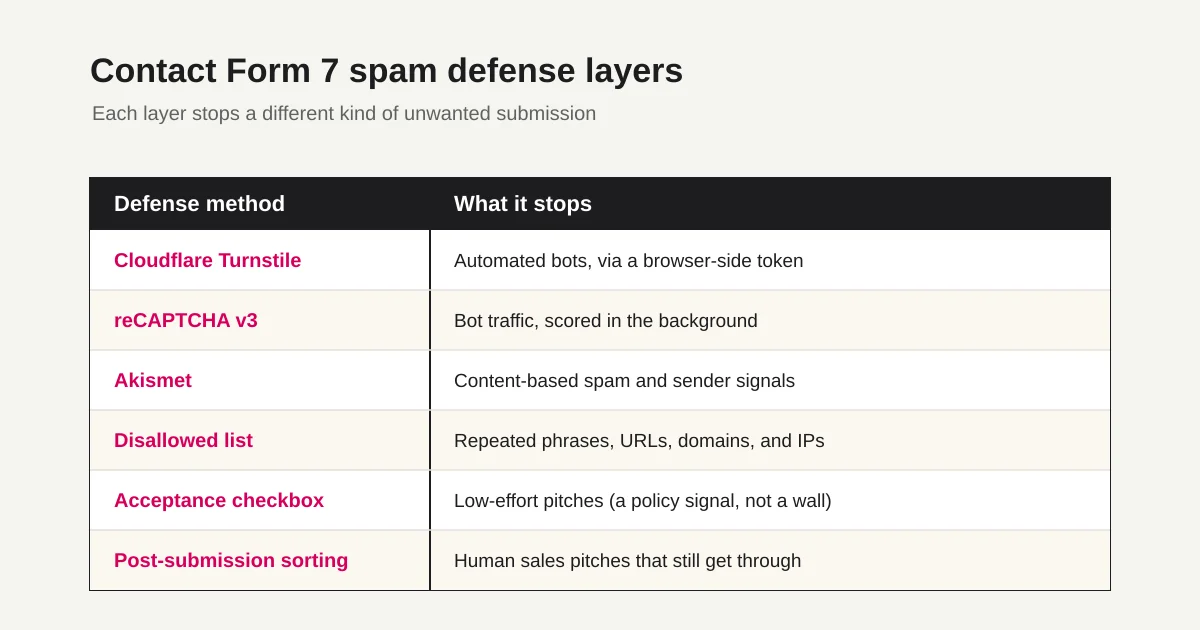
For most new Contact Form 7 spam-protection work, the practical order is:
1. Turnstile integration from the Contact Form 7 official docs.
2. reCAPTCHA v3 if your site already standardizes on Google.
3. Akismet for content-based spam signals.
4. WordPress disallowed list entries for repeated phrases, domains, or IPs.
5. Acceptance checkbox only as a policy signal, not as the main spam wall.
6. Post-submission sorting for human sales pitches that still arrive.
That order matches the current official-docs surface better than trying to solve every Contact Form 7 spam problem with one CAPTCHA layer.
Start With This Order
If you are fixing an existing Contact Form 7 site, use this order:
1. Keep WordPress, Contact Form 7, and related plugins current.
2. Add Turnstile or reCAPTCHA v3.
3. Add Akismet if content-based spam remains.
4. Use the disallowed list for repeated words, URLs, or IP addresses.
5. Add an acceptance checkbox only when it clarifies the form's purpose.
6. Classify the sales pitches and uncertain messages that still get through.
You do not need to install every layer on day one.
But leaving a public Contact Form 7 form with no protection is usually too optimistic. Add one bot-defense layer first. Then look at what remains. If the messages are machine spam, strengthen the front door. If they are human sales pitches, design the inbox workflow.
That distinction matters. CAPTCHA-style tools reduce bots. They do not reliably stop a person who opens the form, pastes a pitch, and submits it.
If you are considering a lower-friction honeypot layer for a small form, read the Contact Form Honeypot Guide for server-side checks, accessibility risks, and autofill false positives before relying on it.
Add Cloudflare Turnstile
Contact Form 7 has an official Cloudflare Turnstile integration module. The Contact Form 7 documentation says Turnstile protects contact forms from spam bots and recommends Turnstile unless you have a reason to use reCAPTCHA.
The setup path is:
1. Create a Turnstile widget in Cloudflare.
2. Copy the site key and secret key.
3. In WordPress, open Contact > Integration.
4. Set up the Turnstile integration.
5. Paste the keys and save.
After that, Contact Form 7 automatically protects the forms. If you want to control where the widget appears, add this form-tag to the form template:
[turnstile]
Cloudflare's own Turnstile docs describe the core model as two parts: a browser-side widget generates a token, and the server validates that token. When you use Contact Form 7's integration, you normally do not need to write that server-side validation yourself.
For new setups, Turnstile is the default I would consider first. It is integrated directly into Contact Form 7, does not require a Google account, and keeps the form experience fairly quiet.
Use reCAPTCHA v3 When It Fits Your Site
reCAPTCHA v3 is still a reasonable choice when your organization already standardizes on Google services or the site already has reCAPTCHA operations in place.
Contact Form 7 5.1 and later uses the reCAPTCHA v3 API. Unlike the older checkbox flow, v3 works in the background and returns a risk score.
The setup path is:
1. Register the site in the reCAPTCHA Admin Console.
2. Choose reCAPTCHA v3.
3. Copy the site key and secret key.
4. In WordPress, open Contact > Integration.
5. Paste the keys into the reCAPTCHA integration and save.
Two details matter.
First, v2 keys do not work for v3. Contact Form 7's documentation calls this out directly, so register new v3 keys if you are migrating from an older setup.
Second, reCAPTCHA v3 is score-based. Google's documentation says to verify the response on the backend, check that the action is expected, and tune thresholds based on real site traffic. Blocking too aggressively right after setup can hurt legitimate inquiries.
For contact forms, protecting real inquiries matters more than making the spam counter look perfect.
Use Akismet for Content-Based Spam
Turnstile and reCAPTCHA focus on whether the submission looks automated.
Akismet focuses more on the content and sender signals. Contact Form 7 can send form data to Akismet when you add Akismet options to the right form-tags.
Example:
[text* your-name akismet:author]
[email* your-email akismet:author_email]
[text your-url akismet:author_url]
Contact Form 7's Akismet documentation recommends using as many of the available Akismet options as possible for more accurate results.
When Akismet returns a spam result, Contact Form 7 suspends the email and shows an error. That is useful, but it also introduces risk. Automated spam filtering is not perfectly accurate. False positives and false negatives both exist.
If you use Flamingo to store submissions, review the messages that were treated as spam while you tune the setup. A lost legitimate inquiry is worse than one extra sales pitch reaching the inbox.
Use the Disallowed List for Repeated Patterns
If the same phrase, URL, domain, or IP address keeps appearing, use the WordPress disallowed list.
Contact Form 7 can use the WordPress disallowed list from Settings > Discussion. Add one word, phrase, URL, or IP address per line. Messages containing those entries, or sent from a listed IP, are treated as spam by Contact Form 7.
Example:
casino-example
spam-domain.example
203.0.113.10
To see the sender IP in notification emails, add the Contact Form 7 special mail-tag:
Sender IP: [_remote_ip]
Use this feature carefully.
Short or broad terms can block legitimate messages. Adding "SEO" might block a real customer asking about SEO work. Prefer specific domains, repeated campaign phrases, or IP addresses that have clearly caused abuse.
Use Acceptance Checkboxes as a Signal, Not a Wall
Contact Form 7 includes an acceptance checkbox form-tag for consent to a specific condition.
For sales-pitch deterrence, you might write:
[acceptance not-sales] This form is for customer inquiries. I confirm that this message is not a sales pitch or solicitation. [/acceptance]
If you want the unchecked box to behave like normal validation, add this to Additional Settings:
acceptance_as_validation: on
This can reduce low-effort pitches. It also clarifies the purpose of the form.
But it is not a reliable spam wall. A person can check the box and submit anyway. Automation can also interact with checkboxes. Treat the checkbox as a policy signal and user-facing notice, not the main defense layer.
If you need broader wording examples, the Contact Form Spam Guide covers sales-pitch notices and front-door defenses in more detail.
Keep Error Messages Calm
Spam pressure often leads teams to make form errors sound harsh.
That can hurt real visitors.
Weak error copy:
Invalid submission.
Better:
We could not verify this submission. Please try again in a moment.
For an unchecked acceptance box:
Review the statement and select the checkbox before submitting.
The point of an error message is to help a legitimate sender recover. It should not sound like an accusation. The Form Error Message Guide covers that pattern in more detail.
Why Sales Pitches Still Arrive
Even with Turnstile, reCAPTCHA, Akismet, and a disallowed list, sales pitches may still arrive.
That does not automatically mean the setup failed.
Some sales outreach is not bot spam. A person opens the page, reads the form, pastes a pitch, checks the required box, and submits. A semi-automated workflow can also behave more like a browser user than a simple script.
So split the problem:
Bot spam:
Reduce it with Turnstile, reCAPTCHA, Akismet, and the disallowed list.

Human sales pitches:
Deter them with wording, then classify them after submission.
This is the point many teams miss. If the remaining messages are human sales pitches, adding another CAPTCHA may not fix the inbox.
Choose between retaining WordPress and testing new intake
If existing embeds and plugins work for the site, tune the Contact Form 7 stack first. If the growing problem is the separate spreadsheet used to track follow-up, compare a small new intake workflow. Do not assume that existing mail or historical submissions transfer automatically.
The following is a suggested trial prompt. It is not a record of an executed trial or a verified outcome.
Draft a contact form for comparing operations.
Include name, email, inquiry category, and message.
Separate service inquiries from sales proposals.
Before publication, show the fields, completion guidance, and the later response-review steps.
Check the entry controls and, after publication, whether your own test response is retrievable and uncertain records remain visible. Review content before excluding a sales-category entry. Compare operational effort without treating a test as proof that all spam is prevented.
Compare intake and response review together
Test a new contact form, response search, and status on Free before deciding whether to change the WordPress intake.
Sign up free to draft comparison intake
After signing up and verifying your email, connect FORMLOVA to a supported AI client and use the prompt above to create a draft. AI-client access and costs follow that provider’s terms.
Design the Post-Submission Workflow
Once a message gets through, decide how it should be handled.
A practical workflow looks like this:
Sales pitches are excluded from the customer-response queue.
Uncertain messages are reviewed by a person.
Real inquiries remain in the response pipeline.
Monthly reporting excludes sales pitches from inquiry counts.
Doing that manually is possible, but it becomes expensive over time. Even a few dozen messages a month create repeated review work.
FORMLOVA treats this as part of form operations. After submission, responses can be classified as sales pitches, suspicious automation, uncertain cases, or real inquiries. You can filter the list, review uncertain items, exclude sales pitches from analytics, and combine classification with response status.
The setup guide is here: How to Use Sales Email Detection. For the full contact-form operating model, read the Contact Form Operations Guide.
Summary
Contact Form 7 spam defense is not solved by one checkbox or one CAPTCHA.
Use Turnstile or reCAPTCHA v3 to reduce bots. Add Akismet when content-based filtering is useful. Use the disallowed list for repeated patterns. Add an acceptance checkbox when it clarifies the form's purpose.
Then handle what gets through.
The real goal is not to make every unwanted message impossible. The goal is to keep real inquiries visible, route uncertain messages for review, and prevent sales pitches from distorting your response queue and reporting.
Disclosure and Verification
- Verified on: June 26, 2026
- Search Console note: the 90-day saved export showed 17 impressions, zero clicks, and average position 7.76 for this URL. The visible update on June 26 aligns title, meta description, H1, and the opening answer with the observed Contact Form 7 Turnstile integration / official docs query cluster.
- Main official sources checked:
- FORMLOVA product check: sales email detection, response status workflows, and internal links to the contact form operations cluster were reviewed.
- Note: This article is an operational guide, not legal, security, or compliance advice for a specific WordPress installation. Review your own plugin stack, hosting setup, privacy requirements, and risk tolerance before changing production forms.
Related Articles
- Contact Form Response Management Guide -- Owners, Status, Sales Spam, and Follow-Up
- Google Forms Spam Prevention -- Reduce Junk Responses, Duplicates, and Sales Pitches
- Contact Form Honeypot Guide -- Reduce Form Spam Without CAPTCHA
- Form Response Status Management -- How to Design New, In Progress, Done, and Excluded
- Form Auto-Reply Email Examples -- Templates for Contact Forms, Downloads, Webinars, and Applications
- View, Filter, and Update Response Status with FORMLOVA