
To reuse a Google Forms response chart as it looks now, use the chart's Copy control in Responses. To change its type, title, colors, or labels for a report, summarize the responses in Google Sheets and create a separate chart there. Copying the Forms chart alone does not turn it into an editable Sheets chart.
Start with the numbers you want to show. The example below uses eight fictional submissions and a three-category count table, then follows the copy and editing routes through to a document or exported file.
Prepare the count table before changing the chart
Suppose your survey asks one single-choice question: What would you like to learn about next? The options are Practical examples, Pricing, and Setup steps. Here are all eight fictional submissions. They are an instructional example, not customer data or measurements from a live Google account.
| Submission | Selected answer |
|---|---|
| 1 | Practical examples |
| 2 | Pricing |
| 3 | Practical examples |
| 4 | Setup steps |
| 5 | Practical examples |
| 6 | Pricing |
| 7 | Pricing |
| 8 | Practical examples |
Count each option to produce this frequency table: a table showing how often each answer occurs.
| Topic | Response count |
|---|---|
| Practical examples | 4 |
| Pricing | 3 |
| Setup steps | 1 |
For the editing exercise, put this table in A1:B4 on a separate tab named “Report chart.” A1 contains Topic; B1 contains Response count. A2:A4 contains the three options, and B2:B4 contains the numbers 4, 3, and 1. Keep the original response-collection tab intact.
Check the arithmetic before inserting a chart: 4 + 3 + 1 = 8. Each sample submission has exactly one answer, so the category total equals the submission total. The numbers count submissions, which may include repeat submissions by the same person.
For your real data, use the spreadsheet receiving the form responses. Google supports choosing a new or existing response spreadsheet in its response-destination instructions. Our Google Forms and Sheets integration guide covers that setup. Confirm the reporting period and any test-response exclusions before making your own table.
Copy the Forms chart when its current appearance works
On a computer, open the form, select Responses, and find the relevant chart in the summary. Use Copy at the chart's upper right, then paste it into your destination. This route is documented in Google's response-management help.
Choose it when the chart already communicates the point and you need a quick illustration for a report. After pasting, inspect the question text, answer labels, values, and size in the actual document. A readable chart in Forms can become too small on a slide.
Google also documents updating a Forms chart pasted into Docs, Slides, or Drawings when you have edit access to both the destination file and the form. That update capability does not give the copied object the chart-type and series controls of a separately created Sheets chart. Use the Sheets route below when those are the changes you need.
Keep the reporting cutoff beside the chart. “Eight submissions received by the reporting cutoff” is clearer than “Eight people,” and it explains why a later response might not appear in an already issued report.
Create and edit a separate chart in Sheets
Select A1:B4, then choose Insert → Chart. Open the chart editor and use Setup → Chart type → Column chart for this example. This gives each topic a vertical bar. Google's chart editing instructions cover insertion, chart types, and data ranges.
Check that the categories are the three topics and the only numeric series is Response count. The first row supplies headings. If Sheets interprets the selection differently, correct the heading and row/column settings before styling it. The expected chart has three bars with heights 4, 3, and 1; it does not have a bar for “Topic” or a separate bar for the total of eight.
The source for this chart is already summarized. Selecting a column of uncounted text answers is not equivalent to supplying category counts. Google's column-chart guidance describes a label column followed by numeric data, and the available customization controls.
Use the Customize tab to make purposeful changes:
| What to edit | Where to look | A useful choice for this example |
|---|---|---|
| Title and axis titles | Chart & axis titles | Title: “Topics requested for the next session”; value axis: “Submissions” |
| Legend | Legend | Position it where it does not crowd the labels; use the clear series name Response count |
| Bar colors | Series | Use one readable color because all three bars measure the same thing |
| Values on bars | Series → Data labels | Show 4, 3, and 1 so readers can check the counts |
| Count-axis minimum | Vertical axis | Start at 0 so bar lengths represent counts fairly |
These are presentation decisions for the sample, not a required Google style. A title should explain the question without claiming more than the answers show. “Topics requested” is supported by the responses; “Topics that will increase sales” is not.
Use emphasis sparingly. Giving Practical examples a stronger color can help a reader find the largest count, but it should not imply that four submissions establish a reliable preference across your whole audience. Keep labels visible so color is never the only way to understand a bar.
Inspect the chart at its intended report size. If the category names become cramped, enlarge the chart or consider a horizontal bar chart. If you shorten a label for presentation, retain its meaning and record the full option in your working table. Do not change original responses merely to make the chart look cleaner.
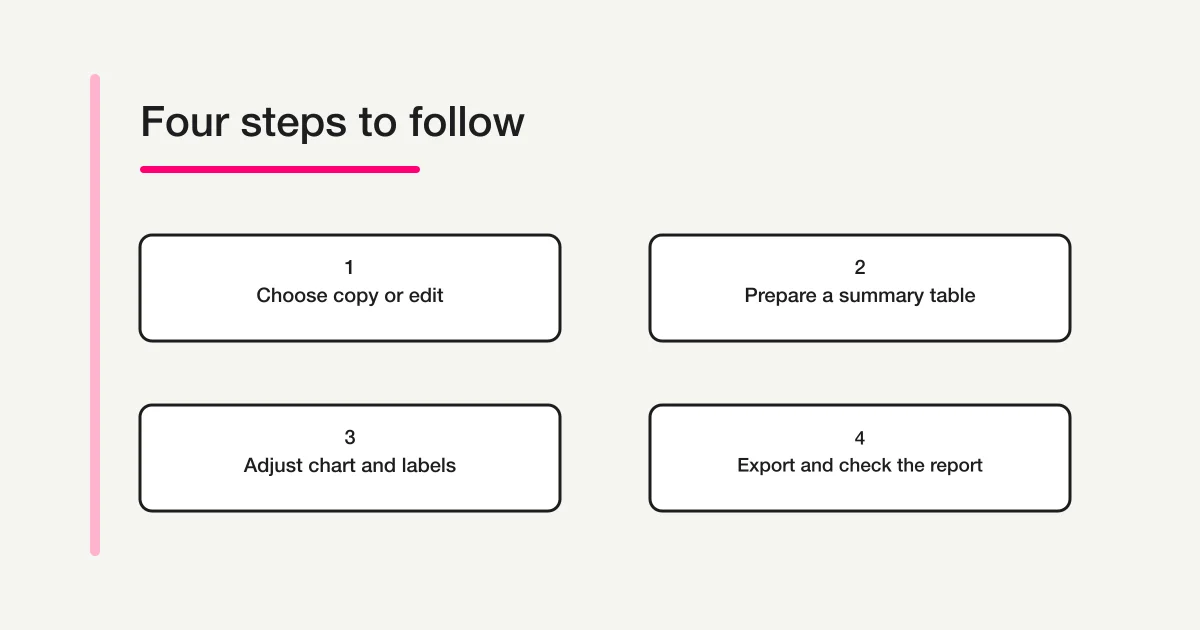
Conceptual process illustration, not a screenshot of Google Forms or Google Sheets.
Choose a downloaded file or a linked chart
For a file you can insert into a report, select the Sheets chart, open its More menu, and choose Download as. Google supports PNG, PDF, and SVG in its chart download instructions.
Choose the format for the destination you actually use:
| Output | Practical use | Check after placing it |
|---|---|---|
| PNG | A chart image in a report, email, or presentation | Text remains legible at the final size; enlarging the image does not make it blurry |
| A saved chart for review or a document workflow that accepts PDF | Page size, cropping, and labels match the intended output | |
| SVG | A scalable graphic where the receiving application supports SVG | The application renders the text and layout correctly |
These are static exports. New responses do not update a file you previously downloaded. Give the file a meaningful name such as next-session-topics-2026-10-22.png, and replace it deliberately when the report changes.
For a chart that remains linked in Docs or Slides, use Insert → Chart → From Sheets, select the spreadsheet and chart, keep Link to spreadsheet selected, and import it. Google's linked-object instructions describe this route and its update controls.
Make later chart changes in the source spreadsheet, then use Update in the destination. Source changes can overwrite edits made to the linked object in the report. Readers who can access the document or presentation can see its linked chart even without access to the source spreadsheet, so choose the information shown in the chart for that audience.
If you need a PDF of individual responses or a response list, use our Google Forms response printing guide. Downloading a chart preserves the graphic, not the underlying set of response records.
Trace an outdated chart back to its source
A report can become stale at more than one point. For the Sheets route, follow this chain:
Collected responses → reporting count table → Sheets chart → linked object or exported file.
The table in this exercise is manually entered. Even if new submissions arrive in the response tab, its 4/3/1 values stay unchanged until you recalculate and replace them. A link to Sheets does not perform that counting step for you.
For example, suppose a ninth fictional submission selects Pricing. After checking it belongs to the same reporting period, revise the table to Practical examples 4, Pricing 4, Setup steps 1. Check that the chart now shows those values. Then update the linked chart in the report, or download a new file and replace the old image. Finally, change the report note from eight to nine submissions.
If you later add a fourth answer option, check the chart's data range as well as the counts. A1:B4 contains only three categories; a new category in row 5 requires the reporting chart to include that row. A chart with plausible values can still omit data outside its selected range.
For linked objects, Google's help notes that a missing Update control can mean the object is already current or is not linked. First identify what you inserted. An exported PNG has no source link to refresh; repeating the linked-object instructions will not change it.
Fix clipped labels and unexpected numbers
Use the symptom to choose the next check, rather than repeatedly copying the same chart.
| Symptom | Check first | Useful correction |
|---|---|---|
| Long labels are cut off | Does the source chart look correct at report size? | Give it more space or use a clearer orientation, then export again |
| Values differ from the Forms summary | Are both views using the same question, cutoff, and included submissions? | Reconcile the count table with that population before editing the appearance |
| A new category is missing | Is it present in the reporting table and chart range? | Add its count and include the row in the selected range |
| Bars are right but the report note is wrong | Does the title or caption still mention an earlier total? | Update the note along with the graphic |
| A downloaded image stays unchanged | Was a new export created and inserted? | Replace the old file in the report and review the final document |
Check the delivered version, too. A correct source chart does not prove that the final PDF or presentation contains the latest image. Open that version and read back the three labels and counts before sharing it.
Prepare the next survey with consistent choices
For the next survey, FORMLOVA can help you draft the same single-choice question through a supported AI service. Free includes form creation and publication, response collection, basic analytics, and CSV/Excel export. You can use an export to make the reporting count table and check its distribution. Advanced analytics and automatic Google Sheets integration require Standard or higher.
Here is a request you can copy after connecting FORMLOVA:
Draft a short survey titled “Topics for our next session.” Explain that we will use the answers to choose what to cover next. Add one required single-choice question: “What would you like to learn about next?” Use exactly these choices: Practical examples, Pricing, and Setup steps. Add an optional comment. Keep the answer labels consistent. Before publishing, show me the questions, required settings, and choices so I can review them. I plan to export responses and count each topic in a separate reporting table.
The result to inspect is a new survey draft with one required selection and an optional comment. Check that the AI has preserved all three labels and has not turned the main question into a checkbox field. This is a proposed request and review procedure, not a record of an executed creation test.
Preview the draft yourself before publishing. To verify saved responses, publish it and submit a clearly identified test response before distributing it more widely; FORMLOVA preview responses are not saved. Check the saved answer and export column, and decide how to exclude your test from the real reporting total. This workflow prepares future data; it does not edit or migrate the existing Google Forms chart.
Prepare a survey you can turn into a clear count table
Use consistent topic choices for your next session. Free includes creating and publishing the form, collecting responses, basic analytics, and CSV/Excel export for your reporting table.
Sign up free to prepare your next survey
Sign up, verify your email, and connect a supported AI service, then use the request above to create a draft. The AI service's own access requirements, terms, and costs apply separately.
Check the AI connection guide for your service's requirements before using the request. Registration starts the setup process; the draft still needs your review.
Frequently asked questions
Can I paste a Forms chart into Sheets and edit its bars?
Do not rely on copying to convert it into a Sheets chart. Build a separate chart from a checked category-and-count table when you need control over chart type, series, and labels. Keep the copied Forms chart for situations where its existing presentation is suitable.
Should I show counts or percentages?
For this small sample, counts make the source easy to check. If you need percentages, the denominator is eight answered submissions: 4/8 = 50%, 3/8 = 37.5%, and 1/8 = 12.5%. State that denominator. If a real survey allows the question to be skipped, decide whether percentages refer to all submissions or only those answering this question.
Can I use the same denominator for a checkbox question?
A submission can select several checkbox options, so total selections may exceed total submissions. A percentage of submissions choosing each option can add to more than 100%. A percentage of all selections answers a different question. Choose the unit first, and do not reuse the sample's single-choice reconciliation without checking the source.
What if I need to compare answers by participant group?
That requires counting combinations of two questions before charting them. Use the Google Forms cross-tabulation guide for that preparation. The three-row table here describes the overall distribution of one question.
Before sharing your report, check its question, reporting cutoff, included submissions, labels, counts, and output version. For the broader process from collecting responses to maintaining reports, return to the Google Forms, Sheets, and Apps Script operations guide.
Disclosure and Verification
This article is published by FORMLOVA. Google Help references were checked on 22 October 2026 JST. The datasets and calculations are fictional instructional examples; the procedure was not tested in a live Google account. FORMLOVA feature boundaries and setup instructions were checked against the current product specification and plan definitions on the same date.