
To compare Google Forms responses by group, use a Google Sheets pivot table with one single-choice question as rows, another as columns, and a populated field counted with COUNTA. Build the table on a separate tab, then check its totals against the source submissions before interpreting any percentages.
This walkthrough crosses Participation format × Usefulness. Six fictional submissions give a checkable starting point; a seventh shows why a fixed source range can leave a new response out. The result is a count of submissions, including any repeat submissions by the same person, not a count of unique people.
Prepare a source range you can check
Start with the spreadsheet that receives your form's responses. Google Forms lets you choose a new or existing spreadsheet as the response destination; see Google's response-destination instructions. If you have not linked one yet, our Google Forms and Sheets integration guide covers that setup.
Leave the original collection tab intact. Put the analysis elsewhere in the same spreadsheet, and give that tab a name such as “Usefulness by format.” For a real survey, first identify the two question columns and the populated field you will count. They may occupy different columns from this example.
Here is the complete fictional source dataset. The dates are illustrative. These are neither customer responses nor results from a live Google account test. To reproduce the example, use a separate practice spreadsheet; do not add the sample rows to an actual response collection.
| Timestamp | Participation format | Usefulness |
|---|---|---|
| 2026-10-21 09:00 | On-site | Helpful |
| 2026-10-21 09:02 | Online | Helpful |
| 2026-10-21 09:04 | On-site | Partly helpful |
| 2026-10-21 09:06 | Online | Helpful |
| 2026-10-21 09:08 | Online | Partly helpful |
| 2026-10-21 09:10 | On-site |
Put the headers in A1:C1, with Timestamp in A, Participation format in B, and Usefulness in C. The six submissions occupy rows 2–7, so the complete range is A1:C7. Leave C7 genuinely empty: do not type “blank” or insert a space. Row 1 is a header, not a seventh submission.
Before proceeding, count three On-site rows and three Online rows directly in the source. Record that expected total of six. This small check gives you an independent reference when the pivot table appears.
Build the cross-tab on a separate tab
On a computer, select A1:C7 and choose Insert → Pivot table. Place the result on a separate sheet tab. Google requires a heading for each source column; its pivot-table instructions describe the editor and source-range controls.
Use these assignments in the pivot table editor. If Sheets suggests an initial arrangement, check it against the configuration below.
| Editor section | Field or setting | Purpose in this example |
|---|---|---|
| Rows | Participation format | One row for each format |
| Columns | Usefulness | One column for each answer category, including the blank group |
| Values | Timestamp | Count a populated field for every submission |
| Summarize by | COUNTA | Count entries instead of adding their values |
Add the fields under their respective sections. For the Timestamp value, explicitly select COUNTA rather than accepting a different summarization. Keep totals visible and start without a filter that excludes any of the six submissions.
The following is the logical result to verify, not a promise about the exact order or labels Sheets displays:
| Participation format | Helpful | Partly helpful | Unanswered (blank) | Total |
|---|---|---|---|---|
| On-site | 1 | 1 | 1 | 3 |
| Online | 2 | 1 | 0 | 3 |
| Total | 3 | 2 | 1 | 6 |
“Unanswered (blank)” is our explanatory label for an empty Usefulness answer. Sheets may display that category without this wording or in a different column position. A category combination with no submissions may also look empty rather than display the zero shown here.
Read the On-site row back against source rows 2, 4, and 7: one Helpful, one Partly helpful, and one unanswered. Then check Online against rows 3, 5, and 6. Finally, add the row totals and column totals independently; both must reach six.
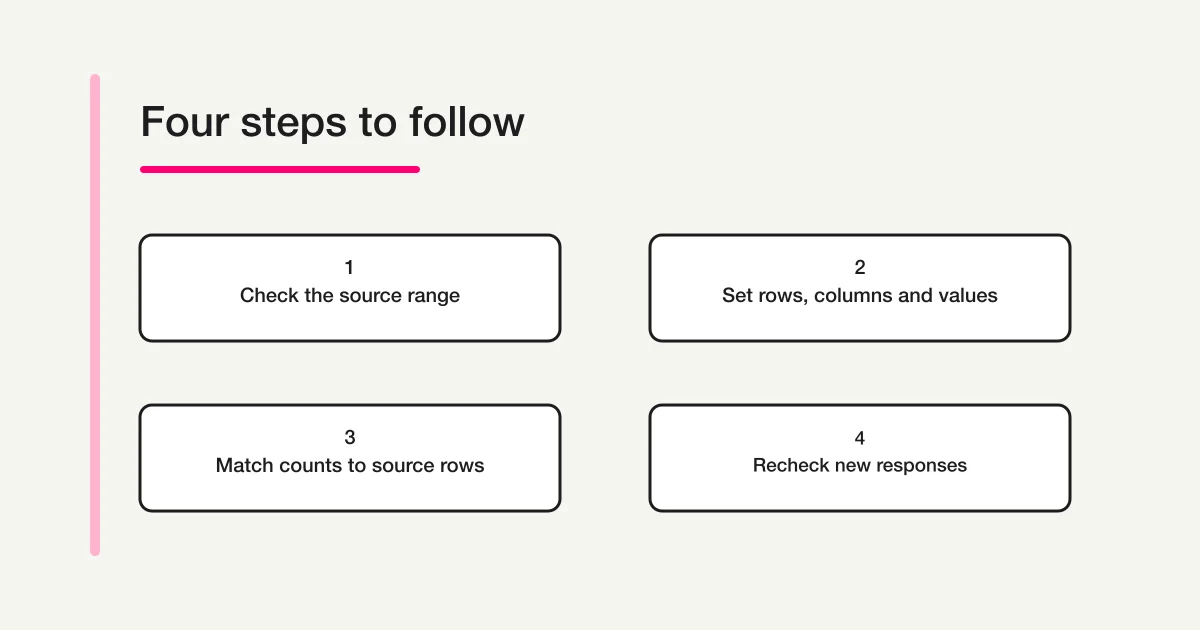
Process illustration, not a screenshot of the Google Sheets interface.
Count submissions without losing unanswered questions
Usefulness is optional in the sample, so counting that field would miss the submission in row 7. Counting Timestamp preserves the submission even though one answer is absent. SUM would ask a different question about values rather than count the records you need.
Google documents that COUNTA counts values, including duplicates, text, zero-length strings, and whitespace. That makes a truly empty cell different from one containing a space. If a source looks blank but behaves unexpectedly, inspect the cell before assigning it to an unanswered category.
Every example row has a timestamp. For your own source, verify that the counting field is populated for every included submission. Do not assume that a manually edited or imported table has the same property. Two submissions can also share a timestamp; COUNTA counts both. The timestamp is not proof that the respondents are different people.
Next, label the denominator before reporting a percentage. For On-site submissions, Helpful represents:
- 1 out of 3 submissions, about 33.3%, when all On-site submissions are included.
- 1 out of 2 answered Usefulness questions, 50%, when the unanswered question is excluded.
Both calculations describe the sample correctly, but they answer different questions. A heading such as “Helpful among submissions with a Usefulness answer” tells readers why the second denominator is two. Keep the unanswered count visible nearby so that excluding it does not hide missing information.
Do not turn this tiny fictional table into a claim that participation format causes a difference in usefulness. The arithmetic checks the table; it does not establish a reliable difference between groups.
Include the seventh submission by checking the range
Now suppose another fictional submission arrives in row 8: Timestamp 2026-10-21 09:12, Participation format Online, Usefulness Helpful. The source now contains seven submissions. A pivot still referencing A1:C7 does not include that row.
Google says pivot tables refresh when the source cells they reference change. That is different from guaranteeing that a row outside a fixed range will be included. In the pivot editor's data-range control, expand this example to A1:C8. The range-editing control is covered in the official pivot-table help.
Reconcile three changed figures rather than accepting a different-looking table:
| Check | Before row 8 | After including row 8 |
|---|---|---|
| Online × Helpful | 2 | 3 |
| Online total | 3 | 4 |
| Grand total | 6 | 7 |
The On-site total stays three. The unanswered count stays one. Those unchanged figures matter too: if they move unexpectedly, something besides the new submission has changed.
For an ongoing survey, make “compare the last included source row with the latest response row” part of each reporting run. Record the range and reporting cutoff with the result. A copied chart or report can remain unchanged even after the underlying spreadsheet has moved on, so keep its reporting date clear.
Investigate a mismatch before drawing conclusions
When the totals disagree, start with the source population rather than the chart's appearance. Confirm which submissions the report is intended to include. A report for one workshop should not be compared with all responses from several workshops, and a date-filtered pivot should not be compared with an unfiltered source count.
Work through the likely causes in this order:
- Wrong tab or range. Check the spreadsheet, source tab, header row, and last included row. In the example, six instead of seven points first to whether row 8 is included.
- Wrong counting field or summary. Confirm Values is Timestamp and Summarize by is COUNTA. A total of five in the original dataset suggests checking whether the optional Usefulness field is being counted.
- A filter excludes a category. Review filters in the pivot editor, including the blank category. Google's pivot customization guide explains totals and filters, and notes that filters by value may need updating when new values appear.
- Labels split one intended group. “Online” and “Online attendance” describe different values; unexpected spaces can also interfere with grouping. Compare actual cell contents rather than judging by appearance alone.
- The source has changed since the report. An edited answer or removed submission can change the population. Reconcile the current table against the source and reporting conditions used for that version.
Do not delete real responses to make the totals agree. If labels need normalization, use a separate analysis copy and retain a simple mapping from each original label to the reporting label. For example, record explicitly whether a trailing-space variant is being grouped with Online. Preserve the original collection data so someone else can understand the change.
This walkthrough assumes each question has one selection per submission. A checkbox answer containing several choices needs a different counting decision: submissions and selected options are different units. Use the Google Forms multiple-answer guide before applying this approach to that data.
Design the next survey for a clear comparison
The current responses can stay in Google Sheets. For your next survey, decide what the comparison should answer before choosing fields. Here, the practical question is how participants in each format rated the usefulness of one workshop. It does not require collecting unrelated background details.
Keep the choices consistent during that survey. If the event changes or you revise the answer labels, record the version instead of silently treating every response as comparable. Make a deliberate choice about whether Usefulness is required; if it remains optional, retain an unanswered category in the report.
FORMLOVA can be used to create the next survey from a natural-language request. Dedicated cross-tabulation and automatic Google Sheets integration require Standard or higher. Free covers form creation and publication, response collection and search, and CSV/Excel export. The example below requests a new survey; it does not import the existing Google Forms responses or automatically connect a spreadsheet.
Create a feedback form for participants in our October workshop. Explain that we will use the responses to review the workshop's usefulness by participation format. Add a required single-choice Participation format question with On-site and Online. Add an optional single-choice Usefulness question with Helpful and Partly helpful, plus an optional comment. Keep one choice per question and explain the purpose in plain language. In the report plan, count submissions by format, show unanswered Usefulness questions separately, and label whether percentages include them.
Review the draft questions and choices before publishing. FORMLOVA preview responses are not saved. To check saved responses, publish the form and submit a clearly identified test response before wider distribution. Confirm that the response is present and that the export fields are suitable for your planned report. Record how that test will be excluded from the survey analysis without treating it as a participant's feedback.
Prepare your next workshop feedback survey
Use consistent choices for participation format and usefulness. Free includes creating and publishing the form, collecting and searching responses, and exporting CSV or Excel.
Sign up free to prepare your survey
Sign up, verify your email, and connect a supported AI service to use the request above. The AI service's own terms and subscription requirements apply separately.
Check the report before sharing it
Give the table enough context to stand on its own. A useful report note for the completed example would read: “October workshop feedback; seven fictional submissions through 09:12 on 21 October 2026; Participation format × Usefulness; unanswered Usefulness included in counts.” Add the source range A1:C8 and the chosen percentage denominator to your working notes.
Before sending a real report, verify that:
- The source range includes the intended response rows and their headers.
- The row and column assignments match the questions named in the report.
- Counts reconcile to the same source population, including unanswered questions.
- Any filters, label mappings, and excluded test submissions are documented.
- Percentages state their denominator, and the text does not call submissions unique people.
- The reporting cutoff is clear enough to explain later arrivals or edits.
Once the counts reconcile, our survey analysis guide can help you decide what the results support and what to investigate next. For the wider collection-to-reporting process, return to the Google Forms, Sheets, and Apps Script operations guide.
Disclosure and Verification
This article is published by FORMLOVA. Google Help references were checked on 21 October 2026 JST. The dataset and calculations are illustrative; we did not run this procedure in a live Google account. FORMLOVA feature boundaries were checked against the current product specification and plan definitions.