
Last updated: October 15, 2026
Original verification record (retained; this rewrite does not re-certify every historical statement): Last verified: September 4, 2026
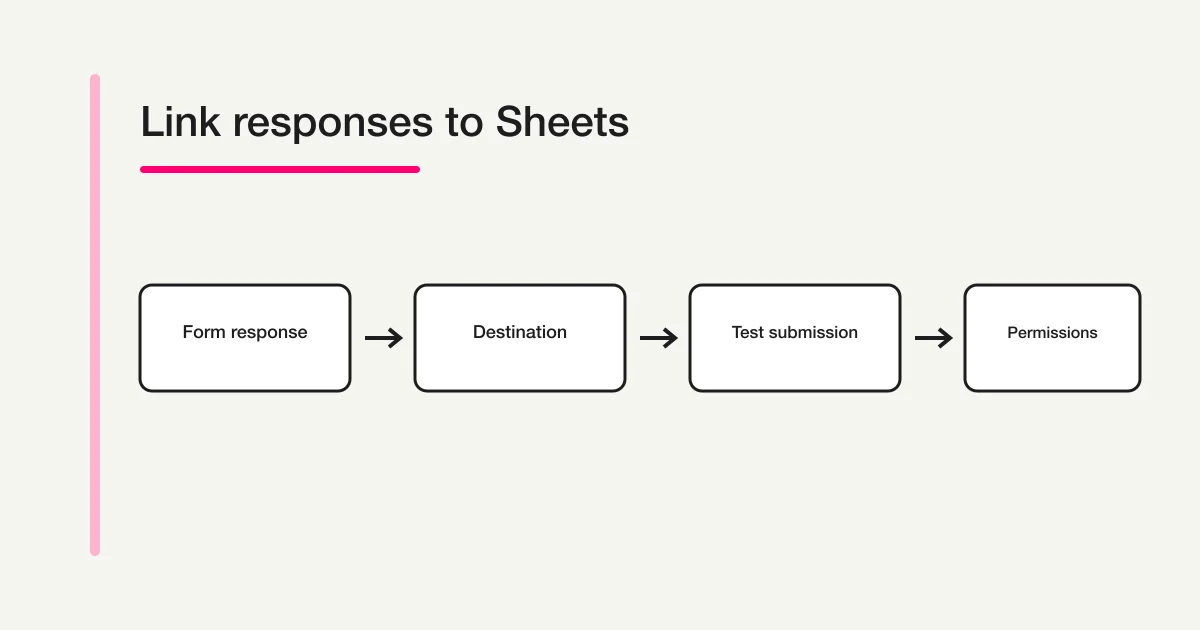
Link Google Forms from Responses → Link to Sheets or Select destination for responses, choose a new or existing spreadsheet, then compare one new test response in both places. Unlinking stops new rows; it is not the same as closing intake, deleting responses or revoking a collaborator.
Use the native setup below first. A later FORMLOVA example evaluates a separate intake and export path; it does not connect to or repair your existing Google Form.
Quick answer: choose a destination, then test one response
- Open the Google Form and select Responses.
- Select Link to Sheets, or open More and choose Select destination for responses.
- Create a new spreadsheet or select an existing spreadsheet.
- Submit one identifiable test response and confirm it in both surfaces.
- Before stopping anything, decide whether to stop submissions or only stop spreadsheet collection.
Google's official help uses both Link to Sheets and Select destination for responses. The visible entry can depend on the current state and UI. Look for the response-destination action rather than relying on one icon position.
Link Google Forms responses to a spreadsheet
1. Open Responses
Open a Google Form you can edit and choose Responses at the top. You can configure a destination before live submissions arrive. If responses already exist, verify the destination after linking rather than assuming the visible summary and Sheet are identical.
2. Open the destination control
Choose Link to Sheets, or use More and Select destination for responses. Both labels appear in Google's current documentation. UI rollout, publication state, and existing connection state can change the visible route.
3. Choose a new or existing spreadsheet
- Create a new spreadsheet creates a Google Sheets file for responses.
- Select existing spreadsheet lets you choose an existing file as the destination.
After confirming Create or Select, responses are available in a structured table. If you use an existing workbook, keep the response tab separate from dashboards and manual status tracking. That separation is an operational recommendation, not a Google requirement.
4. Submit a test response
Before distributing the form, check that:
- a timestamp appears;
- question columns match the form;
- multiple selections and long text remain readable;
- collaborators have only the access they need.
A configured connection is not proof that the operating workflow works. Test the response, permissions, and calculations together.
Unlinking, stopping submissions, and deleting data are different
| Goal | Action | What remains |
|---|---|---|
| Stop sending new rows to Sheets | Unlink the form from the response destination | Existing form and spreadsheet data |
| Stop new form submissions | Turn off Accepting responses or configure a close date/limit | Existing responses and linked data |
| Delete response data | Delete on the relevant form or spreadsheet surface | Treat the other surface as separate |
| Resume spreadsheet storage | Use Select destination for responses again | Future responses go to the selected destination |
Google says unlinking stops new responses from being sent to the spreadsheet while existing spreadsheet data remains intact. You can reconnect later through Select destination for responses.
The form and spreadsheet are separate Drive files. Deleting the spreadsheet does not delete the form, and deleting the form does not delete the spreadsheet. Google also warns that deleted form responses cannot be restored. Decide which surface is your source of record and whether a backup is required before deletion.
Collaborator and response-data permissions
When you create a new response spreadsheet, form collaborators automatically receive access to it. Later form permission changes do not automatically synchronize to the linked Sheet. When removing a collaborator, check both the form and spreadsheet.
Responder access is different from editor access. As an operational recommendation, review the responder-facing display before publication. If the form collects personal information or sensitive free text, test it under the same conditions as an actual responder.
A safer way to manage columns and formulas
The following points are operational recommendations rather than required Google procedures:
- Treat the incoming response tab as a raw source and avoid deleting its columns or changing headers.
- Put pivots, charts, calculations, and manually maintained statuses on separate tabs.
- Reconcile with a stable key such as a timestamp or a dedicated identifier, not a visual row number alone.
- Sort the whole range rather than moving one column independently.
- Test formulas that must include appended rows before launch.
- Keep a test response before changing questions, permissions, deletion, or connection state.
Separating response intake from business tracking reduces the recovery scope when questions or connections change.
Google Forms responses not showing in Sheets: check in this order
1. Send a new test response
Submit a response with a recognizable value. Confirm first that it appears in the Form's Responses view, then check whether a new spreadsheet row appears. This separates intake failure from sheet-link failure.
2. Reopen the Sheet from the form
Duplicate names, copied forms, copied spreadsheets, and multiple Google accounts are common sources of confusion. Open the destination from the form instead of selecting a similarly named Drive file.
3. Check acceptance and connection state
Confirm that the form is published and accepting responses, and that its spreadsheet link has not been removed. Stopping form responses and unlinking a Sheet are independent controls.
4. Check permissions on both files
Review the form owner, form collaborators, and Sheet editors. A permission change on the form does not automatically propagate to the spreadsheet.
5. Check the high-response boundary
Google's official help says responses may not sync to Sheets when a form has more than 100,000 responses. This Sheets threshold is separate from the September 2026 per-form limits of 500,000 responses and 1 GB total storage excluding uploaded files. Existing enterprise forms above the new limits have a March 2027 transition exception. CSV remains a preservation route; do not assume intake continues beyond the applicable form limits. At high volume, do not make the live Sheet your only preservation path; schedule exports and count reconciliation.
6. Record state before reconnecting
Record the form URL, Sheet URL, last row, last response time, and current permissions before unlinking or reconnecting. Reconnection can help diagnosis, but copying the workbook first reduces the risk of confusing duplicate rows or tabs. This is an operational recommendation.
How FORMLOVA handles response management and Sheets auto-sync
FORMLOVA lets you collect responses through a public form, search them, and manage response statuses from chat or the dashboard. CSV/Excel export is available on all plans, including Free, and chat-based export_responses can also return JSON. Google Sheets auto-sync is available on Standard and Premium, and higher eligible plans. See FORMLOVA exports and Google Sheets auto-sync for the operational split.
The connection action first returns a signed Google authorization URL. Only after the user completes Google's authorization does the callback create a new spreadsheet and header row and save the connection. Returning the URL is not the same as completing the spreadsheet connection.
Connected responses are appended as rows, and users can inspect the last sync time and error state. Disconnecting does not delete the spreadsheet. Temporary rate limits, network failures, and Google 5xx responses are eligible for retries; invalid authorization or a missing spreadsheet disables a connection because retrying alone will not restore it. A response is stored in FORMLOVA first, but external-sheet delivery must still be verified through connection status and last-sync evidence.
These are first-party implementation details verified on September 4, 2026 against lib/mcp/tools/google-sheets.ts, lib/mcp/tools/responses.ts, app/api/google/callback/route.ts, lib/google/sync.ts, and lib/plans/definition.ts. FORMLOVA does not connect to an existing Google Form or change that form's response destination.
Prepare a separate inquiry intake and verify the handoff
This is a proposed trial, not an operation or result measured for this rewrite. Use a private test draft first.
Draft a private inquiry form with request category, message and optional contact email. Add a source code as an explicitly defined field. Do not connect Sheets or publish. First show the saved fields and the CSV/Excel column design, without inventing ID or status columns.
Before proceeding, check:
- Free export contains fields and submission time, not response status. Keep the four supported states in response management.
- If adopting Standard or above, finish Google authorization yourself; an authorization URL alone is not a completed connection.
- After controlled publication, verify a test row, connection errors and last sync, and check Sheet permissions independently.
Try the intake and export before enabling Sheets sync
Free covers form creation, collection and CSV/Excel export. Native Sheets sync requires Standard or above and a separate authorization step.
Register free and draft the inquiry intake
Register, verify your email, connect a supported AI client, and paste the proposed request above. Check the saved draft before publishing. AI-client account and usage requirements apply separately.
Official sources
- Google Forms: Choose where to save form responses
- Google Forms: View and manage form responses
- Google Forms: Share your form with collaborators
Google product behavior was checked against these official pages on September 4, 2026. Labels can vary with account state and staged UI changes.
Pre-launch checklist
- Set the destination from Responses.
- Confirmed whether the destination is a new or existing spreadsheet.
- Verified one test response in both the form and Sheet.
- Reviewed sharing separately on the form and spreadsheet.
- Separated incoming responses from calculations and manual statuses.
- Documented the difference between unlinking, stopping submissions, and deleting.
- Assigned an owner to reconcile response counts and the latest row.
The next review date is October 16, 2026. After publication, monitor “Google Forms Sheets integration,” “link Google Forms to Sheets,” and “Google Forms responses not showing in spreadsheet” by locale in Search Console. The Japanese target's monthly volume of 1,000, SEO difficulty of 38, and latest-month change of -9.3% against the 12-month average come from Rakko Keyword's 24-month data checked September 4, 2026; they do not guarantee rankings or traffic.
What to do next
Resolve the current Google destination first, record both access lists and test one new row. When comparing FORMLOVA, judge the separate export and paid sync paths from actual records rather than the presence of a link.
Related Guides and References
Disclosure and Verification
The author builds FORMLOVA. Google Forms behavior was checked against the official Google help pages above, and FORMLOVA behavior against the named implementation and plan source files on September 4, 2026. Interfaces and plan terms can change, so verify the current screens before operating a live form.
To keep searchable response statuses as the source of record while also syncing new responses to Google Sheets, start with FORMLOVA, create a test form, and verify CSV/Excel handling before moving to Standard.