
Structured data type: article Locale pair: ja: https://formlova.com/ja/blog/google-forms-response-print-pdf-guide
Before printing Google Forms responses, decide whether you need one person's submission, all responses, or a summary of the results. For one submission, open the form's Responses tab and choose Individual. For a complete record, use the response menu's print option or open the linked Google Sheet. Review the print preview before choosing paper or PDF.
Printing a blank questionnaire is a different task from printing submitted answers. Both are also different from giving respondents a copy of their own submission. Choose the record and recipient first so that you do not accidentally include an entire response list when only one record is needed.
Last reviewed: October 11, 2026
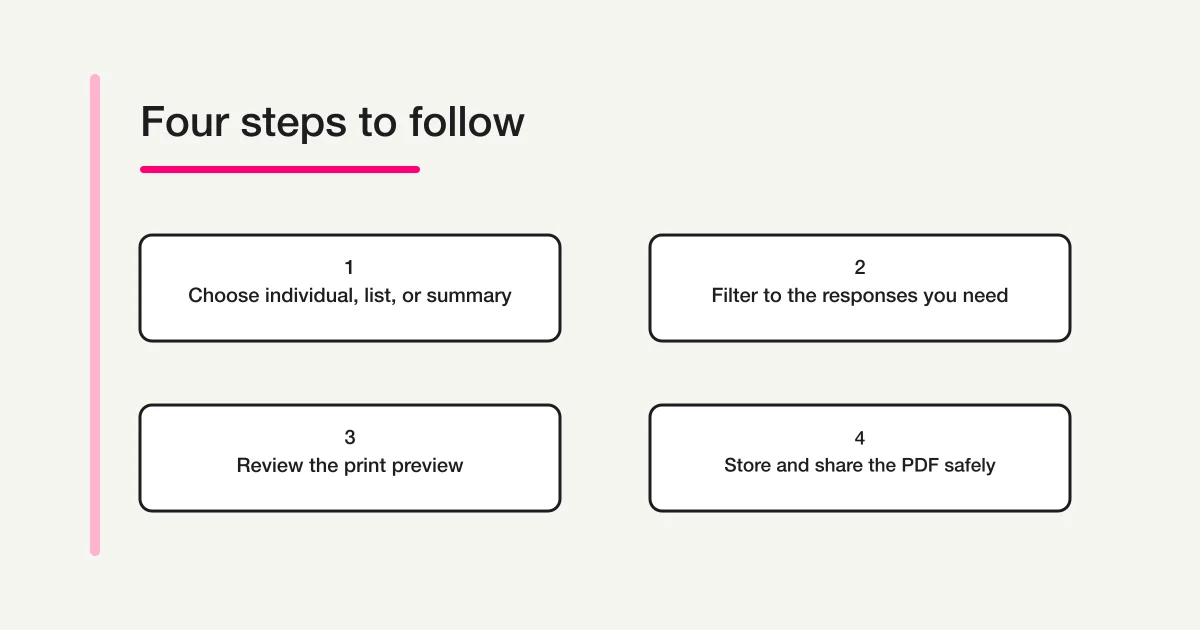
Choose the response record you need
| What you need to keep | Where to start | Check before printing |
|---|---|---|
| One person's submission | Responses → Individual | Is this the right person and submission? |
| Every submission | The response menu's print option or linked Sheets file | Does the output include personal information or test submissions? |
| A selected set of records or columns | The linked Google Sheet | Are only the intended rows and columns included? |
| Charts or an aggregate view | Responses → Summary | Could small groups or free-text answers identify someone? |
| A respondent's personal receipt | The respondent-copy setting or response link | This is separate from the form owner's print workflow. |
Google's response-management help explains how an owner can switch between Summary and Individual, open responses in Google Sheets, and download a CSV file. The Google Workspace cheat sheet also lists an option to Print all responses. Menu wording or placement can change as Google updates Forms, so check the controls visible in your own Responses view.
This guide is for a form owner or authorized editor working with submitted responses. To let a respondent review their own submission, see How to Check Your Own Google Forms Response. To send respondents an email copy, see Google Forms Response Notifications.
Print one individual response
Open the form with an account that can manage its responses. Select Responses, then Individual. Google's help says that owners can move through individual submissions and, when a form allows more than one response, review each submission separately.
- Open the form and select Responses.
- Switch to Individual and use the navigation controls or response list to display the intended submission.
- Check the response details and identify the correct record.
- If the current response view provides a print control, select it.
- Review the print preview and verify the response and page count.
- Choose a printer or select Save as PDF as the destination.
Google's Workspace documentation describes response-printing functionality, but it does not promise that every account, form, and device will show the same icon or control. If you cannot find a print action in Individual view, do not use a browser print command that captures an unrelated or incomplete screen. Consider opening the linked Sheet and isolating the response there, or exporting the necessary response data as CSV.
The owner's print workflow is not the same as a respondent receiving a copy after submission. For respondent access or saved-response behavior, use the dedicated guide to checking your own response. If an email copy did not arrive, see the response-notification guide.
Print all responses or save them as PDF
To print the complete response list, open the form's Responses view and check the overflow menu for Print all responses. Before selecting it, confirm the form title, response count, and reporting period. Decide whether test responses belong in the same record as live submissions.
Review every page of the print preview. Check that long free-text answers are not cut off, wide tables remain readable, and question labels stay with the answers they describe. If you change the print range, orientation, margins, or scaling, inspect the first and last pages again.
To keep a digital snapshot, choose PDF as the destination in the browser's print dialog. Chrome's official help describes selecting a printer or destination and adjusting the output settings. Open the saved file afterward and verify the form name, response scope, number of pages, and text layout. A successful save alone does not prove that the right content was captured.
An all-responses PDF can include names, email addresses, free-text answers, application details, or booking information. If a recipient needs just one or a few records, do not print everything and rely on discarding the extra pages afterward. Choose a route that limits the exported content before creating the file.
Print selected rows from Google Sheets
When you need only a particular response or a subset of columns, the linked Google Sheet can provide a more controlled working view. Google's help explains how to open responses in Sheets and how to download them as CSV. If you filter or sort the sheet, preserve the original response data and verify the selected rows before producing a copy.
- From Responses, open the linked Google Sheet.
- Decide which dates, respondents, and fields the recipient needs.
- Keep the original response table intact; make a working copy if you need to rearrange or remove columns.
- Apply the filter, then check the row count and headings. Remove identifying fields that are not needed.
- In the Sheets print preview, choose the intended sheet or selection as the output range.
- Check page breaks, width, and text size before printing or saving as PDF.
These print-range instructions use Google Sheets on a computer. Google's print help documents selecting cells, a sheet, or a workbook in the desktop interface. If the mobile app does not show the range controls you need, do not assume that selecting cells on screen will limit the exported file. Switch to a computer or create a separate sheet with only the intended data, then inspect the resulting preview.
A filter changes what is displayed; it does not change who can access the underlying spreadsheet. Do not assume that rows hidden by a filter are hidden from someone who can open the original file. If another person needs only a subset, create a separate file containing only the necessary rows and columns. For access and permission choices, see How to Share Google Forms Responses.
Use CSV instead of print when the recipient needs to sort, filter, or analyze the response data in a spreadsheet. The Google Forms response CSV guide covers export and character-encoding checks. A CSV is a working data table, while a PDF is a fixed snapshot. Choose the format that matches the recipient's next task.
Check a PDF before storing or sharing it
A PDF is a copy of the responses at the time it was created. It will not update automatically if the form or linked Sheet changes. If responses might be corrected or added later, include the export date or reporting cutoff in the file name and record where the authoritative data remains.
Before saving or sending the PDF, check that:
- It contains only the people or rows that the recipient needs.
- Names, email addresses, and free-text answers are appropriate for that recipient.
- Another respondent's information has not appeared in the header or file name.
- The storage location and people with access are known.
- Someone is responsible for collecting, disposing of, or securing paper copies.
- There is a plan for replacing an older file if responses are corrected.
“View only” does not mean a PDF's contents are unreadable. Check the recipient, destination account, and access settings before sending an attachment or link. Retrieve printed pages from a shared printer promptly.
When you cannot print a response
If the print control is missing, the preview is blank, or part of a response is cut off, start by checking the output you intended to create. A printer problem and an incorrect response range are different failures, so check the preview before changing form settings.
| Symptom | Check | Next step |
|---|---|---|
| No print option appears | Are you in Responses, not Questions? Does the form have many responses? | Check permissions and the intended output route. Google's help says Individual may be unavailable above 10,000 responses and Summary above 50,000. |
| The wrong content appears | Form title, selected response, and print range | Return to the response view and identify the record before printing again. |
| The PDF is blank or incomplete | Print destination, page range, and preview | Select the intended destination and review the full output. |
| A respondent wants a personal copy | Are you using the form owner's editor view? | Check respondent-copy settings, submission confirmation, or their response link. |
| Only a few responses should be shared | Is the full response list selected? | Isolate the necessary rows in a separate file. |
| The recipient needs editable data | Would a fixed document prevent their next step? | Export CSV and verify the file opens correctly. |
If menus have changed, consult Google's current response-management help. A missing print control is not a reason to send an editor link to a respondent or broaden response access.
Common questions
Can I print only one Google Forms response?
Start in Responses → Individual and display the intended submission. If the view offers a print action, use it and confirm the respondent and page range in the preview. If no print control appears, open the linked Sheet and isolate the relevant row. Avoid printing the full response list and manually removing unrelated pages when a smaller source copy is possible.
Can a respondent print their own answers?
The respondent's confirmation screen and email-copy options are separate from the owner's response-management view. Whether a respondent can reopen or edit a submission depends on the form's settings and the link they received. The owner should not share an editor link just to help someone find a personal receipt. See the self-response guide for that route.
Why is “Print all responses” missing?
Check that you opened a form where you have permission to manage responses and that you are in the Responses view. Google's help says the Individual view may be unavailable when a form has more than 10,000 responses, and Summary may be unavailable above 50,000. Interface labels and available controls can change. If the menu is still unavailable, use the linked Sheet or download the response data as CSV instead of guessing at a hidden control.
Should I use PDF or CSV?
Choose PDF when the recipient needs a fixed, readable snapshot for review or paper handling. Choose CSV when the next step involves sorting, filtering, analysis, or importing rows into another tool. PDF freezes the layout and values at export time; CSV preserves tabular fields but may display incorrectly when opened with the wrong character encoding. For export and spreadsheet checks, use the response CSV guide.
Does printing change or delete the original responses?
Printing, browser PDF output, and CSV download create an output copy. They are not a substitute for changing or deleting responses in the form. If the source record needs correction or removal, use the relevant response-management controls and follow the organization's retention rules. Keep the exported file's date and source clear so no one mistakes it for the live response list.
Is the response PDF private by default?
The output is a separate file that can be saved, attached, or placed in a shared folder. Do not assume that the form's access settings automatically apply to every copy. Verify the destination, people who can open it, and whether a broader summary or an individual record is appropriate before sharing.
Summary
Use Individual for one submission, the all-responses print option for a complete paper record, and Sheets when you need to select rows or columns. Review the output scope, every page, and personal information before printing or sharing a PDF.
For a blank questionnaire, use the Google Forms print and PDF guide. For a spreadsheet-ready response export, use the CSV guide. To review response destinations and connected Sheets as part of an operating setup, see the Google Forms and Sheets operations guide.
Sources
- Google Workspace Learning Center: Google Forms cheat sheet
- Google Docs Editors Help: View and manage form responses
- Google Docs Editors Help: Print from Google Sheets
- Google Chrome Help: Print from Chrome
Disclosure and Verification
Google's response-management help, the Workspace Learning Center cheat sheet, and the Sheets and Chrome printing help were reviewed on October 11, 2026. This guide is based on published official documentation; it does not claim that FORMLOVA operated a reader's Google account or tested their live form. Check the controls and output in your own environment.