How to Connect FORMLOVA to Grok Bot in One Message
You can now use FORMLOVA from Grok Bot. Connecting takes very little: press the button in the setup guide, send the message that arrives in Grok Bot, and approve the sign-in card it shows. You do not need to fill in any settings yourself.
This guide walks through that path, the manual way to add it, and what to ask first once you are connected. Grok Bot is xAI's service that works like an AI teammate with its own computer. Version 1.0 launched on November 11, 2026.
What you need before you start
You need three things.
- A plan that includes Grok Bot: It comes with Premium ($30 a month), Super, and Ultra on The X Subscription, and with Teams and Enterprise. There is no standalone Grok Bot subscription. Some accounts see an option to try it first.
- The Grok Bot desktop app: It runs on macOS, Windows, and Linux. Adding an outside tool (a custom connector) is done in the desktop app.
- A FORMLOVA account: It is free. If you do not have one yet, you can sign up from the sign-in screen that appears while connecting.
FORMLOVA's connection address (its MCP server URL) is below. MCP is a shared way for AI apps to use outside tools.
https://formlova.com/api/mcp
The shortest path: send one message
In FORMLOVA's setup guide, choose Grok Bot and you will see a button labeled "Copy message and open Grok Bot."
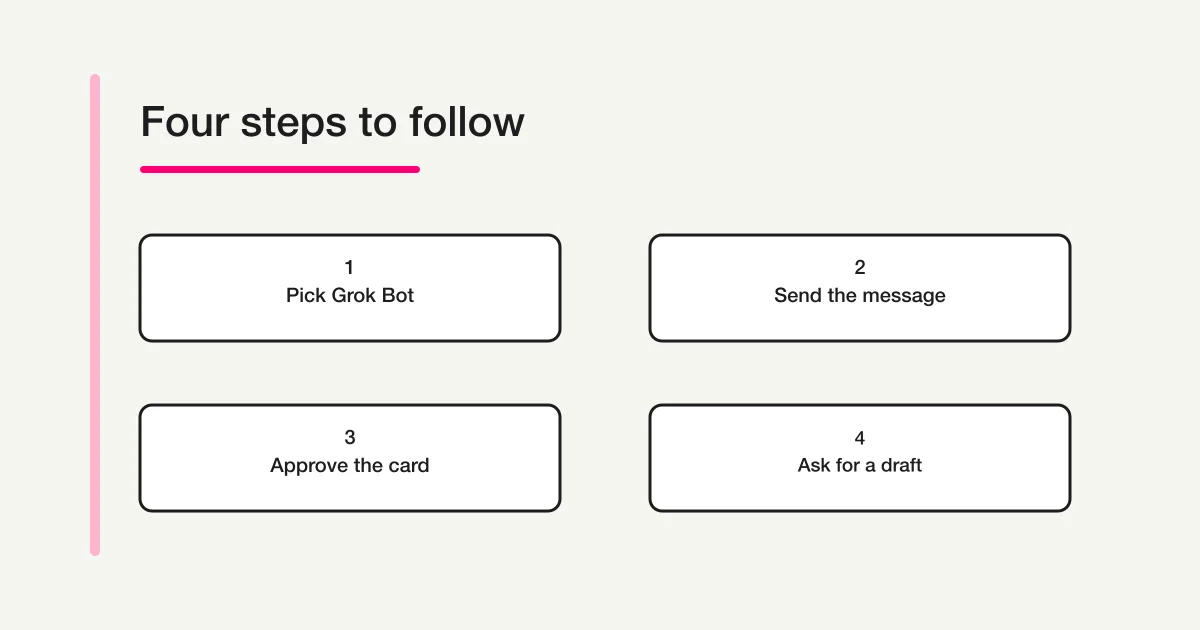
1. Press the button to open Grok Bot
The button copies the message below and opens the Grok Bot app with the message already in place.
Add the MCP server https://formlova.com/api/mcp and connect it.
2. Check the message, then send it
Before the message is sent, Grok Bot asks you to confirm. Check that the text matches the one above and that the address is formlova.com, then confirm to send it.
3. Approve the sign-in card
After the Bot adds FORMLOVA, it replies asking you to sign in and shows an approval card. Continue from the card, and FORMLOVA opens in your browser. Sign in and allow the connection from Grok Bot.
Once you approve, the Bot lets you know the connection is ready. That is all.
If the button does not open the app, paste the copied message into a chat with any of your Bots and send it. The rest works the same way.
Adding it manually
You can also add FORMLOVA from the settings screen instead.
- In the desktop app, open Connect apps from the sidebar and choose Add a custom connector at the bottom.
- Fill in the fields as shown below.
- Choose Add plugin. When FORMLOVA shows Authenticate in the list, sign in from there and allow the connection.
| Field | What to enter |
|---|---|
| Name | FORMLOVA (any name you will recognize) |
| Type | Remote HTTPS |
| Server URL | https://formlova.com/api/mcp |
| HTTP headers | Leave empty |
| Client ID | Leave empty |
Leave HTTP headers and Client ID empty. FORMLOVA handles the registration it needs automatically when you connect. If you fill in these fields, that automatic step may not be used and sign-in may not go through.
What to ask first
Once connected, try making one draft that you do not publish yet. For example:
In FORMLOVA, create a draft registration form for a seminar. Ask for name, email, the date they will attend, and questions. Do not publish it yet.
The Bot creates the form and returns a preview URL. You can change the order of questions or which ones are required, right in the chat.
As you get used to it, you can ask things like these:
Summarize how many registrations came in through yesterday and what people wrote in the questions field.
Draft a reminder email to everyone who registered. Show me the text before sending.
Publishing and sending email are hard to undo. FORMLOVA asks for confirmation before these actions. Grok Bot may also show its own approval card (Auto Review) before acting.
One connection works for every Bot
Grok Bot connections apply to your whole account. Once FORMLOVA is connected, every Bot you run can use it, including Bots you create later.
That makes it possible to set up separate Bots, such as one for registrations and one for inquiries, and ask each one for its own work. Part 3 of this series, Split Form Work Across Your Grok Bots, shows how.
Grok Bot also has voice chat, a live spoken conversation with a Bot inside the app. You can publish a form or send an email without leaving the call. Part 2, Run Your Forms by Talking to Grok Bot, covers what that looked like.
When something does not work
The button does not open Grok Bot
Make sure you are pressing it on a computer with the Grok Bot desktop app installed. If it still does not open, paste the copied message into a chat with a Bot and send it.
Add a custom connector will not save
On company or team accounts, an admin policy may block adding outside tools. If the list says the connector is disabled by a team admin, ask your admin.
FORMLOVA is added but does not work
A connector marked Added is installed, but you may not be signed in yet. If it shows Needs auth or Disconnected, choose Authenticate and sign in again. Finish signing in within about ten minutes of the page opening.
The name looks different in FORMLOVA's connected list
Grok Bot runs on technology from the same company as Cursor, so FORMLOVA's Connected AI clients list in account settings will likely show it as "Cursor." Check the connection date and time to confirm it is yours.
Make your first draft from Grok Bot
Choose Grok Bot in the setup guide and connect with one message.
Sign up free and connect from Grok Bot
After you sign up and confirm your email, choose Grok Bot in the setup guide and press the button it shows.
Frequently asked questions
Can I use it with a free X account?
Grok Bot is included with Premium, Super, and Ultra on The X Subscription, and with Teams and Enterprise. A free X account alone does not include it. FORMLOVA's free plan lets you create and publish forms and receive responses.
Does it work from the Grok Bot phone app?
Adding an outside tool happens in the desktop app. Once connected, the connection applies to your whole account, so Bots in the phone app should be able to use FORMLOVA too. I have not tested this from the phone app myself yet.
How do I disconnect FORMLOVA?
Remove FORMLOVA from Connect apps in Grok Bot. On the FORMLOVA side, you can revoke the connection from Connected AI clients in account settings.
Related articles
- MCP Form Service Guide
- Cursor MCP Server Setup
- Use ChatGPT With a Form MCP Server
- Claude Desktop MCP Setup
Disclosure and Verification
Checked on November 25, 2026 against xAI's official pages (Grok Bot, Use the computer and apps, and the FAQ) and the Grok Bot desktop app itself. The connect-button flow from the setup guide was tested the same day. Grok Bot's screens and plans may change, so check the official pages before you start.