
Split Form Work Across Your Grok Bots
Grok Bot lets you create more than one Bot. xAI itself describes giving each Bot one clear job and having several Bots share the work.
I think that fits form operations well. Registration questions go to the registration Bot, and inquiries go to the inquiry Bot. It is the same way you would divide work on a human team.
This article covers how to create role Bots, example first messages that set each role, and the limits to know before you split things up.
Why split work across Bots
If you ask one Bot for everything, registration and inquiry topics start to mix in the conversation. Bots remember their conversations and what you ask of them, so when each Bot has one role, each one mostly remembers its own work (basic facts about you, such as your name, are shared across Bots).
It also makes it clear who to ask. Grok Bot voice chat is a conversation with one Bot. If you decide that registration questions go to the registration Bot, you spend less time re-explaining at the start of each call. Part 2, Run Your Forms by Talking to Grok Bot, covers voice chat.
An example of splitting roles
If a small team runs three forms, you could split the work like this:
| Role Bot | Forms it owns | What you ask it for |
|---|---|---|
| Registrations | Seminar and event registration | Registration counts, open seats, draft emails to attendees |
| Inquiries | Contact form | Summaries of new inquiries, flagging urgent ones, draft replies |
| Reports | Surveys | Totals, summaries of free-text answers, a weekly report |
You can split by form or by type of work. Starting with about two Bots and adding more when you need them works well.
Create a role Bot
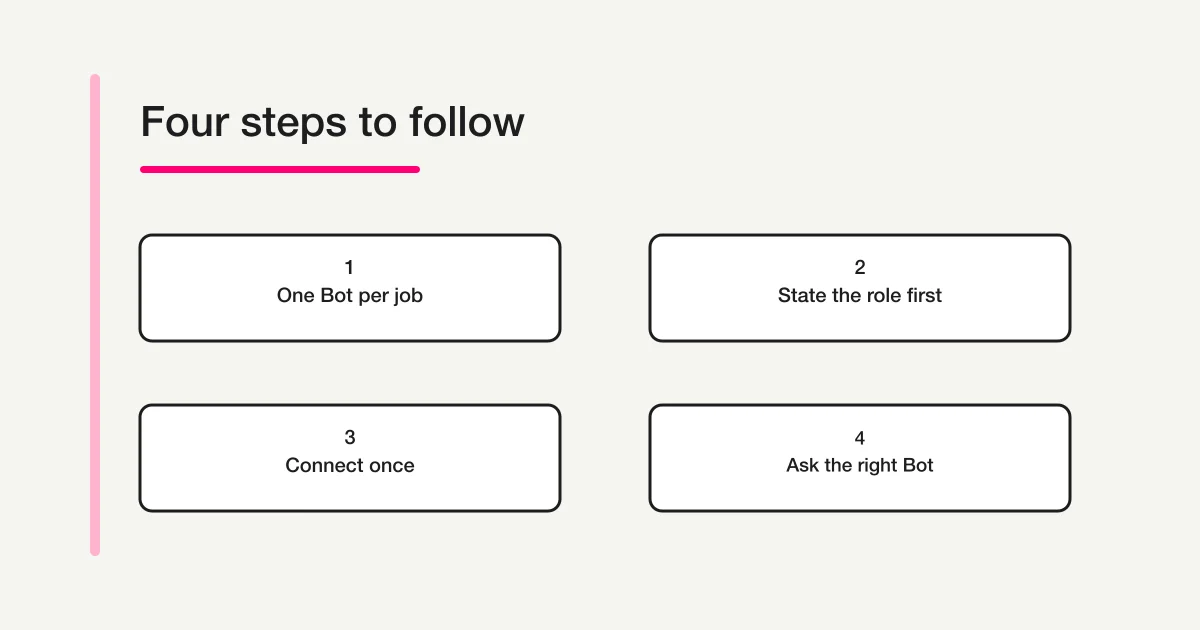
Choose New Bot (the + button) at the top of the Grok Bot sidebar. Give it a name, pick a shape and color for its picture, and choose Create. A name that shows its role, such as "Registrations" or "Inquiries," makes it easy to tell them apart later.
Personal Bots do not have a description field or a settings page. You give them their role in chat.
State the role in the first message
xAI's guidance is to give a Bot its job, its sources, and its approval boundaries in the first message, and to ask it to remember them. For a form role, include three things:
- The forms it owns: Which forms this Bot handles
- What it does: What you plan to ask it for
- What needs your confirmation: Actions that are hard to undo, such as publishing, sending email, or deleting responses
For the registration Bot, a first message could look like this:
You handle registrations in FORMLOVA. You own the "Seminar registration" form. When I ask, report registration counts and open seats, and draft emails to attendees. Do not publish, send email, or delete responses until I say "go ahead." Please remember this role.
For the inquiry Bot:
You handle inquiries in FORMLOVA. You own the "Contact" form. Summarize new inquiries and tell me the urgent ones first. Keep replies as drafts and send them only after I confirm. Please remember this role.
For the reports Bot:
You handle reports in FORMLOVA. You own the "Customer survey" form. When I ask, total the responses and group free-text answers by similar opinions. Do not change the form itself. Please remember this role.
If you want to change a role later, just tell the Bot in chat.
Connect FORMLOVA once
Outside tool connections in Grok Bot apply to your whole account. Once FORMLOVA is connected, every Bot can use it, including role Bots you create later. You do not need to reconnect for each Bot.
If you have not connected yet, see part 1, How to Connect FORMLOVA to Grok Bot in One Message. It takes one message.
Limits to know
Splitting work is useful, but one thing matters a lot: a Bot's role is an agreement, not an access limit.
Because the FORMLOVA connection is shared across your account, every Bot can technically work with every form. Telling a Bot it handles registrations does not stop it from touching the contact form. Think of the role as a label that keeps each Bot from mixing up its work.
That is why it is safer to keep confirmation steps for actions that are hard to undo, separate from roles. FORMLOVA asks for confirmation before publishing and sending email. On the Grok Bot side, a review step before actions (Auto Review) is on by default.
Also, even with separate Bots, FORMLOVA sees every action as coming from the same account. You cannot tell from FORMLOVA's records which Bot did what. If you need to know who did what, check the Bot conversations as well.
Using it as a team
Grok Bot's Teams and Enterprise plans include Team Bots that a team shares. You can also talk to them from Slack or Microsoft Teams.
When a teammate's Team Bot wants to use a tool connected through your account, it asks you first. If your team uses FORMLOVA, decide up front whose connection the Team Bots should use.
Start with one role Bot
Once FORMLOVA is connected, create a registration Bot, give it its role with the message above, and ask it for one draft.
Sign up free and connect from Grok Bot
After you sign up and confirm your email, choose Grok Bot in the setup guide and press the button it shows.
Frequently asked questions
How many Bots can I create?
xAI's guidance does not state a limit. More work uses more of your plan's usage, so starting with about two is a good idea.
Can role Bots hand work to each other?
You can add two to six Bots to a group chat and talk to them together. Some form actions are hard to undo, though, so start by talking to each Bot separately and checking results yourself.
Can I limit which forms each Bot can use?
Not today. FORMLOVA has no way to restrict forms per Bot. Use the role as an agreement set in the first message, and keep confirmation steps for actions that are hard to undo.
Related articles
- How to Connect FORMLOVA to Grok Bot in One Message
- Run Your Forms by Talking to Grok Bot
- MCP Form Service Guide
Disclosure and Verification
Checked on November 25, 2026 against xAI's official pages (Create and manage Bots, Use the computer and apps, and Grok Bot for teams) and FORMLOVA's current specification. The role split and messages are an example setup that follows the official design. I have not measured the results of running this split over a long period. Screens and features may change, so check the official pages before you start.