
Run Your Forms by Talking to Grok Bot: Publish, Edit, and Send Email
Grok Bot has voice chat, a live spoken conversation with a Bot inside the app. With FORMLOVA connected, you can stay on that call to check a form, edit it, publish it, and send email. You can also ask it to create a form, just as you would in text.
I tried it on November 25, 2026. I published an inquiry form, made three fields required, and sent a thank-you email without leaving the call.
This article shares that flow and what to keep in mind when you make requests by voice.
Voice chat is not a phone number
First, a quick note on terms. Voice chat here means talking with one Bot inside the Grok Bot app. It does not use a phone number. It works in both the desktop app and the phone app.
Grok Bot also has a separate feature where a Bot can call a business for you. That one is US-only for now and is not what this article covers.
You start voice chat with the waveform button that appears when the message box is empty. During the call you can mute, hang up, show the transcript, and change the voice, speed, and language. Language is detected from what you say. I spoke in Japanese, and the Bot's record kept my Japanese words for "send it" as I said them.
If you have not connected FORMLOVA yet, start with part 1, How to Connect FORMLOVA to Grok Bot in One Message. It takes one message.
What happened on the call
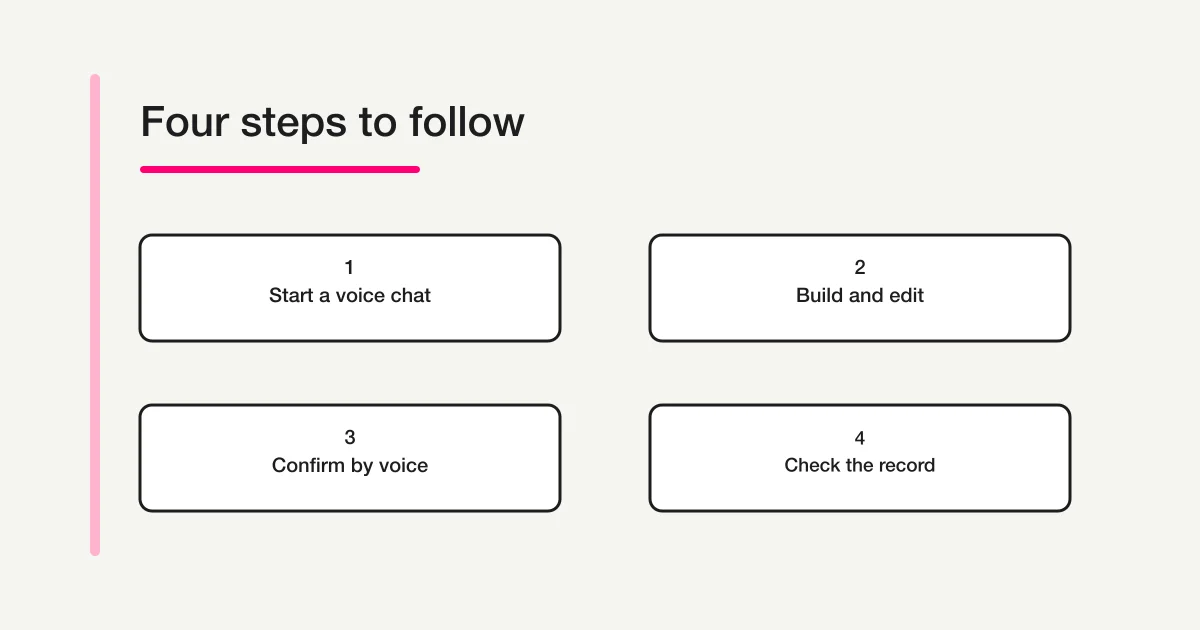
On the call, I asked for three things:
- Publish an inquiry form
- Make three fields required
- Send a thank-you email
The Bot's record listed each action with a time, such as inquiry form published at 1:53, three fields made required, and thank-you email sent at 1:57 (translated from Japanese).
Publishing and sending do not happen on their own
If you can ask by voice, you might worry that a misheard word could publish a form or send an email. That was my biggest concern too.
According to the Bot, email normally stops as a draft card and goes out only when you approve it. This time, when I clearly said "send it" on the call, that counted the same as pressing Send on the card. The Bot recorded that I had said so before sending.
On this call, the email was not sent until I said "send it." Across Grok Bot, a review step before actions (Auto Review) is on by default. If you choose Always allow on an approval card, that kind of action may go ahead without asking next time, so it is safer not to choose Always allow for sending email or publishing.
On the FORMLOVA side, actions that are hard to undo, such as publishing and sending email, go through confirmation first. That order is the same whether you type or talk.
How to phrase requests by voice
Three things I kept in mind on the call:
1. Name the form first
If you have several forms, the Bot may not know which one you mean. Start with something like "This is about the seminar registration form," and the rest of the conversation stays on track.
2. Say publish and send in plain words
Avoid vague answers like "probably fine." To go ahead, say "publish it" or "send it." To stop, say "do not publish it yet."
3. Check email addresses and names in text
Email addresses, people's names, and company names are easy to mishear. Check important recipients and text in the transcript or chat after the call, or ask the Bot to read the text back to you.
Things you can say
Everyday wording works. For example:
Make a draft inquiry form. Ask for name, email, and their message. Do not publish it yet.
Make name, email, and message required.
How many inquiries came in yesterday? Tell me only the urgent ones.
Read me the thank-you email to people who sent an inquiry. ... Okay, send it.
As in the last example, hearing the text before you say "send it" makes it easier to catch a misheard recipient or detail.
What to check after the call
After you hang up, two quick checks help:
- The Bot's record: It shows what you did on the call and when. If you published or sent something, it should appear here.
- The FORMLOVA dashboard: You can confirm the form's publish status and the email send record there too.
Actions you take by voice are recorded in FORMLOVA the same way as typed requests. When your hands are busy, you can move things forward by voice and check the screen later.
Make your first draft by voice
Once FORMLOVA is connected, try saying "make a draft and do not publish it yet" on a Grok Bot voice chat.
Sign up free and connect from Grok Bot
After you sign up and confirm your email, choose Grok Bot in the setup guide and press the button it shows.
Frequently asked questions
Can I speak in a language other than English?
Yes. Voice chat detects the language from what you say. I spoke in Japanese and went all the way through publishing and sending email.
Can I talk to several Bots at once?
Voice chat is a conversation with one Bot. It is not available in group chats with several Bots. To split work across Bots, see part 3, Split Form Work Across Your Grok Bots.
Could a misheard word send the wrong thing?
On my call, nothing was sent until I said "send it." Recipients and wording can still be misheard, so ask the Bot to read the text back before you send.
Related articles
- How to Connect FORMLOVA to Grok Bot in One Message
- Split Form Work Across Your Grok Bots
- MCP Form Service Guide
Disclosure and Verification
On November 25, 2026, I ran FORMLOVA actions in a Grok Bot voice chat (publishing an inquiry form, making fields required, and sending a thank-you email), and this article is based on that call's record. Voice chat controls and the approval flow were checked against xAI's official pages (Message and collaborate and Approvals, security, and privacy). Screens and features may change, so check the official pages before you start.