AI Image to Form: Check Every Question Before Publishing
To turn a questionnaire image into a web form with AI, first extract the questions into a table, compare that table with the original, and create a private draft from the confirmed rows. Check the saved form before publishing. Readable text is only the first step: the choices, required settings and meaning of each note must survive the conversion too.
An image-capable ChatGPT or Claude setup can help interpret the source. With a supported FORMLOVA connection, the confirmed question list can become an editable form draft. Keep those two steps visible so you can identify whether a mistake came from reading the image or building the fields.
Decide whether the source is ready to convert
Start with a blank questionnaire you own or have permission to reuse. A clear scan or straight-on photo is useful; a completed customer sheet brings answers into a task that only needs the questions. Use a blank copy or remove filled-in details before attaching it to your AI chat.
Check the whole page first. A close crop may make small text easier to read while cutting off the instruction that applies to every question. Keep one full-page image, then add a close-up of a difficult section if necessary. Identify each close-up by its position on the original.
The goal is an editable question structure, rather than an image placed inside a form. If you want to reproduce colors, typography or spacing, use the separate screenshot design guide. Here, a plain draft with the right choices is more useful than a polished draft that changes what people can answer.
Choose the next action from what you can actually see:
| Source condition | Next action | What remains unresolved |
|---|---|---|
| Blank sheet with clear questions and instructions | Extract a question table | Each field still needs comparison |
| Small but legible section | Attach the whole sheet plus a close-up | Check that the crop retains its label and context |
| Blurred option or cropped required marker | Obtain a clearer source or ask the document owner | Do not let AI invent the missing content |
| Completed sheet with personal answers | Use an authorized blank copy instead | The answers are unnecessary for drafting |
| Screenshot showing only colors and layout | Use a design-reference workflow | A visual reference may not define the question rules |
OpenAI's image-input guidance, checked November 24, 2026, describes attaching images to a conversation and warns that unclear or rotated text can be misinterpreted. Claude's official upload guidance, checked the same day, supports image attachments and recommends avoiding small, low-resolution images. These capabilities help with inspection; they do not certify a transcription.
Extract a table before asking for fields
Attach the image to a client that can read it, then ask for a transcription you can compare. Do not combine uncertain reading and publication in one request.
Read this authorized blank questionnaire image. Make a table with the source position, exact question text, choices in their original order, single or multiple selection, visible required marking, helper text, and anything unreadable. Do not guess missing words, add questions or create a form yet. Keep instructions separate from answer fields.
The source position can be simple: “top, first box” or “middle, weekday row.” It gives you a way to check a row without hunting through a long chat. Preserve original wording first. Editing for the web comes after you have a faithful reference.
Consider a fictional consultation intake with five question groups. This is an illustrative design example, not a reported customer document or a measured AI result. Its blank source is defined as follows:
| Source question | Printed rule in this example | Draft field interpretation |
|---|---|---|
| Name | Required | Required short text |
| Required | Required email field | |
| Consultation method | Required; choose one: Online / In person / Phone | Required single choice with those three options |
| Preferred weekdays | Select all that apply: Monday / Tuesday / Wednesday / Thursday / Friday | Multiple choice, retaining all five options |
| What would you like to discuss? | Optional; write freely | Optional long text |
A separate note says that submitting the intake is a request, not a confirmed appointment. Keep that note as explanatory text. Making it a sixth question called “Confirmed appointment” would change the process.
Now compare the AI's proposed table with this reference. “Phone” must remain a distinct method. Monday through Friday must remain selectable together where the source permits it. The optional discussion field must allow an answer in the respondent's own words.
If a required mark is absent, record “not shown” instead of claiming the question is definitely optional. The document owner can then make the web-form decision. Similarly, the shape of a printed box alone does not establish whether multiple answers are allowed; the instruction carries that meaning.
Resolve ambiguity without hiding a redesign
A neat list can conceal a guess. Ask the AI to name the uncertain row and pause that part of the work. A response such as “the third method might say Phone” is a useful finding, not permission to insert Phone into the form.
For a difficult row, use this follow-up:
Recheck the consultation-method row using this close-up. Transcribe only what is legible. If an option or instruction is still unclear, label it unknown and leave that row out of the confirmed field list. Tell me exactly what I need to confirm with the document owner.
Keep a short decision record beside the table: the original says one thing, the proposed web field says another, and a named owner approves the difference. This matters when you deliberately simplify a paper process. AI should not quietly remove an option because it seems uncommon.
“Other” deserves a separate check. If the original offers “Other: ____,” one label may carry two requirements: selecting Other and entering an explanation. Confirm how the draft will capture the explanation. If you choose a simpler separate optional text field, label that as your design decision and inspect its wording; do not call it an exact copy.
Likewise, do not add a conditional question merely because the AI expects one. Our example has no phone-number field. A Phone consultation option does not authorize collecting a new number. Ask the owner whether it is needed, decide the rule, then document the addition. You can create the confirmed questions while leaving unresolved additions for later.
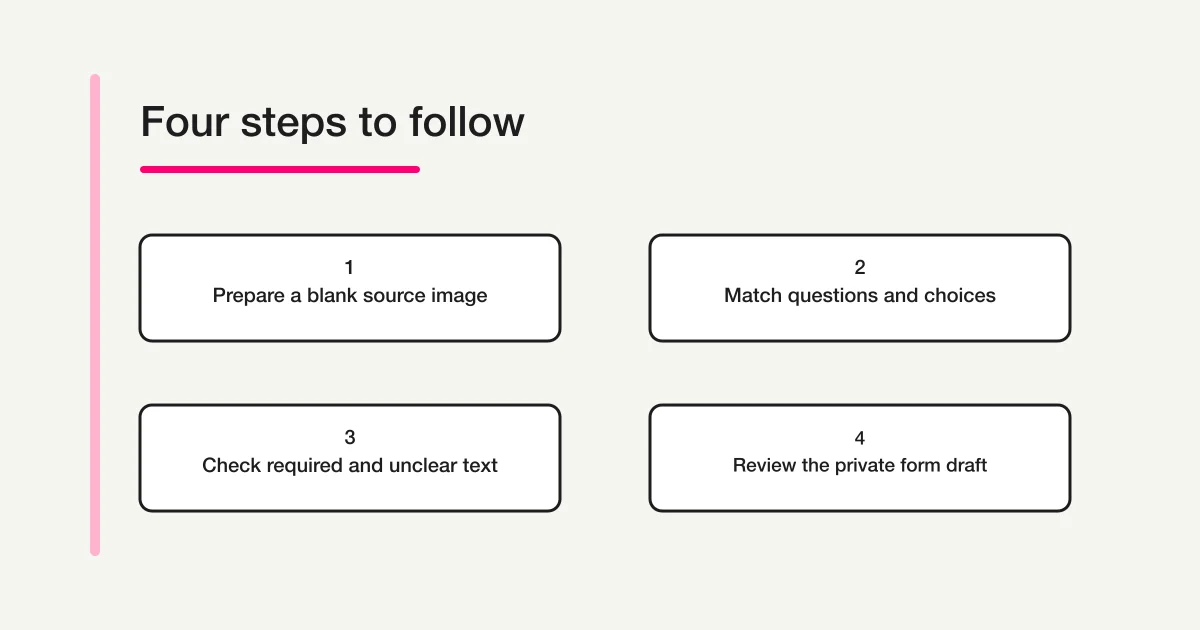
The following is a process diagram, not a screenshot or an AI accuracy result.
Create the confirmed questions as a private FORMLOVA draft
If you already work in ChatGPT or Claude, use a supported connection that permits creating and updating forms. Image input and permission to write to FORMLOVA are separate capabilities. Seeing an attachment button does not establish that the same account can save a form.
For the signup-first route used here, register for FORMLOVA, verify your email, and connect your supported AI client. Check the current client connection requirements. FORMLOVA's guidance currently lists full ChatGPT creation access for eligible Business, Enterprise and Edu web setups with the required permissions; Pro is read/fetch only. Client subscriptions, account settings and permissions remain separate from FORMLOVA's free plan.
After you have checked the table, send this request. It deliberately uses the confirmed structure rather than asking the service to interpret an unidentified image again.
In FORMLOVA, create a private consultation-intake draft from this confirmed list. Name: required short text. Email: required email field. Consultation method: required single choice, Online, In person, Phone. Preferred weekdays: multiple choice, Monday through Friday, optional. What would you like to discuss?: optional long text. Add the note “Submitting this form requests a consultation; it does not confirm an appointment.” Do not add a phone-number field, uploads or email automation. Show the saved field list and private preview. Do not publish or send email.
The example retains the source’s required name, email and consultation-method questions. Weekdays and discussion remain optional. If your source uses different rules, confirm them before creating the draft; a visible decision is easier to review than a guessed required setting.
FORMLOVA's free plan supports creating forms, publishing and collecting responses. This first exercise uses text and choice fields. Attaching the reference image to your AI chat is different from asking respondents to upload files through a FORMLOVA field; respondent file uploads require Standard or above. Review the current FORMLOVA plans before adding paid operations.
Check your questionnaire as a private form draft
Use the confirmed question list to inspect a free, text-and-choice consultation draft before collecting real answers.
Register free to create your questionnaire draft
Register, verify your email, then connect a supported AI client and send the request above. Registration alone does not create or publish the form; client requirements and costs are separate.
Compare the saved draft with the original
During preparation on November 24, I saved this fictional English example as an unpublished FORMLOVA draft through the Codex editorial environment. Retrieving it again showed five fields: three required and two optional. Its preview returned HTTP 200 and displayed the three method choices and five weekday choices. In that preview, Monday and Wednesday could remain selected together, while selecting Phone replaced Online. No response was submitted. This verifies the saved example in that environment; it is not a reported ChatGPT or Claude conversion test.
Open the returned private preview and keep the source beside it. Read the actual labels and options. A chat summary saying “all questions added” is not enough to establish that the saved choices match.
For our fictional intake, these checks distinguish a faithful draft from a plausible one:
| Check | What you should be able to establish |
|---|---|
| Question coverage | Each of the five confirmed groups appears once; the note has not become a question |
| Required rules | Name, email and consultation method are required; weekdays and discussion are optional |
| Method selection | Online, In person and Phone appear in the confirmed order, with only one selectable |
| Weekday selection | Monday through Friday remain available, with multiple selections allowed |
| Free writing | The optional discussion field accepts the respondent's own text |
| Meaning of submission | The request-versus-confirmation note remains visible |
Try selecting Monday and Wednesday in the preview. That checks the interaction you need; it does not require sending a live response. Then inspect the question's saved configuration so the visible behavior and field settings agree.
Ask for one precise revision, such as changing the discussion helper text while keeping it optional. Reopen the preview and retrieve the saved field list again. Confirm that the edit survived saving and did not change the weekday choices or required settings. Keep preview-only typing separate from a submitted response; if you later test submission, use fictional information and a form you control.
Do a phone-width check as well. Long choice labels must remain readable, and a line break must not make one option look like two. These checks concern the form's meaning and usability, rather than reproducing the paper's spacing exactly.
When you move toward publication, review the form preview and completion-page preview, the handling of personal information, and the remaining settings returned by FORMLOVA. A correct question table does not complete the publishing review. Keep the form private until the owner has resolved the outstanding items.
Questions about converting an image into a form
Can I just upload a photo and get a correct form?
You can use an image as the starting reference, but accuracy still requires comparison. Ask for the extraction table first, resolve unreadable content, then inspect the actual saved draft. Neither a fluent transcription nor an attractive preview proves the question meanings survived.
Is FORMLOVA performing OCR on the image?
In this workflow, the image-capable AI client interprets the attached reference, and FORMLOVA stores and manages the confirmed form. This article does not describe a dedicated FORMLOVA OCR service or guarantee automatic image recognition.
Does a source image require a paid file-upload field?
No respondent upload field is needed for this example. The creator attaches the reference in the AI client, subject to that client's availability and limits. A file-upload question for future respondents is a different FORMLOVA feature with its own plan requirement.
What if an option cannot be read?
Get a clearer source or confirmation from the document owner. Leave the row out of the confirmed list while it remains unknown. Do not remove a difficult option and describe the resulting field as an exact transcription.
What should I read after this?
Use the parent form creation guide to choose the right intake structure. The one-prompt draft guide explains the broader conversation-to-draft process when your starting point is already written requirements.
Disclosure and Verification
I develop FORMLOVA. The consultation sheet, source table and prompts are fictional design examples. The saved English draft and preview checks described above were performed in the Codex editorial environment; they are not a customer case or a measured image-recognition benchmark. Official image-input documentation, FORMLOVA's connection guidance and the plan definition were checked on November 24, 2026. No accuracy rate, time saving, live customer submission or registration outcome is claimed. Recheck client eligibility and outstanding source questions before using the workflow with your own document.