Microsoft Forms provides Copy for reusing a questionnaire yourself and a template link for letting another author create their version. Neither transfers existing responses. See Microsoft's copying guidance and template-sharing guidance.
Before sending the duplicate to respondents, give it a clear name and check its audience, dates, questions, and response destination. A familiar-looking questionnaire can still contain last month's instructions or lead your team to the wrong results.
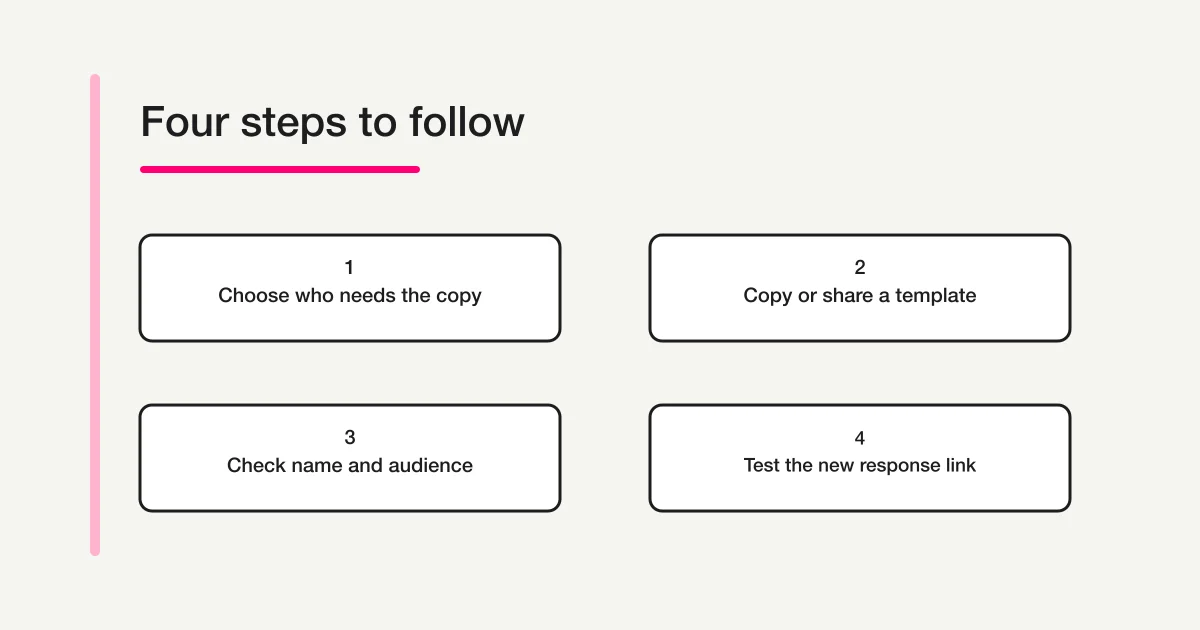
Choose the kind of reuse you need
| Your goal | Route to use | What to establish before sharing |
|---|---|---|
| Run another collection under your management | Copy the existing form | A distinct name, audience, collection period, and results location |
| Give another author a starting questionnaire | Share a template link | Who will create and check each new version |
| Edit one form together | Invite collaborators | Who should have editing and response access |
| Invite people to answer | Share the respondent link | Which form and audience the invitation is for |
Copying a web address to the clipboard does not, by itself, create a second questionnaire. Likewise, a link intended for respondents is not an instruction to create a template.
Collaboration keeps people working on a shared form. Microsoft documents that coauthors can edit it and access its response data. Use that route when shared editing is the intended outcome; the Microsoft Forms Collaboration Guide on FORMLOVA covers its access and ownership decisions. Microsoft Support: collaboration.
Make a copy for your own next collection
Microsoft's documented route is:
- Sign in to Microsoft Forms and open My Forms.
- Find the source form. In tile view, open its More options menu and choose Copy. In list view, use the menu at the right of its row.
- Locate the new item at the beginning of the list or tiles. It initially has the source's name.
Microsoft says the questions, formatting, and layout are copied. Rename the new item before further editing. Microsoft Support: Copy a form.
Use a name that distinguishes the new purpose, such as “November training feedback — draft.” Keep the source recognizable too. Before changing a question, check the title and whether you are working on the intended draft. Two similar browser tabs are easy to confuse even when the copying operation succeeded.
Give another author a template link
Open the source form or quiz. Select Collaborate or Duplicate, then Share as a template, then Get a link to duplicate, and copy that link. Microsoft notes that some accounts still show Share as the entry point during rollout. A recipient uses the link to create a version they can customize. Microsoft Support: template sharing.
Accompany the link with a short handoff explaining its purpose. For example: “Create your department's November feedback form from this template, rename your copy, check its audience and deadline, and send me its respondent link after testing.” This is more useful than forwarding an unexplained address.
Before offering the template, review the content it exposes: example names, internal instructions, embedded document links, answer explanations, and any department-specific wording. A reusable questionnaire should contain the material the next author needs. Remove irrelevant sample details from the draft through your normal review process before distributing it.
Recheck the audience when account types differ
Microsoft documents a collection-setting reset when a template passes between personal and work or school accounts. A work or school template duplicated into a personal account resets to Anyone can respond. The reverse direction also resets collection settings; do not assume that an organization-only audience is automatically selected. Microsoft Support: account differences when sharing templates.
Ask the recipient which account is intended to manage the new form. “It opens for me” is not enough when the person has both a personal and a work account available in the browser.
Write down the intended respondents in plain language before reviewing the setting: everyone attending the public session, members of one organization, or a defined internal group. Compare that intention with the controls available to the receiving account. If the intended restriction cannot be met, stop distribution and ask the responsible form owner or administrator about the supported route. Broadening access is not a routine fix for a copying problem.
Review the copied questionnaire as a new draft
The following checks are operating advice for the new collection. They are not a claim that every listed setting is inherited, reset, or supported identically in every account.
Name and introduction. Replace the collection month, department, event title, contact person, and links to old materials. Read the introduction as someone who never saw the original form. It should identify the current task without requiring knowledge of the previous round.
Questions and choices. Check whether examples, product versions, locations, and answer options still apply. Preserve wording deliberately when you need comparisons over time; record intentional changes so a later analyst knows why the questions differ.
Required questions and branching. Follow each relevant path in the preview, including an optional answer left blank. A branch that was sensible for one course or department may send a different audience past a question they now need. Test the path rather than assuming that the visible first page represents the whole form.
Dates and availability. Inspect whether collection is enabled and whether a scheduled start or end applies. Microsoft documents these controls separately from an individual completion timer. Match each visible setting to the new collection plan. Microsoft Support: form and quiz settings. For the detailed closing workflow, see Microsoft Forms Deadlines on FORMLOVA.
Quiz content. If the source is a quiz, review the intended answers, points, feedback wording, and when results should be visible. Do not publish last term's assessment simply because its title has been updated. Have the person responsible for the material review any changed question against its expected answer.
Completion message. Check the next action described after submission. An old meeting link or instruction to contact a previous coordinator can misdirect people who completed the new questionnaire correctly.
Get the respondent link from the finished copy
Open the new form and use Collect responses for distribution. Microsoft provides a respondent link and other delivery options, including a QR code. Obtain the link from the form you actually intend people to answer. Microsoft Support: sending a form to get responses.
Maintain separate labels for the source, the template link, and the current respondent link in your handoff notes. Do not identify their roles solely by how the addresses look. Open the intended link and check the page it presents before adding it to an invitation.
Also inspect the surrounding material. An email draft, calendar invitation, training slide, website button, or printed QR code may still point to the previous collection. Updating the questionnaire does not prove that those separate materials now point to the correct place. Assign someone to check the final distribution artifact, not just the link stored in the editor's notes.
Verify where new responses will be reviewed
Open the new form's results area and establish the route the reviewer will use. Microsoft documents response summaries, individual results, and Excel output. It also distinguishes a connected workbook from Download a copy, which produces an offline file without a connection to the form. Microsoft Support: checking form results.
Keep a simple record of the form title, collection period, response-review location, and the workbook or export used for analysis. A workbook named “Training responses” is not enough to distinguish several monthly collections. The Microsoft Forms and Excel Guide on FORMLOVA covers the connection and synchronization details.
Retain previous results according to the team's existing process. If you need a combined report, combine the appropriate analysis inputs deliberately and retain a field identifying their source collection. Do not rename an old workbook and assume it now receives the new form's submissions. Check the actual result of a planned test submission before relying on that report.
Make the test easy to trace. Agree on a fictional marker such as “November route check” in a suitable free-text answer, note when it was submitted, and have the reviewer locate that same marker in the intended results view. If the questionnaire has no suitable text field, agree on another recognizable test combination. Do not alter production questions solely to label a test. Recording the expected destination before testing helps distinguish a routing problem from a reviewer opening the wrong file.
Troubleshoot by identifying the stage that failed
Start with the screen and account you can observe. Changing permissions, recreating the source, or repeatedly making copies can complicate a problem that began with the wrong link.
| What you see | What to check next |
|---|---|
| No copy option on the page | Confirm that you are in the authoring forms list, not answering the questionnaire |
| The expected source is missing | Check the signed-in account and ask the source owner which reuse route was intended |
| A link opens questions ready to answer | Ask the sender whether they supplied a respondent link instead of a template link |
| A link opens an existing editor | Confirm the form's identity before changing anything; it may be a collaboration route |
| A recipient cannot access the intended form | Record the account type, exact screen message, and stage before asking the owner for help |
| A test cannot be submitted | Check the new form's audience, collection window, required answers, and displayed validation message |
| A test is missing from a spreadsheet | Look in the new form's results first, then verify the workbook and connection being checked |
A missing control is a symptom, not a diagnosis of the subscription or organization policy. When asking for help, provide the operation attempted, whether you were copying for yourself or receiving a template, and what happened next. This gives the owner a useful starting point without asking them to guess from “copying does not work.”
Example: a monthly training survey
Suppose a training coordinator uses the same feedback questions each month. For November, the coordinator prepares a distinct draft, changes the session details, and checks that the collection window matches the new event. These are fictional operating examples, not measured results from a Microsoft account.
The reviewer keeps a small handoff record: November form title, intended audience, final respondent link, closing time, and results location. One colleague checks the invitation text while another checks the questionnaire. This catches the case where the form is correct but the training slide still contains October's address.
For reporting, preserve the stable questions and document any revised scale or wording. A change in scores after a question rewrite is not automatically a change in participants' experience. Keep the month attached to each analysis input so the team can trace the comparison. Decide which marked test record will be excluded from the report using the existing review process.
Example: separate department templates
A central coordinator may want several departments to start from common questions while managing their own collections. Prepare a short template note listing the common questions, the parts each department may adapt, and who will review the local results.
Each recipient then checks their own title, audience, dates, distribution materials, and result-review route. Ask for those checks explicitly. Receiving the template address is not evidence that a department has created and tested a ready-to-use form.
Keep a version note with the template handoff. If the central wording changes later, tell local authors which questions changed and ask them to review their own versions. Do not treat distributing a corrected template as proof that every previously created department form has been updated. For a shared questionnaire maintained together, revisit whether the collaboration route better matches the actual work.
Finish with a short release check
Before inviting real respondents, confirm that the responsible author can answer these questions:
- Which form is being released, and who manages it?
- Can an intended respondent open and complete the correct route?
- Do the collection dates and on-screen instructions agree?
- Do the invitation, button, or QR code open this collection?
- Can the reviewer find the planned test response in the expected form and reporting destination?
- Are previous results and the source form still identifiable?
Use a clearly marked test response with fictional content where testing is appropriate. Record what was checked and any remaining uncertainty. If the results destination is still unclear, resolve it before distribution rather than discovering the mismatch after responses arrive.
For the wider sequence of creating, sharing, and reviewing a survey, return to the Microsoft Forms Survey Guide on FORMLOVA. The next useful action is to review the draft and its real distribution route together, then release the verified link.
Disclosure and Verification
Written by @Lovanaut for FORMLOVA. Microsoft Support documentation was checked on 12 October 2026. The article was not tested in a signed-in Microsoft account, and account-specific controls or settings inheritance were not verified. The checklists and scenarios are original guidance for reviewing a copy before use.