
To set a response deadline in Microsoft Forms, use the form's settings to specify an end date and time. To stop collection earlier, turn off response acceptance. A start date can also define when the response window opens.
The operational task includes more than entering a date. Your invitation needs to match the configured deadline, tests need to use the intended respondent's access conditions, and someone needs to communicate any extension. This guide brings those steps together so a colleague can understand the current status and handle questions after closure.
Decide which kind of deadline you need
A shared closing time, a manual pause, and a time limit for an individual respondent solve different problems. Decide which requirement applies before changing the form.
| Requirement | Setting or operational check | Fictional example |
|---|---|---|
| Close collection at the same time for everyone | End date and time | An employee survey closes October 20 at 5 p.m. |
| Keep collection closed until launch | Start date and time | Registration opens October 15 at 9 a.m. |
| Stop new submissions now | Accept responses | Pause collection while correcting the form |
| Limit time after someone starts | Set time duration | A test allows 20 minutes after starting |
Microsoft's settings documentation separates calendar dates from the respondent timer. It describes automatic submission when the timer expires; that statement should not be applied to an end-date boundary. The documentation cited here does not establish what happens to every answer already being typed when the calendar deadline arrives. Test that case for your form before promising a particular outcome.
A capacity limit is another requirement. If your team plans to stop collection after reaching a certain number of registrations, assign someone to monitor the count and decide when to stop. Do not tell invitees that configuring a date also creates an automatic capacity cutoff. Write the operational rule separately, including how frequently the count will be checked.
Set the start and end dates
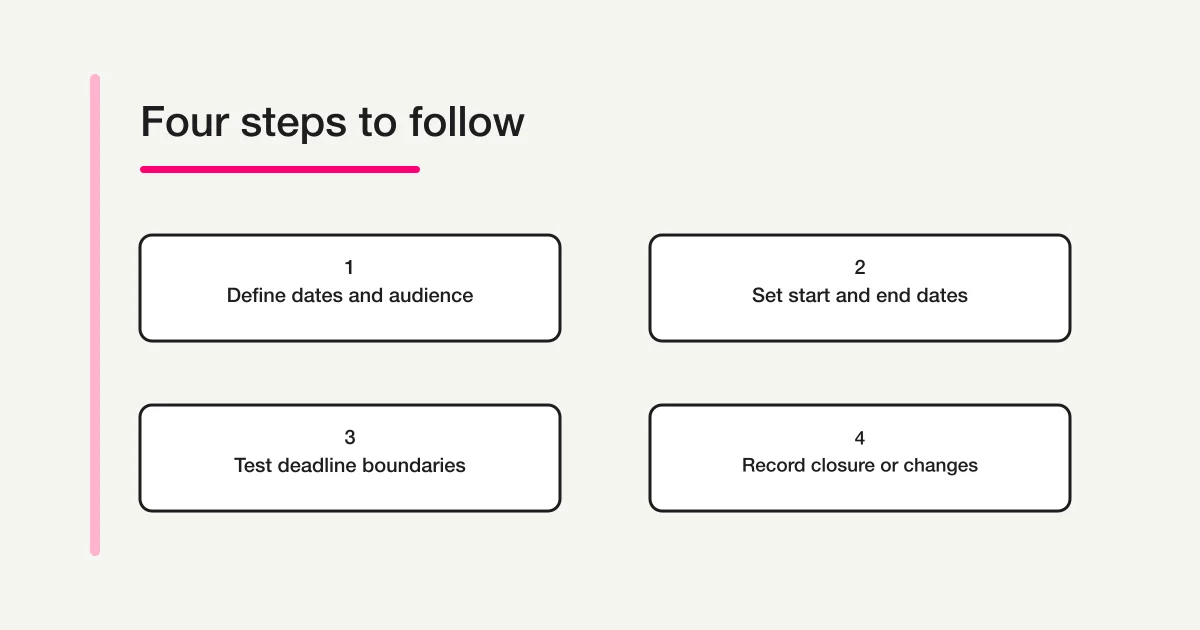
Open the intended form, choose Settings, and locate Start date and End date. Enable the dates you need and specify the corresponding times. Check that the start precedes the end. Microsoft's deadline instructions document this response window. Labels and layout can differ with interface language or updates.
Before entering values, write the period in one sentence: “Responses are accepted from October 15 at 9:00 a.m. until October 20 at 5:00 p.m., Japan time.” This is a fictional example. “Until October 20” leaves readers guessing whether the deadline is the end of the business day or midnight. A complete date, time, and stated time zone give both respondents and colleagues something precise to check.
Match the invitation to the date and time displayed in your settings. Do not assume that every account or device applies an identical time zone. For respondents in other regions, check the relevant environment and consider adding the local equivalent to the invitation. If a deadline is important to eligibility or evaluation, make the time-zone decision explicit in the team's operating note rather than relying on an unstated convention.
Use a test form to explore settings before experimenting with the dates of a live form that is already collecting responses. After configuration, leave the settings screen, return, and check the values. Then open the actual response link you intend to distribute. Record both the configured values and what a respondent can do; a value visible to the editor alone is insufficient operational evidence.
Close responses manually and prepare a message
For an early stop or temporary pause, turn off Accept responses in settings. Microsoft's deadline instructions also describe entering a custom message when collection is disabled. If you close earlier than the advertised deadline, the invitation and the actual availability no longer agree, so provide a clear explanation and a suitable contact route.
A closure message could read:
This survey closed on October 20 at 5:00 p.m. Japan time. Thank you for your participation. For questions about a submission, contact the team listed in your invitation email.
This is an original example, not Microsoft's default wording. For a pause, use wording such as: “We have temporarily paused responses while reviewing the form. We will send an update when it reopens.” Avoid presenting an unconfirmed reopening time as a commitment. A final closure and a temporary pause should have different messages because they ask the respondent to make different decisions about returning.
Check the message from the response link. Any contact details included there should be appropriate for the form's audience. For troubleshooting, ask when the person tried to submit and what message appeared. Do not require them to forward sensitive answers to a general inbox merely to establish that collection had stopped. The support route should match the information needed to diagnose the problem.
Extend or reopen the form with a communication plan
First decide the new deadline and whether people who already responded need to do anything. Change the end date, and check the acceptance switch if collection was stopped manually. A future end date in the editor does not, by itself, prove that the response route has reopened. Confirm the route under the intended respondent's conditions and check a test submission through to the results.
An extension announcement could say: “The response deadline has changed from October 20 at 5:00 p.m. to October 22 at 5:00 p.m., Japan time. People who already submitted do not need to respond again because of this extension.” Use the second sentence only if that is your actual policy. If revised answers are required, say which respondents need to take action and explain the separate process.
Do not assume that changing the date automatically notifies every person who received the original invitation. Review the channels your team used, such as email, Teams, and an internal notice, and update them deliberately. A date embedded in several messages can leave conflicting instructions even when the form itself has the correct setting. Assign an owner for each place that needs an update.
Keep a small change log with the old deadline, new deadline, reason, editor, confirmation time, and announcement channels. This lets a colleague taking over answer “Is it still open?” without reconstructing the decision from chat messages. If you exported or reported results at the previous deadline, keep that reporting snapshot distinguishable from the eventual collection after the extension.
Separate deadline problems from audience restrictions
If someone cannot answer during the advertised period, inspect both timing and access before moving the deadline. Microsoft's response-distribution documentation distinguishes an open audience from people in an organization or specified people in that organization. The available audience options depend on the account conditions.
| Check | What it helps distinguish |
|---|---|
| Has the start passed, and has the end arrived? | Access outside the response window |
| Is Accept responses switched off? | A manual pause left in place |
| Is this the intended response link? | A response route confused with editing or collaboration |
| Is the person using an eligible account? | Audience restrictions confused with timing |
| Has the person already answered? | A separate one-response restriction |
An owner signed into the editing account does not reproduce every respondent's situation. For an employee survey, use the conditions of an intended employee. For external participants, check the external route. If your test reveals an access restriction, do not broaden the audience reflexively just to make one test work. Decide who should be eligible, then investigate why an eligible person cannot proceed.
The Microsoft Forms one-response-per-person guide covers identity and duplicate-response settings. Keep audience changes and deadline changes as separate entries in the change log. A colleague should be able to tell whether the response window changed, the eligible population changed, or both. Those differences also matter when comparing survey results.
Create a deadline-boundary test table
The following table is an original test plan. It is not a record of live Microsoft Forms tests performed for this article. Start with a test form and a short response window so you can inspect the cases without changing a live collection period.
| Case | Action and observation | Record to keep |
|---|---|---|
| Before the start | Open the response link | Access time and acceptance status |
| After the start | Submit under the intended audience conditions | Completion display and corresponding result |
| Open just before the end | Attempt submission after crossing the deadline | Open time, attempted submission time, display, and result |
| Open a fresh session after the end | Check whether a new response is accepted | Closure display and configured values |
| Manual stop | Check the stop message from the response route | Wording and audience conditions |
| Extension or reopening | Test the route again under the intended conditions | New deadline, submission status, and result |
Pressing a final button is not enough to establish successful submission. Check the completion display and the results. In the case that crosses the deadline while someone is typing, record what happens rather than promising beforehand that every answer will be saved or automatically submitted. Use recognizable test answers so the team can identify them later without confusing them with genuine participants.
Give the person performing a test a simple way to report it: case name, account category, access time, attempted submission time, visible message, and whether the result appears. Avoid recording unnecessary account identifiers or actual survey answers in a widely shared test note. The evidence should explain the behavior while collecting only what the team needs to resolve the boundary question.
After the short test, restore the intended dates and check them against the invitation again. Restore any audience settings temporarily relaxed for testing. When one person configures the form and another distributes it, hand over the confirmed response URL and collection period together. Otherwise, the distribution owner may reuse a link or date from an earlier test.
Align closure with the final reporting snapshot
Once the deadline passes, confirm the response route's status before beginning final reporting. If collection was extended, record the planned deadline and actual closure separately. A preliminary report at the first deadline should not share an ambiguous filename with the final report after the extension. Include the reporting point in the name or accompanying note.
Microsoft's results documentation explains checking answers and using results in Excel. For the distinction between a connected workbook and a downloaded copy, use the Microsoft Forms and Excel integration guide. Closing collection and deleting results are different operations. Do not use deletion as a way to stop the form accepting responses.
The handover note can include the form name, response URL, intended period, closure-check time, response count used in the report, handling of test answers, and any deadline changes. It should also name the person who handles later inquiries. If a participant contacts the team after reporting, decide whether a revised report is appropriate or whether their information belongs to a later round. A defined decision owner prevents different colleagues from applying different rules.
For a fictional employee survey, that note might state: “Collection originally ended October 20, was extended to October 22, and the final report uses the export made after the second closure check. Test answers are listed separately and excluded according to the team's recorded rule.” This does not establish a platform feature. It makes the team's own reporting choices traceable.
Checklist before distribution and after closure
- State the date, time, and invitation time zone.
- Check start and end values and the acceptance switch.
- Test the deadline boundaries under respondent conditions.
- Prepare distinct wording for closure and a temporary pause.
- Record extension or reopening decisions and announcement channels.
- Distinguish test answers from genuine responses in reporting.
- Keep the reporting point and handover responsibilities clear.
For the broader creation and distribution process, return to the Microsoft Forms survey guide. If you need a deadline in another service, see Google Forms deadlines and response limits. To organize the purpose of a form and the work after collection, use the form-creation guide.
Sources
- Microsoft Support: Adjust deadlines and settings for a form or quiz
- Microsoft Support: Adjust your form or quiz settings in Microsoft Forms
- Microsoft Support: Send a form and collect responses
- Microsoft Support: Check and share your form results
Disclosure and Verification
The Microsoft Support sources above were checked on October 8, 2026. Dates, messages, and the test table are original fictional examples. This is documentation-based guidance, not a claim that a particular account or device was tested live. Check the displayed settings and respondent behavior in your environment before distributing the form.