
Last updated: 2026-10-02 Last verified: 2026-10-02
When you use Microsoft Forms responses in Excel, first decide whether you need a workbook connected to the form or a file containing a one-time copy of the data. Selecting Open in Excel from the Responses tab creates or opens a response workbook in OneDrive for work or school or SharePoint Online, depending on where the form started. Microsoft says response data syncs with the workbook and that you can see updates when you select Open in Excel again or reopen the workbook. A file downloaded for offline use should be treated as a separate snapshot unless you deliberately refresh or replace it.
This guide explains how to open the workbook, find its storage location, check for new responses, and share or analyze the data safely. Microsoft 365 account types, organization policies, and interface labels can vary. Check the workflow with an authorized account in your own organization before relying on it for operational reporting.
Choose the right Excel workflow first
For routine review, start from the form’s Responses tab and select Open in Excel. Microsoft describes this workbook as connected to response data. The storage location depends on the form’s origin: a personal form created on Forms on the web, a group form, a form created in OneDrive for work or school, or a form started from Excel for the web can lead to different locations. The workbook is part of the Forms workflow, not automatically an independent analysis copy.
A downloaded file is useful when you need to share a fixed set of responses, review data offline, or preserve what was available at a particular point in time. That copy does not become current merely because more people submit the form. If you need later responses, return to Forms or the connected workbook and confirm the latest data there. The download options available to you may depend on the page and account, so follow the controls shown in your environment.
| Workflow | Best for | What happens after new responses | Likely storage |
|---|---|---|---|
| Open the workbook from Forms | Ongoing review and analysis | Reopen it or use Open in Excel again to see updates described by Microsoft | OneDrive or SharePoint, based on the form’s origin |
| Download or save a copy | Offline review, a fixed report, or a dated archive | The copy does not automatically follow later responses | The download folder or a location chosen by the user |
| Build a Power Automate flow | Writing each response to a separate Excel table or starting another process | Depends on the flow, connections, and run history | The location configured in the flow |
Power Automate is a separate design, not a prerequisite for viewing Forms data in Excel. Consider it when a team needs to add each response to a specific existing table, send a notification, or start an approval. That setup requires a trigger, a form identifier, response details, an Excel table, valid connections, and a way to monitor failed or duplicated runs. For simple review, begin with the standard Forms workbook.
Open Forms responses in Excel
- Sign in to Microsoft Forms with an account that can view the form’s responses.
- Open the form and select the Responses tab.
- Review the response count and summary, then select Open in Excel.
- Confirm the account shown in Excel and note the workbook’s name and storage location.
- After new responses arrive, use Open in Excel again or reopen the connected workbook to check for updates.
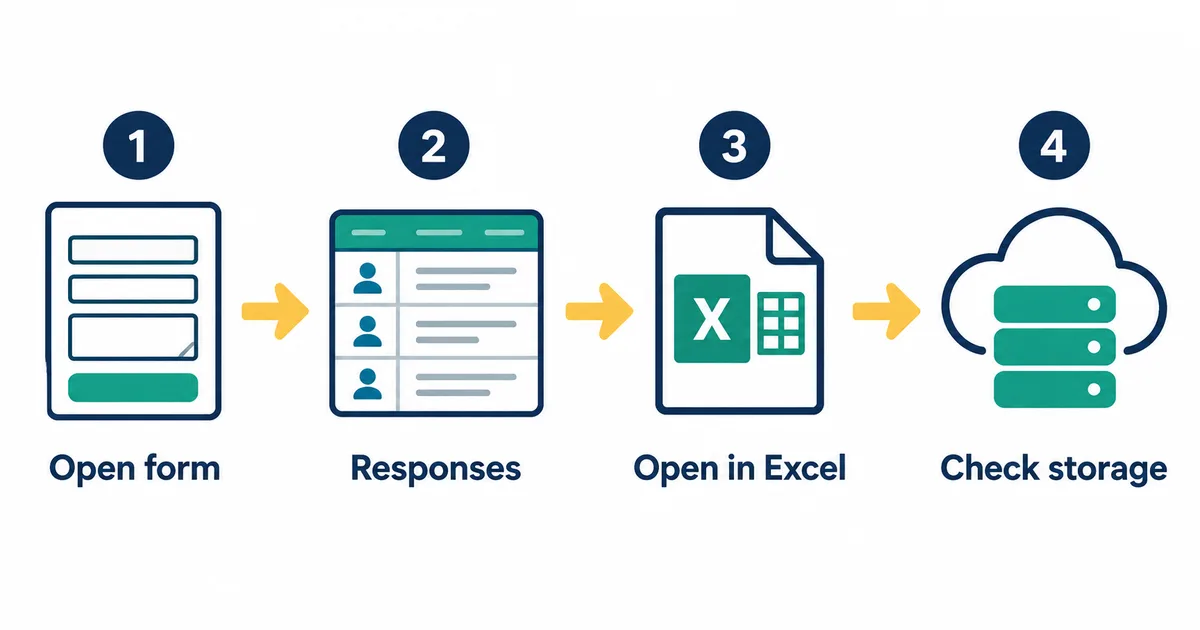
Microsoft’s export help describes selecting Open in Excel on the Responses tab to view form data in a workbook. The exact labels may change or appear in a translated form. If you cannot find the command, check that you have opened the correct form, signed in with an account that can view responses, and opened the response view rather than the question editor.
For a new workflow, submit a test response using an account allowed by your form settings. Confirm that it appears in Forms and in the workbook you opened. This simple check reveals which form and workbook are connected before you begin analysis. If the form collects real customer, employee, or event data, plan how to identify and remove or exclude the test row. Do not add test data to a live report without documenting its treatment.
Where does the Excel workbook live?
The form’s starting point matters. Microsoft’s current support guidance says that a personal form created on Forms on the web stores its workbook in OneDrive for work or school, while a group form stores it in SharePoint Online. A form created in OneDrive for work or school stores the workbook in that OneDrive. For a form created in Excel for the web, the workbook remains in OneDrive or SharePoint depending on where the source workbook was created.
This is why “Forms files are always in my OneDrive” is not a reliable rule. A group-owned form may belong to a team site. A file shown in your recent items could also be a copy, a workbook owned by a colleague, or a report that no longer represents the connected source. When you hand the workflow to another person, identify the form owner or group, the actual site, and the people who need permission to open the workbook.
Check whether the form is personal or group-owned
Start in the Forms list and check where the form appears and who owns it. Is it under your personal forms, or is it associated with a Microsoft 365 group or team? Then open the workbook from the form’s Responses tab and inspect its location in OneDrive or SharePoint. If you have several files with similar names, do not identify the source using the filename alone. Compare the site or folder, owner, recent activity, and whether opening from Forms takes you to that workbook.
Keep a clear name and location for the connected workbook so collaborators can distinguish it from downloads and reports. Avoid deleting a duplicate until you have confirmed that it is not used by a colleague, a scheduled flow, or a record-retention process. A duplicate and the connected source may look similar while serving different purposes.
Verify access before sharing
The response workbook can contain names, email addresses, department details, free-text answers, or other sensitive information. Access to a form and access to a workbook or SharePoint site are separate things to review. Give access only to people who need it, and choose view or edit access according to their task. Avoid creating a broad link simply because a recipient cannot open the file.
Before sharing results with an outside partner or event audience, inspect the columns and comments that contain identifying information. A summarized or de-identified copy may be more appropriate than the response workbook itself. Test the sharing link using an account that represents the recipient, if your organization permits that test. A link that works for the owner does not prove that the intended audience has the correct access.
If new responses do not appear in Excel
A workbook that you downloaded once does not necessarily stay current. Work through these checks before changing the form or rebuilding the connection:
- Confirm in Forms that the latest response is present and that you opened the correct form.
- From that form’s Responses tab, select Open in Excel again.
- Check the signed-in account, workbook name, and OneDrive or SharePoint location.
- Reopen the workbook from its storage location rather than relying on an old browser tab or local copy.
- Check permissions, organization policy, and the status of the service if the problem continues.
Microsoft says response data syncs with the workbook and that the latest updates appear when you click Open in Excel or reopen the workbook. That guidance assumes you are looking at the workbook associated with the right form. Several similarly named files, a local download, or a different account can make a healthy connection look broken. Identify the source form and workbook before troubleshooting synchronization.
Microsoft also notes that a deleted or corrupted workbook can prevent recent data from appearing; Forms may then offer to create a new workbook connected to the latest responses. A SharePoint library that requires content approval can also prevent workbook synchronization. If a workbook stored on SharePoint stops updating, ask a site administrator to check that setting and follow your organization’s change process before changing it.
If you want to add formulas, formatting, or analysis fields, consider making a separate analysis copy first. Avoid renaming or deleting columns in a connected response table unless you have checked how the change affects your process. Sorting or filtering is a normal analysis task, but preserving a clean source helps collaborators compare results and investigate changes. If another process reads the workbook, check its requirements before modifying the structure.
Separate analysis from response collection
Before building calculations, preserve the response data and decide where derived values will live. A separate worksheet or workbook for pivot tables, charts, categorization, and formulas can make the source easier to recognize. Document the question labels, any changes to the form, and the treatment of test entries. If a report represents a cutoff date, record that date so readers know whether it is a live view or a snapshot.
If you need a point-in-time record, save a clearly dated copy, such as “Responses as of October 2, 2026.” That file is an archive or report, not a workbook that will continue to receive every response. For the current response state, return to Forms or the connected workbook and verify the latest entries. Keeping the two purposes separate prevents someone from mistaking yesterday’s report for live data.
You may choose Power Automate when the requirement is to write each new answer into a separate table or trigger a business process. Microsoft’s workflow guidance uses a new Forms response as the trigger, retrieves the response details, and writes fields into an Excel table. The flow’s connection owner, file location, permissions, table name, and run history become part of the operating system. Test a successful response and a failure case, and agree who will repair the flow if its owner leaves or its file moves.
Forms’ connected workbook and a Power Automate destination table may both contain response information. Decide which is the authoritative record, who may edit it, and whether duplicate handling is needed. Do not assume a flow ran because a response appears in Forms or because a workbook is available. Review the flow’s run history and compare a test response against the destination table. For important processes, define a recovery procedure for delayed, failed, or repeated runs.
Frequently asked questions
Do Microsoft Forms responses automatically sync to Excel?
Microsoft’s support page says response data syncs with the workbook opened through Forms, and that you can see updates by selecting Open in Excel again or reopening the workbook. This statement applies to the connected workbook. It does not mean a separate file downloaded earlier will update itself.
Where is the workbook saved?
The location depends on how the form was created. Current Microsoft guidance distinguishes personal forms created on Forms on the web, group forms, forms created in OneDrive for work or school, and forms created in Excel for the web. OneDrive for work or school and SharePoint Online are the locations named in that guidance. Check the actual form and workbook in your organization.
Why can’t I see Open in Excel?
Confirm that you are signed in with an account that can view responses and that you are on the form’s Responses tab. If the form belongs to another person or group, ask its owner or an administrator to confirm your access. Organization settings can also affect which sharing and export features are available.
Can each new response be added to an existing Excel table?
Power Automate may be appropriate when you need a separate existing table to receive each new response. The workbook needs a table with compatible columns, and the flow needs a working Forms trigger, response details, Excel connection, and access to the storage location. Test the workflow and monitor its run history; that arrangement is separate from opening the Forms-connected workbook.
Summary
To work with Microsoft Forms responses in Excel, open the form’s Responses tab and use Open in Excel. Check where the connected workbook is stored: the form’s origin can point to OneDrive for work or school or SharePoint Online. Reopen the connected workbook to check for updates, and treat a downloaded file as a point-in-time copy. Review permissions before sharing response data. If a separate Excel table must receive each new response, design and monitor a Power Automate flow as its own workflow.
For the full Forms creation and Teams-sharing workflow, read the Microsoft Forms survey guide. For question planning, see the survey design guide. To compare the related Google workflow, see the Google Forms and Sheets integration guide. If you need a clear public form for collecting responses before analyzing them in Excel, create a form with FORMLOVA.
References
- Microsoft Forms and Excel workbooks
- How do I know if the data in my Excel workbook is up to date?
- How do I export my form responses?
- Set up an automated workflow between Microsoft Forms and Excel through Power Automate
Editorial note
Microsoft’s official support pages for workbook locations, response synchronization, exporting, and the separate Power Automate workflow were checked on October 2, 2026. Microsoft 365 interfaces, account types, and organization settings can change. This article does not claim that the author tested a particular tenant; verify the account, source form, workbook location, access, and refresh behavior with a test response before using the process for production reporting.