
Last updated: August 31, 2026 Last verified: August 31, 2026
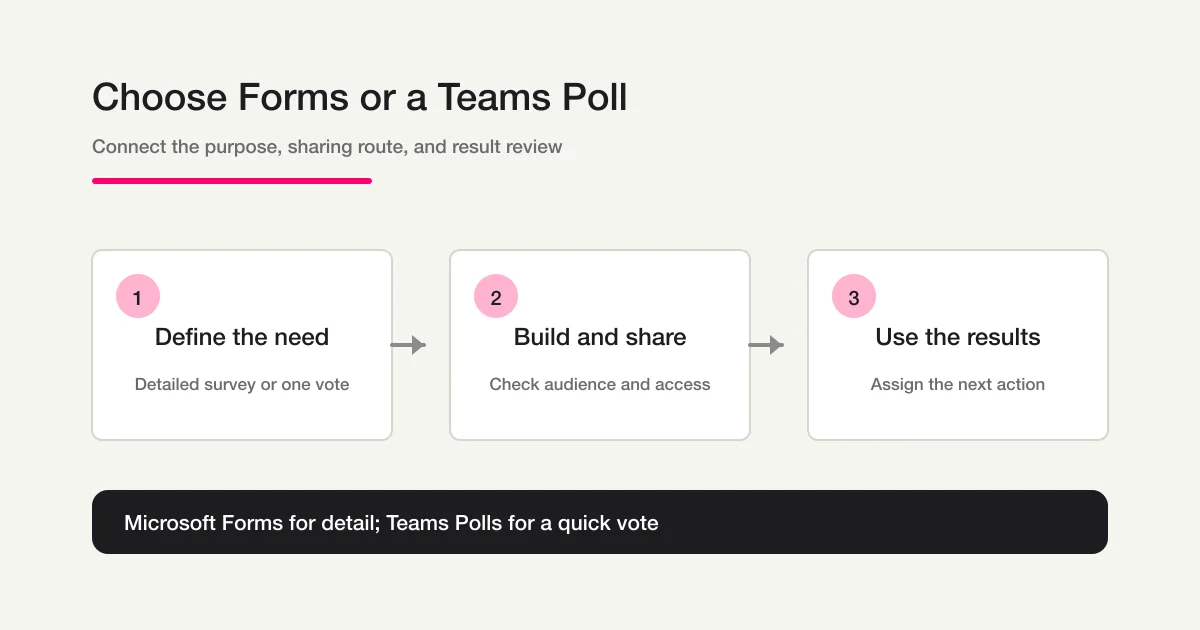
If you want to make a survey in Teams, first decide whether you need a detailed Microsoft Forms questionnaire or a quick Teams Poll. Use Microsoft Forms when you need several questions, instructions, optional contact details, branching, audience controls, or a result review after the survey. Use a Teams Poll when you need one quick vote inside a chat, channel, or meeting conversation.
This guide focuses on the Microsoft Forms workflow: plan the survey, create it, add or share it in Teams, test the respondent experience, and review the results. The product changes over time, so the sequence and checks matter more than memorizing one fixed button label.
Decide between Microsoft Forms and Teams Polls first
Microsoft Forms and Teams Polls can both be used from Teams, but they solve different problems. Microsoft’s official documentation describes Forms as a place to create forms and surveys, add questions, choose who can respond, send the form, and review responses. Microsoft’s Teams Polls guidance describes a real-time poll placed directly in a chat or channel.
| Need | Better starting point | Why |
|---|---|---|
| Satisfaction, reasons, segments, and optional comments | Microsoft Forms | You can combine question types and plan the review after responses arrive |
| A decision during a meeting | Teams Polls | A question and choices appear in the conversation and can be answered immediately |
| Audience, anonymity, or response-window checks | Microsoft Forms | Respondent and response settings can be reviewed before distribution |
| One short pulse check for a team | Teams Polls | It keeps the interaction inside the ongoing chat or channel |
A Poll is not a shorter version of every survey. If you need context, multiple sections, a follow-up question, or an organized review, build a Forms survey. If the question is simply “Which option should we choose now?”, a Poll may be enough.
Step 1: Define the audience and the decision
Write one sentence describing what the answers will help you decide:
Choose what to change in the next internal training session.
Find customers who want a product explanation and contact only those who opt in.
Identify the hardest step in a team procedure before updating the documentation.
Then decide who should respond. Is the survey for everyone in your organization, a specific team, or people outside your organization? The answer affects the settings you must check before sharing. Microsoft’s official guidance lists audience choices such as anyone who can respond, people in an organization, or specific people in an organization; availability can depend on the account and environment.
Decide whether you need an identified response. If you only need an overall pattern, asking for a name or phone number can make people less willing to answer. If a respondent may request follow-up, ask for contact information only when they opt in, and explain why it is collected.
| Decision | Example | Check before sharing |
|---|---|---|
| Audience | Staff, one project team, customers, or event attendees | Who can open and submit the link? |
| Purpose | Satisfaction, obstacles, or interest | Which answers will you compare? |
| Identity | Anonymous trend or identified follow-up | Is name recording consistent with the notice? |
| Next action | Improve, inform, or contact | Who reviews the answers and by when? |
For general survey goals and question design, use the survey design guide. This page stays focused on the Microsoft Forms and Teams execution path.
Step 2: Draft questions and answer formats
Plan question roles before opening Forms. A post-training survey might contain:
Q1. Which training session did you attend? (Single choice)
Q2. How well did you understand the material? (Rating)
Q3. Which parts were useful? (Multiple choice)
Q4. What should we improve? (Optional open text)
Q5. Would you like a follow-up message? (Single choice)
Q6. Enter an email address if you requested a follow-up. (Optional)
Use fixed choices to count patterns and open text to understand reasons. Avoid double-barreled questions such as “Were the price and support helpful?” Separate the topics. Avoid leading wording such as “How useful was our popular feature?” Required questions should be limited to answers that are genuinely needed for the decision.
If the next question depends on an earlier answer, draw the route before building it. For example, show a usability question only to people who have used the feature. Branching can reduce irrelevant work for respondents, but every route must be tested, including the route a person takes when they choose “none” or “not applicable.”
For broader question examples and analysis choices, see the survey response analysis guide.
Step 3: Create the form in Microsoft Forms
Start with Microsoft’s official Create a form with Microsoft Forms guidance. Sign in with the account you intend to use, then follow the current create-form route shown in Forms. The available options may differ between a personal account, a work account, and a school account.
Use this short build sequence:
- Open Microsoft Forms and select the current action for creating a new form, following the official help for your environment.
- Enter a title and description. State who the survey is for, why you are asking, the expected time, and how the answers will be used.
- Use the current add-question action to choose a suitable type such as Choice, Text, Rating, or Date. Add sections or branching only when the route is clear.
- Enter the question, choices, and required or optional status. Check the positive direction of any rating scale.
- Review response and audience settings before inviting people. Do not assume that a Forms link has the same access rules as the Teams channel where you place it.
- Open Preview on the available desktop and mobile views, submit a test response, and return to editing if a route or message is wrong.
Microsoft says Forms saves work while you create it, but keep a separate copy of the question plan if the questionnaire is important. Deleting a question can also delete the response data associated with it, so do not casually remove or replace a question after collection has started.
Keep the internal management name practical, with the audience or campaign context if needed. The respondent-facing title and description should be shorter and clearer. A person should understand the purpose without knowing your internal project name.
If respondents need to attach files, review the separate Microsoft Forms file-upload guide first. File questions have audience restrictions and storage locations that differ from ordinary response fields.
Step 4: Configure sharing and add the form to Teams
Before sharing, read Microsoft’s official Send a form and collect responses guidance. Review the following settings in the current Forms interface:
- whether anyone, only people in your organization, or specific people in your organization can respond;
- whether respondent names are recorded;
- whether one response per person is needed;
- whether there is a start or end date;
- whether the result summary or individual answers may be shared.
“Anonymous” is a promise about the respondent experience, not a label to add without checking. A small group, a distinctive role, or identifying details in open text can make an individual guessable even if a name is not recorded. Make the notice and the actual settings agree.
Microsoft Forms can be shared by link and through other delivery routes described in the official documentation. If you use Teams, test the exact route you plan to send: a channel post, a chat, or a tab.
Add Microsoft Forms to a Teams channel
Microsoft’s Work with colleagues to create, edit, and review forms in Microsoft Teams help describes adding the Forms app and a Forms tab to a channel. The current sequence is generally:
- Open the destination team and channel.
- Use the channel’s current option for adding a tab, then choose Forms if it is available. If Forms is not installed, follow the current app-install route shown by Teams.
- Choose whether to create a shared form or add an existing form.
- For an existing form, choose the current purpose such as collecting responses, showing results, or collaborating.
- Check whether a channel post will be created automatically, then save only after confirming the audience and timing.
The exact labels and entry point can change. Follow the current Microsoft help and the labels shown in your tenant rather than treating this list as a promise about a particular screen.
A Teams tab is an access route for the team. It does not automatically make an external survey public. The Forms response audience still controls who can submit the form. If your respondents are outside the organization, test the response link from an account that matches that audience.
If you are designing a broader Teams-based inquiry process rather than a survey, continue with the Office and Teams inquiry-management guide. That topic covers operational routing, not the Forms survey build itself.
Step 5: Test the respondent experience before distribution
Do not test only while signed in as the owner. Test using the audience conditions that matter:
- Preview the desktop and mobile layouts. Check the title, description, question order, required indicators, and branch destinations.
- Open the response link with an account that matches the intended audience. Check whether sign-in is requested and whether that is expected.
- Try an empty required field, a multiple-choice answer, an optional comment, and every branch.
- Submit a test response and inspect the confirmation message and any follow-up instructions.
- Open the link from the actual Teams channel post, chat, or meeting route you will use.
Keep test responses out of the production analysis. Use a separate test form when possible, or document how test rows will be recognized and excluded. Once collection begins, changing a question or answer option can make earlier and later responses hard to compare. Record what changed and when.
Step 6: Review and share results responsibly
After collection starts, use Microsoft’s official View results of your form guidance. Review a summary first, then inspect individual responses only when the decision requires it.
- Check the response count and collection window.
- Compare the distributions that answer the original decision question.
- Group open-text answers by theme while keeping useful examples.
- Use the current result-view option, such as Open in Excel, when a spreadsheet view is appropriate. Follow the official help if the label or export route differs in your environment.
- Record one or more actions, an owner, and a date for reviewing whether the action helped.
Result sharing needs the same care as response collection. A summary for a whole channel is not the same as sharing names, contact details, or individual comments. Restrict individual responses to people who need them. When you invite co-authors, read Microsoft’s Share a form or quiz to collaborate guidance. Co-authors may be able to view and edit questions and response data, so treat a collaboration link as a data-access permission.
When a Teams Poll is the better choice
Choose a Teams Poll when the question is short, the options are clear, and the group needs a quick answer in the current conversation. Microsoft’s Create a poll in Microsoft Teams help describes entering a question and answer choices, optionally allowing multiple selections, choosing whether to record respondent names, choosing whether to share aggregated results, previewing, and posting.
Do not force a detailed survey into a Poll. Use Microsoft Forms when you need several questions, open text, sections, branching, a carefully defined respondent audience, or a review that will continue after the conversation. You can use a Poll to decide whether a larger Forms survey is needed, but keep the purpose and audience of the two activities separate.
Common Microsoft Forms and Teams mistakes
Adding questions before defining the decision
More questions do not automatically produce better insight. Remove questions that will not change an action. If you need detail for a separate decision, create a separate survey or explain why the added burden is justified.
Treating a Poll as a complete survey
A Poll is useful for a live, focused vote. It is a poor substitute for context, optional explanations, branching, or a longer respondent journey. Choose the tool based on what you need to know after the answer, not on where the question happens to be posted.
Promising anonymity without testing it
Review the audience setting, name-recording setting, distribution list, group size, and open-text prompts together. A person may be identifiable from context even when no name is displayed. Explain the practical use of the responses before asking for them.
Sharing a collaboration link like a response link
Response links are for collecting answers. Collaboration links can grant editing and response-data access. Send each link only to the people who need that permission, and review access when the project ends.
Assuming a Teams tab changes Forms permissions
Adding a form to a channel changes the route to the form, not necessarily the people allowed to submit it. Verify access from a respondent-like account and check the Forms settings independently of the Teams membership.
Editing questions after responses arrive
Changing wording or choices mid-collection can invalidate a simple comparison. If a change is necessary, record the date and consider separating the resulting data into periods.
When FORMLOVA may be a better fit
Microsoft Forms can be a practical choice when your respondents and collaborators already work in Microsoft 365 and the form belongs inside an organization or Teams workflow. Teams Polls can be enough for a fast, in-conversation pulse check.
Consider another service when the form is a public website entry point, when branding and an external respondent journey matter, or when a submission must connect to a broader inquiry or application workflow. FORMLOVA is an option for teams that want to draft and operate a public-facing form workflow. This is not a claim that it replaces Microsoft Forms in every environment; the right choice depends on audience, access, publishing location, and the work that follows a response.
For a side-by-side service decision, continue with the form service comparison guide. If FORMLOVA fits your audience and follow-up process, you can start FORMLOVA for free.
FAQ
Should I use Microsoft Forms or a Teams Poll for a survey?
Use Microsoft Forms for several questions, open text, branching, audience controls, or a review that continues after the conversation. Use a Teams Poll for one focused question where the group needs a quick vote in a chat, channel, or meeting.
Can a Microsoft Forms survey be anonymous?
Forms provides respondent and name-recording settings, but the choices available can depend on the account and environment. Check the current setting, the distribution route, group size, and the identifying context in open-text answers. Describe the practical privacy level accurately instead of relying on the word “anonymous” alone.
If I add Forms to a Teams channel, can everyone respond?
Not automatically. A channel tab is a way to reach the form. The Forms audience setting controls who can submit it. Test the form from the account conditions that match your intended respondents, including an external account when relevant.
Can Microsoft Forms co-authors see responses?
They may be able to view and edit the questions and response data, depending on the collaboration permission. Add only the people who need that access and avoid treating a collaboration link as a public response link.
How should I share results in Teams?
Decide whether the channel needs an aggregated summary or whether a small group needs individual responses. Keep names, contact details, and identifying comments out of broad posts unless the audience and purpose justify sharing them. Compare the planned disclosure with the notice given to respondents.
Read next
Reference links
- Create a form with Microsoft Forms (Microsoft official help)
- Send a form and collect responses (Microsoft official help)
- Choose who can fill out a form or quiz (Microsoft official help)
- Work with colleagues to create, edit, and review forms in Microsoft Teams (Microsoft official help)
- View results of your form (Microsoft official help)
- Share a form or quiz to collaborate (Microsoft official help)
- Create a poll in Microsoft Teams (Microsoft official help)
Disclosure and Verification
-
Writer: Lovanaut, FORMLOVA editorial team
-
Primary-source check: August 31, 2026
-
Checked scope: Microsoft Forms creation, respondent settings, sharing, collaboration, result review, Teams integration, and Teams Polls official help
-
Product note: Microsoft Forms and Teams names, screens, and permissions can change. Recheck the official help before launch and before a high-stakes collection.
-
Search data note: Rakko Keyword values retrieved on August 31, 2026 are planning references, not a promise of search volume, ranking, or traffic.
-
How to Use Branching in Microsoft Forms: Routes, Limits, and Testing
When setting a survey response window, check start and end dates alongside questions and sharing permissions. The Microsoft Forms deadlines guide explains scheduled windows, manual closure, extensions, reopening, boundary checks, and the reporting cutoff.
For a scored knowledge check, use a quiz rather than treating a regular survey as a graded assessment. Our Microsoft Forms quiz guide covers answer keys, points, result visibility, and testing.
When a colleague needs to edit the form, keep the respondent link separate from the collaboration link. Our Microsoft Forms coauthor and permissions guide explains response-data visibility and how to remove a collaboration link.
To reuse the same questions for another session or team, create a separate form while keeping the original responses. Our Microsoft Forms copy and duplicate guide covers personal copies, templates for colleagues, and the settings and links to check before distribution.
If you need an email for every new response or want to notify several people through Power Automate, see the Microsoft Forms response notification guide.
To add a logo beside a form title and distinguish it from a background theme, see our Microsoft Forms logo guide.
For converting a Word or PDF questionnaire into a draft and reviewing it before sharing, see our Microsoft Forms Quick Import guide.