
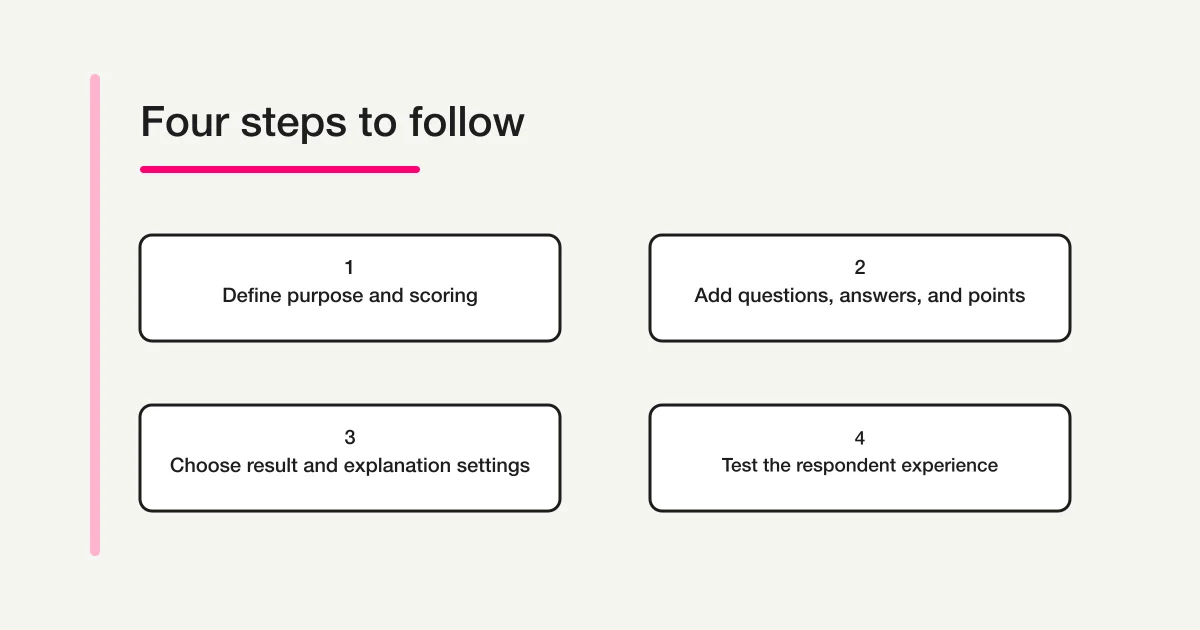
To create a graded quiz in Microsoft Forms, choose New Quiz rather than a regular form. Add questions, mark the correct answer or answers, assign points, and decide what respondents should see after submitting. Before you share the link, preview the respondent experience and send test answers to check the score and result display.
A quiz can contain question formats similar to a form, but its answer key and scoring make it a different workflow. Saving the editor's settings does not by itself prove that the respondent sees the right information or receives the expected score. This guide walks through the setup and a pre-release check. Microsoft may update labels and interface placement, so use the settings currently visible in your account as the source of truth.
Decide between a form and a quiz
Use a regular form when you want to collect opinions, preferences, registrations, or other responses without scoring each answer. Use a quiz when you want to mark correct answers and award points, such as for a knowledge check or a practice assessment. Microsoft's quiz creation guide describes creating a new quiz, adding questions, marking answers, and assigning points.
Before you start, write down what a respondent must do to finish. For example: select one answer for each question, submit once, and see a score afterward. Then decide whether respondents should see the correct answers, feedback, or only a completion message. A learning exercise and a high-stakes assessment may need different result settings. Making this decision first reduces the chance that you publish with a default that reveals too much or too little.
A regular form and a quiz may share question types, so do not choose based only on the kinds of questions you plan to ask. The deciding factor is whether answers will be assessed against a key and points. If you are collecting an opinion, there may be no single correct answer. Treating a preference question as graded can confuse respondents and make the resulting score meaningless.
Create a new quiz and add questions
- Open Microsoft Forms and select New Quiz. Enter a title and description that tell respondents what the quiz covers and how to complete it.
- Select New question and choose a suitable format, such as Choice or Text. The way you identify a correct answer depends on the question format.
- Write the question and its options. If respondents must select one answer, say so. If several answers can be correct, make the selection rule explicit.
- Decide which questions are required and arrange the sequence. Keep any instructions close to the questions they explain.
Start with one representative question before building a long quiz. This lets you check where the answer-key and points controls appear for that question type. For a choice question, look for options that are unintentionally overlapping or ambiguous. For a text question, decide how you will handle capitalization, punctuation, alternate wording, and partial credit. An exact text match may not reflect the standard you intend to assess.
A clear title and introduction are part of the quiz design. State whether the questions are practice or assessment, whether the respondent can retry, and when the score or answer key will be shown. These are decisions for the quiz owner; do not imply that Microsoft supplies a particular academic or workplace policy. If the quiz is time-sensitive, describe the relevant deadline separately from the scoring rules.
Mark correct answers and assign points
Open each question's editing controls and mark its correct answer or answers. Enter the points for that question. For a choice question, select the option or options that count as correct. For a text question, add the acceptable answers supported by the interface and test meaningful variations. Microsoft's quiz instructions explain how to mark correct answers and set points for questions.
| Setting | Decide before release | How to check |
|---|---|---|
| Correct answer | Which response or responses satisfy the question | Submit a correct and an incorrect test answer |
| Points | The value of each question and total possible score | Add the points separately and compare the result |
| Required status | Whether a blank response is allowed | Try submitting with the answer omitted |
| Feedback | Whether to show a clarification or explanation | Preview the result after a test answer |
Questions do not have to carry equal points. The score should reflect the purpose of the exercise and the value you assign to each skill. If three sample questions are worth two, three, and five points, the maximum is ten. That is an arithmetic example, not a recommended weighting scheme. Keep a separate total while editing, then compare it with a test result. This can catch a forgotten question, a point value entered on the wrong item, or a mismatch between the displayed maximum and the instructions.
For feedback, explain why an answer is right or what concept the respondent should review. However, displaying the answer key immediately may be unsuitable when questions are reused or when respondents are still completing an assessment. Decide when feedback is available and test that timing from the response side. Do not infer result behavior from an editor control alone.
Check every item after editing. A correct answer can be marked accidentally on the wrong option, and a change to the question wording can make the previous key invalid. Read each question as a respondent would, then compare the intended answer with the marked answer. For text grading, test the exact expected response and plausible alternate forms. If the interface cannot express your grading rule, choose another question format or plan a manual review instead of implying that automatic grading will handle every case.
Choose what respondents can see
Open Settings and review how the quiz collects responses and displays results. Microsoft's form and quiz settings guidance describes options such as showing results automatically, practice mode, and explanations. The available controls can vary by account or product update. Check the current screen rather than assuming every account has identical options.
Separate these questions when choosing a result policy:
- Should the respondent see a score? Decide whether the score appears immediately after submission or is shared later.
- Should the correct answers be visible? A practice quiz may reveal them; a reusable assessment may need to withhold them.
- Should an explanation appear? Feedback can support learning, but its timing should match the assessment.
- Can a response be changed or repeated? Check audience and response limits separately from scoring.
- Who can respond? Choose an audience that matches the intended participants.
These choices depend on the purpose of your quiz. An immediate score and explanation can support a self-check after training. In a selection process or an assessment that remains open, revealing an answer key early may create an unfair advantage. Think about who can access the result and what information the respondent can share. Use the current controls and test them; the names of settings alone do not establish the full privacy or identity behavior of a particular account. Handle a repeat attempt or an edited response as a separate response-policy decision, then verify which options your account actually supports.
Do not treat audience selection as proof that a specific person has authenticated or that each person can respond only once. Review Microsoft's current response controls and your account conditions. FORMLOVA's guide to one response per person in Microsoft Forms covers that separate setting. Keep identity, eligibility, the ability to change or submit another response, scoring, and result visibility as distinct decisions in your operating instructions.
Practice mode and result explanations can be useful when respondents are meant to learn while answering. In other situations, you may want them to finish the quiz before seeing any answers. Choose a policy that fits your use case, then verify it using the same response route you will distribute. If a setting is not present in your account, do not promise that behavior to respondents; select a workflow your interface supports or adjust your instructions.
Preview questions and test the score
Open Preview before release and review the quiz on a desktop and a phone. Microsoft's quiz creation instructions recommend previewing the respondent view and testing the quiz. Preview helps you inspect wording and layout. A test submission is still useful when you need to verify the score and result details through completion.
Use a small test matrix:
| Test response | What to inspect |
|---|---|
| All answers correct | Maximum score, answer display, and completion message |
| One answer incorrect | Point deduction, incorrect-answer display, and feedback |
| A required item left blank | Prompt and whether submission is blocked |
| A text answer with a variation | How the grading rule treats it |
| A phone-sized screen | Readability of options and instructions |
This is an original pre-release checklist, not a Microsoft guarantee or a report that every setting has been tested in a live account. Decide how test submissions will be identified and removed or excluded so they do not contaminate a real result set. Where the respondent audience is restricted, test the response route under conditions similar to those of an eligible participant.
After testing as a respondent, review the answer and score from the editor's response area as well. Microsoft's quiz results guidance describes reviewing response summaries and sharing results. If you create a summary link, check exactly who can use it and what it exposes. Avoid sharing a broad link when only a small group needs the information. Re-test relevant behavior after changing the answer key, result settings, or audience.
Check the distribution link and instructions
Before sending the quiz, confirm that the link you copied is for respondents rather than editing or collaboration. Open it in the context an intended participant will use and confirm that the title, instructions, and questions appear as expected. A successful preview in the editor does not prove that the distributed route has the intended audience or result policy.
Tell respondents what matters to completing the quiz: the deadline, eligible audience, number of attempts, and when they can see a score or answer key. If you also set a response deadline, consult the Microsoft Forms deadline guide. The timing of response collection is separate from the answer key and scoring. Verify both before distribution rather than assuming that one setting implies the other.
Use this final checklist:
- The quiz title and introduction make the purpose clear.
- Required and optional questions match the instructions.
- Each answer key and point value has been checked.
- The sum of the points matches the intended maximum score.
- The respondent result policy covers score, answers, and explanations.
- Audience and repeat-attempt decisions are documented separately.
- Desktop and mobile previews have been reviewed.
- Test submissions confirm both respondent display and editor-side results.
- The response link is the one intended for distribution.
A Microsoft Forms quiz is ready when its questions, answer key, points, result policy, and respondent route work together. A short test can reveal a wrong key, confusing instruction, or unexpected result screen before real submissions begin. For the broader process of creating and distributing Microsoft Forms surveys, see the Setup guide: Microsoft Forms surveys.
Match question formats to your scoring rule
Choose a question format based on the response you need to assess, not only on which control is quickest to add. A choice question works well when the correct option is unambiguous. If a question allows multiple selections, tell respondents whether they need to select every correct option. Then test a fully correct response, a response that is missing one correct option, and a response that includes an incorrect option. The exact partial-credit behavior should be verified in your account instead of assumed from the editor layout.
Text responses need particular care. A short answer may be correct in meaning but differ in punctuation, capitalization, spacing, units, or spelling. Before publishing, decide which variations should be accepted and check which answer alternatives the current interface lets you define. Test representative variants. Do not assume every valid phrasing will be recognized automatically. For longer explanations, a binary exact-match rule may not measure the quality you want. If the available controls cannot express your rubric, consider using a response format that supports your rule or explain that a person will review the answer.
The instructions, answer key, and points should tell the same story. If the prompt says “select one answer,” avoid configuring a question in a way that expects several selections. If some questions are worth more, explain the scoring clearly enough that the total is not surprising. Keep a separate list of points while editing. When you change a question or key later, note the date and what changed so that the owner can distinguish scores collected under different versions.
Review feedback without revealing too much
Feedback is useful when it explains an idea, points respondents to a resource, or helps them understand a mistake. A message that merely repeats “incorrect” may add little. Write feedback for the learning objective and confirm that it appears when you expect. If the quiz is part of an assessment that stays open, immediate feedback can expose the answer key to later respondents. Choose when to show explanations and correct answers with the full response window in mind.
Avoid placing confidential material in a question, feedback field, or result message simply because the respondent must sign in. Decide who is allowed to receive each piece of information and whether the result page shares any answer details. The owner should test both a successful response and the result that follows it. If the current account does not expose a setting described in documentation, do not promise that behavior. Use a supported configuration and make the respondent instructions match it.
Keep test and live results distinguishable
Test the quiz before collecting real answers. Decide first how to keep test submissions from being mistaken for participant results. Depending on the workflow, you might use a separate test quiz, identify a test response clearly, or complete tests before distributing the live link. Do not silently include a test submission in a final score summary. If your process cannot remove or exclude it, choose a method that separates testing from live collection.
After release, review the response summary and individual responses as appropriate. Microsoft's results and sharing guidance describes reviewing quiz results and sharing a summary. A summary link can make results available to people beyond the form owner, depending on its sharing conditions. Check who can open it before sending it. A file exported for analysis can also expose names, email addresses, or responses if shared broadly, so limit access to people who need the data.
Record the quiz version, date, answer key or rubric, result policy, and person who checked it. If a question changes after responses arrive, scores may not be comparable across the old and new versions. A short operating note does not replace the form's own response records, but it gives the team context for interpreting them. Store any exported result file according to the team's normal access and retention practices.
Use a release note for respondents
When you edit the quiz after distribution, consider whether to notify people who have already started or completed it. A new key may affect previous scores, and a revised question may make the old instruction inaccurate. Document whether the change affects only future responses or also requires a review of collected results. Microsoft Forms should not be assumed to notify every person who received a link just because the owner edits a setting; update the communication channels your team used.
Keep the release check short and repeatable:
- Confirm the title, description, question order, and required status.
- Compare every correct answer and point value with the written key.
- Add the points independently and check the maximum score.
- Review whether respondents see a score, answers, or feedback and when.
- Test the response route under the intended audience conditions.
- Review a test result from both the respondent and owner views.
- Confirm that the shared link is intended for respondents.
This process does not guarantee that every quiz is suitable for every academic, employment, or compliance decision. It does help catch setup mismatches before they affect live responses. A quiz should be released only when the question wording, scoring rule, result display, and participant instructions are consistent with one another.
Disclosure and Verification
The product steps in this article are based on Microsoft's public Support documentation for creating quizzes, adjusting settings, and reviewing or sharing results. This is not a report of hands-on testing in a Microsoft Forms account. Available settings can differ with account conditions, organization policy, and product updates, so confirm each option in the account you use. The tables and response scenarios are original examples intended to help plan a pre-release check.