
To invite someone to work on a Microsoft Form, use its collaboration option and choose the audience that should receive access. A coauthor link can allow recipients to edit questions and view response data. That is different from a link for respondents to submit answers, and it is different from a link that lets someone make a copy of your form.
Before you share, decide who needs access and whether they should see the responses already collected. Microsoft describes different collaboration audiences and notes that coauthors can view and edit the form and its response data. If your goal is only to collect another person's answers, use the respondent sharing route instead. This guide explains the distinctions and gives you a checklist for access changes and troubleshooting.
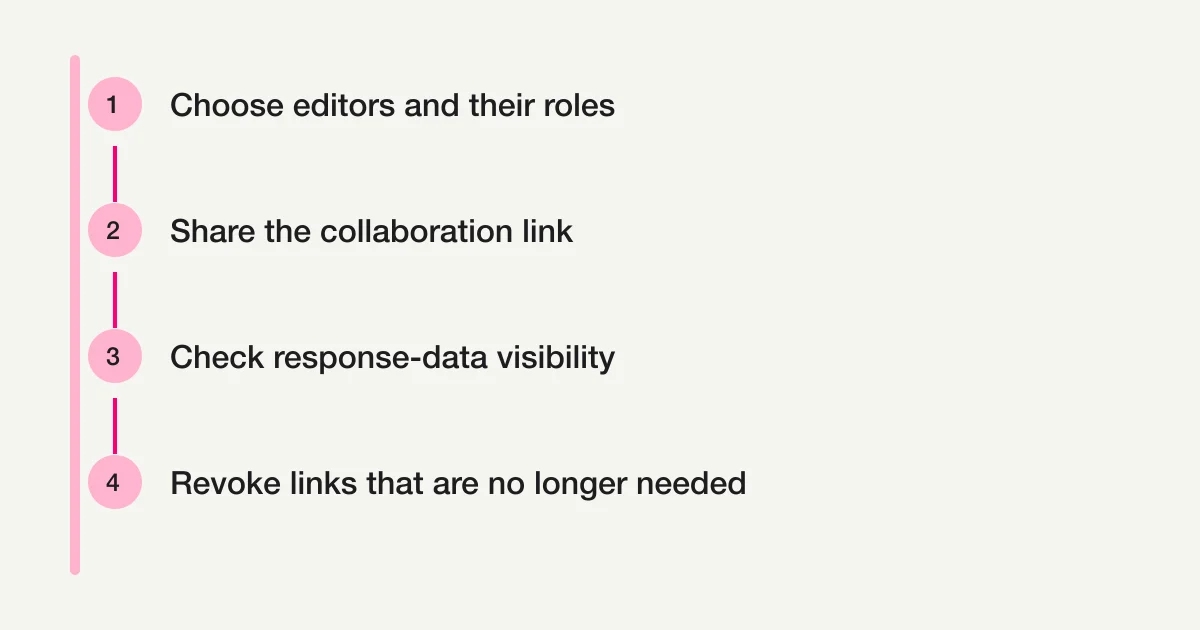
Choose the right kind of link
Microsoft Forms has sharing options for different jobs. The similar-looking links are easy to mix up, so name the intended action before copying one.
| Link or access path | Intended use | What to check |
|---|---|---|
| Collaboration link | Let selected people or an eligible audience coauthor the form or quiz | Recipients may be able to edit questions and view response data |
| Respondent link | Let the intended audience answer the form | Check who is allowed to respond and what response settings apply |
| Duplicate link | Let another person make a copy to use as a starting point | A copy is separate from the original form and its ongoing collaboration |
| Group form | Keep a form under a Microsoft 365 group context | Confirm group membership, ownership, and where group responses are stored |
Microsoft's collaboration guidance describes coauthoring and duplication as separate options. Its respondent sharing guide covers sharing a form for responses. Read the labels in the current interface before distributing a link, especially if you switch between sending a questionnaire and inviting colleagues to edit it.
If you are still designing the questions and respondent journey, start with the Microsoft Forms survey setup guide. Collaboration is a separate access decision: a person helping you build a form does not automatically need the same access as someone who will answer it.
Open collaboration settings
Microsoft's current help describes the collaboration option under More form settings and Collaborate or Duplicate. Microsoft notes that the entry point is being rolled out and may appear under Share instead. The exact label or location can vary as Microsoft updates the product, so use the controls shown in your account rather than relying on an older screenshot or a remembered menu path.
To prepare an invitation:
- Open the form or quiz you own or are allowed to manage.
- Open the current collaboration or sharing settings.
- Choose the collaboration audience that fits your intended team.
- Review the access description and copy the collaboration link only after checking its scope.
- Send the link through a channel appropriate for the people you selected.
Microsoft's documentation says collaboration is available for eligible Microsoft 365 work or school accounts, including Office 365 Education and Microsoft 365 Apps for business. A personal account may not show the same option. Organization policies and account conditions can also affect what appears. If the option is missing, first verify that you are signed in with the work or school account that owns the form, then check the current support guidance and ask your Microsoft 365 administrator whether organizational settings apply.
The option can be available to different audiences, such as people in the organization, specified people or groups, or users with a work or school account. These choices are not interchangeable. Choose the narrowest audience that allows the intended work to happen. If you see a choice for specific people or groups, Microsoft's guidance says that this option has limits, including a maximum of 100 users or groups, with a group counted as one selection. It also notes that the specific-people option requires a valid Office 365 mailbox. Confirm current requirements in Microsoft's help and the interface before planning a large invitation.
Understand what coauthors can access
A collaborator is not simply a question editor. Microsoft says people with a collaboration link can view and edit the form and its response data. That access may include responses already submitted, so treat the link as access to both the form and its collected information. Do not send it to someone who only needs to answer the questionnaire.
Before inviting a coauthor, check the following:
- Does this person need to change the questions, or only review a draft?
- Should this person see responses that have already arrived?
- Is the selected audience limited to the right people or organization?
- Are there names, contact details, or sensitive answers that need a separate access decision?
- Who will review the form after edits and confirm it is ready to share?
Microsoft describes collaboration as a way to let others work on the form and its response data. The article does not assume that every coauthor can change every account-level permission or transfer ownership. Microsoft says the form's owner remains the owner and coauthors cannot change the collaboration permission level. If the ownership arrangement needs to change, consider the group route below and verify that your account meets its conditions.
It can help to separate authoring from response review. One colleague may need to refine wording, while another may need to inspect a response summary. Do not assume that an editing invitation grants a narrower, question-only role. If the person should not see submitted data, choose another review method, such as sharing a copy of the question text without response data, or use a different process approved by your organization.
For a quiz, collaborators may be able to see response data as well as edit the quiz. That can expose answers or scores. If you are configuring a graded assessment, also review the respondent result policy and test the respondent view described in the Microsoft Forms quiz guide. Do not treat a quiz collaboration link as a respondent link.
Decide whether to use a group form
Inviting coauthors through a link and moving a form to a group address different ownership needs. A collaboration link can help several people work on a form while the original owner remains its owner. Moving a form to a Microsoft 365 group can make the group a co-owner. It changes the relationship between the form, the owner, and the group, so it deserves a deliberate review.
Microsoft's guide to moving a form to a group describes conditions such as being the form's owner, belonging to the destination group, and having the required role in that group. Microsoft also explains that responses for group forms are stored in the group's SharePoint context. The destination group cannot simply move the form to another group, and a person who has only been given a form may not have the rights needed to transfer it. Check the current Microsoft instructions before moving a live form.
Check whether the destination group is public or private. Microsoft documents an exception for forms in public groups: everyone in the organization can view and edit the form even when collaboration is set to specific people. A named coauthor list alone therefore does not establish restricted access to a public-group form; review the group’s visibility as well.
Consider a group form when the work should remain with a team if an individual changes roles. Consider a collaboration link when the original owner should stay responsible and the invited people need to coauthor under that arrangement. This is a planning distinction, not a guarantee that a particular account can use either option. Group membership, Microsoft 365 configuration, and organizational policy still matter.
Before moving a form, record the current owner, the target group, who can access its responses, and what should happen to the form if the group changes. Confirm that the right people have access to the associated group resources. If the form is already collecting responses, plan a check of the resulting response location and access after the move. Do not assume that a new owner relationship automatically changes respondent access or revokes previously shared links.
Troubleshoot collaboration that is unavailable
If you cannot find the collaboration option or a colleague cannot open the link, narrow down which step is failing. The cause might be the account, the selected audience, a link copied from the wrong sharing mode, or an organization policy. Avoid repeatedly generating links until you know which condition is wrong.
The collaboration option is missing
First check that you are signed in to the work or school account associated with the form. Microsoft's documentation limits collaboration to eligible Microsoft 365 work or school plans, including Office 365 Education and Microsoft 365 Apps for business. Plan eligibility and product features can change; consult Microsoft's current help rather than treating this list as a complete licensing diagnosis.
Next, look for the option in the current sharing interface. Microsoft says the location may be More form settings, Collaborate or Duplicate, or Share during a gradual rollout. If you are not the owner, ask the owner to confirm what access they have granted. If the option remains unavailable, an administrator can check the tenant's Microsoft 365 configuration and account assignment.
A recipient cannot open the link
Ask the recipient which account they used and what message they see. Compare that with the audience you selected. A link restricted to your organization will not serve the same purpose as a link for a specific person, and the intended user may need to sign in with a work or school account. If you chose specific people or groups, verify the selected identity or group and the mailbox requirements Microsoft documents.
Also confirm that you sent the collaboration link rather than a respondent or duplicate link. If a recipient should make their own copy, a collaboration link is the wrong route. If they should answer questions, a coauthor invitation gives broader access than needed. Recopy the appropriate link from the current interface only after confirming the audience and purpose.
The link opens the wrong experience
Return to the form's sharing settings and inspect the link type. A respondent link should open an answering experience; a collaboration link should present a coauthoring path to eligible users; a duplicate link is meant to create a copy. Do not infer the link's scope from its appearance alone. The owner should test it using an account or context that matches the intended recipient, where permitted by the organization's policy.
A colleague can edit but should not see responses
Microsoft's documentation says coauthors can view and edit response data. If that level of access is too broad, remove or replace the collaboration access and choose a different way to share only what the colleague needs. For example, you might share a question draft separately, or have an authorized owner provide a reviewed summary. Check your organization's handling rules before exporting or forwarding any response data.
Remove or replace a collaboration link
When a project ends, a colleague changes role, or the invitation was sent too broadly, review the collaboration link. Microsoft's guidance says the owner can remove the collaboration link; it also says that a new link can be generated. Treat removal as a change to the collaboration route, then verify the result with an authorized test account if your organization permits it.
Use this sequence:
- Identify the form and the collaboration link that should stop working.
- In the form's collaboration settings, remove the existing link according to the current interface, then check whether the form is also shared through a Teams channel or group.
- If ongoing collaboration is still needed, create a new link for the intended audience.
- Send the replacement only to the people who need it.
- Check the old link and any group or Teams access separately; confirm that the new route works for an intended recipient.
There is an important exception for teachers assigning quizzes to students in Microsoft Teams. Microsoft says other teachers in the channel are automatically added as coauthors to group forms created for that team. If the original author removes the collaboration link from a form created within the channel, those teachers can remain coauthors and may still access the form through that link. Deleting the link alone does not remove their access. Review the Team's membership and permissions as well, and test with an authorized account before treating the form as private.
Review other sharing routes separately. A respondent link, a duplicate link, a group membership, or a previously shared response summary is not necessarily the same thing as the collaboration link. Microsoft warns that existing summary links may remain accessible even if form permissions are later narrowed. If you have shared a summary or embedded results, find and review that access path as well. Removing one link should not be treated as proof that every earlier route to information has been withdrawn.
Keep a short access note for forms that contain sensitive or operationally important responses. Record who owns the form, which audience is allowed to coauthor, where group ownership applies, and when access was last reviewed. This makes it easier to respond when a team member leaves or the purpose of the form changes.
A pre-invitation checklist
Before sending the collaboration link, confirm:
- The form owner and work or school account are correct.
- The recipient needs to coauthor, rather than answer or copy the form.
- The selected audience matches the intended collaborators.
- You understand that coauthors can access response data.
- Any group ownership choice is intentional and its response location is understood.
- The link has been sent through an appropriate channel.
- There is a plan to remove, replace, or review access when the work changes.
When the form is ready for respondents, review the separate sharing and response settings. For closing a form on a deadline, see the Microsoft Forms deadline guide. For the wider survey setup, use the Microsoft Forms survey guide, or browse the form creation guide for related topics.
Sources
- Microsoft Support, Share a form or quiz to collaborate. Reviewed October 10, 2026.
- Microsoft Support, Move your form to a group. Reviewed October 10, 2026.
- Microsoft Support, Share a form. Reviewed October 10, 2026.
Disclosure and Verification
This article was checked against Microsoft's public Support documentation on October 10, 2026. It is a documentation review, not an account-specific Microsoft Forms UI test. Microsoft may change menu labels and available controls, and account plans or organization policy can affect the options shown. Confirm the current sharing mode and permissions in the account you use before sending a link. The checklists and example decisions are editorial guidance, not Microsoft guarantees. FORMLOVA does not operate or change Microsoft Forms on your behalf.