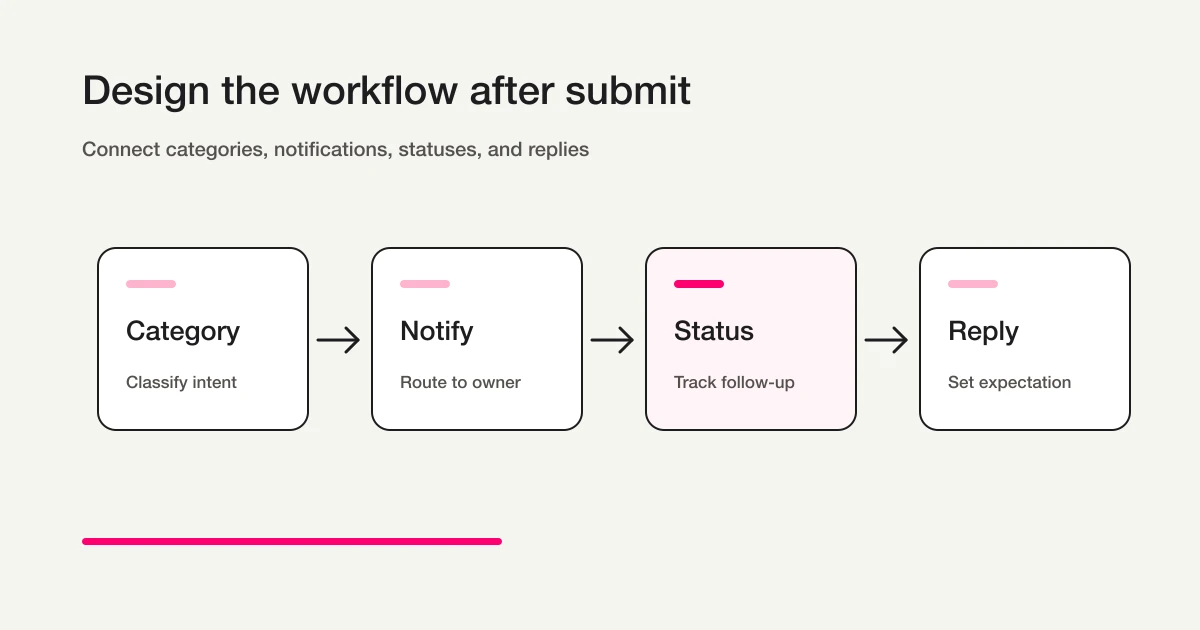
A minimal contact-form template needs name and email for a reply, a category for triage, and a message. Add company, phone, or address only for a clear purpose. Include verified response expectations and data-use wording so the operator can act after submission.
Last updated: October 15, 2026
When people search for a contact form template, they usually do not need another decorative form mockup.
They need a structure they can use today.
Which fields should be required? Should phone number be included? Should company name be required? Should the form include a category field? Where should the privacy notice go? What should the auto-reply email say? How do you keep sales pitches from burying real inquiries?
A contact form looks simple, but it controls the first point of contact between a visitor and your team.
Too few fields, and the team lacks context.
Too many fields, and visitors hesitate before submitting.
This guide gives you practical contact form templates for a standard company site, B2B consultation, customer support, and media / partnership / hiring inquiries. It also covers required vs optional fields, labels and errors, data-use wording, auto-reply emails, category routing, and launch checks.
FORMLOVA already has separate articles on contact form operations, category-based routing, and contact form spam defense. This article focuses on the template you should start with.
If you want the broader map across lead capture forms, surveys, event registrations, hiring forms, and contact forms, start with the FORMLOVA Form Creation Guide. It works as the parent guide for choosing the right use-case article.
Start With This Minimal Contact Form Template
Use this as the default:
Name
Email address
Inquiry category
Message
Data-use notice or consent
For a business website, this is usually enough to start.
For a B2B website, add company:
Name
Company
Email address
Inquiry category
Message
Data-use notice or consent
Do not make phone number required by default.
Phone can be useful for urgent support, high-ticket services, or callbacks. But for many contact forms, email is enough. Required phone fields often make the form feel heavier than it needs to be.
| Field | Recommendation | Why |
|---|---|---|
| Name | Required | Useful for reply and record keeping |
| Required | Needed for response | |
| Company | Usually required for B2B | Helps identify business context |
| Phone | Optional | Use when phone follow-up is expected |
| Inquiry category | Recommended required | Helps routing |
| Message | Required | Needed to understand the request |
| File upload | Optional | Useful for bugs, quotes, screenshots |
| Data-use notice | Required | Makes purpose clear |
Templates by Use Case
A contact form should change slightly by use case.
"Contact us" can mean customer question, sales request, support issue, media inquiry, partnership, hiring, or a sales pitch.
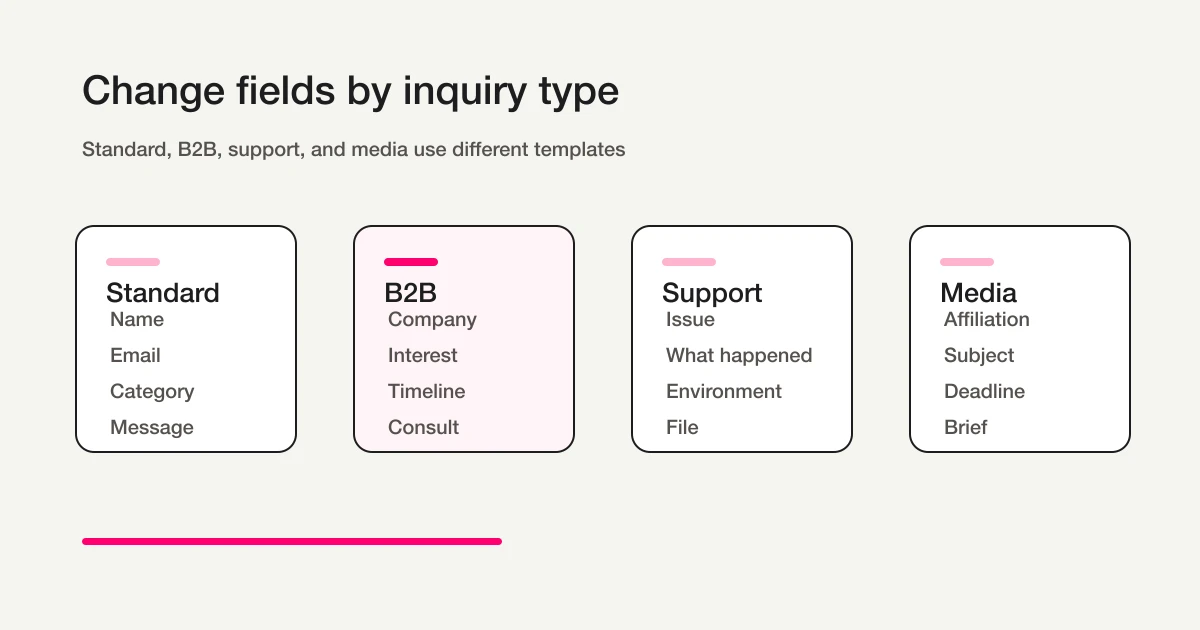
Standard Company Contact Form
Use this for a corporate site or general service site.
Name: required
Company: optional
Email: required
Phone: optional
Inquiry category: required
Message: required
Data-use notice: required
Category examples:
Service question
Pricing or quote
Implementation consultation
Support
Media or partnership
Other
This is the safest starting point.
The category field makes later routing easier without forcing the visitor to answer a long qualification survey.
B2B Consultation or Quote Form
If the form should lead to a sales conversation, collect a little more context.
Name: required
Company: required
Email: required
Role or department: optional
What would you like to discuss?: required
Area of interest: single choice
Evaluation timeline: optional
Consultation request: optional
Data-use notice: required
Use a single-choice timeline:
Now
Within 3 months
Within 6 months
Researching
Not sure
This form is close to a lead capture form, but the intent is different. A lead capture form usually delivers a resource. A contact form invites a direct conversation.
Customer Support Contact Form
If existing users submit issues through the form, collect information that helps triage.
Name: required
Email: required
Account ID or registered email: optional
Issue type: required
What happened?: required
When did it happen?: optional
Environment: optional
Attachment: optional
Data-use notice: required
Issue type examples:
Cannot log in
Billing or payment
How to configure
Bug report
Cancel or change plan
Other
Use words visitors understand.
Do not use internal labels like "incident type" or "ticket classification" if visitors will not recognize them. Use "What do you need help with?" or "Issue type."
Media, Partnership, Hiring, and General Inquiry Form
Corporate websites often receive inquiries across teams.
If one form receives media, partnership, hiring, support, and sales inquiries, category design matters.
Name: required
Company, publication, or affiliation: optional
Email: required
Inquiry category: required
Subject: optional
Message: required
Preferred response deadline: optional
Data-use notice: required
Category examples:
Product or service
Media inquiry
Partnership
Sales proposal
Other
If your site receives many unsolicited sales messages, adding a "sales proposal" category can help route those messages away from customer inquiries. It will not stop every pitch, but it makes the inbox easier to manage. See Contact Form Spam Defense for the full strategy.
Required Fields Should Support Reply and Triage
Make a field required only when it is needed for reply or triage.
Good required fields:
Name
Email
Inquiry category
Message
Data-use notice
Usually optional:
Phone
Company
Role
Preferred response deadline
Attachment
Timeline
There are exceptions. B2B forms often need company. Support forms may need registered email or account ID. High-touch services may need phone.
The test is simple:
Would the visitor understand why this field is required?
Email is natural because the team needs to reply.
Phone is less natural unless a phone response is clearly expected.
Field-by-Field Guidance
Before using a template as-is, decide what each field is supposed to do.
Contact form fields often look interchangeable, but they create different operational outcomes.
Do You Need a Subject Field?
Subject is optional.
If the message field is short and the team reads every submission manually, a separate subject field may not be necessary.
Subject becomes useful when notifications are high-volume or when you want the email notification subject line to summarize the request.
Subject: optional
Examples: Pricing question / Cannot log in / Media request
Make subject optional.
If it is required, the visitor has to think about the request twice: once in the subject and once in the message.
When Should Company Be Required?
For B2B forms, company is usually reasonable.
For general public contact forms, required company can block individuals from submitting.
If both individuals and companies use the form, label it clearly:
Company or organization (optional)
For a B2B service:
Company (required for business inquiries)
If you want stricter logic, ask whether the visitor is an individual or a company first, then require company only for company inquiries.
Add a Short Instruction to the Message Field
A large blank textarea is not always clear.
Add a short instruction.
General inquiry:
Message
Please describe what you would like to ask, what you need help with, or what you want us to confirm.
Support:
What happened?
If possible, include the screen, action, error message, and time when the issue occurred.
Quote request:
What would you like to discuss?
Include the intended use, team size, desired timing, and budget range if available.
Good instructions improve the quality of submissions without adding more fields.
For examples written from the customer’s side, see how to write a contact form message, with product questions, quote inquiries, booking-change questions, and follow-ups.
Keep Inquiry Categories to Five to Seven Options
Categories help, but too many categories create hesitation.
Start with five to seven.
A practical set:
Product or service
Pricing or quote
Implementation consultation
Support
Media or partnership
Sales proposal
Other
If hiring needs its own route, replace an option or use a separate application form rather than adding categories without a review plan.
Category names should reflect the visitor's intent, not your internal team names.
Weak:
CS
Sales
Admin
PR
HR
Better:
Support
Pricing or quote
Billing
Media inquiry
Hiring
Visitors do not know your org chart.
They choose the option closest to their intent.
Good categories make routing much easier after publication.
One Form or Several Forms?
Sometimes one contact form is enough.
Sometimes separate forms are better.
One form works when:
Submission volume is still low.
One team reviews everything.
Categories are enough for routing.
The website should stay simple.
Separate forms are better when:
Support and sales have different owners.
Hiring should not be mixed with customer inquiries.
Sales pitches are overwhelming the main inbox.
Required fields differ heavily by use case.
Auto-reply content needs to be very different.
Support and sales are a common split.
Support may need account ID, environment, and reproduction steps.
Sales may need company, area of interest, and timeline.
If one form tries to serve both, it becomes too broad.
If you are unsure, start with one form, measure category volume, then split later. In FORMLOVA, you can duplicate an existing form and adjust it for a new purpose.
Contact Form Mistakes to Avoid
A template is useful only if it avoids the common traps.
Watch for these five mistakes:
Making phone number required without a clear reason
Using internal department names as categories
Leaving the message field without instructions
Showing the data-use purpose only after submission
Failing to say when the team usually replies
Phone number is the most common friction point.
Some visitors do not want a call. Some are browsing from a phone in a public place. Some simply want an email answer before speaking with sales. If phone follow-up is optional, say so. If phone is required, explain why.
Categories have the same issue.
"CS," "BizDev," "PR," and "HR" may make sense inside the company. They do not help a visitor choose. Use visitor-facing intent labels such as "Support," "Pricing," "Media inquiry," and "Hiring."
The data-use notice should also be visible before submission. Do not rely only on a privacy policy link in the footer. Link to the full policy, but summarize the specific purpose near the submit button.
Add Response Timing and Service Expectations
A contact form should reduce uncertainty after submission.
Visitors want to know:
Was my inquiry received?
Who will review it?
When will I hear back?
What should I do if it is urgent?
Will sales pitches receive a reply?
Use the form, confirmation screen, and auto-reply email to set expectations.
Example:
Our team usually replies within 2 business days.
Some inquiries may take longer depending on the topic.
We may not reply to unsolicited sales proposals.
For support forms, response expectations can vary by category:
Cannot log in: within 1 business day
Billing or payment: within 2 business days
How to configure: within 3 business days
Feature request: reply not guaranteed
The goal is not to promise the fastest possible reply.
The goal is to make a promise the team can actually keep. A small team is better served by a realistic 2-business-day expectation than a vague "we will reply soon."
Separate Sales Proposals Instead of Hiding Them
Many website teams want to prevent sales pitches from entering the main inbox.
That is reasonable.
But if the form has no sales-proposal path, those messages often get submitted under support, pricing, or partnership anyway.
A more practical pattern is to create a separate category and route it differently.
Add a Sales proposal category.
Say that unsolicited proposals may not receive a reply.
Route those submissions away from the main customer inbox.
Use a Sales proposal inquiry category.
Review them in batches instead of interrupting the team.
Decide where proposals are reviewed and whether they receive a reply. Test that ordinary inquiries remain visible and that a genuine request placed in the proposal category can still be reviewed.
Labels, Instructions, and Errors Matter
The number of fields is not the only usability issue.
Labels, help text, and errors determine whether people can complete the form.
W3C WAI's form instructions explain that labels or instructions should be provided when content requires user input, and that placeholder text can be hard to see in some browsers. MDN's form validation guide explains built-in validation patterns such as required and email, plus custom error handling.
Practical rules:
Do not rely on placeholder text alone.
Show required and optional status.
Add short examples where useful.
Write errors that explain how to fix the field.
Weak error:
Invalid input
Better error:
Enter a valid email address, for example name@example.com.
Weak error:
Message is wrong
Better error:
Please enter at least 20 characters so the team can understand your request.
Form errors should guide, not blame.
Data-Use Notice and Consent Wording
Contact forms collect personal information such as name, email address, company, and message content.
Japan's Personal Information Protection Commission explains in its guidelines that when personal information is collected, the purpose of use should be communicated or published, and when information is obtained directly through a written or electronic form, the purpose should be shown in advance.
For a contact form, keep the notice clear:
We will use the information you submit to respond to your inquiry, verify your identity if needed, and manage our response history.
If you also want to send ongoing marketing updates, keep that separate:
I agree to receive related service information, event invitations, and product updates by email.
Do not combine inquiry response and marketing email into one vague checkbox.
The visitor is asking for a response. That is not the same as asking for ongoing promotional email.
Build the Contact Form in FORMLOVA
- Decide the minimum fields and the operator’s next action.
- Register, verify email, and connect a supported AI client. Its terms and fees are separate.
- Request a saved draft. Check its form ID, required settings, choices, data-use wording, and mobile/desktop preview.
- After review, publish a test form and submit fictional data. A preview submission alone does not verify response persistence.
- Find a saved response, confirm its target ID before updating status, and fetch it again. CSV contains form fields and submission time, not internal response-ID or status columns.
The next example defines a Free-plan trial. Check the plan and permissions before adding mail, files, detailed analytics, or integrations.
Test the template for replies and triage
A template needs to support replies and triage after it is copied. First check whether you have enough information to reply and distinguish pricing from support. Add company or phone only when you can explain why they are needed.
Suggested request; not an executed result:
Draft a contact form requiring name, email, category (Pricing, Existing customer support, Sales proposal, Other), and message. Company is optional; omit phone. Draft response-time and data-use wording for the operator to review. Leave notification destinations and custom replies for a later decision.
Submit fictional pricing and support inquiries. Find each by category, confirm the response ID, mark one in progress, and fetch it again. Use a category for sales proposals rather than assuming custom response-status values. Creation, collection, search, status management, and CSV are Free. Custom replies, conditional emails, and Sheets sync require Standard or above; test their destinations and conditions separately.
Try this contact template on Free
A template needs to support replies and triage after it is copied. First check whether you have enough information to reply and distinguish pricing from support. Add company or phone only when you can explain why they are needed.
Sign up free to draft contact template
After registration and email verification, connect a supported AI client and use the request above to draft the form. Review it before test publication. AI-client access and fees follow that provider’s terms.
Auto-Reply Email Template
A contact form should acknowledge the submission.
Google Forms official help explains how to collect email addresses and send response receipts. HubSpot's forms documentation explains form fields connected to CRM properties and email as a key field for contact creation.
In FORMLOVA, custom auto-reply emails are available on Standard and above. Standard is JPY 1,480 per month. The Free plan still includes form creation, response collection, search, status management, and CSV / Excel export.
Use this template:
Subject: We received your inquiry

Hi {name},

Thank you for contacting us.
We received your inquiry with the details below.

Category: {inquiry_category}
Message:
{message}

Our team will review your message and usually reply within 2 business days.
If you need to add information, reply to this email.

We may not reply to sales proposals or unsolicited promotions.
Specific timing helps.
"We will reply soon" is vague.
"Usually within 2 business days" sets a clearer expectation.
For more templates, see Form Auto-Reply Email Examples.
Turn the Template Into an Operation
Assign an operator for each category and review unhandled responses. FORMLOVA has four response-status values: New, In progress, Resolved, and Spam. Sales proposal or Waiting for customer are business categories or separate tracking labels, not arbitrary built-in status values.
Confirm the form and response ID before an update and fetch it again afterwards. CSV contains form fields and submission time, not internal response status. Custom replies, conditional emails, and Sheets sync require Standard or above. Verify destinations and permissions before enabling external handoff.
Launch Checklist
Before publishing, check:
Name and email are required.
Inquiry category uses visitor-friendly wording.
The message field has a short instruction.
Phone is required only when there is a clear reason.
The data-use notice is visible before submission.
Marketing consent is separate from inquiry response.
The auto-reply includes receipt and response timing.
Internal notification recipients are decided.
The sales-proposal handling rule is clear.
A test submission confirms response, notification, and auto-reply behavior.
Test the form with someone who did not build it.
The builder knows what every field means. A visitor does not.
Metrics to Review After Launch
A contact form should improve after real submissions arrive.
Do not look only at total inquiry count. Review:
Submissions by category
Average time to first response
Unanswered inquiries
Share of sales proposals
Fields that often cause confusion
Message patterns that lack enough context
If "Other" becomes the largest category, the category list is missing something.
If support inquiries repeatedly lack environment details, add a short instruction or a field for environment.
If sales proposals overwhelm the inbox, adjust the category, notice, routing, and status workflow.
Avoid adding a required field for every unusual submission. One edge case should not make the form heavier for everyone. Add fields only when the same missing context appears repeatedly. Otherwise, improve instructions, auto-replies, and routing.
The form is the entry point, not the whole workflow.
FAQ
Should a contact form require phone number?
Usually, no.
If phone follow-up is necessary for your workflow, include it. Otherwise, make it optional or ask for it only when the visitor wants a phone call.
Should a contact form include categories?
Yes, in most cases.
Categories help route submissions, trigger notifications, and track response status. Keep the list short. Five to seven options is usually enough.
Should a contact form include anti-sales-pitch wording?
If your site receives many unsolicited sales messages, yes.
It will not stop everything. Use it with a separate sales-proposal category, routing rules, and after-submit classification.
Does a contact form need a consent checkbox?
The legal answer depends on the jurisdiction and the data you collect, but the product-design principle is consistent: the visitor should see the purpose before submitting.
If you use a checkbox, do not rely only on "I agree to the privacy policy." Add a short purpose near the form. Separate inquiry response from ongoing marketing email.
Summary
Start with the concrete form and checks above. Review the draft, publish a test, and inspect saved responses before deciding whether to migrate or automate. Keep the current tool if it meets the need. Add paid features for a named operational requirement, and verify setup and delivery rather than treating a suggested request as a completed workflow.
Disclosure and Verification
This guide is for website owners, operators, marketers, and support teams building a contact form. I work on FORMLOVA, so I include the FORMLOVA workflow. I checked official information from Japan's Personal Information Protection Commission, W3C WAI, MDN, Google Forms, and HubSpot on April 28, 2026. Treat this as form design guidance, not legal advice.
Related Articles
- Form Creation Guide -- Choose Templates, Fields, and Workflows
- Contact Form Privacy Consent Wording -- Checkbox, Purpose, and Examples
- MCP Form Service Guide -- From AI Creation to Form Operations
- FORMLOVA Form Automation Guide -- Auto-Replies, Routing, Sheets Sync, and MCP Operations
- Form Services Comparison Hub -- Pricing, Alternatives, and Operations
- Most Form Tools Stop at Creation -- FORMLOVA Starts After Publish
Additional next steps
Further reading for implementation