
Last updated: October 8, 2026
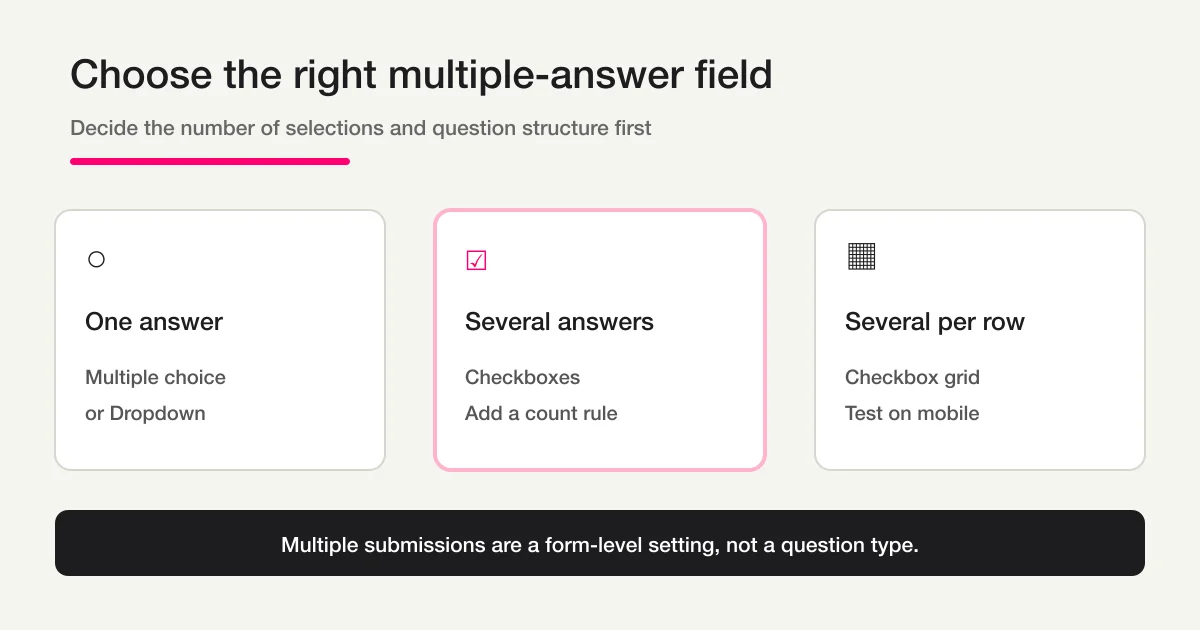
To let someone choose several options in one Google Forms question, use Checkboxes. Use a Checkbox grid when respondents need to make multiple selections for each row. Multiple choice and Dropdown questions allow only one selection.
You can also require at least two choices, allow no more than three, or require exactly two through response validation. That is separate from allowing the same person to submit the whole form more than once. This guide focuses on multiple selections inside one question, then covers selection limits, preview tests, and option-level analysis.
First, separate the two meanings of “multiple answers”
People use “Google Forms multiple answers” for two different tasks.
| Meaning | What you are trying to do | Main control |
|---|---|---|
| A. Multiple selections in one question | Ask someone to select every relevant topic, date, or feature | Checkboxes or Checkbox grid |
| B. Multiple submissions by one person | Let one person submit a daily log, another application, or an updated answer | One-response restriction, responder identity, timestamp, and an adoption rule |
This page owns meaning A. If you are trying to prevent the same person from submitting repeatedly, use the dedicated Google Forms duplicate and spam prevention guide. If you intentionally accept a replacement RSVP and keep the latest answer, the attendance confirmation form guide explains that operation without confusing it with checkbox selections.
That distinction matters because changing a question to Checkboxes does not change how many times the entire form can be submitted. Conversely, turning on “Limit to 1 response” does not let a respondent select more than one option in a multiple-choice question.
Quick decision table: one choice, several choices, or several per row
Google’s official question type guide describes Multiple choice and Dropdown as single-selection types and Checkboxes as a type that accepts multiple answers. A Checkbox grid is useful when the same columns repeat across several rows.
| Question type | Number selected | Good fit | Poor fit |
|---|---|---|---|
| Multiple choice | One | Primary preference, attendance status, age band | “Select all that apply” |
| Dropdown | One | A long list with one accepted answer | Multiple selections |
| Checkboxes | Several | Interests, used features, available dates | Mutually exclusive options without an explanation |
| Checkbox grid | Several per row | Day × time availability, product × desired capability | A very large table on mobile |
If you need the broad creation and publishing sequence first, start with how to use Google Forms. The steps below stay focused on the multiple-answer decision.
Step 1: Change the question type to Checkboxes
Open the form, add a question, and choose Checkboxes from the question-type menu. Write each option so that it will still make sense as a report label later.
For a customer workshop, a reusable question could be:
Question: Which topics are you interested in? Select all that apply.
Options:
- Customer management
- Form optimization
- Email automation
- Data analysis
Additional control: use Google Forms' built-in Add “Other”
A fixed option whose label happens to be “Other” is not the same as Google Forms’ built-in Add “Other” control. The fixed option does not create a free-text input. Use the built-in control when respondents must type a new value, and confirm that the input appears in Preview.
Use Multiple choice when only one answer can be true. “Which plan will you purchase?” normally needs one answer. Use Checkboxes when several options can be true at the same time. “Which sessions can you attend?” can reasonably have several answers.
A grid is appropriate only when repeating the same columns improves comprehension. For example, rows can be Monday, Tuesday, and Wednesday, while columns are Morning, Afternoon, and Evening. A checkbox grid lets respondents choose more than one time for each day.
Do not assume a grid is always more compact. On a phone, a wide set of columns can make respondents lose track of the row label. Preview the mobile layout. If the relationship is hard to read, use one ordinary checkbox question per day instead. The best structure is the one the respondent can answer correctly, not the one that uses the fewest editor blocks.
Option wording also affects analysis. “Support,” “Customer support,” and “Support team workflow” may look related to the author but become three distinct report labels. Decide the reporting categories before collecting responses and use those exact labels in the form.
Step 2: Set Required and the selection-count rule separately
Turning on Required and enforcing a number of selections are separate decisions. Required prevents an empty answer. It does not, by itself, require two or more choices.
Google’s official response validation guide documents three checkbox rules:
- Select at least a certain number.
- Select at most a certain number.
- Select exactly a certain number.
Map the rule to the respondent promise.
| Requirement | Configuration | Example |
|---|---|---|
| One or more | Required | Choose at least one interest |
| Two or more | Required + minimum 2 | Give us several candidate dates |
| No more than three | Maximum 3 | Narrow a long list to top interests |
| Exactly two | Required + exactly 2 | Choose two workshop topics |
Open the question’s More menu, choose response validation, select the rule, and enter the count. Add error text that tells the respondent how to recover: “Select at least two topics” is more useful than “Invalid response.”
Be careful with an option such as “None of the above.” Its meaning is exclusive, but an ordinary checkbox list may let someone select it alongside other options. Do not claim that a count rule automatically enforces that business rule. Add an instruction such as “If you choose None, do not select another option,” test the result, and split it into a separate question if the answer must be unambiguous.
The built-in Other control is useful when you genuinely want new categories. It is not a substitute for maintaining the option list. If nearly every respondent types the same missing choice, add that choice before full distribution rather than creating avoidable text normalization work.
Step 3: Test boundary values in Preview before publishing
A configuration is not complete until you have tried the values immediately around its boundaries. Use the responder preview and test:
[ ] Zero choices triggers the Required message when an answer is mandatory.
[ ] Exactly the minimum number is accepted.
[ ] Exactly the maximum number is accepted.
[ ] One more than the maximum is rejected.
[ ] A value can be entered and submitted through the built-in Add “Other” control.
[ ] Every option and instruction is readable on a phone.
[ ] Grid rows and columns remain easy to match.
For “at least two,” test zero, one, and two. For “at most three,” test three and four. This short exercise catches the common mistake of turning on Required but never configuring the minimum.
Freeze the question wording and option labels before the real response period starts. If “Data analysis” becomes “AI analysis” halfway through collection, you need to decide whether the old and new labels represent the same category. Record the change time, old label, new label, and reporting treatment when an edit is unavoidable.
Before distribution, publish the form and check the responder link. Google’s official publish and share guide states that responders need the form to be published before they can access it. Test with the account and sign-in conditions your actual audience will use.
A small pilot is worth more than a long editor checklist. Ask one person who did not build the form to select the minimum, the maximum, and an Other answer. Then inspect the response view. The test proves that the instruction, field behavior, and resulting record agree.
Step 4: Count options with an explicit denominator
Multiple-selection reports have two totals: respondents and selections. If 100 respondents choose an average of two topics, you have 100 respondents but about 200 selections.
Write the denominator next to the result.
Valid respondents: 100
Customer management: 45 people (45% of 100 respondents)
Form optimization: 38 people (38%)
Email automation: 31 people (31%)
Data analysis: 52 people (52%)
Total selections: 166
The percentages add up to more than 100%, and that is correct when the denominator is respondents. If you want a composition chart that totals 100%, make a separate report where the denominator is the 166 selections. Do not mix “percent of respondents” and “percent of all selections” in the same unlabeled column.
When a Sheets or CSV view presents several selected options together in one cell, counting the entire visible cell as one category produces combinations such as “Customer management, Data analysis.” That may be useful for combination analysis, but it does not answer “How many people selected Data analysis?” For option-level counts, split the response into its individual options and increment each chosen option once per respondent.
The exact display or serialization can evolve, so design the report around verified option labels rather than an assumed delimiter. Keep the raw export unchanged, create derived columns for analysis, and validate the split against several real rows. The Google Forms CSV export guide covers the export step and encoding considerations.
Free text from the built-in Other control needs a normalization table. “AI,” “generative AI,” and “gen AI” may represent one category, but an analyst should make that decision explicitly. Keep the original value, add a normalized category, and record the rule. Do not overwrite the source answer.
Renamed options need similar treatment. Either map the old and new labels to one reporting category or separate the periods. Which choice is correct depends on whether the meaning changed. A record of the form version and edit date prevents an invisible merge.
If the workflow expands into notifications, ownership, statuses, Sheets, or Apps Script, return to the parent Google Forms, Sheets, and Apps Script operations guide.
If you allow multiple submissions, define an adoption rule first
A daily log or recurring inspection may intentionally allow the same person to submit the form repeatedly. In that case, you might leave “Limit to 1 response” off. Google’s publishing and settings guide notes that enabling the one-response restriction requires the responder to sign in to a Google Account.
When repeated submissions are allowed, decide at least:
- The responder ID or email used for matching.
- The submission timestamp.
- Whether every submission is a separate valid record.
- Whether only the newest submission for an ID is adopted.
- The deadline for replacements or corrections.
Google’s official response management guide explains that when multiple submissions are allowed, Individual view can show answers by submission. It also documents linking responses to Sheets, downloading CSV, and stopping collection.
That whole-form policy is not a checkbox setting. If repeated entries are unwanted, follow the spam and duplicate-prevention article. If they are intentional corrections to an RSVP, follow the attendance article. Keeping those owners separate prevents a page about “multiple answers” from giving the opposite advice to two audiences.
Draft multiple-selection fields with FORMLOVA
FORMLOVA represents a question that accepts several choices as multi_select. For a row-and-column question, a matrix can use allow_multiple so each row accepts several columns. Multiple-selection responses are treated as arrays, and the current analysis implementation can count each selected option individually.
The current FORMLOVA implementation supports multiple selections and, when a field is required, a minimum of one selection. It does not currently configure or enforce minimums above one, maximums, or exact selection counts. That boundary differs from Google Forms response validation, so do not describe those count rules as implemented in a FORMLOVA draft.
Include the purpose, required status, and reporting denominator in the prompt so the draft can be reviewed against the intended result.
Draft a customer workshop survey. Add “Which topics are you interested in?” as a required multiple-selection question with Customer management, Form optimization, Email automation, and Data analysis. I want option-level counts using respondents as the denominator.
Review the short returned structure:
Question: Which topics are you interested in?
Type: multi_select
Options: Customer management / Form optimization / Email automation / Data analysis
Review: required (at least one); count each option against total respondents
Then preview the field, check required behavior, test it on mobile, and inspect a test response before publishing. For a matrix request, specify the rows, columns, and whether multiple columns are allowed per row. “Make this a grid” alone does not define the response rule. If the project requires a minimum above one, a maximum, or an exact count, do not publish the current FORMLOVA draft as though it enforced that rule; use a path that supports the requirement.
FORMLOVA is the subject of this product-specific example, but the analysis discipline is the same in either service: establish the field type, validation, stable labels, and denominator before gathering production data.
Common mistakes and fixes
| Mistake | Cause | Fix |
|---|---|---|
| Respondents cannot select several answers | The field is Multiple choice or Dropdown | Change it to Checkboxes |
| One selection is accepted when two are required | Only Required was enabled | Add minimum-count validation |
| None is selected with another option | The exclusive rule was not explained | Add a clear instruction, test it, or split the question |
| Percentages exceed 100% | Respondents are the denominator in a multi-select question | Keep the result and label the denominator |
| Reports count combinations instead of options | The whole visible cell was treated as a category | Split and count individual options |
| Old and new labels appear separately | An option was renamed during collection | Keep a mapping with old label, new label, and edit time |
FAQ
How do I allow multiple answers in Google Forms?
Choose Checkboxes as the question type. Unlike Multiple choice or Dropdown, it lets a responder select more than one option in the same question.
Can I limit how many checkboxes someone selects?
Yes. Use response validation to set a minimum, maximum, or exact number of selections. Required alone does not enforce a rule such as “choose at least two.”
What is the difference between Checkboxes and a Checkbox grid?
Checkboxes present one list in which several options may be selected. A Checkbox grid repeats columns across rows and supports several selections for each row, such as available time periods for each weekday.
Is it wrong if multiple-answer percentages exceed 100%?
No. When each option is divided by the number of respondents, one person can contribute to several options, so the percentages can exceed 100%. State whether the denominator is respondents or total selections.
Can the same person submit a Google Form more than once?
You can allow repeated submissions by not using the one-response restriction. Define a responder ID or email, timestamp, and whether you keep every submission or only the newest one. Duplicate prevention is covered in the separate article.
Can I rename options after responses arrive?
Avoid it when possible. If a rename is necessary, record the edit time, old label, and new label, then decide whether analysis should merge them or keep the periods separate. Preserve the raw responses.
Disclosure and Verification
This article was verified on August 27, 2026 against Google’s official documentation for question types, response validation, publishing, sharing, and the one-response restriction, and response views, Sheets, CSV, and stopping responses, as well as the current FORMLOVA specification and implementation. On October 8, 2026, we rechecked the question types and checkbox validation rules, clarified the search title, and separated Required from selection-count settings in the examples. The author develops FORMLOVA. Google may change labels or availability, so verify the settings and a test response in your own account before full distribution.
To draft a multiple-selection question in chat, preview it, publish it, and review option-level responses in one flow, start with FORMLOVA for free.