
To offer one Microsoft Forms survey in several languages, add a language under Multilingual, then enter and review its translations. Adding the language alone is not the finished translation. If the questions still appear in the wrong language, first separate the form's translated content from its interface language and the browser's translation feature.
The practical goal is consistent questions and usable results. This guide follows a short training-feedback survey from wording review to a six-response check. The data is fictional; the setup references Microsoft documentation checked on October 23, 2026, rather than a logged-in account test.
Separate three kinds of language changes
Before editing anything, describe the symptom. Is the question text wrong, is a button in an unexpected language, or does only one person's browser show different wording? Those observations point to different checks.
| Layer | What to inspect | Review question |
|---|---|---|
| Form content | The owner's translated title, questions, and answer wording | Does each language ask for the same decision? |
| Form interface | Buttons and other interface text | Is the issue limited to navigation or submission controls? |
| Browser translation | Text changed by the browser for that viewer | Is the reviewer seeing the saved wording or a browser-generated rendering? |
Microsoft's language-settings guidance distinguishes browser translation from the URL's lang setting. That parameter affects interface text, such as buttons; it does not translate the authored questions. Treat a translated button as evidence about that button, not proof that the survey's content has been translated.
For a wording review, record whether browser translation is active. Ask the reviewer to compare the saved form wording with what they see before deciding which text needs correction. Otherwise, the owner may revise a perfectly good translation to compensate for a temporary browser rendering.
Keep the task small: one intended language, one question, and one observable mismatch. A note such as “the first question remains in the primary language while the submit button is English” gives the owner something precise to inspect. “Translation is broken” does not identify which layer needs attention.
Agree on the question before adding languages
Consider a training team preparing this single-choice question:
Which part would you like more of in the next training?
The three options are Hands-on practice, Case studies, and Questions and answers. The team wants equivalent Japanese and English wording. Its decision is what to allocate more time to in the next session, not whether participants liked the instructor or understood the entire course.
Write down that decision before translating. It prevents a small wording change from creating a different survey in each language. For example, “Which part was most useful?” asks about a past experience; it is not equivalent to asking what should receive more time next time.
| Wording element | Intended meaning | Change to catch during review |
|---|---|---|
| Next training | A future session | A translation that asks about today's session |
| More of | Additional time or emphasis | A translation that asks for a satisfaction score |
| Choose one | One preferred priority | Wording that invites several selections |
| Three options | Practice, examples, and discussion | Combining two options in one language only |
Keep a small review sheet outside the response data. Give each question a stable working reference, place its versions side by side, and note who checked them. These references are for the team's review; they do not need to appear as awkward labels on the public survey.
For answer options, review the distinction between choices as well as each translation. “Practice” should not sound like a lecture example in one version while “Case studies” already covers examples. Read the question and all options together, then ask a reviewer to explain what selecting each option would mean.
This is a useful place to remove ambiguity before it reaches respondents. Once responses are collected, a neat chart cannot repair two groups having answered subtly different questions.
Add the language, then review the translated form
Microsoft's multilingual-form instructions give this sequence:
- Open the form, then choose More form settings → Multilingual.
- Choose Add additional language and select the language.
- Open that language's pencil control.
- Enter translations for the title and questions, then return with Back.
A form supports up to 11 languages including its primary language. Microsoft says respondents receive an added, translated language when it matches their default language. Use those conditions as checks, rather than assuming that an added language name proves the content is ready.
For the training example, begin with just the Japanese and English versions. Review the title, introductory explanation, question, options, and any instructions the respondent must understand. Look for empty translation fields, shortened choices that lose meaning, or source wording changed after the translation was reviewed.
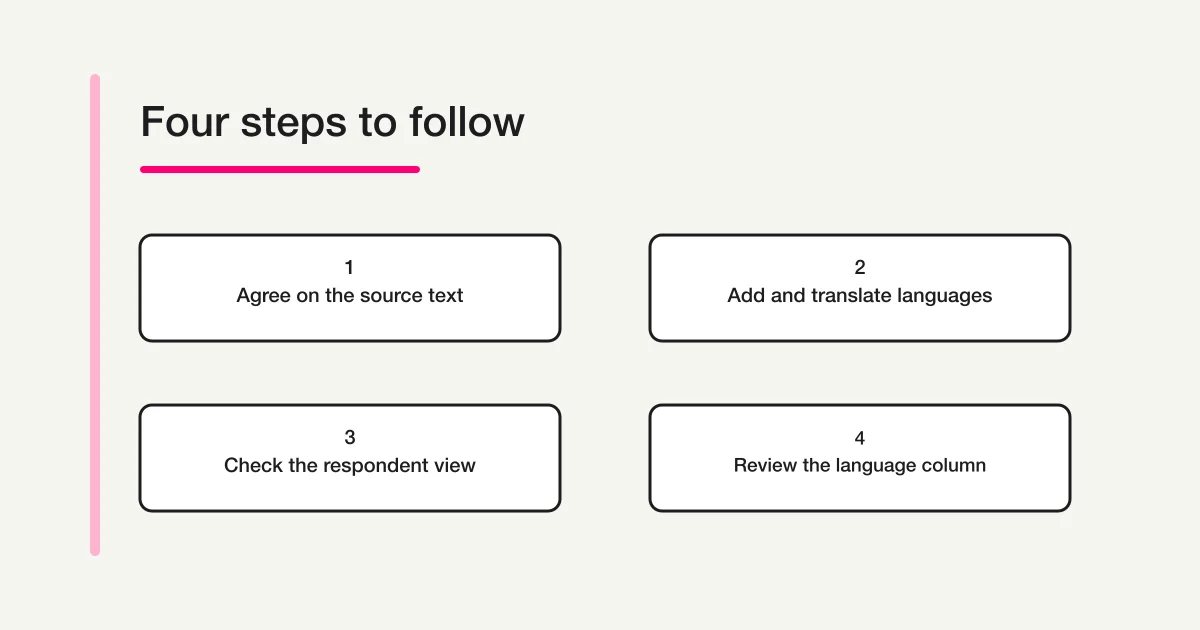
The illustration is a process guide, not a reproduction of a Microsoft interface. Open the official instructions above when you need to match a control to the current product screen.
After the text review, inspect the respondent-facing form under the conditions the audience will actually use. Keep this check separate from editing. An editor knowing what the question was meant to say can easily overlook wording that would confuse someone seeing it for the first time.
Ask the reviewer to read the whole first screen and explain the task before submitting anything. Check whether the title sets the right context, the instruction clearly asks for one answer, and every option is visible on a small screen. A longer translation may be accurate but still need shorter phrasing to remain comfortable to read.
If you make test submissions, identify them in your review records and keep them out of the later reporting sample. Do not send a live distribution message merely to test a language change. Complete the wording and display checks first, then use your normal approved sharing process.
For the broader sequence of creating and sharing a survey, use the Microsoft Forms survey and Teams guide on FORMLOVA. That guide handles the audience and sharing decisions; this page focuses on the language work within the survey.
Investigate a language that is not showing
Start from the exact responder link and the exact form the owner edited. A copy kept for a previous training session can look nearly identical while containing older wording. Compare the form title and current question text before changing settings.
The following are diagnostic checks, not a claim that every Microsoft account has the same cause or screen layout.
| What you observe | First check | What to record |
|---|---|---|
| The whole question remains in the primary language | The intended language and its saved translation fields | Question text, intended language, and the form being checked |
| Buttons change language but questions do not | Whether only interface language changed | A separate note for interface text and authored content |
| One reviewer sees different wording | Browser translation and that reviewer's language context | The browser, visible wording, and translation status |
| An old phrase remains after an edit | Whether the translation and responder link belong to the updated form | The old phrase, revised phrase, and review time |
Change one relevant item at a time, then repeat the same observation. If you alter wording, language context, and the link together, you may get a different screen without learning which change mattered. Keep the working translation sheet so you can compare the result with the intended text.
If the Multilingual control itself is missing, confirm that you are in the form's editing context and using the correct account. Consult the current Microsoft instructions and your organization's support route. The absence of a control is not a reason to loosen access settings or rebuild an already functioning production form.
Do not distribute a duplicated form as an improvised language repair while answers are still arriving. It introduces a second collection destination and makes later totals harder to reconcile. First identify whether the problem is the translation, the viewing context, or simply the wrong copy of the form.
Keep screenshots of a problem limited to what is needed for support. A cropped question and its language context are often enough; respondent identities or unrelated account information do not help diagnose a missing translation.
Check language groups before interpreting results
Microsoft documents a language column in each question's More Details view and in the Excel results. Responses stay in one form. Use that column to inspect the language groups, then check the actual answers before preparing a combined report.
For this worked example, imagine six submissions: four in the Japanese group and two in the English group. In the first group, two selected Hands-on practice, one selected Case studies, and one selected Questions and answers. In the second, one selected Hands-on practice and one selected Case studies.
| Language group | Hands-on practice | Case studies | Questions and answers | Total |
|---|---|---|---|---|
| Japanese | 2 | 1 | 1 | 4 |
| English | 1 | 1 | 0 | 2 |
| Combined | 3 | 2 | 1 | 6 |
This table is an original calculation example, not an exported Microsoft screen or customer result. Each row and column can be checked: 2 + 1 + 1 = 4, 1 + 1 + 0 = 2, and 3 + 2 + 1 = 6. Because the example requires one answer per submission and contains no omitted answers, its answer count equals its submission count.
That last condition matters. In a real report, document whether the question was optional, whether the reporting period excludes any submissions, and how test responses were handled. Do not force every question's total to equal the form's total if some people legitimately skipped it.
If you calculate proportions within a language group, use that group's denominator. Hands-on practice is 2 out of 4, or 50%, in the Japanese group and 1 out of 2, also 50%, in the English group. The equal percentages do not make the samples equally large. Keep the counts visible so the two-response group is not given false precision.
Treat response language as language context, not as a proxy for nationality, location, or proficiency. Those are different attributes. Nor does a group difference prove that translation caused the difference: the audiences, session experiences, and sample sizes could differ. With six fictional responses, the useful outcome is a verified calculation, not a research conclusion.
Retain the original export when preparing a reporting table. Keep any relabeling or translation notes in a separate working copy so another reviewer can trace a combined category back to the source answers. If a label changed during collection, note when it changed before combining results under one heading.
Prepare the next feedback form with consistent wording
Once the question and options are clear, that reviewed wording can also become the starting point for a separate form in FORMLOVA. You can ask your connected AI to help examine the wording, then create a draft using the language version you have approved.
For the English training-feedback form, a concrete request is:
Draft a training-feedback form with one required single-choice question: “Which part would you like more of in the next training?” Use exactly these choices: Hands-on practice, Case studies, and Questions and answers. Show the title, introduction, question, and choices for my review before publication.
Review the proposed text against the wording sheet. Check that the AI has not added a fourth option, changed “next training” to “this training,” or turned the single-choice question into a different task. If you prepare another language version, review its meaning separately before choosing where and how it will be distributed.
This is a new-form preparation example. It does not establish a language switcher, synchronized translation, or automatic conversion of an existing Microsoft form. Keep your existing Microsoft collection in place if it is already serving the audience you need.
FORMLOVA's Free plan includes form creation and publishing, response collection, response-count checks, and CSV/Excel export. You can use an export to prepare a count table like the example above. Advanced analysis such as cross-tabulation, and automatic Google Sheets integration, require Standard or higher; the free example does not depend on those features.
Draft your next training-feedback form
Start with the reviewed question and three choices. Create the form, collect responses, check response counts, and export CSV or Excel with FORMLOVA Free.
Create a free account for your feedback form
Register, confirm your email, then connect a supported AI client and ask for a draft. The AI client's availability, settings, plan requirements, and costs are separate.
For help turning the decision into a concise form, read the form creation guide on FORMLOVA. Connection instructions are in FORMLOVA setup.
Frequently asked questions
Should I make a separate survey for each language?
Decide from the collection and reporting requirements. For equivalent questions intended to be reviewed together, first examine the multilingual option in the existing form. Separate surveys introduce separate links and collection destinations, so plan how you will preserve the relationship between their questions and results.
Does changing interface language fix an untranslated question?
Check the authored translation separately. A change in button wording is not a sufficient review of the question, its choices, and its instructions. Use the three-layer distinction above to record exactly what changed.
Can I combine the results immediately?
First check that the language versions ask equivalent questions and use matching choices. Then reconcile counts, omissions, test responses, and reporting dates. Preserve the original data and the language-group counts alongside any combined view.
What should I review after changing the original question?
Revisit each language version affected by the change. Compare the decision being asked, the response instruction, and all choices; then repeat the respondent-view check. Keep the revision date in your working notes so future reporting can account for changed wording.
Do I need a real submission for every wording change?
A reading and display review can catch many text issues before any data is submitted. When you need to verify the collection path, use a controlled test under your normal process, record it, and keep that test separate from the reporting sample.
Finish with a small acceptance record: the approved wording, the language views reviewed, the form link checked, and the totals reconciled. That gives the next person maintaining the survey a clear starting point when a question or audience changes.
Disclosure and Verification
Microsoft Support references and FORMLOVA's plan definitions were checked on October 23, 2026. The training question, six submissions, calculations, and review suggestions are instructional examples. No Microsoft account was edited, no live FORMLOVA form was created, and no customer data or measured improvement is represented here.