
Last updated: June 20, 2026
Important migration notice (effective 2026-06-18)
As of 2026-06-18, Google stopped processing requests from personal accounts (free Google accounts / Google AI Pro / Google AI Ultra) on Gemini CLI. Personal users need to move to the successor, Antigravity CLI (binary name
agy). Enterprise users (Gemini Code Assist license + API key authentication) are unaffected and can keep using Gemini CLI as before.Nothing changes on the FORMLOVA side. The MCP server URL is
https://formlova.com/api/mcpfor every client, and the tools, features, OAuth dynamic discovery, and safety valves all stay the same. Personal users should read "Connect with Antigravity CLI" below; enterprise users, or anyone wanting a reference before migrating, can read "Connect with Gemini CLI (enterprise / legacy path)."
Antigravity CLI and Gemini CLI have become tools you reach for in the terminal to research code, draft, and automate the odd task. But out of the box, that flow stops short of "build a feedback form, set up an auto-reply, and wire up a Slack notification." The moment you add an MCP server, that boundary disappears.
FORMLOVA exposes a remote MCP server that your CLI can connect to. You add it by writing a single connection target into a config file, and authentication is handled entirely by OAuth. Once connected, 142 tools across 24 categories line up at your CLI's fingertips, so you can go from a draft to a preview, a pre-publish review, filtered responses, auto-replies, and workflow setup all in the same terminal conversation. This guide walks you from the connection through post-publish operations, the way to think about using write tools safely, and where to look when something breaks.
The Short Version -- Personal Users: Antigravity CLI Makes FORMLOVA Your Terminal Partner
Given the 2026-06-18 migration, if you are starting fresh as a personal user, Antigravity CLI (agy) is the current path. There is not much to do first.
- Install Antigravity CLI (
agy). - If you were already using FORMLOVA with Gemini CLI, the first time you launch
agyyou get a prompt asking whether to import your existing~/.gemini/configuration (registered MCP servers and more). Choose to import. That alone carries your FORMLOVA MCP setup over as-is. If you are new, add FORMLOVA to themcpServersblock of the MCP config filemcp_config.json(covered below). - Authenticate with Google OAuth and, in the CLI session, say "Create a webinar signup form." A private draft and a preview URL come back.
There is no Bearer token to paste by hand and no fixed secret to manage, because the FORMLOVA MCP server supports OAuth dynamic discovery.
One caveat, though. Antigravity CLI is fresh off release, and there are known issues where remote MCP servers that use OAuth do not get a bearer token attached at runtime, or token sync misbehaves (google-antigravity/antigravity-cli issues #25 and #66). Since FORMLOVA uses OAuth dynamic discovery, if you cannot connect, try re-authenticating and check the latest steps in the official documentation. Command names, config keys, and the location of the config file may change going forward, so treat Antigravity CLI's official documentation as authoritative.
If you are on enterprise (Gemini Code Assist license + API key authentication), you can keep using Gemini CLI. The traditional connection steps using
gemini mcp addare kept later in this article under "Connect with Gemini CLI (enterprise / legacy path)."
What Adding an MCP Server to a CLI Actually Is
MCP stands for Model Context Protocol, an open standard that lets AI clients such as Antigravity CLI and Gemini CLI access data and actions in external systems. Antigravity CLI is Google's terminal AI agent and the successor to Gemini CLI; its MCP server config is concentrated in a dedicated file, mcp_config.json, under the mcpServers block (unlike Gemini CLI, which keeps it inline in settings.json).
Translated into the world of form services, this means your CLI reaches FORMLOVA's surface directly. No opening the dashboard in another tab, no downloading a CSV. Ask "Show me the unanswered responses for this form" and the list comes back on the spot.
The fact that everything stays in the terminal pays off less in the speed of building a form and more in the small operations that stack up after publication. While you write code or follow logs, in that same terminal you sort responses by temperature, tailor an auto-reply to the recipient, move a reminder up a day, or filter out sales-pitch responses before you analyze. The thinking behind this is covered in detail in Most form tools stop at creation.
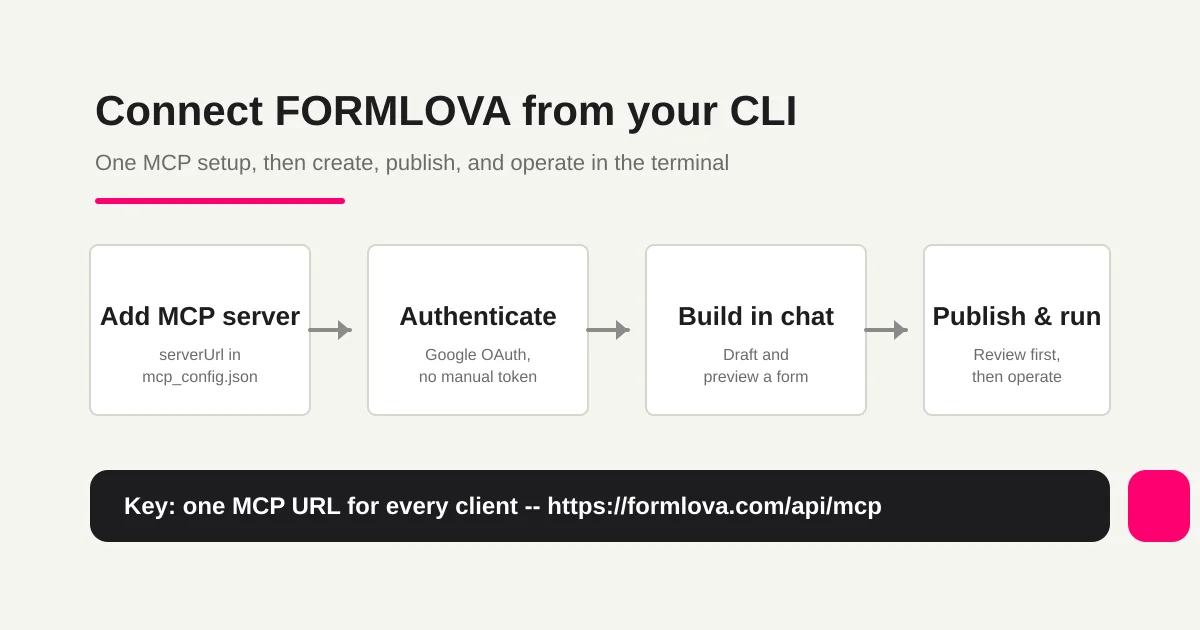
Connect with Antigravity CLI (Personal Users -- Current Path)
This is the current main path. Antigravity CLI (agy) works on macOS, Linux, and Windows.
1. Confirm the FORMLOVA MCP Server URL
The FORMLOVA MCP server URL is a single value, shared across every client.
https://formlova.com/api/mcp
No trailing slash. It is not an older-style path like /api/sse either. Whether you connect from Antigravity CLI, Gemini CLI, Claude Desktop, Claude Code, ChatGPT, or Cursor, you use this URL. If you do not have a FORMLOVA account yet, sign up on the free plan first from the FORMLOVA setup guide, because you will be asked to sign in via OAuth when you authenticate.
2. Install Antigravity CLI (agy)
On macOS / Linux, run the following in your terminal.
curl -fsSL https://antigravity.google/cli/install.sh | bash
On Windows, run the following in PowerShell.
irm https://antigravity.google/cli/install.ps1 | iex
For the latest steps and prerequisites after installation, see Antigravity CLI's official documentation.
3. Import Your Existing MCP Config (the Shortest Path)
The first time you launch agy, you get a prompt asking whether to import your existing ~/.gemini/ configuration (registered MCP servers, your list of commands allowed without confirmation, keybindings, and theme).
If you previously connected FORMLOVA with Gemini CLI, just choosing to import here carries your FORMLOVA MCP setup over automatically. That is the shortest path. If you are new and were not using Gemini CLI, add FORMLOVA to mcp_config.json with the next step.
4. Add FORMLOVA to mcp_config.json (If You Are New)
Antigravity CLI's MCP config lives in a dedicated file, mcp_config.json. Add FORMLOVA to the mcpServers block. A remote HTTP server is specified with the serverUrl key.
{
  "mcpServers": {
    "formlova": {
      "serverUrl": "https://formlova.com/api/mcp"
    }
  }
}
The thing to watch here is that the key for a remote HTTP MCP server differs by client. Antigravity CLI uses serverUrl, Gemini CLI uses httpUrl, and Cursor and VS Code use url. When adding FORMLOVA to Antigravity CLI, it is serverUrl. You can optionally include headers or oauth, but because FORMLOVA supports OAuth dynamic discovery, serverUrl alone is usually enough.
The location of mcp_config.json varies by environment (e.g. ~/.gemini/antigravity/mcp_config.json) and may change going forward, so confirm the exact, current path in Antigravity CLI's official documentation. If you write it by hand, just watch out for JSON syntax mistakes (missing commas or unclosed brackets).
5. Authenticate with Google OAuth and Check the Tool List
Once the config is written, authenticate with your personal account's Google OAuth. A browser opens, shows the FORMLOVA sign-in and OAuth approval screen, and you press Authorize. The FORMLOVA MCP server supports OAuth configuration via dynamic discovery, so there is no need to prepare a client ID or secret by hand.
Once authenticated, 142 tools line up at your CLI's fingertips across 24 categories -- form creation, response management, email, analytics, workflows, and more. The first time you only use two or three, so there is no need to feel overwhelmed by how many there are.
As noted above, Antigravity CLI is fresh off release, and there are known issues where remote MCP servers that use OAuth do not get a bearer token attached at runtime, or token sync misbehaves (issues #25 and #66). If you cannot connect to FORMLOVA, try re-authenticating, then check the latest steps in Antigravity CLI's official documentation.
Connect with Gemini CLI (Enterprise / Legacy Path)
If you are on enterprise (Gemini Code Assist license + API key authentication), you can keep using FORMLOVA with Gemini CLI. The following are the traditional Gemini CLI steps. Personal accounts can no longer use this path as of 2026-06-18, so it is also kept here as a reference before migrating to Antigravity CLI.
Run the following command in your terminal. The --transport http flag tells Gemini CLI that FORMLOVA is a remote, HTTP-streaming MCP server.
gemini mcp add --transport http formlova https://formlova.com/api/mcp
Breaking down the syntax: formlova is the server name, https://formlova.com/api/mcp is the connection URL, and --transport http makes the HTTP transport explicit. If you do not specify a scope, the entry is written by default to the project-level .gemini/settings.json. To use it across every project you touch, add -s user (--scope user) so it is written to ~/.gemini/settings.json in your home directory.
gemini mcp add -s user --transport http formlova https://formlova.com/api/mcp
You can reach the same result by editing the config file directly. Add the following to the mcpServers block of ~/.gemini/settings.json. In Gemini CLI, a remote HTTP server is specified with the httpUrl key (a different key from Antigravity CLI's serverUrl).
{
  "mcpServers": {
    "formlova": {
      "httpUrl": "https://formlova.com/api/mcp"
    }
  }
}
Once the config is written, run /mcp auth formlova in your Gemini CLI session. A browser opens, and pressing Authorize on the OAuth approval screen lets Gemini CLI use FORMLOVA's tools back in the terminal. Run /mcp to see the registered MCP servers, their connection status, and the list of provided tools; if formlova shows as connected, you are done.
For Gemini CLI scope, the default (no scope) writes to the project-level .gemini/settings.json, while -s user (--scope user) writes to ~/.gemini/settings.json in your home directory. Use project scope and commit the config file to Git for shared team operation, or user scope to carry it across every project you touch. The OAuth credentials themselves are stored per user, so sharing the config still preserves permission separation.
Your First Conversation -- Build a Form Draft From the Terminal
Once you are connected, type a short line into your CLI (Antigravity / Gemini) session. FORMLOVA is designed so that you do not need to write a long prompt to start.
Create a contact form.
That is enough. The CLI calls FORMLOVA's form-creation tool, assembles fields that fit the purpose, and returns a private draft. The reply looks like this:
I created a draft of your contact form.

Fields:
- Name (required)
- Email (required)
- Company (optional)
- Inquiry category (required, select)
- Message (required)
- Consent to the use of personal information (required)

Preview URL: https://formlova.com/preview/...
Click the preview URL and the actual form screen opens in a new tab. You can check the title, field order, required and optional badges, the consent checkbox, and the submit button from the respondent's point of view. Being able to refine while watching the preview in the window next to the terminal is the good part about pairing this with a CLI.
From here, you refine through chat while looking at the screen. Short instructions are fine.
Add a phone number field below company and make it optional.
Add "About hiring" to the inquiry category.
Put our privacy policy URL into the personal-information consent text.
Reopen the same preview URL and it refreshes to the latest state. Look at the real screen and say only what is missing. This back-and-forth is the main reason to pair FORMLOVA with a CLI. The general creation flow is also summarized in How to create forms with ChatGPT and Claude.
Check the Preview and Run the Pre-Publish Review
Once the draft takes shape, you move to the pre-publish review. In FORMLOVA, asking "please publish" does not publish immediately. A checklist runs on the server side, and if there are unset blocking items, they come back along with the review result.
Publish this form.
The reply looks like this:
There are items to confirm before publishing.

- Preview URL: https://formlova.com/preview/...
- Thank-you page preview: https://formlova.com/preview/.../thankyou
- Duplicate submission prevention: not set
- Privacy policy URL: not set
- Sales-email auto-detection: not confirmed (text input fields present)
Open the preview and the thank-you page preview in separate tabs and visually check the copy, field order, and required settings. When you are done, return to the terminal and reply to the CLI like this:
I checked both the preview and the thank-you page. Prevent duplicate
submissions by email. Use https://example.com/privacy for the privacy
policy. Enable sales-email detection. Publish it now.
The CLI obtains the token for final publication, publishes the form, and the public URL comes back. A guide that follows this pre-publish review step by step is at How to run the pre-publish review and publish with FORMLOVA.
Run Post-Publish Operations From the Terminal
The real work begins once responses start coming in. This post-publish part is exactly where the CLI-and-FORMLOVA combination earns its keep. Here are three representative moves.
Filter the Response List to Check the Situation
As responses grow, filtering by condition is faster than scanning everything. Without stopping the work in front of you, ask the CLI in the same terminal:
From this week's inquiries, show me only the unanswered ones.
Pull out only the responses categorized under "About pricing."
Exclude the sales-pitch responses and list only the genuine inquiries.
Only the matching responses come back as a table, and you can drill into a response of interest, change its status to in progress or resolved, and add a note -- all in the same conversation. Details are summarized in How to view, filter, and manage form responses with FORMLOVA.
Adjust the Auto-Reply Email Copy and All
On the standard plan and higher, you can freely customize the auto-reply email. Ask the CLI and it can draft the copy and even run a test send.
Make this form's auto-reply email a bit softer in tone.
Open with "Thank you for your inquiry."
Put our business hours (weekdays 9 a.m.-6 p.m.) at the end.
When it's ready, send a test email to my address.
The CLI presents the new copy as a preview and asks "Save this version?" It always inserts a confirmation before saving, so the reply on a live form is never rewritten on its own.
Add Automation With a Workflow Place Recipe
For automation like "notify Slack when a response comes in" or "send a follow-up email three days later," copying a recipe from Workflow Place is the shortcut. The CLI shows candidates, and the prompt for the recipe you choose can be handed straight to execution. See How to find a recipe in FORMLOVA's Workflow Place and set it up from chat for details.
Using Write Tools Safely -- The Trust-Boundary Mindset
An MCP server in your CLI can call not only read operations but also write operations from the conversation -- publishing a form, updating a response, sending email. Convenient as that is, it is a mechanism that grants an external server the right to act, so a few points keep it safe.
First, only add MCP servers from trustworthy sources. For FORMLOVA, register only the official formlova.com URL. Writing a URL of unknown origin into your MCP config (Antigravity CLI's mcp_config.json or Gemini CLI's settings.json) means you are permitting that server's behavior through the CLI.
Second, FORMLOVA provides a safety valve of its own. High-impact operations such as publishing, deleting, and sending email require a confirmation on the server side. Even if you ask "please publish," the server returns a confirmation checklist and will not publish until explicit approval and a token are both in place. This is guaranteed by the FORMLOVA server, not by the CLI.
Finally, FORMLOVA is designed to treat the responses of external services and the contents of public forms as data, and not to follow instruction-like text mixed into them. In other words, a command slipped into a response body or imported external data will not trigger a publish or send on its own. Precisely because write tools can be called from a conversation, the final trigger stays with human approval.
Where to Look When Things Go Wrong
There are failure modes specific to a CLI, so here are the few places worth checking.
When the CLI command is not found, the CLI itself may not be installed, or it is not on your PATH. Check with which agy for Antigravity CLI or which gemini for Gemini CLI, and if it returns nothing, revisit each one's official installation instructions.
When you configured it but the MCP tools do not appear in the list, the config file it was written to may differ from what you expected. Antigravity CLI uses mcp_config.json, while Gemini CLI uses settings.json (the project-level .gemini/settings.json and the home-directory ~/.gemini/settings.json). Confirm which file's mcpServers it landed in. If you wrote it by hand, also check that the JSON syntax (commas and brackets) is not broken. Confirm the exact location of mcp_config.json in Antigravity CLI's official documentation.
When you cannot connect, check the URL first. See whether you entered anything other than https://formlova.com/api/mcp, and whether a trailing slash or an older-style path like /api/sse is still attached. Next, confirm the key for the remote HTTP server is correct: Antigravity CLI uses serverUrl and Gemini CLI uses httpUrl (and you did not mix it up with url or command).
When tools cannot be called at runtime, or auth does not go through (Antigravity CLI), you may be hitting the fresh-off-release known issues (remote MCP servers that use OAuth do not get a bearer token attached at runtime, or token sync misbehaves -- issues #25 and #66). Try re-authenticating, then check the latest steps in Antigravity CLI's official documentation.
When an "Unauthorized" error comes back, it is a sign your OAuth authorization has expired. For Gemini CLI, run /mcp auth formlova again; for Antigravity CLI, re-do the Google OAuth to re-authenticate.
When the authorization screen never appears, a browser popup blocker is almost always the cause. Allow popups for formlova.com and try again. If you run your CLI in a remote environment over SSH, the browser may not open, so it is safest to authenticate once in a local session where a browser can open before you work.
When tools do not show, or only some appear, exit your CLI session, restart it, and check the state. Loading the tool list can take a moment after the first connection.
When you speak Japanese but get English replies, your profile language is set to English. One line -- "Set my profile language to Japanese" -- switches it. A complete list is in the troubleshooting section of the FORMLOVA setup guide.
What You Can Do by Plan
Connecting from a CLI (Antigravity / Gemini) itself works on every FORMLOVA plan. The difference shows up in the range of features available after you connect. Prices include tax.
| Capability | free (¥0) | standard (¥480/month) | premium (¥980/month) |
|---|---|---|---|
| MCP connection from a CLI | Yes | Yes | Yes |
| Form creation, preview, publish | Yes | Yes | Yes |
| Response list, search, CSV / Excel export | Yes | Yes | Yes |
| Customize auto-reply emails | No | Yes | Yes |
| Reminder emails | No | Yes | Yes |
| Advanced analytics, traffic analysis, PDF reports | No | Yes | Yes |
| Bulk email to mailing lists | No | No | Yes |
| Stripe Connect (paid events) | No | No | Yes |
| Team management and audit logs | No | No | Yes |
| Monthly email send limit | 100 | 1,000 | 10,000 |
Even on the free plan, you can experience the whole loop from draft to publish, response management, and CSV export. When you want to write the auto-reply in your own voice or send reminders automatically, move to standard. When bulk sends or paid events enter the picture, move to premium. Trying them in order and upgrading only for the feature you actually need is plenty.
Related Workflows You Can Use as-is
Once you have built a form in your CLI and run it through the publish review, Slack Notification + Sheets Log is the easiest way to move into operations. You can flow the responses from a form you built in the terminal straight into team notifications and a record.
To connect into sales or knowledge management, combine Response to HubSpot Contact or Response to Notion Database. Rather than stopping at "I built a form in the terminal," put the responses into a state where they move to their next destination.
FAQ
I heard Gemini CLI is no longer usable. What happens to FORMLOVA?
Nothing changes on the FORMLOVA side. As of 2026-06-18, Gemini CLI stopped processing requests from personal accounts (free Google accounts / Google AI Pro / Google AI Ultra), but that is purely about Google's CLI offering. Personal users should move to the successor, Antigravity CLI (agy). If you previously connected FORMLOVA with Gemini CLI, just importing your existing ~/.gemini/ configuration the first time you launch agy carries your FORMLOVA MCP setup over as-is. The MCP server URL (https://formlova.com/api/mcp), the tools, the features, OAuth dynamic discovery, and the safety valves are all the same as before. Enterprise users (Gemini Code Assist license + API key authentication) are unaffected and can keep using Gemini CLI.
Which is correct, gemini mcp add or editing settings.json directly? (Gemini CLI)
Both reach the same result. Running gemini mcp add --transport http formlova https://formlova.com/api/mcp writes the same entry into the mcpServers block of settings.json. The command is less prone to syntax mistakes, so it is the easier choice day to day, but if you want to embed it in a CI setup script or manage the contents in detail, editing ~/.gemini/settings.json directly is fine too.
Should I choose project scope or user scope? (Gemini CLI)
For team development where you share and operate the same forms, use the default project scope (.gemini/settings.json); to use it as a tool of your own, use -s user (~/.gemini/settings.json). Commit the project-scope config file to Git and the moment a new member clones the project, they get the same environment. OAuth credentials are stored per user, so sharing the config never means shared permissions.
Do I specify a remote server with serverUrl or httpUrl?
The key name differs by client. Antigravity CLI (mcp_config.json) sets https://formlova.com/api/mcp on the serverUrl key. Gemini CLI (settings.json) uses the httpUrl key, and adding --transport http to gemini mcp add writes it as httpUrl automatically. Cursor and VS Code, for reference, use url. In every case the connection URL itself is the same: https://formlova.com/api/mcp.
Do I need to prepare a client ID or secret by hand?
No. The FORMLOVA MCP server supports OAuth configuration via dynamic discovery, so authentication is complete simply by approving the sign-in in the browser (Gemini CLI via /mcp auth formlova; Antigravity CLI via your personal account's Google OAuth). There is no need to paste a fixed token into a config file.
Is the URL the same for other clients (Antigravity CLI, Claude Desktop, Claude Code, Cursor, ChatGPT)?
Yes. The FORMLOVA MCP server URL is a single https://formlova.com/api/mcp, and you register the same URL from every client. If you want to try it casually in a GUI, see the complete guide to using FORMLOVA with Claude Desktop; for a different CLI, the complete guide to using FORMLOVA with Claude Code; for writing inside an IDE, the complete guide to using FORMLOVA with Cursor; from ChatGPT in the browser, the complete guide to using FORMLOVA with ChatGPT. What you can do is the same from any client.
I am worried my CLI might publish or delete things without my approval.
High-impact operations like publishing, deleting, and sending email require a confirmation on the server side. Even if you ask "please publish," the server returns a confirmation checklist and will not publish until explicit approval and a token are both in place. This is guaranteed by the FORMLOVA server, not by the CLI. Even in a design where write tools can be called from a conversation, the final trigger stays with human approval.
Related Articles
- The MCP Form Service Guide for FORMLOVA -- Not Just Building With AI, but Running Forms After Publication
- The Complete Guide to Using FORMLOVA with Claude Desktop -- From Adding the Connector to Publishing and Running Forms
- The Complete Guide to Using FORMLOVA with Claude Code -- From One CLI Command to Form Creation, Publishing, and Operations in the Terminal
- The Complete Guide to Using FORMLOVA with Cursor -- From In-IDE MCP Setup to Form Creation, Publishing, and Operations
- The Complete Guide to Using FORMLOVA with ChatGPT -- From a Developer-Mode Custom Connector to Publishing and Running Forms
- How to Create Forms with ChatGPT and Claude -- With FORMLOVA, Go From One Line to a Draft and Preview
- How to Run the Pre-Publish Review and Publish with FORMLOVA
- How to Find a Recipe in FORMLOVA's Workflow Place and Set It Up From Chat
Official Sources Referenced
- Google: Gemini CLI -- official notice of the end of personal account access (discussions #28017) (accessed 2026-06-20)
- Antigravity CLI official site (accessed 2026-06-20)
- Google: Gemini CLI -- MCP servers with the Gemini CLI (accessed 2026-06-15)
- Model Context Protocol: Introduction (accessed 2026-06-15)
- FORMLOVA setup guide (accessed 2026-06-15)
Disclosure and Verification
This guide is written by the FORMLOVA development team. Following the end of Gemini CLI personal access on 2026-06-18 and the migration to Antigravity CLI, this article was revised on June 20, 2026 to add Antigravity CLI as the current path. The connection steps reflect verification of the Antigravity CLI official site, Google's official Gemini CLI MCP server documentation and notices, the Model Context Protocol specification, and the implementation of the FORMLOVA setup guide. Antigravity CLI is fresh off release, with known issues where remote MCP servers that use OAuth do not get a bearer token attached at runtime or token sync misbehaves (issues #25 and #66). The command name (agy), config keys (such as serverUrl), and the location of mcp_config.json may change going forward, so confirm Antigravity CLI's latest official documentation before adopting this. Gemini CLI's gemini mcp subcommand and the config keys in settings.json (mcpServers / httpUrl and the like) can also change on Google's side.