
Last updated: August 27, 2026
Google Forms can now stop accepting responses automatically on a chosen date and time or after a specified number of responses. The control is built into the published form's response settings. For either basic job, you no longer need to begin with formLimiter or write Google Apps Script.
There is one important limit to understand before you treat the count as a seat guarantee. Google's current help says that if several people respond at exactly the same time, their responses can be accepted even when that takes the form past its response limit. A calendar deadline, a convenient approximate response cap, and a strict inventory cap are three different operating requirements. This guide helps you choose correctly and test the result before distribution.
Start with the decision: close by date, count, or manually
| Closure method | Best fit | Main caveat |
|---|---|---|
| Close date and time | Applications, assignments, surveys, or RSVPs with one fixed deadline | Make the form time and every announcement match |
| Response limit | First-come surveys or collection that may close around a total submission count | Simultaneous responses can take the total past the limit |
| Manual closure | Operations where an owner reviews conditions and stops intake immediately | Requires a named owner and a reliable handoff |
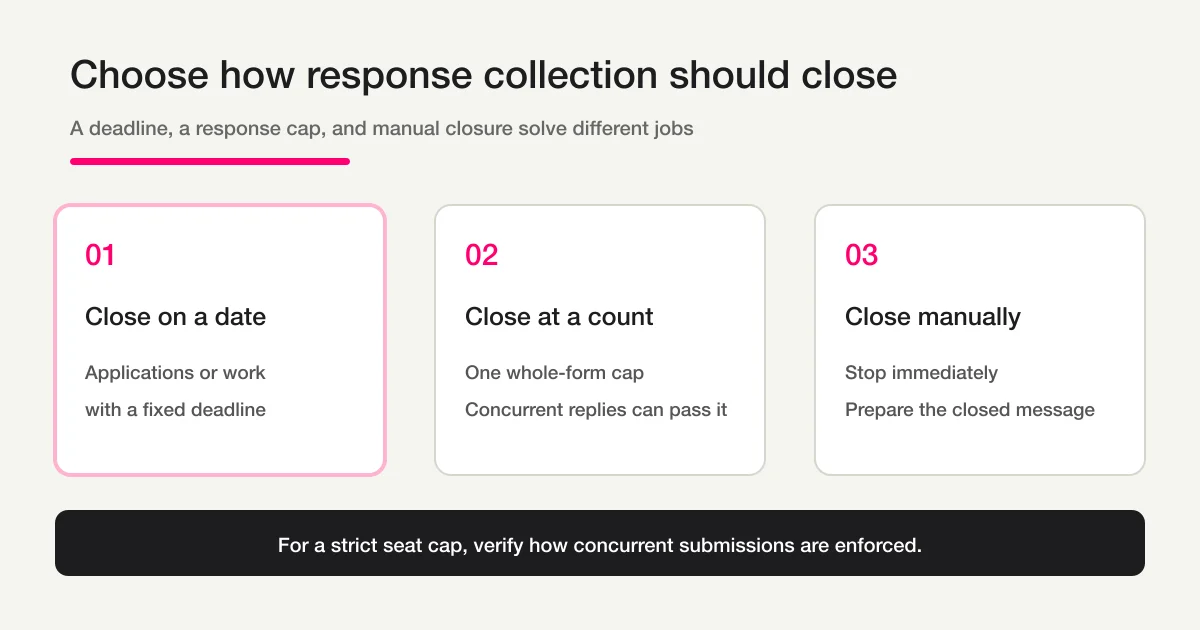
The response limit counts submissions to the whole form. It is not a separate inventory limit for each answer choice, and it does not know that one submission may reserve two seats. If you need to collect attendance changes from a known invitee list and finalize a headcount, use the attendance confirmation form guide for the surrounding invitee and change-deadline process. If you are still learning questions, settings, publication, and sharing, start with the broader Google Forms guide.
Step 1: Publish the form and open the response controls
The current path comes from Google's View and manage form responses help:
- Open the target form in Google Forms.
- Publish it to the intended responder audience.
- At the upper right of the editor, open Published.
- Under Accepting responses, choose Set close date or response limit.
An unpublished form cannot accept responses. Publication and closure are therefore two separate decisions. First confirm who may open the form. Then set when intake ends. A correctly configured deadline will not help an external guest if the publication access setting permits only people inside your organization.
Test the responder link outside the editor session. A private browser window or a separate test account is useful because it reveals sign-in and organization restrictions that an owner may not see. Do not use the editing URL as the distribution URL.
The same Published panel also lets you turn Accepting responses off manually. Manual closure is useful when an organizer must review the list, resolve duplicates, or reconcile payment before intake ends. If you choose it, write down who performs the closure and at what time. “Someone will close it later” is not an operating control.
Step 2: Set a close date or a whole-form response limit
For a calendar deadline, choose the date option, select the date and time, and save. The setting should reproduce the deadline you already communicate to respondents. If your application page says “August 31 at 6:00 p.m. JST,” the form control, reminder email, event page, and internal checklist should all say the same thing. Avoid phrases such as “by the end of August” when a timestamp controls acceptance.
For a count-based closure, choose the response-limit option and enter the maximum number of submissions the form should accept. If responses already exist, Google requires the new number to be greater than the current number of responses. A form with 18 responses cannot be configured with a limit of 15. If you need to stop at the present state, turn Accepting responses off instead of trying to reverse the counter.
After saving, return to Manage under Accepting responses to inspect or change the rule. Google's help also describes Remove expiration for removing the scheduled close. Record the value, the person who changed it, and the change time in your operating log. A visible final value is useful, but it does not explain an unexpected mid-campaign change by itself.
Before relying on the count, define what the business is actually limiting:
| What you mean by “limit” | Does a whole-form response count represent it? |
|---|---|
| 50 submitted response records | Usually yes, subject to concurrent overrun |
| 50 unique people | Not if the same person can submit more than once |
| 50 seats | Not if one submission can include companions |
| 20 Saturday seats and 15 Sunday seats | No; those are separate per-choice capacities |
| 50 paid orders | Not without reconciling payment success and abandoned attempts |
This distinction prevents a common planning error. A number displayed in the Responses tab is not automatically the same entity your operation needs to cap.
Step 3: Write the closed-form message before the form closes
Under the close setting, Google lets you edit the message responders see after response collection has stopped. A useful message answers three questions: Is intake definitely over? What should someone who already submitted check? Is there a legitimate exception route?
Registration is now closed.
If you already registered, check your confirmation email for the submitted details.
For a necessary correction, contact the event team at the published support address.
Do not promise an exception channel that nobody monitors. If late applications are never accepted, say that clearly and provide only the information a prior submitter needs. If corrections are accepted but new applications are not, name the correction route and make that distinction explicit.
The closed message is different from the message shown after a successful submission. Test both states. While the form is open, submit one test response and verify the confirmation experience. Then close the form temporarily and open the responder URL from a separate browser to verify the closure copy. After the test, restore the intended response state and the real deadline. This last step is easy to miss.
Step 4: Test the boundary, including concurrent responses
Google's official help explicitly warns that responses submitted at exactly the same time may still be accepted regardless of the response limit. That behavior is reasonable for a convenient best-effort cap, but it is a poor match for a safety-critical or financially binding inventory limit.
Before publishing widely, answer these questions:
- Can the operation tolerate one or more submissions above the configured count?
- Does one submission always equal one person or seat?
- Can the same person submit more than once?
- Does deleting or invalidating a response reopen inventory in the way you expect?
- Who decides which records are accepted if the form goes over the target?
- Does the closed message explain what happens to a submission received near the boundary?
If the answer to the first question is no, do not describe the Google Forms response limit as a guaranteed capacity control. Use a transaction path that checks and reserves capacity as part of the same database operation. If a small overrun is acceptable, document the tie-break rule before it happens: timestamp order, payment completion, verified identity, or manual confirmation.
The same principle applies to deadlines. Test one timestamp immediately before the deadline and one after it in a nonproduction copy when the exact boundary matters. Confirm the time zone used by the account and the time zone written in every responder-facing message.
What changed in January 2026
The Google Forms Team's January 2026 feature announcement introduced the native automatic close date and response-count controls. The announcement says the feature rolled out to Google Workspace customers, Workspace Individual subscribers, and users with personal Google accounts. That is why a tutorial that says every automatic deadline requires an add-on may now be stale.
The practical rule is simple: use the native control first when the requirement is one close date or one whole-form response count. Add an extension or script only after you can name the missing behavior.
An add-on, Apps Script, or a different form operation may still be justified when you need:
- a scheduled opening as well as a scheduled closing;
- recurring opening and closing windows;
- multiple closure conditions or a more complex rule;
- separate capacity for individual options;
- a mandatory notification or downstream workflow at closure;
- custom recovery, audit, or escalation logic.
Those paths add their own work. An add-on may request access to form or account data. Apps Script requires you to maintain authorization, triggers, time zones, error handling, and execution quotas. Do not add that surface merely because an older article begins there.
For a larger decision about which responsibility belongs in Forms, Sheets, Apps Script, or an operating service, continue to the parent Google Forms, Sheets, and Apps Script operations guide.
How FORMLOVA treats deadlines and capacity
FORMLOVA can store a response deadline and a capacity on the form. A deadline blocks submissions after the specified time. Capacity is checked in the same atomic database operation that saves a response, using a row lock before the insert. Concurrent submissions therefore do not save responses beyond the configured capacity.
FORMLOVA can also schedule a future form action from chat. Scheduled actions are available on the Standard plan or higher. An owner can ask to close a form at a specific future time, then review the form state as part of the same operating system. Deadline and capacity remain separate controls, so one form can have a calendar cutoff and a strict capacity boundary.
That does not make Google Forms the wrong choice. If you only need one native calendar close or an approximate whole-form count, Google Forms is often enough and is now easier than older tutorials suggest. The difference matters when you need a strict seat cap, a scheduled operation, and response follow-up under one owner. If the broader question is whether to stay or move, the Google Forms alternatives comparison separates that service-choice intent from this setup guide.
Pre-distribution checklist
[ ] The responder URL opens under the intended access conditions.
[ ] The close timestamp matches every responder-facing announcement.
[ ] A response limit is greater than the form's current response count.
[ ] Submission count and actual people or seats are not being confused.
[ ] Concurrent overrun is acceptable, or a stricter capacity path is in place.
[ ] The closed message explains the next legitimate action.
[ ] The saved rule is visible under Manage.
[ ] A named owner controls changes and exceptions.
Frequently asked questions
Can Google Forms close automatically?
Yes. A published form can close on a selected date and time or after a configured number of responses. Google announced the native capability in January 2026, so basic automatic closure no longer starts with an add-on.
Do I still need formLimiter for a Google Forms deadline?
Not for one basic close date or one whole-form response count. Consider an add-on or script only when the native rule cannot express the requirement, such as recurring windows, scheduled opening, per-option inventory, combined conditions, or required downstream automation.
Does a Google Forms response limit guarantee the exact capacity?
No. Google's current help warns that simultaneous responses can be accepted even when they take the form beyond the limit. The count also represents submissions, not necessarily unique people, seats, or paid orders.
Can I set a limit below the number of responses already received?
No. The configured limit must be greater than the current response count. To stop immediately at the current state, turn Accepting responses off manually.
Can I reopen a form after its deadline?
You can manage the expiration, remove it, and resume accepting responses. Record the reason, owner, reopened interval, and treatment of late records so the official dataset remains understandable.
Should I choose a date or a response count?
Choose a date when the promise is “responses are accepted until this timestamp.” Choose a count when the promise is “we expect to stop around this many submissions” and a concurrent overrun is acceptable. For a strict seat cap, use an atomic capacity-control path rather than relying on the native count alone.
Disclosure and Verification
I work on FORMLOVA. I verified this article on August 27, 2026 against Google's current response-management help, the Google Forms Team feature announcement, and the current FORMLOVA specification and implementation. Google can change setting names or availability, so test the active account, responder URL, deadline, and closed message before distribution.
If you need a deadline and an atomic capacity limit in the same form operation, try FORMLOVA for free and start with one real intake process.