
Last updated: August 26, 2026
An attendance confirmation form is not finished when it asks “Will you attend?” A dependable process starts with a known invitee list, gives each person a way to be matched to that list, defines both a response deadline and a change deadline, and makes nonresponders visible before the organizer commits to a final headcount.
Google Forms can handle this job. The important decisions are whether respondents must sign in, whether one response per account is appropriate, whether people may edit a submitted answer, and how the organizer will recognize a person who has not responded at all. This guide gives you a field template and walks through creation, distribution, legitimate changes, reminder targeting, and finalization.
Start with the completed system: pair the form with an invitee list
Pre-event attendance confirmation is different from open registration. In this guide, the organizer already knows who is invited. The form records each invitee's current plan: attending, not attending, or undecided.
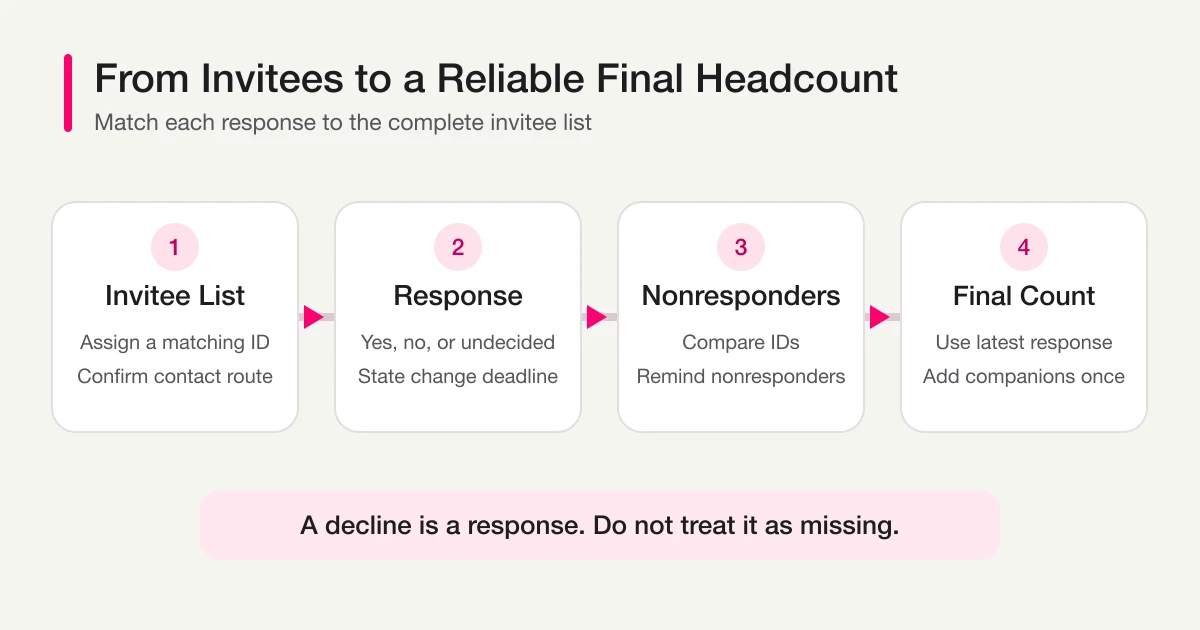
Create the invitee list before sending the form. A practical sheet contains these columns:
| Column | Example | Why it matters |
|---|---|---|
| Invitee ID | A-001 | Matches answers even when names are duplicated |
| Name | Hana Yamada | Gives the organizer a readable reference |
| Contact route | Email or phone | Provides the approved route for reminders |
| Attendance status | No response, attending, not attending, undecided | Shows the current state |
| Last response time | Sep 10, 2:30 p.m. | Identifies the latest valid change |
A form can tell you that 20 answers arrived. It cannot, by itself, tell you which five people on a 25-person list did not answer. The form and list need a shared key, preferably an invitee ID rather than name alone.
Several nearby form types have different owners. If you are inviting new people, enforcing capacity, running a waitlist, or checking guests in on the day, use the event registration form guide. If you need to compare planned participation with actual attendance and follow up after a session, continue to the webinar registration and follow-up guide. For general controls and question types, see the broader Google Forms guide.
Step 1: Choose fields that support both the invitee and the organizer
A compact form can usually follow this order:
1. Invitee ID — required short answer
2. Name — required short answer
3. Attendance — required single choice
   - I will attend
   - I will not attend
   - I cannot decide yet
4. Will you bring a companion? — only when relevant
5. Companion count and names — only when the answer above is yes
6. Dietary restrictions or allergies — optional
7. Accessibility or travel support needed at the venue — optional
8. Note for the organizer — optional
Whether to offer “undecided” is an operational choice. A forced yes-or-no answer can delay submissions when schedules are still moving. If you allow undecided responses, add a second date: “If you select undecided, please update your answer by September 15.” That turns an ambiguous status into a defined follow-up queue.
Ask companion questions only when the event permits companions. If the form supports conditional sections, show companion count and names only after an attending respondent selects yes. For meals or seating, do not leave the organizer to interpret a blank field. Include a “None” choice where appropriate, and make a free-text detail field optional.
Dietary, health, mobility, and accessibility answers may be sensitive. Explain why each item is collected, who can view it, and when it will be deleted. Do not collect a diagnosis when the operational need is simply to arrange an accessible entrance or a suitable meal.
The identity decision comes next. According to Google's current Publish and share your form guide, limiting a Google Form to one response requires respondents to sign in to a Google Account. A sign-in requirement can reduce duplicates, but it can also block an invitee who does not use Google or who is answering from a shared environment.
If sign-in is unsuitable, require a privately assigned invitee ID and review duplicates on the organizer side. Do not use a guessable sequential ID as authentication for confidential data; here it is only a matching key for an ordinary attendance response. If the event handles sensitive participation, use an access method appropriate to that risk.
Google also explains that a username or email is recorded with a response only when email collection is enabled. Requiring sign-in and collecting email are related but separate configuration decisions. Review both instead of assuming one implies the other.
For a general comparison of names, contact details, consent, and optional fields, see the registration form guide. The distinctive priority here is complete matching against an existing invitee list, not attracting new registrations.
Step 2: Build the form and decide exactly how responses can change
In Google Forms, review these settings before distribution:
- whether to limit each signed-in account to one response
- whether to collect email addresses
- whether to send respondents a copy of their response
- whether respondents may edit after submission
- whether every question and deadline is understandable without a separate message
Google's Publish and share your form guide says that enabling response editing allows respondents to change an answer after submission. Google's separate View and manage form responses guide explains that sending response copies depends on collecting email addresses. If plans are likely to change, either allow response editing or publish the documented resubmission rule below. Put the change deadline and the rule for selecting the authoritative answer in the form itself.
Do not rely on response editing as the only route when people may share devices or lack Google accounts. An alternative is to accept another submission with the same invitee ID and treat the newest timestamp as authoritative. State that rule visibly:
If your plan changes, submit this form again using the same invitee ID.
When more than one response has the same invitee ID, we use the most recent submission.
Changes close on September 15 at 6:00 p.m.
This approach requires care. Preserve the original responses for traceability, but build the operational list from the latest valid response for each ID. Never total every submission when resubmission is allowed, because one invitee could otherwise count twice.
With FORMLOVA, you can ask the chat to draft the form, review a form preview and completion-message preview, and publish after the final confirmation. For example:
Draft an attendance confirmation form for our September 20 gathering. Ask for invitee ID, name, attending/not attending/undecided, companion details, dietary needs, accessibility support, and an optional note. Explain the second deadline for undecided respondents.
For the actual-screen check, no new form was created. I used this read-only instruction with an existing unpublished sample that had zero responses:
Keep the existing “アンケートフォーム” unpublished and open a temporary preview in which responses are not saved.
The actual return said that a preview URL was generated, preview responses would not be saved, and the URL would remain valid for one hour.
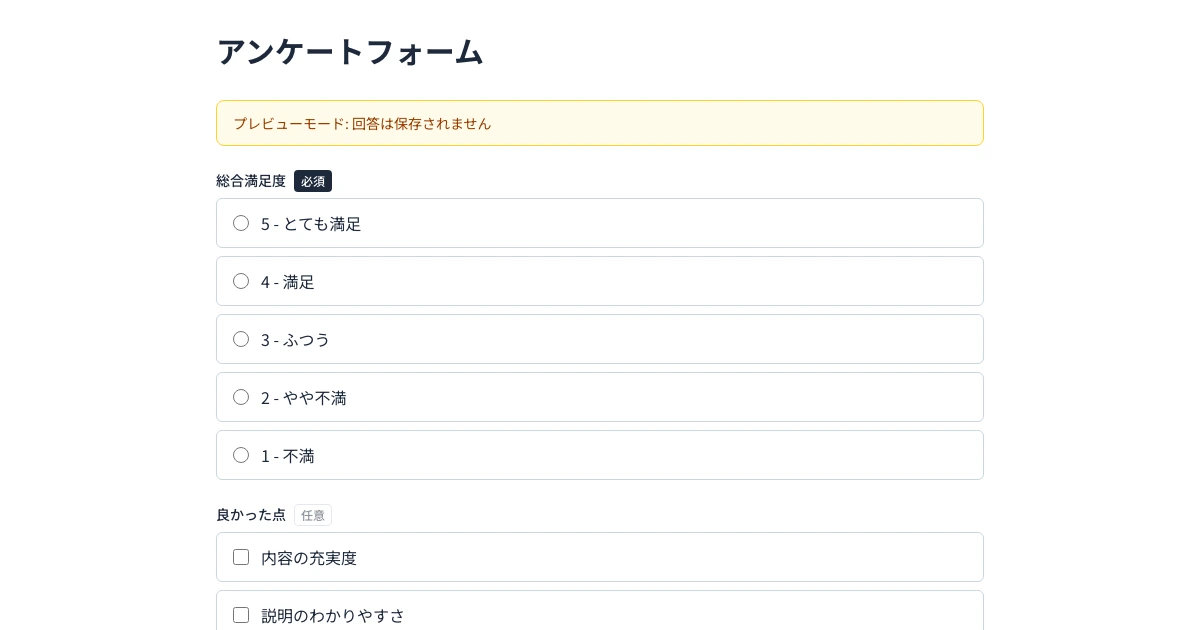
This is an actual Japanese-locale preview of an existing survey sample, not a fabricated attendance form screen. Use the same preview step for an attendance form to check field order, required markers, and mobile readability before publication.
Treat the draft as a starting point. Review which questions are required, remove information that is not needed, confirm the wording of “undecided,” and test the completion message before publishing. The product does not remove the organizer's responsibility to choose a lawful and proportionate data design.
If you are still deciding between form approaches, the form creation hub organizes the main use cases without turning this attendance flow into a generic product tour.
Step 3: Publish, distribute, and remind only the people who have not responded
Google Forms must be available to its intended respondents before a shared link can collect answers. Google's current Publish and share your form guide covers publication and distribution by link, email, and embed. Access settings still matter: a published form restricted to an organization will not work for an outside guest.
Submit one test response before the real invitation. Verify the entire journey rather than stopping when the link opens:
[ ] The form opens for the intended audience.
[ ] Event date, location, and response deadline appear before the questions.
[ ] Attending, not attending, and undecided are mutually clear.
[ ] Companion and accommodation questions appear only when intended.
[ ] A test submission reaches the confirmation page.
[ ] The owner can see the test response.
[ ] The documented response-change route actually works.
Then use a distribution message that states the purpose, effort, and two dates:
Please confirm your attendance for our September 20 gathering.
The form takes about one minute. Choose attending, not attending, or undecided.
Initial response deadline: September 10 at 6:00 p.m.
Final change deadline: September 15 at 6:00 p.m.
Form: https://...
Once responses arrive, do not send the same reminder to everyone. Export or review the answers, keep the latest valid response for each invitee ID, and compare the result with the original invitee list. An ID that exists in the invitee list but not in the current response set is a nonresponder. “Not attending” is an answer and must not be placed in the nonresponder queue.
Name matching alone is fragile. “Sam Lee,” “Samuel Lee,” and a misspelled name may refer to one person, while two guests may genuinely share a name. Use the assigned ID as the key and retain the name only as a readable cross-check.
With FORMLOVA, the basic method is still to export responses, match them to the complete invitee list by invitee ID, and contact the resulting nonresponders through an already approved email, phone, or other route. The Standard-and-above set_reminders capability sends to respondent_email on existing responses. It does not receive the invitee population and therefore cannot identify true nonresponders.
Keeping list management and delivery inside FORMLOVA requires Premium. In this path, make email collection required on the form and register the same address in the mailing list so email is the shared key. Mailing-list import accepts email and name. Compare mailing_list_contacts.email returned by get_mailing_list_contacts with responses.respondent_email; addresses present only in the mailing list are nonresponder candidates. Then use send_bulk_email for those candidates. Preview the message, verify the recipient count, obtain explicit approval, and remove any newly received response immediately before the send. Invitee-ID matching belongs to the manual or external-sheet default process described above; it is not the automated matching key for this Premium in-product path. No published workflow currently receives a complete invitee list and determines true nonresponders, so this article returns to the form creation hub instead of routing readers to a near-match workflow.
A useful reminder is calm and specific:
We have not yet matched an attendance response to your invitee ID.
Please respond by September 10, even if you will not attend.
If you already submitted the form, reply to this message so we can check the match.
The final sentence matters because a mismatched ID can make a real respondent appear absent from the list. Give people a way to correct the record without submitting repeatedly.
Step 4: Close changes and calculate the final headcount
At the deadline, separate four states: attending, not attending, undecided, and no response. Do not silently count undecided or nonresponse as attending.
Attending invitees: 32
Not attending: 11
Undecided: 2
No response: 3
Companions attached to attending responses: 4
Final headcount: 32 + 4 = 36
Confirm companions, meals, and accessibility arrangements alongside the headcount. If the same invitee ID has multiple submissions, select the latest response received before the change deadline and record which timestamp was used. Decide one route for exceptional changes after closure; otherwise updates will scatter across email, chat, phone, and the form.
Google's response management help explains that an owner can stop accepting responses and can configure closure by date or response count. It also warns that simultaneous submissions can exceed a response-count limit. That count-based behavior is relevant to capacity-controlled registration, but attendance confirmation for a known list usually works better with a date. The goal is to obtain each invited person's current decision, not to accept the first 50 people.
For the exact current Published-panel steps and a reusable closed-form message, see the Google Forms close date and response limit guide.
Google Forms provides summary, question, and individual response views, and answers can be sent to Google Sheets or downloaded as CSV. FORMLOVA also provides a response list and export. Save the finalized version with the calculation date, owner, attending count, companion count, and explicit treatment of undecided and nonresponses.
Planned attendance is not proof of actual attendance. After the event, record who really attended in a separate process. The webinar registration and follow-up guide covers actual attendance, absence reasons, and post-event follow-up. Keeping those stages separate prevents an enthusiastic yes from being mistaken for a completed visit.
Common problems and practical fixes
| Problem | Likely cause | Fix |
|---|---|---|
| You know the response count but not the nonresponders | There is no complete invitee list | Build an invitee-ID list and match responses to it |
| People postpone answering | The deadline or expected effort is unclear | Put the event details, one-minute estimate, and deadline first |
| Changes arrive through several channels | No change route was defined | Choose response editing or a documented resubmission rule |
| One person appears more than once | Resubmission is allowed without a latest-answer rule | Group by invitee ID and keep the newest valid timestamp |
| Catering totals do not match | Invitees and companions were combined inconsistently | Count attending invitees and companions in separate columns |
| Respondents keep receiving reminders | The reminder list uses an old export | Rebuild the nonresponder list immediately before sending |
Frequently asked questions
Can I use Google Forms for attendance confirmation?
Yes. Include a name or invitee ID, attending/not attending/undecided, a response deadline, and any necessary companion, meal, or accessibility fields. To identify nonresponders, match the responses to a complete invitee list using the shared ID.
Can a Google Forms respondent change an attendance answer later?
Yes, when the owner enables response editing. Sending a response copy by email depends on email collection. If response editing is not suitable, accept another response with the same invitee ID and clearly state that the newest valid submission will be used.
Does limiting Google Forms to one response require Google sign-in?
Yes. Google's one-response restriction requires the respondent to sign in to a Google Account. If that creates too much friction, require an invitee ID and let the organizer review duplicates instead.
How do I find only the people who have not responded?
For the default process, compare the complete invitee-ID list with the latest valid response for each ID in a manual or external sheet. IDs that occur only in the invitee list are nonresponders. Avoid names alone because spelling differences and duplicates create false matches. For a Premium in-product extraction and send, require email collection and compare mailing_list_contacts.email with responses.respondent_email instead.
Is an attendance confirmation form the same as an event registration form?
No. Attendance confirmation asks a known invitee list for a current plan. Event registration recruits new participants and may manage capacity, a waitlist, payment, cancellation, and check-in. Keep the datasets separate unless the operating policy explicitly connects them.
Should I close the form after the deadline?
Closing or stopping responses after the final change deadline makes the official headcount easier to protect. First resolve undecided and unmatched responses, apply the latest valid changes, and provide one clearly documented route for genuine exceptions.
Disclosure and Verification
I work on FORMLOVA. I checked this article on August 26, 2026 against the current Google Forms help pages and the FORMLOVA specification and implementation. Google Forms setting names and availability can change, so test the current account, responder access, submission, and edit route before distributing the form.
To draft an attendance confirmation form, review it in preview, publish it, and manage the response list and export in one flow, start with FORMLOVA for free.