
Use Google Forms by creating questions, publishing a responder link, and reviewing the Responses tab. Check native deadlines, response caps, and one-response controls before deciding whether custom replies or handling workflows need another service.
Last updated: July 17, 2026
When people search for how to use Google Forms, they often need more than the button-by-button tutorial. The basic flow is straightforward: create questions, publish the form, and view responses. The harder decision is whether Google Forms still fits after responses start arriving.
This guide first covers the basic operation, then separates what Google Forms does well from the post-submission work that may require Apps Script, a spreadsheet process, or a dedicated form service. For a broader map of form types, start with the Form Creation Guide.
Quick Answer: What Google Forms Can and Cannot Do
Google Forms is a strong free choice for creating questions and collecting answers. It becomes less complete when you need an operational layer after submission.
| Google Forms can do | Difficult with Google Forms alone |
|---|---|
| Create questions, publish, and collect answers | Send a reminder the day before an event |
| Send a copy of a response to the respondent | Send a fully custom reply based on conditions |
| Show a response summary and maintain a Sheet | Run detailed cross-tabs or free-text analysis |
| Change theme color, font, and header image | Fine-tune corner radius, spacing, or button shape |
| Branch by section | Branch with detailed field-level conditions |
| Close date, response cap, and a sign-in-based one-response control | Prove one real person’s identity from email/browser controls alone |
| Provide most core features free for a personal account | Manage operational states such as New, In progress, and Done |
If several items in the right column are important, consider a dedicated form service rather than adding a series of scripts without a clear owner.
Create Questions in Google Forms
The basic sequence is:
1. Create a new form in Google Forms.
2. Click the plus icon to add a question.
3. Choose a type: short answer, multiple choice, checkboxes, dropdown, file upload, and more.
4. Add the choices or instructions.
5. Turn on Required when the answer is necessary.
6. Use Preview to check the respondent view.
Use radio buttons for one answer, checkboxes for multiple answers, and a paragraph field for longer free text. A file-upload question may require respondents to sign in to a Google account, so confirm that requirement before sharing the form externally.
For several selections inside one question, including minimum, maximum, or exact counts and option-level analysis, follow the dedicated Google Forms multiple answers guide.
You can add descriptions, images, and YouTube videos to questions. Put long instructions in the description so that the question itself remains easy to scan.
Publish and Share the Form
After the questions are ready:
1. Click Publish in the top right.
2. Use Share to copy the respondent link, send email, or get embed code.
3. Shorten the URL only when a shorter link helps distribution.
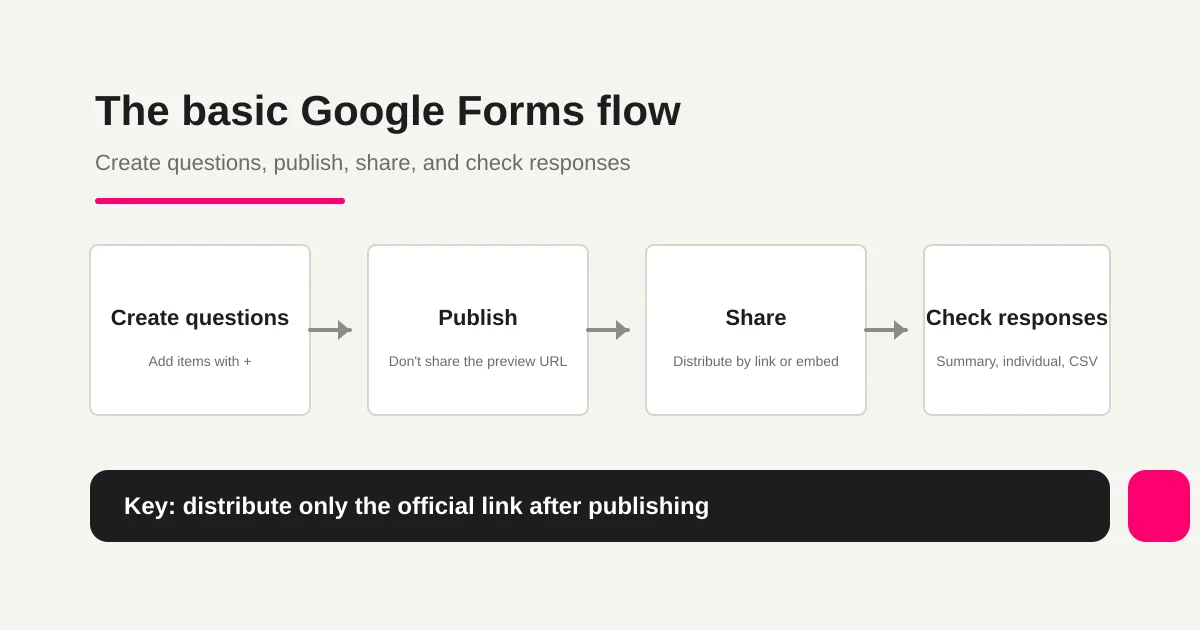
Do not distribute a preview URL that ends in /preview. Send the official respondent link issued after publication. For an internal form, decide whether to limit access to the organization. For a public campaign or event form, decide separately whether collecting email addresses is necessary.
For anonymous responses, check more than the email toggle: the one-response sign-in requirement and the columns visible to the owner also matter. The Google Forms anonymous response setup guide provides the focused verification workflow.
View and Aggregate Responses
Google’s response-management help documents current limits and native closing rules. Simultaneous submissions can exceed a selected cap; it is not guaranteed seat allocation. FORMLOVA duplicate controls are Free; custom replies, reminders, and Sheets sync require Standard or above.
Use the Responses tab to switch between a summary view and individual responses. You can download a CSV or open the response data in Google Sheets.
If you need to handle encoding issues, choose between CSV and Sheets, or understand what happens as the response count grows, see Google Forms CSV Export and Encoding.
The basic flow is:
Create questions -> Publish -> Share -> Review responses
That covers collection. The next question is how much notification and follow-up work you expect after each response.
Configure Notifications and Auto-Reply
Google Forms has two features that are often called automatic replies, but they serve different audiences.
First, editors can receive a notification when a new response arrives. Enable the email notification option in the Responses tab.
Second, respondents can receive a copy of their own response when email collection and response-copy settings are enabled.
Neither is the same as a custom message such as “Your application is complete. We will reply within two business days.” For a custom subject and body, you need Google Apps Script or a dedicated form service. See Google Forms Auto-Reply Setup for the detailed split, and Google Forms Auto-Reply Not Delivered for troubleshooting.
If your process includes Sheets and Apps Script, use the Google Forms + Sheets + Apps Script Operations Guide to decide what belongs in the spreadsheet, script, or form layer.
When Google Forms Is Not a Good Fit
Google Forms alone becomes harder to operate when:
- the response volume is high and individual views or CSV handling become cumbersome;
- you need fine-grained brand layout control;
- a campaign must prevent repeated or suspicious entries;
- you need to separate spam, sales messages, and test submissions;
- you need field-level conditional logic rather than section-level branching;
- you need to manage operational status after submission.
If native section branching is enough, follow the Google Forms conditional logic setup and test guide first. It separates the supported question types, Submit form routes, checkbox limits, and multiple-condition boundary.
For spam and repeated submissions, see Google Forms Spam Prevention. For reservations, see How to Make a Reservation Form with Google Forms.
Compare inquiry handling after checking Google settings
Keep Google Forms when questions, publication, and response review meet the need. If you need to compare handling after submission, build the same small inquiry in FORMLOVA.
Suggested request; this is not an executed configuration or result:
Draft an inquiry with name, email, category (Product evaluation, Existing customer support, Other), and message. Make a separate test form; do not import old Google responses. Leave response-time wording for review and show the form before publication.
Submit fictional inquiries and check category search, an In progress update after confirming the target ID, re-fetching, and CSV fields with submission time. Internal IDs and status are not CSV columns. Test that range on Free. Compare Standard-or-above custom replies, reminders, and Sheets sync with maintaining your Google workflow.
Start with this form on Free
Draft the fields above and test fictional saved responses, search, status review, and CSV. Evaluate uploads, custom replies, and detailed analysis under their separate plan requirements.
Create a free account and test this intake
After registration and email verification, connect a supported AI client and use the request above. Review the draft before test publication. AI-client access and fees follow its provider’s terms.
Decide Whether to Use a Dedicated Form Service
| Situation | Decision |
|---|---|
| A simple internal survey or one-time attendance check | Google Forms is usually enough |
| You need a custom confirmation message | Consider a dedicated service |
| You need duplicate-entry or abuse prevention | Consider a dedicated service |
| You need New, In progress, and Done response states | Consider a dedicated service |
| You need precise control over brand layout | Consider a dedicated service |
| You want to manage form operations from an AI client | Consider an MCP-capable service |
For a known invitee list that needs attending, not attending, or undecided responses, legitimate changes, nonresponder follow-up, and a final headcount, the Attendance Confirmation Form Guide gives the Google Forms settings and list-matching workflow in order.
For pricing and feature comparisons, see Three Google Forms Alternatives.
FORMLOVA provides unlimited forms and responses on the free plan, along with design customization, field-level conditional logic, and CSV, Excel, and JSON export. Standard and higher plans add custom auto-reply email, reminders, conditional email and Google Sheets integration.
You can ask in chat, “Set an auto-reply email for this form,” and move from a subject and body draft to a test send without switching between tools. Try FORMLOVA for free while keeping existing Google Forms in place.
FAQ
Is Google Forms free?
Yes. With a personal Google account, creating forms, adding questions, publishing, collecting responses, and using basic summaries are generally available without a separate form-service fee.
Is there a response limit?
Standard per-form limits include 1 GB and 500,000 responses from September 2026, with exceptions for some existing enterprise forms. As the response count grows, individual views, CSV handling, and spreadsheet synchronization may need more care. Check the current Google documentation and the detailed CSV Export and Encoding Guide for the workflow you use.
How much can I customize the design?
You can change the theme color, background, header image, and font. Fine layout details such as corner radius, spacing, and button shape are not deeply configurable.
Can Google Forms send custom auto-reply email?
It can send a response copy to the respondent and a new-response notification to editors. For a fully custom subject and body, use Apps Script or a dedicated form service.
What should I use when Google Forms is not enough?
Choose a dedicated form service when you want one owner for post-submission operations such as auto-reply, reminders, response status, and duplicate prevention. Compare options in Three Google Forms Alternatives.
References
- Google Docs Editors Help: Create and edit a form (checked July 17, 2026)
- Google Docs Editors Help: Publish and share a form (checked July 17, 2026)
- Google Docs Editors Help: View and manage form responses (checked July 17, 2026)
- Google Docs Editors Help: Choose a question type (checked July 17, 2026)
What to Read Next
After collecting responses, use the Google Forms response-sharing guide to separate summary, collaborator, and view-only Sheet access.
- How to Set a Google Forms Close Date or Response Limit -- Current 2026 Steps
- Three Google Forms Alternatives -- Compare Price, Operations, and MCP Support
- Google Forms CSV Export and Encoding
- Google Forms Auto-Reply Setup
- How to Make a Reservation Form with Google Forms
- Google Forms + Sheets + Apps Script Operations
Start free with FORMLOVA | View the FORMLOVA setup guide
Disclosure and Verification
This article was written after checking the Google official help pages listed above on July 17, 2026. The author is a FORMLOVA developer. Google Forms screens and product behavior may change, so confirm current operations in the official help. FORMLOVA pricing and features may also change; check the official product pages for current terms.