
Last updated: October 15, 2026
Original verification record retained: Last verified: September 22, 2026
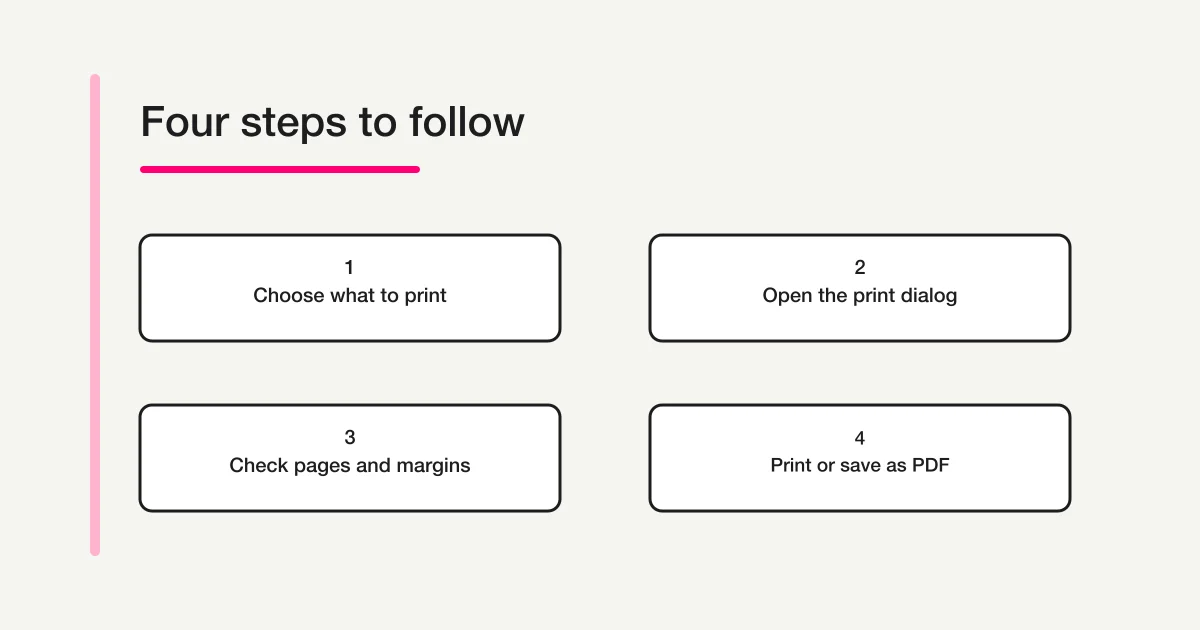
To print a Google Forms questionnaire, open the intended form and use Ctrl+P on Windows or Command+P on Mac, then inspect every page before printing or saving as PDF. Decide first whether you need blank questions, an authorized individual response, or tabular response data.
Paper and PDF do not execute online branches, validation or submission. If the goal is paper collection, review writing space, skip instructions and the return route instead of assuming the browser printout is ready.
Choose the output before opening print preview
Start with the purpose of the copy. Someone checking the wording needs the questions and choices. A coordinator reviewing a submitted application needs the relevant response. An analyst needs data that can be sorted and counted.
| Intended use | Information needed | Appropriate starting point |
|---|---|---|
| Review question wording | Questions, descriptions, and choices | The existing questionnaire |
| Collect answers on paper | Understandable questions plus writing space and instructions | A paper-ready questionnaire review |
| Review one submitted record | That record's answers and identifying context | The authorized individual-response view |
| Analyze many responses | Rows and columns of response data | Sheets or a data export |
Google's response-management documentation distinguishes individual responses from spreadsheet and CSV workflows. It does not provide the detailed current response-print menus needed to justify a universal click-by-click printing route here. Google's response-management help
If you need the question structure as data rather than a visual copy, use the question-export guide. For tabular submissions, the response CSV guide covers a different output.
Open the documented print route
Google lists Ctrl+P for PC printing and Command+P for Mac printing in its Forms shortcut reference. Start from the form you intend to review, use the appropriate command, and check what appears. Google Forms keyboard shortcuts
Do not proceed simply because a print window opened. Read the title and the first page, then inspect the remaining pages. Confirm that the output represents the questionnaire you intended rather than another browser tab, an incomplete view, or a response record.
If the preview is not the desired material, cancel and return to the source. Changing the printer will not correct a wrong source view. Establish the right content first, then adjust the output settings.
This guide does not name an unverified “print all responses” or “print individual response” control. If your task concerns submitted answers, inspect the actual authorized response view and its available commands rather than extrapolating from the questionnaire shortcut.
Choose a printer or save a PDF
Chrome's official printing instructions describe opening the page or file, invoking print, selecting a destination, changing print settings, and printing. The same help page includes Save as PDF as part of its PDF-to-Drive workflows. Chrome printing and PDF instructions
For a digital review copy, select the PDF option available in your print interface, choose the file location, and save it. The exact surrounding controls can depend on the browser and operating system. For a physical copy, select the intended printer and verify the relevant paper settings.
Saving a PDF captures an output for review or distribution. It does not automatically create interactive form fields, turn handwriting into online responses, attach the file to outgoing messages, or synchronize later edits to the source form.
After saving, reopen the file. A successful save dialog establishes that a file was created; opening and checking it establishes what that file actually contains. Review every page before treating it as the approved copy.
Check page boundaries, not just the first page
Questionnaires can fail at the page edges. A question may end near the bottom while its choices continue on the next page. A long description may make the following answer space easy to miss.
Use a page-by-page review rather than checking only the thumbnail count. Look for these relationships:
- The question and the choices that belong to it remain understandable together.
- A continuation onto another page is clear.
- Images retain the details needed to interpret the question.
- Tables and grids are not cut off at the right edge.
- Important instructions remain readable at the final size.
- The last question and closing instructions are present.
If a layout problem appears, try an appropriate paper size, orientation, margin, or scale setting available in the print interface. Change one setting at a time and inspect the effect. Do not reduce everything until the text is too small merely to reach a desired page count.
Sometimes the browser's print output will not provide a good paper questionnaire. In that case, use it as a review reference and prepare a purpose-built paper version instead of forcing an unsuitable layout into service.
Example: prepare a workshop feedback copy
Imagine a short workshop form containing an introduction, several choices, a small rating grid, and an optional comment. The organizer wants a copy for colleagues to review before the event.
For that review purpose, the key questions are whether the wording is complete, the answer choices are visible, and the order makes sense. The reviewers do not need large handwriting boxes because they are reviewing the design rather than completing the survey.
Now change the purpose: the organizer wants attendees to fill it out with a pen. The same output may no longer be adequate. A comment field that looked fine on screen may leave little room on paper, and an instruction that depended on a button may be meaningless.
Record the difference in a small approval sheet:
| Item | Wording-review copy | Paper-response copy |
|---|---|---|
| Long-text answer space | Enough to understand the question | Enough room for a realistic handwritten answer |
| Online-only instructions | Flag them for review | Replace with clear paper instructions |
| Grid readability | Confirm all labels are present | Confirm selections can be marked unambiguously |
| Closing step | Show the intended closing wording | Explain where and how to return the paper |
These are original review criteria, not results from an actual print run. They help the organizer decide whether the saved output is ready for its intended use.
Paper does not preserve online behavior
A paper copy cannot execute an online section branch. If the online questionnaire shows different questions based on an answer, the printed version needs explicit instructions about which questions to answer or skip.
Likewise, a required-field setting does not physically prevent a person from leaving a paper question blank. A response-validation rule cannot display an error while someone writes with a pen. A submit button cannot send a sheet back to the form owner.
Translate those behaviors into a workable paper process. Mark essential questions clearly, give examples where they help, explain any skip instructions, and tell participants where to return the completed copy. Avoid implying that the printed document enforces the website's checks.
If branching is complex, a paper version may need a different structure. Consider a shorter shared question set or separate versions for distinct audiences. The paper survey creation guide explores paper-first design in more detail; this article focuses on recognizing when an existing printout is insufficient.
Review images, grids, and long answers separately
Different content types need different checks. A simple multiple-choice question may print clearly while a nearby image loses its important detail or a grid becomes too wide.
For an image, ask whether the participant can still distinguish what the question refers to. If the question depends on color, inspect the intended physical output rather than assuming a grayscale print preserves the distinction. Keep explanatory text available where the image alone would be ambiguous.
For a grid, follow one row across all columns. Check that the headings can still be associated with the marked answer. If the page splits the grid awkwardly, separate questions may work better for a paper response version.
For long text, distinguish a blank answer area from an existing submitted answer. One needs enough space to write; the other needs assurance that the full text has not been cut off. Do not infer either from the fact that a question label appears in the preview.
Keep personal responses out of a blank review copy
Before sharing a questionnaire PDF with colleagues, confirm that it is the blank questionnaire you intended. An individual response may contain personal details that do not belong in a general wording review.
Use the minimum material needed for the task. If a reviewer needs to assess the questions, a real participant's answers may add no value. A clearly labeled fictional example can be more appropriate for demonstrating how an answer would look.
When a particular response genuinely needs review, verify the recipient and the scope of the record. Saving a file creates another copy to manage. Apply the handling arrangements appropriate to your organization instead of assuming the form's access settings automatically govern a downloaded PDF.
For printed responses, plan collection and storage as well as printing. A stack left beside a shared printer has different practical handling needs from a questionnaire draft containing no personal answers.
Name the version and record what was checked
A PDF does not update itself when you revise the Google Form. Give the file a name that distinguishes its purpose and version, such as “Workshop feedback — wording review — 2026-09-22.”
Avoid ambiguous names such as “final2” when several people are reviewing the material. A short release note can record the source form, review date, intended audience, and whether the file is for review or actual paper collection.
Use a simple check log:
| Check | Observation to record |
|---|---|
| Source | Correct form and intended version |
| Scope | Blank questionnaire or specifically authorized response material |
| Completeness | All expected pages and questions reviewed |
| Readability | Paper size, grids, images, and text checked |
| Purpose | Wording review, paper collection, or response review |
Fill the observations after checking the output. If you edit a relevant question later, regenerate and review the affected copy before distributing it. Keeping the old PDF under the same name can otherwise hide the fact that the team is using different versions.
If you collect both paper and online answers
Decide how paper answers will enter the working dataset before the event. Printing does not create response records, and handwriting does not automatically appear in Google Forms.
A coordinator may choose a separate transcription process, but that needs its own quality checks. Distinguish the original paper from the entered record, decide how to identify accidental duplicates, and preserve the intended meaning of skipped questions.
Do not claim complete matching if the questionnaire intentionally collects no identifier that would support it. If an anonymous participant might answer on paper and online, acknowledge the limit of deduplication rather than inventing certainty.
Keep the reporting boundary clear: a count of distributed sheets is not a count of completed responses, and a saved PDF is not a submitted answer. This separation helps avoid overstating collection progress.
FORMLOVA exports and analysis PDFs are separate outputs
Free FORMLOVA CSV/Excel export contains response fields and submission time. PDF analysis reports require Standard or above and summarize responses; they are not a blank paper-questionnaire generator. No paper scanning, OCR, automatic handwriting import or identical Google print layout is implied.
Align a digital draft with reviewed paper wording
This is a proposed trial, not an operation or result measured for this rewrite. Use a private test draft first.
Create a private digital feedback draft from our reviewed paper questions: session attended, usefulness choice and optional comment. Keep wording and option meanings aligned; describe any required/branching differences separately. Do not publish, import handwritten responses or generate an analysis PDF.
Before proceeding, check:
- Check every paper question against the saved digital field and option value.
- Test skipped/blank answers and the completion route; printed required marks cannot enforce online rules.
- After controlled publication, inspect a test export and keep collection channel/version in defined fields or a separate ledger. No anonymous person-level deduplication is assumed.
Try the online wording before combining collection methods
Free supports the digital draft, collection and CSV/Excel export. A paid analysis PDF is a separate output, not the paper form itself.
Register free and draft the digital questionnaire
Register, verify your email, connect a supported AI client, and paste the proposed request above. Check the saved draft before publishing. AI-client account and usage requirements apply separately.
What to do next
Reopen the saved PDF or inspect a physical proof before distribution. If adding online collection, record the wording version and how paper data is checked separately from submitted web responses.
Related Guides and References
Disclosure and Verification
I develop FORMLOVA. I checked Google's Forms shortcut, Chrome printing, and response-management documentation, plus FORMLOVA's response-export and PDF-report implementations, on September 22, 2026. I did not print a live Google Form or test its PDF output in an account while preparing this article. The workshop example and review checklist are original recommendations. Current individual-response printing menus and layout behavior for every question type were not verified.