
Last updated: August 27, 2026
There are three practical ways to share collected Google Forms responses. Turn on the response summary when every user allowed to respond may see full-text answers or charts, depending on the question. Add a form collaborator when another operator needs to manage questions, settings, and responses in the form. Share the linked Google Sheet as a viewer when a specific stakeholder needs to read response rows without editing the form or the spreadsheet.
The safest choice is the one with the smallest permission set that still supports the recipient's task. A form collaborator is not a response-only viewer. It is a strong operational role. A response summary is not a private report link for one manager. Its audience follows the group that can respond. A view-only Sheet prevents edits, but it still exposes every row and column included in that file.
This guide walks through the decision, setup, verification, and removal process. It focuses on sharing responses after collection. For publishing the form itself or sending the responder URL, use the complete Google Forms setup guide.
The short answer: compare the three sharing paths
| Method | Best recipient | What the recipient sees | Can the recipient change data? |
|---|---|---|---|
| Response summary | Anyone allowed to respond | Full-text answers or charts, depending on the question | No |
| Form collaborator | A trusted form operator | Questions, settings, and responses in the form; verify linked-Sheet access separately | Yes |
| Linked Sheet viewer | A manager, reviewer, client, or auditor | Response rows and reports present in the Sheet | No |
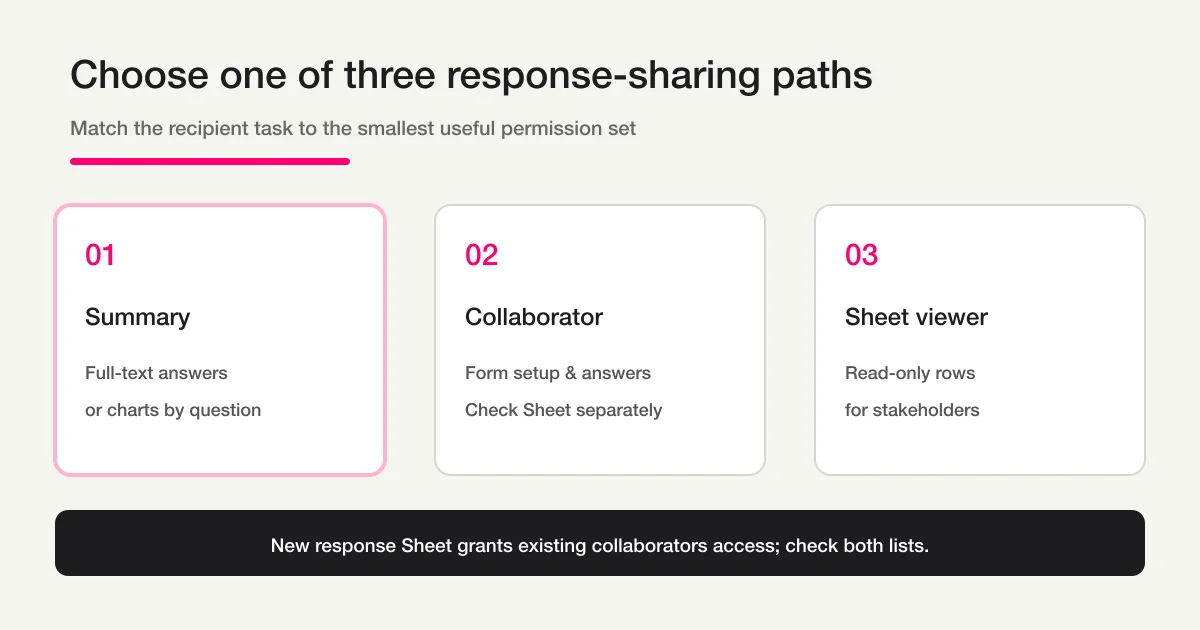
The response summary is the widest route. Google's help says that when it is enabled, every user who can respond may view a summary containing full-text answers or charts, depending on the question. It is not an aggregate-charts-only view and is rarely the right way to send private results to one colleague.
The linked Sheet is usually the clearer view-only route. You can grant a named account Viewer access through Google Drive. The viewer cannot edit cells, but can still read the response data included in the Sheet. If the recipient needs only a few metrics, create a separate report file instead of sharing the raw response destination.
Step 1: define the recipient's exact task and data scope
Before opening a Share dialog, finish this sentence:
This person needs to ______ for ______ days, and does not need to ______.
Useful examples are:
- Everyone allowed to respond may see full-text answers or charts, depending on the question, after submitting.
- A second operator needs to edit questions, close responses, and review submissions for the campaign.
- A manager needs to read the latest rows and totals, but must not change the form or spreadsheet.
- A client needs a fixed export as of a delivery date, not permanent access to a live file.
- Each respondent needs only a copy of their own answers.
The last two examples are often mistaken for general response sharing. A fixed delivery is better handled as a CSV or Excel snapshot. A copy for the person who submitted is a respondent communication workflow. Use the response copy and auto-reply guide for that case.
Next, inspect the data. A view-only role does not make sensitive data harmless. Viewers can read names, email addresses, health details, open text, and timestamps if those fields are present. Decide whether the recipient needs raw rows, a de-identified table, or only aggregate metrics. Also record the account, access duration, reason for access, and person responsible for removal.
For an anonymous survey, sharing choices can undo careful form design. A small group, rare demographics, exact timestamps, or distinctive text can identify a respondent even when names and emails were not collected. Review the Google Forms anonymity guide before enabling broad summaries or sharing raw rows.
Step 2: configure the path that matches the task
Option A: show full-text answers or charts to responders
Open the form's Settings, expand the display settings, and turn on View results summary. Google's help says the enabled summary is available to every user who can respond and contains full-text answers or charts, depending on the question. Enable it only after checking realistic test data.
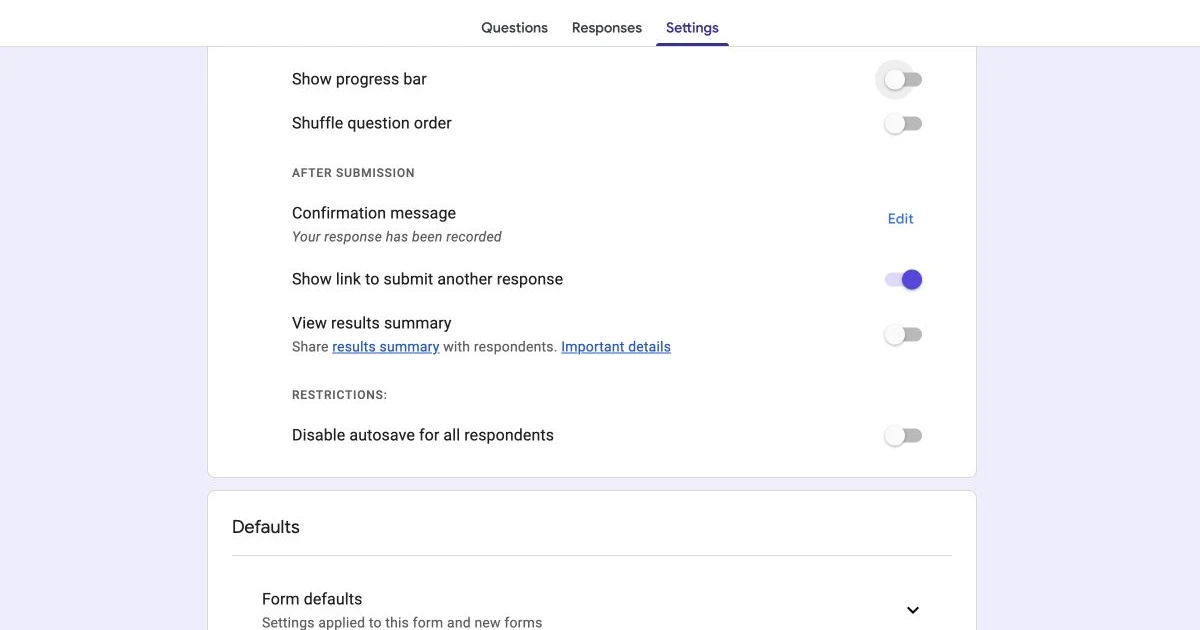
The screenshot shows the current English-language Settings screen and its View results summary toggle. Interface labels may change, so confirm the explanatory text beside the toggle in your account.
This route works only when publishing every included answer is part of the form's promise, such as a deliberately transparent and non-sensitive poll. It has two important boundaries:
- The audience is not a hand-picked list of report viewers. Every user who can respond may access the summary.
- Showing full-text answers or charts does not prevent identification. A category with one response or a distinctive free-text answer may still reveal a person.
If you need a report for only a manager or client, keep the public summary off. Share a separate Sheet or report file with named accounts instead.
Option B: add a trusted operator as a form collaborator
Use the form's collaborator or sharing controls to add the operator's Google account. Choose this only when the person genuinely needs to operate the form. Google's collaborator help says that when a new response spreadsheet is created, the form's existing collaborators automatically receive access to that Sheet. Later collaborator additions, changes, and removals do not automatically synchronize, so inspect both the form and linked-Sheet sharing lists. Collaborator access includes the form structure, questions, settings, and responses available in the form. Verify access to the linked Sheet separately on the Sheet's sharing list. Collaborator access should not be used as a convenient response-viewing shortcut.
Maintain a short owner table outside the form:
| Person | Responsibility | Resource | Removal date |
|---|---|---|---|
| Campaign operator | Edit questions and review responses | Form and linked Sheet | Campaign close + 7 days |
| Department manager | Read weekly totals | Report Sheet only | Quarterly review |
This makes handoffs and offboarding much easier. It also exposes permission drift: a person who started as an operator may no longer need form-level access after the form closes.
The wider relationship among Forms, Sheets, and Apps Script is covered in the Google Forms, Sheets, and Apps Script operations guide. The essential point here is that each resource has its own access surface.
Option C: share the linked Sheet as view only
From the Responses tab, create or select the linked Google Sheet. Open that Sheet's Share dialog, add the stakeholder's account, and select Viewer. Under Google Drive permissions, a viewer can open and read a file but cannot edit its content. Google's permission table also shows that Viewer download is enabled by default. Where appropriate, use the sharing settings to restrict download, print, and copy for viewers and commenters.
Those controls do not completely prevent screenshots, photography, or manual transcription. Minimize the file before sharing: create a separate report containing only the rows and columns the recipient needs. A linked response Sheet usually contains timestamps and one column for each collected answer, and a viewer can read the response data made available in that file. Filter views, hidden columns, or a polite instruction not to inspect certain data are not a reliable substitute for minimization.
If the recipient needs only totals, create a separate reporting file that contains approved metrics. If the recipient needs a fixed delivery, export a snapshot instead of giving continuous access. The Google Forms response CSV export guide explains how to prepare a stable artifact and avoid common encoding problems.
Step 3: verify the recipient experience with a separate account
Do not treat the permission menu as proof. Use a test account under the same conditions as the real recipient.
- Add one harmless test response and verify that it appears in Forms and the linked Sheet.
- Open the responder path and confirm whether the response summary appears to the intended audience.
- Sign in as the collaborator and confirm that form-level settings and responses are available. This demonstrates why the role must remain limited to trusted operators.
- Sign in as the Sheet viewer and confirm that the response rows are readable but cells cannot be edited.
- Check that the viewer cannot access unrelated Drive files through inherited folder permissions.
When a recipient says they cannot see the results, first identify which URL you sent. The responder URL, form editor URL, response-summary path, and linked Sheet URL are different resources. Then check the active Google account and assigned role. People often open a link while signed in with a personal account even though access was granted to a work account.
Also check organization restrictions. A Google Workspace administrator can constrain external sharing or access. Do not work around that control by changing a file to "anyone with the link" unless the data owner and organization policy explicitly permit it. Named-account sharing is easier to audit and revoke. Existing collaborators receive access when a new response Sheet is created, but later additions, changes, and removals do not automatically synchronize. Check the current sharing list on both resources and remove access separately.
Step 4: test revocation from both the form and the Sheet
Every sharing procedure needs a removal procedure. Google's response-management help warns that removing a collaborator from a form and removing access from its linked spreadsheet are separate actions.
- Remove the account from the form's collaborator list.
- Open the linked Sheet and remove the same account from its sharing list.
- Check separate reporting files, copied Sheets, and shared folders for inherited or duplicate access.
- Sign in as the removed account and confirm that neither resource opens.
- Record the removal date and the person who verified it.
Removing form access alone may leave Sheet access active. The reverse is also true: removing Sheet access does not necessarily remove form collaborator permissions. Treat the form and the Sheet as two files with two permission lists.
For recurring projects, schedule an access review when the form closes and at regular intervals afterward. Remove unused collaborators, convert ongoing report recipients to a minimal reporting file, and archive fixed exports according to your retention policy.
Troubleshooting matrix
| Symptom | Check first | Recommended action |
|---|---|---|
| A stakeholder cannot see response results | The URL and active Google account | Distinguish responder, editor, summary, and Sheet URLs; grant access to the correct account |
| A recipient must have view-only access | The Sheet role | Use Viewer and confirm that cell editing is blocked with a separate account |
| Full-text answers or charts may be public | The actual response summary and responder audience | Confirm every responder may see them; create a separate aggregate report when only totals are needed |
| A former collaborator can still see data | The linked Sheet and shared folder | Remove access from the form, Sheet, reports, copies, and inherited folder permissions |
| Only selected columns or rows should be delivered | The raw response Sheet scope | Create a separate minimized file; do not share the raw destination |
| The recipient needs a fixed handoff | Whether live updates are required | Deliver a reviewed CSV or Excel snapshot rather than a permanent live link |
How FORMLOVA handles team response access
FORMLOVA uses viewer, editor, and admin roles for shared forms and their response lists. A viewer can read and export, editors and higher roles can perform update operations, and stronger administrative operations require a higher role. An invited person starts as pending and gains access only after accepting the invitation and becoming active.
Team management is available only on Premium. Google Sheets synchronization is a separate feature and its file sharing should not be treated as identical to a FORMLOVA team role. This separation matters: access to a shared form, permission to update it, and access to an external Sheet are different decisions.
The operating principle is the same regardless of product. Start with the least privilege required for the job, verify the recipient surface, set a review or removal date, and test revocation. Do not grant an editor role merely because it is the easiest way to make data visible.
Pre-sharing checklist
[ ] I defined the recipient's task and access duration.
[ ] I chose one primary route: summary, form collaborator, or Sheet viewer.
[ ] Every user who can respond may see the summary's full-text answers or charts, depending on the question.
[ ] I grant collaborator access only to a trusted form operator.
[ ] I am comfortable with every row and column visible to the Sheet viewer.
[ ] I considered restricting viewer download, print, and copy.
[ ] I minimized the shared file to only the rows and columns required.
[ ] I tested the experience with a separate account.
[ ] I recorded an access owner, review date, and removal date.
[ ] I will remove access from both the form and the linked Sheet.
[ ] I created a minimized report instead of sharing raw rows when totals are enough.
Frequently asked questions
Can I share Google Forms responses as view only?
Yes. A straightforward approach is to link the responses to Google Sheets and share that Sheet with the recipient as a Viewer. Do not add a person as a form collaborator merely for view-only reporting because collaborator access is a stronger operational permission.
Can I share Google Forms response results with a URL?
Google Forms can show a response summary, but this is not the same as a private raw-results link for one stakeholder. When enabled, every user allowed to respond may view full-text answers or charts, depending on the question. For a limited audience, share a minimized linked Sheet or separate report with named accounts.
Can a form collaborator see only responses?
No. Form collaborator access is designed for people who help operate the form and includes questions, settings, and responses available in the form. Access to the linked Sheet must be checked separately on its sharing list. Use a view-only reporting file when the recipient should not change the form.
Who can see the response summary?
Google's help says every user who can respond may view the summary when the option is enabled, including full-text answers or charts, depending on the question. Review the responder audience and visible summary together. Do not assume it is restricted to a small reporting group.
Why can someone still open the Sheet after I removed them from the form?
The form and linked Google Sheet are separate files with separate permission lists. Remove the account from both resources, then check copies, report files, and shared folders for additional or inherited access.
What is the safest way to share charts without raw responses?
Create a separate report containing only approved aggregate metrics. Check small categories and free text for re-identification risk, then share that report as view only. The survey analysis guide explains how to turn responses into a useful, limited report.
Disclosure and Verification
I work on FORMLOVA. I verified this guide on August 27, 2026 against Google's official response management and linked Sheets help, publishing, sharing, and response summary help, form collaborator help, and Google Drive sharing permissions help. FORMLOVA statements are limited to the current SPEC for viewer, editor, and admin roles, invitation acceptance, shared-form response lists, and Premium team management. Google may change interface labels and Workspace controls, so verify the final recipient experience with the accounts used in your organization.
If you want to manage response access through accepted team invitations and explicit roles, try FORMLOVA for free with one real workflow.