
Last updated: October 15, 2026
Original verification record (retained; this rewrite does not re-certify every historical statement): Last verified: September 4, 2026
For Google Forms operator alerts, open Responses → More → Get email notifications for new responses, then send one controlled test and compare the stored response with the received notification. This native option is separate from the copy sent to a respondent.
If the alert is missing, first check whether the response exists. Add Sheets rules, an add-on or Apps Script only when timing, recipients or routing require it.
In Google Forms, select Responses, open More, and enable Get email notifications for new responses. A respondent response receipt is a separate setting.
Quick setup: turn on new-response email notifications
Google's current help documents these steps:
- Open the form in Google Forms.
- Select Responses at the top.
- Open More.
- Select “Get email notifications for new responses.”
- Submit one test response and compare the email with the response count in Forms.
You can use the same menu to turn the setting off. Interface labels can change, so this wording reflects Google Help as checked on September 4, 2026.
Separate the recipient before choosing a feature
Similar-looking emails serve different people.
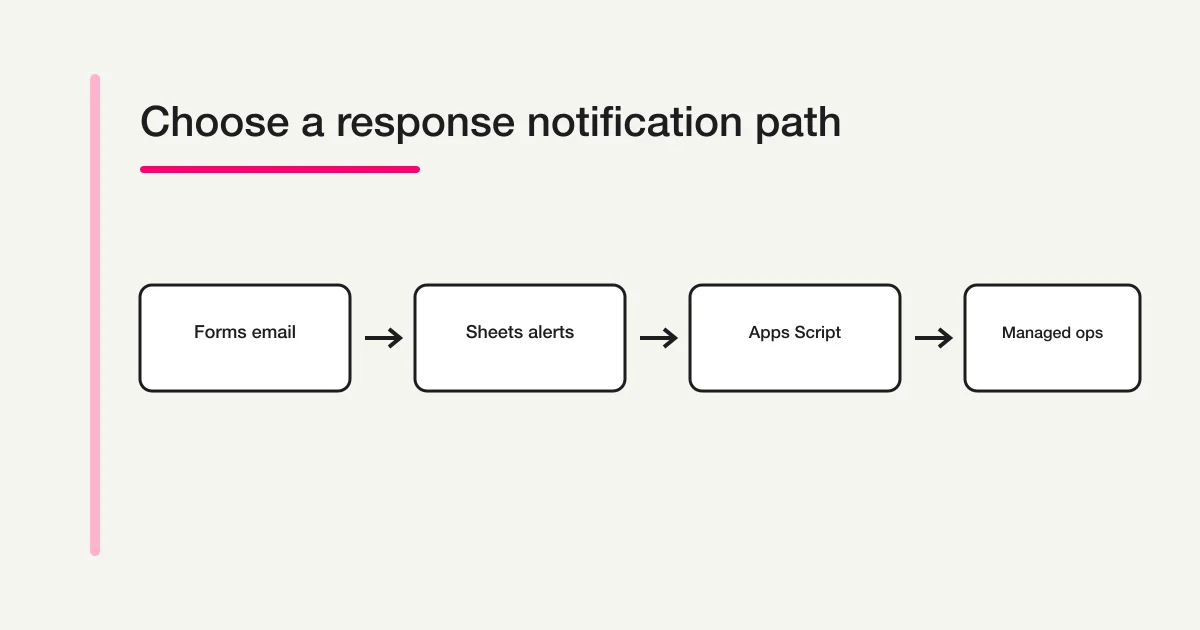
| Goal | Feature | Main recipient |
|---|---|---|
| Know that a new response exists | Google Forms new-response email notification | Form editor or operator |
| Send the respondent a copy | Response receipt | Respondent |
| Send a custom subject and message | Add-on, Apps Script, or managed form service | Respondent or operator |
| Notify from a linked response row | Google Sheets notification setting | Person who configured the Sheet rule |
| Route selected answers to a team or Slack | Apps Script or integration service | Operations team |
For respondent-facing confirmation, use the Google Forms auto-reply setup guide. This page stays focused on helping the form operator notice new work.
When the native notification is enough
Native response notifications are a good fit when:
- You operate only a few forms.
- A small number of people monitor all responses.
- Every response has roughly the same priority.
- You do not need custom subjects, conditional recipients, or workflow state.
The setting belongs to a particular form. Record which forms are monitored, and retest after copying a form or changing operators. Do not assume that a copied form and every collaborator now have the intended notification state.
Google's help also points to the Form notifications add-on for more notification options and customized follow-up messages. Before adopting any add-on, review its requested access, data handling, maintenance owner, pricing, support, and removal process. Being mentioned as an extension path does not prove that a specific add-on fits your organization's requirements.
When Google Sheets notifications are useful
If the form already stores responses in a linked Sheet, Google Sheets has its own notification settings. On a computer, open the spreadsheet and go to Tools, Notification settings, and Edit notifications. Google's current help describes a form-submission condition and a choice between immediate email and a daily digest.
Turning on both Forms and Sheets notifications can produce two alerts for one response. If you keep both, assign different jobs—for example, native Forms email for immediate awareness and a Sheets daily digest for reconciliation.
Sheets notifications fit teams that already use the response spreadsheet as their daily workspace. If the form is not yet linked, first review how to connect Google Forms to Google Sheets, including destination choices and sync troubleshooting.
When to move to an add-on or Apps Script
Do not write code merely because the native email looks plain. Escalate only when the operating requirement is clear.
Consider an add-on
An add-on can be useful when you need more choices without maintaining code. Treat permissions and lifecycle as part of the implementation: who approved the add-on, what data it can read, how failures are surfaced, and how it is removed.
Consider Apps Script
Apps Script becomes reasonable when routing depends on answer values, recipients vary by condition, another system must be called, or you need a custom audit record.
Google documents installable form-submit triggers for both Forms and Sheets. They are different trigger sources with different event objects, so identify whether your code is bound to the Form or the response spreadsheet.
Installable triggers run under the account of the person who created them. One account also cannot necessarily see triggers installed by another account. Record the trigger owner, authorization, error-checking location, and handoff procedure before relying on the script.
For the broader build-versus-operate decision, read Google Forms, Sheets, and Apps Script operating boundaries. For a concrete Slack route, use how to send Google Forms responses to Slack.
Troubleshooting when notifications do not arrive
Start with the stored response, not with repeated toggling.
- Confirm the target form. Make sure the distributed URL belongs to the form you opened, not a copy with the same title.
- Check the Responses tab. If the test response is absent, troubleshoot submission, publication, or response collection before email.
- Check the native setting on that form. Open the More menu in Responses.
- Confirm the receiving Google account. If you use multiple accounts, identify which editor enabled the setting.
- Search spam, tabs, and filters. A delivered notification may have been sorted automatically.
- For Sheets, compare destinations and rules. Confirm that the latest Forms count and response-sheet row agree.
- For add-ons or Apps Script, inspect execution state. Check the owner, authorization, failures, and duplicate triggers.
If the response exists and only the alert is missing, preserve the response as the source record. Do not delete records or repeatedly resubmit until you understand the notification path. Respondent auto-reply delivery is a separate problem covered in Google Forms auto-reply not received troubleshooting.
A notification is not response management
An alert says that work exists. It does not assign an owner, deadline, or status.
As volume increases, define:
- the durable source of each response;
- the person responsible for first review;
- the response-time target;
- where open, pending, and complete are recorded;
- how notification failures are detected; and
- who covers an absent operator.
Treating an opened email as “handled” creates missed and duplicate work. Keep notification state separate from response status.
How FORMLOVA separates storage and notification timing
For a regular non-payment FORMLOVA form, response storage succeeds before notification and auto-reply processing begins. For a paid form, FORMLOVA first stores a pending response and runs notification, auto-reply, receipt, and other effects only after Stripe payment completion. It does not finalize an operator notification while payment is still pending.
As of September 4, 2026, the relevant plan boundaries are:
| Capability | Free | Standard | Premium |
|---|---|---|---|
| Response notification | Six-hour digest | Real time per response | Real time per response |
| Notification recipients | Owner's account email | Up to ten per form | Up to ten per form |
| Custom respondent auto-reply | Not available | Available | Available |
The Free six-hour digest combines new-response counts across all forms owned by one user and sends the digest to that owner's account email. It does not read the notification-address list stored on each form. Standard and Premium real-time notifications support up to ten addresses per form; an empty list falls back to the form owner's email. Response notifications are system notifications and do not consume the user's email quota.
These are first-party findings from the response-notification specification in docs/SPEC.md and the current implementation in app/form-render/[slug]/actions.ts, lib/resend/actions.ts, app/api/cron/digest-notifications/route.ts, lib/resend/notification-recipients.ts, app/dashboard/actions/emails.ts, lib/stripe/paid-response-effects.ts, and lib/plans/definition.ts.
If native Google Forms notification meets the need, keep it. FORMLOVA becomes relevant when you want a Free digest across all owned forms, or paid per-form recipient control, stored-response search and status, and respondent communication on one operational surface.
Compare a stored response with the owner digest
This is a proposed trial, not an operation or result measured for this rewrite. Use a private test draft first.
Draft a private event-question form with question category and message, with contact email optional. Do not promise immediate owner alerts or respondent auto reply. Keep publication and mail sending disabled. Provide a test checklist for the stored response and the Free owner digest as separate observations.
Before proceeding, check:
- Confirm required fields and the completion message without implying instant mail.
- Under controlled publication, record the test time and saved response, then inspect the owner digest in the six-hour collection window.
- If multiple per-form recipients or real-time alerts are essential, evaluate Standard or above separately. Notifications do not consume sending quota; custom auto replies do.
Try the owner-digest workflow before adding routing
Free combines new-response counts across the owner’s forms. A draft preview does not send a notification, and paid form-specific recipient settings are a different test.
Register free and draft event questions
Register, verify your email, connect a supported AI client, and paste the proposed request above. Check the saved draft before publishing. AI-client account and usage requirements apply separately.
Frequently asked questions
Do Google Forms response notifications go to respondents?
The new-response email notification is for the operating side. A respondent receipt requires email collection and the response-copy setting. A custom confirmation message is another mechanism.
How can several people receive notifications?
First verify the required editor access and notification state for the people who need it. If you need conditional or centrally managed recipients, compare an add-on, Apps Script, or a managed service. Do not grant response access solely for convenience without checking data-access need.
Can I operate only from Google Sheets notifications?
Yes, for a small workflow where the response Sheet is the daily workspace. Define how you prevent duplicate Forms alerts, detect a broken link, and track ownership after the email arrives.
Is onFormSubmit a single Apps Script trigger?
No. Google documents installable form-submit triggers for Forms and for Sheets. Their sources and event objects differ, so code and troubleshooting must name the trigger type.
Official sources
- Google Help: View and manage form responses
- Google Help: Choose where to save form responses
- Google Help: Manage your notifications
- Google Apps Script: Installable triggers
- Google Apps Script: Event objects
These pages were checked on September 4, 2026. Google interface labels, feature behavior, and add-on availability can change, so verify the current help page during setup.
Pre-launch checklist
- Identify the exact form to monitor.
- Turn on new-response email from the Responses menu.
- Separate operator notifications from respondent receipts.
- Submit one test response and reconcile it with stored responses.
- Check whether Forms and Sheets alerts duplicate each other.
- Record the add-on or Apps Script owner and permissions.
- Keep a path to stored responses when email is unavailable.
- Track notification separately from response status.
The next review date is October 16, 2026. After publication, monitor “Google Forms response notifications,” “Google Forms email notifications,” “Google Forms notification settings,” and “Google Forms notifications not working” by locale in Search Console. The Japanese seed estimate of 1,300 monthly searches and SEO difficulty 34 was captured from Rakko Keyword on September 4, 2026; it does not guarantee ranking or traffic.
What to do next
Keep the working Google notification if it meets the need. Record storage and mail observations separately; a delayed alert should send the operator to the saved response, not trigger repeated submissions.
Related Guides and References
Disclosure and Verification
The author builds FORMLOVA. Google Forms, Sheets, and Apps Script claims were checked against the official sources above, while FORMLOVA behavior was verified in the current specification and implementation on September 4, 2026. This guide does not guarantee inbox delivery or the continued availability of a third-party add-on.
To verify the six-hour digest and stored response, then test per-form recipients on a paid plan if needed, start FORMLOVA for free and submit one controlled test response.