
Last updated: October 15, 2026
To review your own Google Forms answers, look for an emailed response receipt or the submission-specific edit link. The confirmation page is useful evidence that submission completed, but it is not necessarily a copy of everything you entered.
If the page is still open, retain the confirmation and any edit link. If it is closed, search the email account, Google Account, and browser history you used. When those do not resolve it, ask the form owner before submitting again. A blank form at the normal URL does not prove failure, and you should not assume your Google Account has a complete responder-history list. The same checks apply on iPhone.
The short answer: check these three response paths
| Where to check | What it can confirm | When it is available |
|---|---|---|
| Submission confirmation page | The submit action reached the completion page | Before you close the page |
| Edit-response link | The current submitted answers and, when allowed, a way to change them | The owner enabled response editing and you retained the link |
| Email response receipt | A copy of the questions and answers you submitted | The owner collected email addresses and enabled response copies |
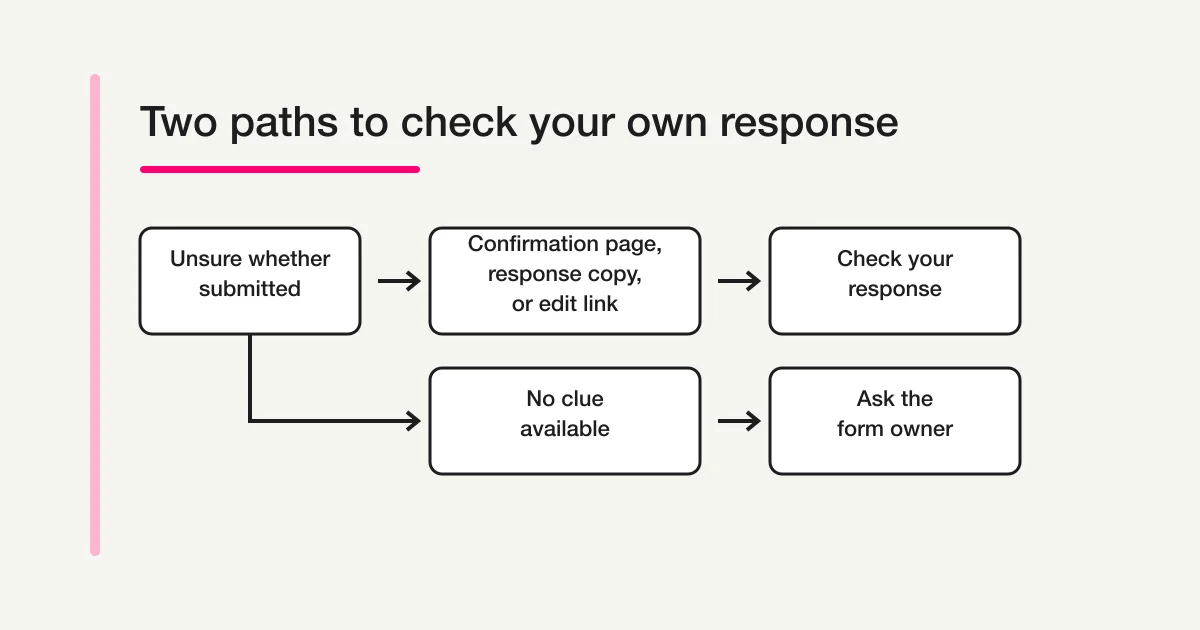
Google's current help explains that form owners can allow people to edit a response after submission. It also explains that owners who collect responder email addresses can set response copies to be sent either when requested or always. Your ability to review an answer therefore depends partly on settings chosen by the owner. It is not controlled only by your phone, browser, or Google Account.
How to check whether your Google Form was submitted
When you remember clicking Submit but are unsure what happened next, use the following order. Each step gives different evidence. Do not treat the absence of one signal as proof that the submission failed.
Step 1: Look for the submission confirmation page
After you press Submit, Google Forms shows the confirmation message configured by the form owner. It may say that your response was recorded, that an application was received, or that the organizer will contact you. The wording varies because the owner can customize it.
Reaching that page is your strongest immediate signal that the submit action completed. It does not necessarily show every answer you entered. Its first job is to confirm completion. Depending on the owner's settings, the page may also include a link to edit your response, submit another response, or view a response summary.
If the page is still open, read it before navigating away. Save the edit link if one appears. For a registration or application, you may also save a screenshot that shows the form name and confirmation message. Be careful when the page includes personal information: store the screenshot privately rather than posting it in a shared chat.
If you pressed Submit and saw a network error, a page that kept loading, or the unanswered form again without a confirmation message, the result is less clear. Do not immediately submit repeatedly. First complete the email and account checks below, then ask the owner if the form is important or time-sensitive.
Step 2: Search every possible inbox for a response receipt
Search for the form title, the organizer's name, “Google Forms,” “response,” or wording from the invitation. Check Spam, Promotions, quarantine folders, and any school or company filtering service in addition to the main inbox.
Think about which address the form used. A form can collect a verified Google Account address or ask you to type an address manually. If you use a personal account, a work account, and a school account, search each relevant inbox. A typo in a manually entered address can also send the receipt somewhere you cannot access.
A response receipt contains a copy of the questions and answers. If response editing was enabled, the message may also provide a route back to the submitted response. Treat that link as private. Anyone who can use an edit link may gain access to information in the submission, so do not paste it into a public channel or forward it casually.
No email does not prove that you failed to submit. The owner may not collect email addresses, may not have enabled response copies, or may use the “when requested” option that required a choice during submission. Google's help also notes that expected response receipts may not arrive in some circumstances because of spam filters or other anti-abuse measures.
Form owners who need to diagnose receipt delivery in detail can use the Google Forms auto-reply delivery checklist. That is an owner-side mail diagnosis; the safe responder-side action is to search first and ask the owner before resubmitting.
Step 3: Find the edit-response link
Look for an “Edit your response” link on the confirmation page, in the response receipt, or in a message from the organizer. If the owner allowed response editing and you retained the correct link, it can reopen the answers that belong to that submission.
The ordinary responder link and an edit-response link are not interchangeable. The ordinary link is designed to open the form for a response. Reopening it may show an empty form, a new response form, a sign-in message, or a notice that only one response is allowed. None of those screens automatically becomes the private view of your previous answers.
Browser history can help if you recently closed the confirmation tab. Search your history around the time you submitted the form and inspect page titles carefully. Avoid sharing URLs while you test them. If you find an edit page, bookmark it privately only when retaining the link is appropriate for the information involved.
Step 4: Ask the form owner to confirm the record
When the first three paths do not resolve the question, contact the organization or person who published the form. The owner can inspect collected responses, while you may not have a direct responder view.
Send enough information to locate the record without copying sensitive answers into an unsecured message:
Form title:
Approximate submission date and time:
Name or reference number used in the response:
Email address used in the response:
Google Account used, if relevant:
Device and browser:
Question: Should I submit again, or can you confirm the existing response?
If the form involves health, employment, education, payment, or other sensitive data, let the owner choose the identity-verification process. Do not send the full response merely to prove that it was yours.
Why you may be unable to see your own response
Several different conditions produce the same feeling: “I submitted it, but I cannot see it.” Separating them prevents the wrong fix.
| What you see | Likely explanation | Safest next action |
|---|---|---|
| No response email | Copies were not enabled, another address was used, or the message was filtered | Search all inboxes, then ask the owner |
| No edit option | The owner did not allow response editing, or the link was not retained | Do not use the ordinary link as a substitute; ask the owner |
| A blank form opens | You opened the normal responder URL rather than a submission-specific edit route | Look for the receipt or edit link |
| “You have already responded” appears | The form may limit the signed-in account to one response | Confirm the account and contact the owner |
| Previous text appears in the form | You may be seeing an autosaved, unsubmitted draft | Do not confuse the draft with a completed submission |
| Nothing appears on iPhone | The relevant tab, history, inbox, or signed-in account may differ | Check those four paths before installing anything or resubmitting |
The most common mistake is to infer a submission state from the ordinary form page. A blank form does not prove “not submitted.” An existing draft does not prove “submitted.” A one-response notice suggests that the account has already responded, but it does not show the answer content. Use the appropriate evidence for the question you are trying to answer.
An autosaved draft is not a submitted response
Google's responder help says that when you fill out a Google Form while signed in to a Google Account, your progress is normally autosaved as a draft for 30 days. You can reopen the same form URL with the same account to continue that unfinished draft.
That feature is useful when you switch devices or cannot finish at once, but it is not a history of completed submissions. The owner can disable draft autosave. Autosave does not work offline. Losing access to the form also removes your ability to access the draft. Changes made by the owner to questions, answer choices, or branching can affect what remains in the saved draft.
If old text appears when you reopen a form, ask four questions:
- Does the top of the form say that a draft was saved?
- Do you remember seeing the submission confirmation message?
- Can you find a response receipt?
- Are you signed in to the same Google Account used originally?
A visible draft is evidence of unfinished input, not evidence of successful submission. Conversely, no visible draft is not evidence that you never submitted. Completed and unfinished states need separate checks.
How to check a Google Forms response on iPhone
The response paths on an iPhone are the same as on a computer. Google's iPhone and iPad help directs people to use a mobile web browser such as Safari. You do not need to install an unrelated third-party app merely to verify a response.
- Open Safari or Chrome and inspect tabs and browser history from the submission time.
- Search the Mail or Gmail app for the form title and response receipt.
- Check which Google Account is active in the browser and email app.
- If you find an edit-response link, open that specific link rather than the generic form URL.
- If none of the paths works, ask the owner before sending the form again.
Private browsing, cleared history, and submitting on another device can make the original page impossible to recover from the phone. That does not delete a response already stored by the owner. It only removes one local route that might have helped you find the confirmation or edit page.
Be cautious with App Store results that use “Google Forms” in their product name. A search result may be a third-party product rather than an official Google app. For this task, your existing mobile browser and email account are the relevant tools.
A response summary is not a private copy of your answers
Some forms show a results link after submission. Google's owner help explains that when “View results summary” is enabled, people who can respond to the form can view a summary with full-text answers or charts, depending on the question.
That summary is different from your response receipt. It may include aggregated or full-text information from multiple responders. It is not a private account page that proves which answer was yours. Use the response receipt or the submission-specific edit link when you need your own content.
For owners who need to share collected responses with a manager, client, or operator, the Google Forms response-sharing guide explains the separate choices among summaries, collaborators, and a view-only linked Sheet. Those permissions are deliberately outside this responder-focused guide.
Check before you submit the form again
Duplicate submissions create real operational problems. An organizer may reserve two seats, count two votes, treat one applicant as two people, or contact you twice. Before resubmitting, check the following:
- Did you see a submission confirmation page?
- Did you search every relevant inbox and filtered folder?
- Did you look for an edit-response link?
- Are you using the same Google Account as before?
- Does the form say that only one response is allowed or that you already responded?
- Does the invitation explain what to do about corrections or duplicate entries?
- Can the owner confirm the record first?
If a deadline is close, send a short message such as: “I may have submitted this form at approximately 3:20 p.m., but I cannot access a receipt. Could you confirm whether my response exists and tell me whether I should submit again?” This gives the owner a useful search window without forcing a duplicate.
When the owner asks you to resubmit, ask whether you should identify the second response as a correction. A note such as “Resubmitted after confirmation request” can make deduplication easier, provided the form has an appropriate notes field and the owner approves that method.
What form owners should configure before sharing a form
If you found this article because people keep asking whether their responses were received, the form needs a clearer post-submit contract. The solution is not merely to tell responders to take screenshots.
- Write a confirmation message that clearly says the response was received and explains the next expected contact.
- For processes where people need a record, evaluate email collection and response receipts.
- If corrections are allowed, enable response editing and tell people to retain the edit link securely.
- Decide how duplicate submissions will be recognized and resolved.
- Publish a contact route and specify the minimal details needed to locate a response.
- Test the entire path with an account that is not the form owner.
Owners can use the form response-copy and auto-reply setup guide to separate a standard Google Forms response receipt from a custom confirmation email. For the broader creation and publishing path, use the complete Google Forms guide. The parent Google Forms, Sheets, and Apps Script operations guide helps decide what stays in the form and what belongs in the operating layer after submission.
If you also create forms, test clearer completion instructions for next time
Resolve this Google Forms submission through its receipt, edit link, or owner. A FORMLOVA account cannot retrieve past answers from someone else's Google Form or restore a lost Google edit link.
The following is a separate use case for readers who also create forms. If people keep asking whether they submitted successfully, try drafting the next inquiry form and its completion message in FORMLOVA. This is a suggested input, not a completed result:
Create an unpublished inquiry form with required name, reply email, and inquiry details. Set the completion message to “We received your submission. We normally reply within two business days. For a correction, contact the organizer using the published contact route and include your name and approximate submission time.” Do not configure an auto-reply email. Show both the form and completion-page previews.
Replace the timing and correction route with the process your team actually offers. Check three things on mobile and desktop:
- Submission completion is distinct from the later team reply.
- The correction route and matching details are understandable.
- The message does not promise an email receipt or responder-history page that you do not provide.
Form and completion-page creation, publication, response collection and search, and CSV / Excel export are available on the free plan. Custom auto-replies require Standard or higher. Unpublished previews do not save submitted responses; verify record matching separately in a published test. Your AI client's conditions and fees also apply.
As a form creator, check what happens after submission
Draft your next inquiry form and completion message for free. Compare whether reply timing and correction instructions are clear. This does not recover past Google Forms answers.
Sign up free to draft your next completion page
Register, verify your email, and connect FORMLOVA to a supported AI chat. Use the prompt above, then review the form and completion page before publishing.
Use the FORMLOVA setup guide for connection steps. If you are only checking the current submission as a respondent, no signup is needed: contact the owner of that original form.
Frequently asked questions
Does Google Forms give me a list of every form I have submitted?
Do not assume there is a responder-facing list that can reopen every past submission. Use the confirmation page, response receipt, or edit-response link provided for that form. If none is available, contact the owner.
If the form opens blank, does that mean my response failed?
No. The ordinary responder URL may open a new blank response even when an earlier submission exists. Search for a receipt or edit link and ask the owner before submitting again.
If I did not receive a response receipt, was the form not submitted?
Not necessarily. The owner may not collect email addresses or enable copies, you may have used another address, or filtering and anti-abuse systems may have prevented delivery. The missing email is only one signal.
Can I see my original answer after I edit it?
An edit link can show the current submitted response, but responders should not assume it provides a version history comparing every previous value. If preserving the original matters, contact the owner before making changes.
Can I switch Google Accounts to find the response?
Switching accounts can change one-response restrictions and access to an autosaved draft. Start with the same account used during the original response. Do not switch accounts simply to bypass a restriction or send another copy.
Is checking on Android different from checking on iPhone?
The same evidence applies: confirmation page, receipt, edit link, account, and owner confirmation. Browser menus differ, but the form owner's settings determine whether a response copy or edit path exists.
Disclosure and Verification
This guide was checked on September 3, 2026, against Google Help for publishing and sharing forms, viewing and managing form responses, autosaving response progress, and using Google Forms on iPhone and iPad. Interface labels and settings may change. Only the owner of the specific form can confirm whether a particular response reached that form.
On October 15, 2026, I rechecked Google's receipt conditions, editing settings, and draft autosave conditions, plus FORMLOVA's completion-page, preview, and plan definitions. I develop FORMLOVA. If the response remains unconfirmed, give the original owner the form title and approximate submission time, and ask whether resubmission is necessary.