
Import a Word or PDF Form into Microsoft Forms: Quick Import and Review
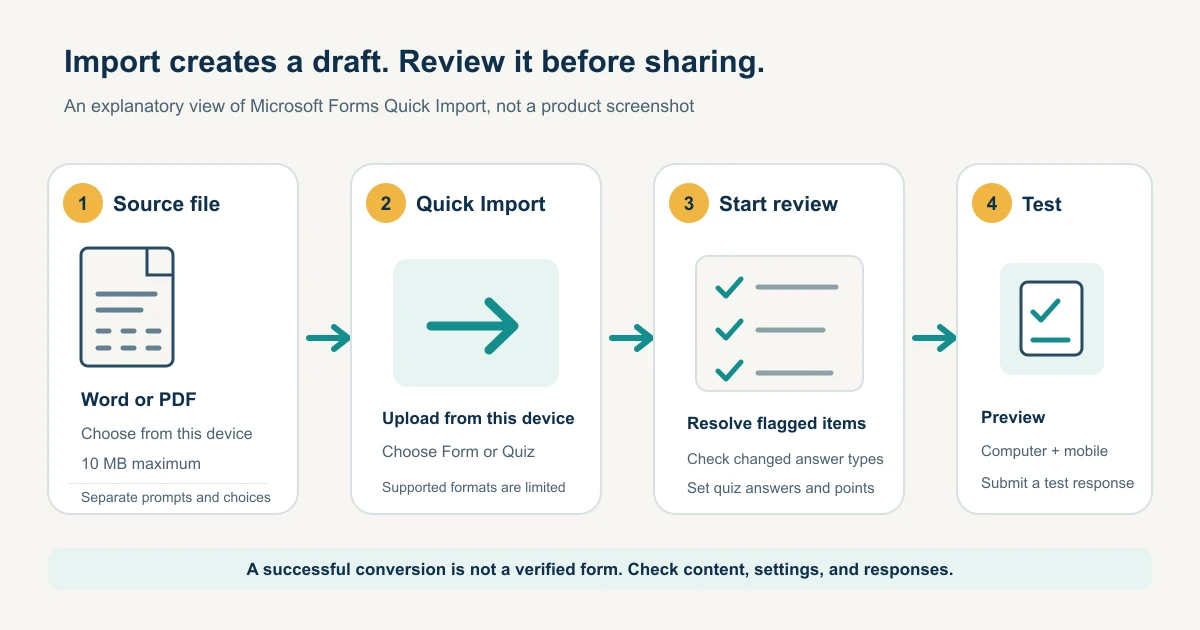
If your questionnaire is already in Word or PDF, Microsoft Forms Quick Import can turn it into a draft form or quiz. Go to forms.office.com, choose Quick Import > Upload from this device, and select a local Word or PDF file no larger than 10 MB.
Quick Import does not reproduce every part of the original page. Microsoft currently documents conversion for titles and subtitles, multiple-choice questions, and open-text questions. After conversion, use Start review to check for missing content, uncertain results, and unsupported question types before you share the form.
What Quick Import converts
Quick Import is an entry point for converting an existing Word or PDF questionnaire or quiz into a Microsoft Forms draft. Microsoft Support lists titles and subtitles, multiple-choice questions, and open-text questions as the supported conversion types. It does not promise that every layout element, question type, image, or rule from the source will carry over.
Some question types may become open-text questions. Microsoft specifically notes that matching questions and questions with multiple blanks are converted to open text. That can change what a respondent is able to enter, so inspect the response format instead of assuming the converted question is ready.
The documented source is a Word or PDF file stored on your local device, up to 10 MB. The current instructions do not describe selecting a file directly from SharePoint Online or OneDrive for Business. They also do not document CSV or Excel question lists as Quick Import inputs. If your source is a spreadsheet, check the current Forms interface before assuming it can create questions from those rows. The Excel workflow after responses are collected is a different task; see our guide to Microsoft Forms responses and Excel workbooks.
Microsoft also states that Quick Import is unavailable in US Government Clouds. Availability and menu labels can vary by account or organization, so check the current support page or ask your administrator if Quick Import is missing.
Prepare the Word or PDF source
Keep a separate copy of the source file. It gives you a reliable reference when the converted draft flags a low-confidence item or omits text. Avoid putting real respondent data into a test document unless it is necessary.
Microsoft's preparation advice is simple: arrange content vertically and make questions easy to distinguish from their answer options. For example:
Choose the session you will attend
○ Session 1
○ Session 2
○ Neither session

What else should the organizer know?
(written response)
This is an explanatory example, not a Microsoft Forms screen. A document where question text and answer choices are mixed together, placed in floating shapes, or arranged in complex columns is harder to compare with the converted form. Simplify the source before uploading, then add any details that Quick Import does not carry over inside Forms.
The Microsoft article says supported Forms languages are also supported for conversion, but English conversion is more accurate than conversion in other languages. If your actual survey is in Japanese, upload and review the Japanese source; translating it into English only to improve import could change what respondents are asked. Allow time to correct the draft manually.
Import a Word or PDF form
- Open
forms.office.comand sign in with the account that will own the form. - Choose Quick Import.
- Select Upload from this device.
- Choose the Word or PDF file saved on your device. Check that it is no larger than 10 MB.
- When Forms asks, choose Form or Quiz.
- When conversion finishes, choose Start review.
Microsoft says the new form is automatically saved under Recent and/or My forms using the original file's title. Automatic saving means the draft exists; it does not confirm that every question, answer choice, or setting matches your source.
Before you upload, make a short inventory of the source. Note the number of questions, the expected answer format for each one, and any instruction that affects how a person responds. You do not need to recreate the document's typography or page breaks in Forms. The goal is to preserve the meaning and response structure. A small checklist can make the review faster:
| Source item | What to verify in the draft |
|---|---|
| Question wording | The full prompt and any necessary context are present |
| Answer choices | Every choice is present, in the intended order, with no unrelated text attached |
| Response format | Choice, multiple choice, or open text matches the answer you need |
| Instructions | Required details, examples, and units are still clear |
If the document contains repeated headers, page numbers, or notes for the person administering the survey, decide whether respondents should see them. Remove material that is only for staff before importing, or add it back in the right place after conversion. This reduces the chance that a heading or note is mistaken for a question.
Review the converted draft
Start review can surface three issues: missing content, an uncertain conversion that needs attention, or an unsupported question type. Compare every flagged area with the original Word or PDF and resolve the issue in Forms. Then read the entire draft from beginning to end, including items that did not receive a warning.
Work through the review in two passes. First, resolve the items Forms explicitly flags. Second, compare the question inventory you made before upload with the draft. Check the beginning and end of the form as well as the middle: content at a page boundary or next to a section heading is easy to overlook. Count the questions and choices when completeness matters, and read each prompt in context rather than relying on a quick visual scan.
For a choice question, verify that each option belongs to the right prompt and that a label or instruction was not imported as an answer. For an open-text question, consider whether the expected response is short, long, or formatted in a particular way. If respondents need to supply separate values, a single text box may be ambiguous. Rewrite the question, add separate fields, or use a supported question format that matches the information you need.
Pay particular attention when one source question contains multiple blanks or asks respondents to match items. If it becomes a single open-text question, it may no longer capture the information in the same structure. Split it into separate questions or rebuild the intended response type in Forms.
If you selected Quiz, open each question and check the correct answer and points. Do not infer that scoring was set merely because the question text and options were imported. Microsoft documents the conversion of questions; the quiz's answer key and scoring still need a direct check.
Check settings before sharing
Quick Import focuses on converting content. Review the form's operating settings separately:
- Question order and completeness: Compare the number, wording, and order of questions with your source.
- Answer type: Confirm single choice, multiple choice, or written response matches the question's purpose.
- Required answers: Mark only the fields respondents must complete.
- Branching: Add any routing rules after import and test every route.
- Audience: Decide whether anyone with the link or only selected people in your organization may respond.
- Privacy: Check whether names are recorded and whether the link can be forwarded.
- Quiz results: Confirm the answer key, points, and what respondents see after submitting.
- Preview: Inspect the computer and mobile layouts, especially long prompts and answer options.
Submit at least one test response through Preview and check both the respondent-facing result and the form owner's response view. If the form will be used for a real event or process, test the paths that matter before distributing its link.
Make the test response representative without using personal data. Try a normal answer for each response type, leave an optional item blank, and follow any branching route you configured. Confirm that required questions prevent an incomplete submission where expected, that the respondent can tell what to do, and that the submitted values appear in the owner's response view under the intended questions. If a quiz is involved, use a known correct answer and an incorrect answer to verify the key and points. Remove or identify test data according to your organization's process before opening the form to respondents.
The test is especially useful for questions whose format changed during conversion. A multiple-blank prompt that became one open-text response may look acceptable to the author but be difficult for respondents to answer consistently. Preview it as a respondent would see it. If the expected answer is unclear, split the prompt or add an example that does not reveal sensitive information. Repeat the test after changing the question type, required status, or branching so you know the final version behaves as intended.
For a full quiz workflow, see our Microsoft Forms quiz guide. For general creation, distribution, and results, return to the broader Microsoft Forms survey guide.
Troubleshoot import problems
The file does not appear in the picker. Quick Import's documented path is Upload from this device. Save the Word or PDF file locally, verify its extension, and check that it is within the 10 MB limit.
Some text is missing. Compare the warning with the original file. Make the question and answer choices easier to distinguish, align content vertically, and remove decorative elements or complex equations that do not need to become form content. Then correct the draft manually.
A question became open text. This can happen for unsupported structures, including matching questions or questions with multiple blanks. Rebuild the question in Forms using the response format the respondent should actually use.
The imported form is not ready to send. Complete the review, inspect answer settings and quiz scoring, choose the audience, and preview the form. A successful conversion is the start of editing, not proof that the source was reproduced perfectly.
A heading or instruction became a question. Compare it with the source and decide whether it belongs in the form. Remove it if it is only a document heading, or rewrite it as a clear description or question in Forms. If similar items are repeatedly misread, simplify the source layout and separate instructions from response choices before importing again.
The form looks right but the answers are hard to use. Check the actual answer type and test a submission. A prompt can be present while its response structure is wrong for your purpose. For example, a person may put several values into one open-text answer when you need each value separately. Split the prompt or rebuild it with the intended response format, then preview and test it again.
A colleague cannot open the link. Review the audience setting and the account requirements shown by your organization. A form restricted to people in an organization will not behave like an anonymous public form. Confirm who should be able to respond before distributing the link broadly.
You wanted to import CSV or Excel. Microsoft's current Quick Import instructions specify local Word and PDF files. They do not establish a CSV/Excel question-import route. Check the current Forms options or create the questions directly; do not treat response export to Excel as question import.
Pre-share checklist
- The source is a local Word or PDF file no larger than 10 MB.
- Questions and answer options are clearly separated.
- I opened Start review and resolved the flagged items.
- I checked every question, including unsupported formats converted to open text.
- Quiz answers and points, required fields, branching, and audience are correct.
- I previewed the computer and mobile layouts.
- A test response reached the expected result before the form was shared.
Quick Import is most useful as a way to create a first draft from a document. Plan a short review pass before distribution, especially when the source uses complex layouts or the form will be used for scoring. If your next need is to coordinate ongoing form work and responses across a team, FORMLOVA's free plan is one option to compare.
You can keep the review efficient by dividing it into three checks: compare the imported questions with the source, confirm response and access settings, and submit a test response. The first check catches missing or changed content. The second covers choices that a document cannot reliably establish, such as audience and branching. The final check shows what respondents experience and what the owner receives. If any of these checks fails, edit the form and repeat the affected part before sharing.
Keep the original document until the form has been reviewed and approved. It is a useful reference if someone later asks why a question is worded a certain way or whether an answer option was omitted. If the questionnaire changes, update the source and form through your normal versioning process so that the file and live form do not silently diverge.
Microsoft can change its import limits and supported formats. Before using the feature, review the current Microsoft Support instructions for converting a Word or PDF form. We did not test this flow in a signed-in Microsoft Forms account.
Disclosure and Verification
The feature details and instructions were checked against Microsoft's official Support documentation on October 15, 2026. We did not test the flow in a signed-in Microsoft Forms account. Interface labels and availability can change, so confirm the current official instructions before uploading a file.