
Before turning on a Microsoft Forms email notification, decide which owner or team needs it. An alert to the form owner after each submission, a respondent’s copy, and a reminder after an invitation are different features. This guide focuses on owner alerts and notifications to other recipients. For checking or saving a respondent’s own submission, see the respondent receipt guide.
This guide separates the recipients and purposes, shows where the built-in settings are described, and explains when Power Automate is a better fit. Menu names follow Microsoft’s public documentation reviewed on October 13, 2026. Your account type and organization policies can change which options appear.
Choose the recipient first
“Response notification” can refer to several different emails. Choose the setting based on whether the owner needs to act, the respondent needs a record, or another team member needs to know.
| Purpose | Recipient | Main setting or route |
|---|---|---|
| Learn when a new response arrives | Form owner | In Response receipts, enable email notification for each response |
| Check or save a submitted response | Respondent | See the dedicated guide |
| Contact people who have not responded | Form owner sends a reminder | Invitation email or the form’s Responses tab |
| Notify a team or multiple recipients | Selected recipients | Build a custom email flow in Power Automate |
Owner alerts and respondent receipts are separate features. This article covers the owner setting; the respondent guide covers checking and saving a submitted response. See Microsoft’s invitation and notification guide for the owner alert.
Turn on an email alert for the form owner
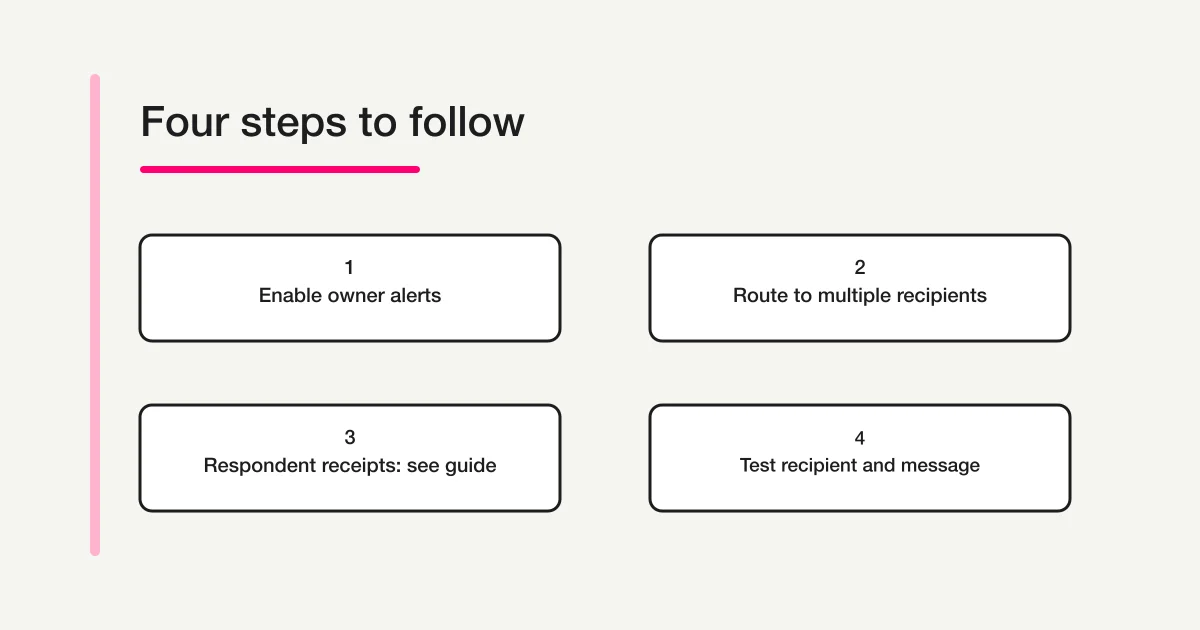
The built-in alert is for the form owner who wants an email when someone submits a response. Microsoft’s instructions say to open the form, open its additional settings and Settings pane, and enable “Get email notification of each response” under Response receipts. Depending on the page you use, a “Get notification messages” toggle may also appear in the confirmation window after sending an invitation.
After changing the setting, verify two things separately: that a test response appears in the form’s Responses tab, and that the owner’s mailbox receives the notification. The message is not a replacement for the response list. Use the Responses tab to check totals and open an individual response.
This standard notification is aimed at the form owner. Microsoft Learn describes Power Automate as the route for notifying someone else. Decide whether another person needs access to view the responses, or only needs a limited email alert. Expanding sharing permissions also expands who can see the response data, so consider the information collected before granting access.
For example, a training coordinator may want an email for each new registration, while the learner needs a copy of their own registration and a manager only needs a short notice that a new response arrived. Those are three separate recipient decisions. Start with the smallest audience that can act on the information, then add a custom route only where a real handoff requires it. This example is an editorial planning aid, not a built-in Forms feature.
If the “Get email notification of each response” option is not visible, first make sure you opened the form’s settings rather than the respondent page or a different form. Availability can differ by account and organization. Compare the options in Microsoft’s help with what your account currently shows, and ask the Microsoft 365 administrator about organization-wide restrictions before widening the response audience.
Respondent receipts are a separate topic
A respondent’s copy serves a different purpose from an owner’s new-response alert. For receipt eligibility and post-submission steps, use the Microsoft Forms respondent receipt guide. This article stays focused on the owner and team notification routes.
Notify multiple people with Power Automate
The built-in Forms notification is suited to an owner who monitors submissions. If a shared mailbox or several specific people need an email, Microsoft Learn recommends creating a custom Power Automate notification. The Microsoft Forms connector requires a work or school organizational account; personal Microsoft accounts are not supported. A common flow is:
- Create an automated cloud flow with the Microsoft Forms trigger “When a new response is submitted.”
- Select the form.
- If the email needs answer details, add “Get response details” and use the response ID from the trigger.
- Configure the email action with recipients, subject, and body.
- Save and test the flow with a test response; confirm the destination and message content.
For team notifications, take care with mistyped or missing addresses, external sending policies, and flow errors. For sensitive responses, consider keeping the full answer out of the email body and sending a link to a properly access-controlled location instead. Check which connector connections and run permissions your organization allows. Microsoft documents the trigger and response action in its Forms connector reference and provides a notification flow example.
If a form was copied or its owner changed, review the form selected in the flow and the account used by its connection. The flow does not automatically switch to a new form just because you copied the original. See the guide to Microsoft Forms coauthor permissions and Excel synchronization for those separate tasks.
The flow’s job is to route a notification, not to decide who should be allowed to read the full response. A safe setup can send a short message such as “A registration is ready for review” and direct an authorized reviewer to the response list. If the email needs to include answer details, review every field that can contain personal information, set the recipient list deliberately, and check who can access the mailbox. Do not assume that a link sent to a group has the same access rules as the form itself.
When several people need to act, decide whether they all need an individual email, a shared mailbox, or a single team queue. The right choice depends on who owns follow-up and how duplicate work is prevented. Microsoft’s connector documentation lists a “When a new response is submitted” trigger and a “Get response details” action; it does not define your team’s assignment or escalation policy. Write down who owns the next action before adding more notification recipients.
Before building the flow, sketch the route in plain language: what event starts the message, who receives it, what they should do, and where they can verify completion. For example, an intake coordinator may receive a short alert and assign the response in a separate tracker, while a reviewer opens the protected Forms response list. This separates the notification from the work record and makes it easier to see whether the flow duplicates an existing process. It also gives you a clear test: submit one controlled response, confirm that the expected person receives one message, and verify that the follow-up can be assigned without exposing unrelated answers.
Keep the message useful but narrow. A subject can identify the form and the action needed; the body can include a response ID or a link to the approved review location. If the team has an established service mailbox, use it only if its access list and ownership are current. A copied list of recipients can drift as staff change, and a shared inbox that nobody monitors can make a successful email send look like a completed task when no one has taken responsibility.
When a message is missing, separate three cases: the Forms trigger did not run, the flow completed but no message can be found, or only some recipients received it. For a trigger problem, verify the selected form and connection. If run history shows success, check the configured destination, junk folder, and organization mail controls. If only some people are missing the message, review each address and ask the administrator about delivery restrictions. The organization’s actual mail controls are specific to its Microsoft 365 setup.
Treat email as a notification channel, not the only place where a response is reviewed. Use only enough information in the subject for the owner or team to recognize the form and act. Before including answers in the body, confirm that every recipient is allowed to see them. If recipients have different access levels, a short notice that a response arrived can be safer than sending every answer; a person with Forms access can review the details in the form. This is an operational suggestion for limiting information sharing, not a Microsoft Forms feature.
Do not confuse an alert with a reminder
An owner alert arrives after someone submits. A reminder is an action to prompt someone who received an invitation but has not submitted. Microsoft describes sending a reminder from the invitation email or from the form’s Responses tab.
Some accounts may also show Smart Notifications for tracking response status or prompting follow-up. Do not assume that turning on email notification for each response will automatically identify nonrespondents or send them reminders. Check the options and their descriptions in your form’s settings and follow your organization’s email policies.
Troubleshoot a message that did not arrive
| Symptom | What to check |
|---|---|
| Owner did not get a new-response alert | Whether the correct form has the per-response email setting enabled |
| Only some recipients got the custom message | Power Automate recipients, flow run history, and connection status |
| A nonrespondent was not contacted | Whether you used a reminder action rather than a post-submission alert |
| Notifications stopped after a copy or ownership change | The active form, its owner, settings, and the form selected in any flow |
First check whether the submission appears in the form’s Responses tab. If it is missing, investigate the response link, acceptance status, and audience settings before troubleshooting email. If the response exists but an email is missing, check junk or secondary folders, organization mail rules, and—when using Power Automate—the flow’s run history.
Repeatedly submitting the same form while waiting for a message can create duplicate responses. Check the response list first and note the response ID or submission time if needed. Microsoft also cautions against turning notifications off immediately if you expect the first message after sending an invitation; wait for the documented interval shown in your settings before concluding that delivery failed.
For a Power Automate flow, use its run history to identify where the path stopped: whether the trigger ran, whether the response details action completed, and whether the email action succeeded. If the email action reports success but the recipient cannot find the message, verify the address used by the flow and the destination mailbox’s filtering rules. If the trigger did not run, confirm that the flow is enabled, that it points to the intended form, and that its connection is still authorized. These checks help isolate the stage; they do not establish that an email was delivered to or read by the recipient.
After any change, test with a controlled response and review the output before inviting real respondents. Avoid testing by repeatedly submitting the public form with real personal information. If you need to test a live flow, coordinate with the person who owns the mailbox and remove or label only the test data through the organization’s approved process.
A pre-distribution checklist
- Have you chosen the owner or team members who need to act on each response?
- Have you kept owner alerts separate from respondent receipt instructions?
- Do the response audience and access settings match what respondents were told?
- If using Power Automate, have you checked its recipients, connection, and run history?
- Can you test without sending a real answer into a production workflow?
- Does someone know where to check the response list or flow run when an email is missing?
The aim is not to add more email, but to make sure the right person can act on each response. For the general Microsoft Forms workflow, read the Microsoft Forms survey guide. For response deadlines, see the deadline guide.
References
- Microsoft Support: Send form invitations and manage notifications
- Microsoft Support: Print or download a receipt of responses
- Microsoft Support: Choose who can fill out a form or quiz
- Microsoft Support: Smart Notifications in Forms
- Microsoft Learn: Microsoft Forms connector
- Microsoft Learn: Common ways to use a form in a flow
Disclosure and Verification
This article was prepared from Microsoft’s public support and Learn pages reviewed on October 13, 2026. No signed-in account test was performed. Options can vary with account type and organization policy; check your administrator’s guidance and Microsoft’s current help if your screen differs. The checklists and testing procedure are editorial suggestions.