
How to Limit Microsoft Forms to One Response per Person
If you are sharing a Microsoft Forms survey and want to stop the same person from submitting it repeatedly, look for the One response per person control in the form’s response settings. The setting is tied to the audience you allow to respond. Microsoft documents it under the organization-only response options, so it is not a universal switch for every kind of public form or account.
That distinction matters. A rule that limits each eligible person to one submission is different from a total response cap, and it is also different from recording each respondent’s name. Check the audience, sign-in, and identity settings together before sharing the link. Then test the exact response route with accounts that represent your intended audience.
Microsoft’s current instructions are in Choose who can fill out a form or quiz and Adjust your form or quiz settings. Labels and available controls may change, and options can vary by account and organization.
What “one response per person” means
The control is intended to prevent a person from submitting the form more than once under the response-access mode where Microsoft offers it. It does not set a maximum total number of responses for the whole form. If you need to stop collection after a particular number, that is a separate operational requirement; do not assume the one-per-person setting will enforce it.
The one-person rule also depends on identifying a person consistently. Microsoft’s documented workflow places it alongside settings for people in your organization. In practice, an eligible respondent must use the account that the form can recognize under that access rule. If people can open the form without signing in, or if your intended respondents do not belong to the permitted organization audience, do not assume the form can distinguish repeat visitors reliably.
Before choosing a setting, answer these questions:
- Is the form only for people in your Microsoft 365 organization, or must people outside it respond?
- Can each intended respondent sign in with an account accepted by the form?
- Does the form need to record names, or should the response data omit them?
- Do you need one submission per person, a total response cap, or both?
These are separate decisions. A form can limit access to a defined audience, enforce one response per eligible person, and still have a different identity-recording choice. Conversely, collecting a name in a question does not itself prevent the same person from submitting again.
Choose an audience that supports the setting
Microsoft Forms offers response-access choices such as Anyone can respond, Only people in my organization can respond, and Specific people in my organization can respond. The exact options shown depend on your account and Microsoft 365 environment. Microsoft says the organization-specific choices are available to eligible Microsoft 365 work or school environments, including Microsoft 365 Apps for business and Office 365 Education.
The broad Anyone can respond option is useful when a form must be open to people outside your organization. It is not the setting Microsoft’s current instructions describe for enforcing one response per person. If the per-person control is essential, first confirm that an organization-only audience is acceptable and that every respondent can use the required account. If external respondents must be included, select a different process for controlling duplicates rather than promising that this Forms option will identify every person.
“Specific people in my organization” is narrower than “Only people in my organization.” Use it when the eligible audience is a named set of internal people, not as a substitute for a public registration list. Check how Microsoft asks you to specify those people and whether your organization’s account policy allows the intended recipients to sign in.
The audience setting controls who can open and respond. It should agree with the invitation you send. For example, a survey described as open to customers should not be configured to accept only internal employees. Likewise, a form shared in a public webpage should not be described as a one-submission-per-person survey if its access mode cannot apply that rule.
Turn on one response per person
Microsoft’s documented route is to open the form’s response settings and select the organization audience. Under the organization-only choices, enable One response per person. The current setting names may move as Forms changes, so use Microsoft’s current response-access instructions if your screen differs.
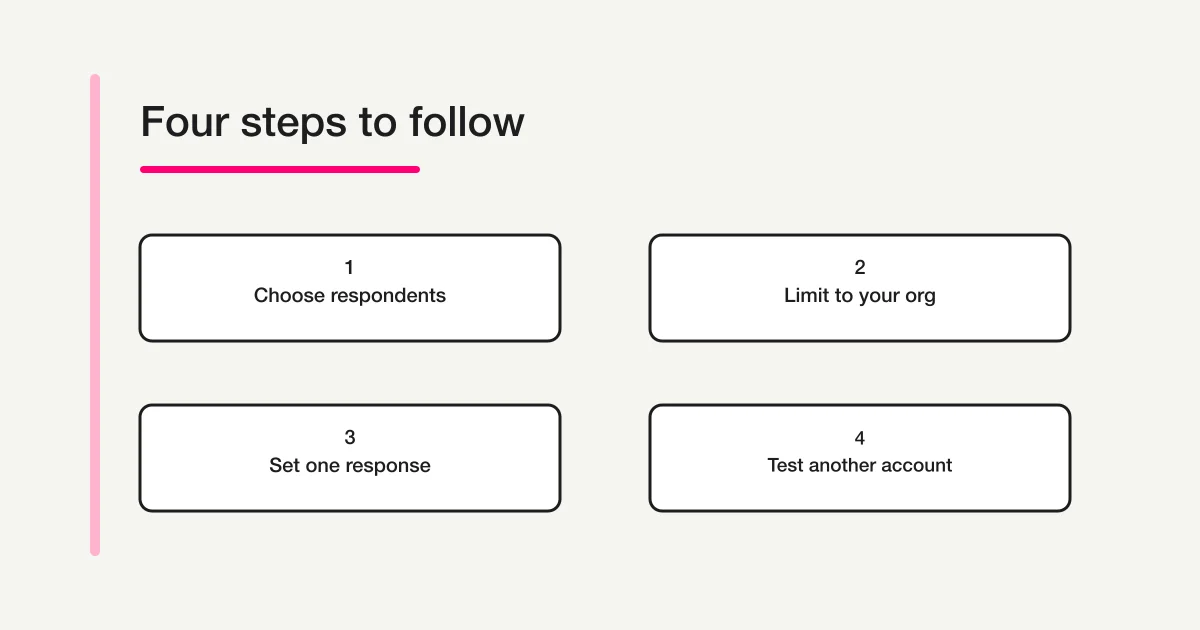
A practical setup sequence is:
- Open the form in edit mode and go to its response or collection settings.
- Choose Only people in my organization can respond, or choose Specific people in my organization can respond if only a named internal audience should participate.
- Enable One response per person where the option is presented.
- Decide separately whether to enable name recording. Do not treat that choice as the duplicate-prevention control.
- Review any start date, end date, and acceptance-of-responses settings before distributing the form.
- Save or close the settings as Forms requires, then test the actual response link.
If you cannot find the one-response control, check the selected audience first. It may not be offered for the audience mode or account you are using. Confirm that you are signed into the expected work or school account, and ask your Microsoft 365 administrator whether the relevant Forms options are available in your tenant. Do not tell respondents that repeat submissions are blocked until a test confirms the behavior for your configuration.
One response is not the same as recording names
The response limit and name recording solve different problems. One response per person governs repeat submissions for the supported audience mode. Record name affects whether respondent identity is associated with the answers. A form can be configured to restrict each eligible person to one response while separately choosing whether names are recorded, subject to the controls available in that account.
Do not promise anonymity solely because names are not recorded. Microsoft’s guidance on setting up a survey so names are not recorded warns that details in answers, a small respondent group, or other context can still make someone identifiable. A free-text answer might include a team, job title, event, or incident that points to one person even without a name field.
Before inviting respondents, make the form description match its actual settings. Explain who can respond, whether sign-in is required, whether names are recorded, and how answers will be used. If you need a genuinely confidential process, review the questions and distribution context as well as the Forms toggles. Avoid asking for identifying details that are not needed.
For a useful test, submit one response using a test account and inspect what identity information is attached in the response view. This checks what the form owner can see; it does not by itself prove that a respondent is anonymous to every system or administrator. If the form is sensitive, use your organization’s privacy review process before collection.
Test the restriction before sharing
A preview helps you review what respondents see, but a preview alone may not exercise the same sign-in and duplicate checks as a real submission. Test with the same access path you plan to distribute, using accounts that reflect the allowed audience.
A simple pre-share check can cover:
| Test | What to confirm |
|---|---|
| Eligible account | A person in the selected organization can open the link and submit. |
| Second attempt | The same account cannot submit a second response when the control is enabled. |
| Unapproved account | A person outside the permitted audience is asked to sign in, denied, or otherwise prevented from responding as expected. |
| Name recording | The response record matches your stated choice about recording names. |
| Invitation wording | The link recipient can understand whether the form is internal, named-audience, or public. |
Use a test form or remove test data before opening a real collection. If you test on the live form, keep the submission identifiable as a test where appropriate and delete it only if your process allows that. Avoid asking a colleague to test with a real response that could affect reporting or eligibility.
If the same account appears able to submit twice, stop distribution and recheck the audience, selected setting, account used for the first and second attempts, and any changes made after testing. A person using two different accounts may be treated as two identities; the setting should not be described as a guarantee against deliberate identity switching.
If people report they cannot open the form, check whether the link was sent to the account they used to sign in and whether that account belongs to the allowed organization. “Anyone can respond” and organization-only access are different distribution models, not interchangeable troubleshooting choices. Changing to a broader audience may also change whether one-response control is available.
When the setting is unavailable or unsuitable
If your respondents include customers, suppliers, or event guests outside your Microsoft 365 organization, the organization-only options may not fit. You can still use a public form, but do not represent it as enforcing one response per person unless the current settings in your account explicitly support that behavior and your test confirms it.
Consider what duplicate prevention actually needs to accomplish. For a low-risk poll, a clear instruction and manual review might be enough. For a registration, eligibility check, or incentive, duplicates may have consequences; use an enrollment process that can verify a stable identity, and explain the requirement before collecting personal data. Do not collect email addresses or other identifiers without a clear purpose and an appropriate privacy notice.
If your need is a fixed total quota, use a separate collection-closing process. Microsoft Forms also has account-dependent response limits, which are different from the one-person rule. See the Microsoft Forms limits and response-cap guide for the broader product limits and high-volume considerations.
Important caveat above 50,000 responses
Microsoft’s form, question, response, and character limits page describes a limit to the one-response-per-person behavior: it is enforced within a continuous set of 50,000 responses, and Microsoft does not guarantee the rule across the full data set beyond that point. This is a scale caveat, not a setup step.
Most form owners looking for a simple internal survey setting will not need to redesign around that threshold. But if one-response enforcement is a hard requirement for a very large or long-running collection, do not treat the Forms setting as an unlimited deduplication system. Plan how submissions will be identified and monitored before the form approaches that scale. The same Microsoft limits page lists other features affected above 50,000 responses; our Microsoft Forms limits and response-cap guide explains those broader constraints.
Quick checklist
Before you share the form, confirm each statement that applies:
- The selected audience matches the people who will receive the link.
- Respondents can sign in with the account required by that audience mode.
- One response per person is enabled where Microsoft offers it.
- Name recording is a deliberate, separate choice.
- The form description accurately explains access, identity, and answer use.
- A test account can submit once and cannot submit again under the same identity.
- Any total response cap has its own collection-closing plan.
- Microsoft’s limits for collections that exceed 50,000 responses have been reviewed if the form could reach that scale.
For the wider Microsoft Forms workflow—including creating a survey, sharing it in Teams, and reviewing results—see the Microsoft Forms survey guide. If you are trying to return to a response you already submitted, see How to Check Your Own Microsoft Forms Response; respondent receipt behavior is a different topic from an owner’s one-response setting.
Sources
- Microsoft Support: Choose who can fill out a form or quiz
- Microsoft Support: Adjust your form or quiz settings
- Microsoft Support: Set up your survey so names aren't recorded
- Microsoft Support: Form, question, response, and character limits
Disclosure and Verification
Microsoft Support’s current pages on audience settings, form settings, anonymous surveys, and response limits were reviewed on October 1, 2026. Microsoft can change the interface and account eligibility, so check the linked instructions in your own tenant before sharing a form. This guide does not claim a hands-on test in a Microsoft 365 tenant; test with the accounts and audience that will use your form.