You submitted a Microsoft Forms survey, registration, or application. A moment later, you realize you need to check what you entered or keep a copy for your records. If you close the completion page too quickly, it may be unclear whether reopening the form will show your answers, whether Microsoft will send a confirmation email, or whether the form owner can provide a copy.
The key distinction is between a respondent's receipt and the form owner's response report. Microsoft Forms can let a respondent print or download a PDF from the completion page when the form is configured for receipts (Microsoft’s receipt instructions). An email receipt is also available under particular conditions, including an eligible organization setting. These options do not mean every response is automatically saved to a personal Microsoft account history. Nor does a receipt necessarily let you edit a submitted answer.
This guide explains what to do while the completion page is still open, how to look for an email receipt, and how to ask the form owner for help without submitting twice. For the creator's workflow for viewing individual results or exporting them, see our Microsoft Forms survey guide. For the respondent receipt flow in Google Forms, see how to check your own Google Forms response. For general form creation by use case, see the form creation guide.
The short answer: save the receipt before closing the completion page
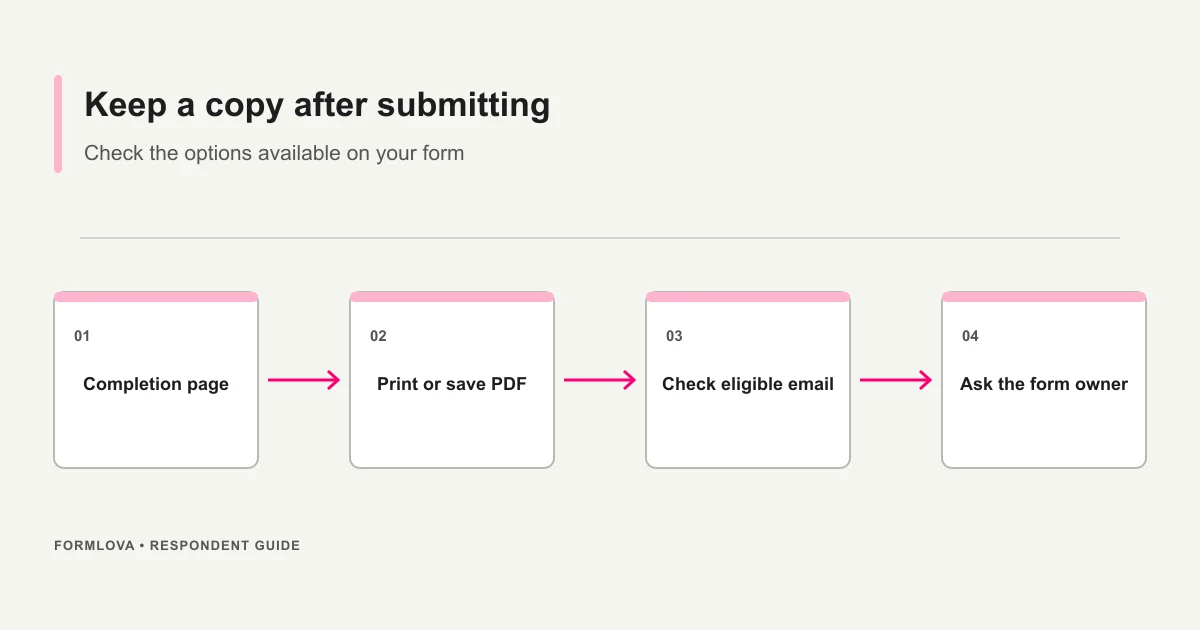
Immediately after submitting, leave the completion page open and look for an option to print or download a response receipt. Depending on the form and current interface, it may be described as a receipt, a response copy, printing, or downloading. Use the page's available control to create a PDF or print a paper copy. Interface labels can change, so follow the action shown on the current completion page rather than relying on one exact button name.
Email receipts have separate requirements. Microsoft's guidance describes receipts for respondents in an organization when the form records the respondent's name and the form owner allows response receipts. A person responding anonymously or from outside that organization should not assume an email receipt will be available. The owner controls the form settings; the respondent generally cannot enable the feature for themselves after submission.
If the completion page is already closed and no receipt can be found, reopening the same public form link does not guarantee that your prior answers will appear. Check the mailbox associated with the account you used, then contact the owner before submitting again.
Save a PDF from the completion page
The completion page appears after the form accepts a submission. Before closing the tab, look for a response receipt action. If the owner has enabled the relevant option, Microsoft Forms lets respondents print or download a PDF copy of their answers from that page. The copy can help you remember the details you submitted, refer to them later, or keep a record alongside other application documents.
A typical sequence is:
- Submit the form and wait until the completion page appears.
- Look for the receipt, print, or download option on that page.
- Choose to print or download the response copy.
- If a print dialog opens, select a PDF destination when available, or choose the printer you intend to use.
- Open the saved file and confirm that the questions and answers are readable before closing the tab.
The available controls can vary by account, device, browser, and changes to the Forms interface. On a computer, the browser or operating system may provide a “Save as PDF” destination in the print dialog. A mobile device may show a share or print sheet instead. If there is no receipt action on the completion page, do not assume that refreshing or reopening the form will recreate it. Continue with the email and owner checks below.
Before saving, think about where the file will go. A shared workstation, public kiosk, or family device may store downloads where another person can access them. Work or school policies may require using an approved folder or may prohibit keeping certain response data locally. Choose a secure location and use a filename that helps you find the file without exposing sensitive answers. For example, a date and a generic form label are usually safer than a filename containing a medical condition, account number, or another respondent's information.
A PDF is a record of the submitted answers at that moment. It does not by itself prove that an application was approved, a payment was completed, or a response was accepted under a separate organization's rules. If you need a formal confirmation, reference number, signed document, or approval notice, follow the instructions given by the form's owner.
Check the saved copy
After the PDF is created, open it once. Confirm that the file is not blank, that the important text is legible, and that any long answer or multi-page content is present. If the browser prints only the visible portion of a page, try the offered download action or contact the form owner for an accessible copy. Avoid editing the receipt and then presenting the edited file as the original submission.
If the copy contains personal or confidential information, limit access to people who need it. Do not upload it to a public file-sharing link just to make it easy to retrieve. When you share it with an owner or administrator, check the recipient address and consider whether the entire response needs to be sent or whether a smaller detail will answer the question.
When an email receipt is available
Microsoft Forms has a setting that can allow respondents to request an email receipt after they submit. It is not a universal email confirmation that every form sends to every respondent. Microsoft’s Forms settings instructions describe the setting for people responding within their organization, with the respondent’s name recorded and response receipts allowed by the form owner. The audience and response-receipt guide outlines who can respond and the related settings. The wording and available controls may vary as Microsoft updates the product or as an organization's administrator applies policy.
The owner prepares this capability in the form settings. A respondent usually cannot turn on response receipts for a form they do not manage. On an eligible form, a receipt choice may appear after submission. If you see it, select it while you are on the completion page. The message may arrive in the organizational mailbox for the account used to respond; it may not be sent to a personal address that you prefer.
| Setting or detail | What to verify |
|---|---|
| Respondent scope | The form is limited to an eligible organization audience when required. |
| Name recording | The owner has enabled recording the respondent's name. |
| Response receipts | The owner has allowed receipts after submission. |
| Account used | You are signed in with the organization account that submitted the response. |
| Delivery | Check the inbox, junk folder, and any organization quarantine or filtering area. |
If an expected message does not arrive, several explanations are possible: the form was not configured for receipts, the respondent was outside the eligible group, the prompt was not selected, the address is different, or delivery is delayed or filtered. A missing email alone does not establish that the form failed to receive your answers. Confirm the submission state separately with the owner.
A notification email to the form owner is another feature. It can tell the owner that a new response arrived. It is not the same as an email receipt to the respondent. If the owner tells you that they received a notification, that does not prove an email copy was sent to you.
If you have both a work and personal account
Check the account that was active when you submitted. The form may have required a work or school sign-in, while your browser now opens a personal mailbox by default. Sign out only if you know how to return to the correct account, and avoid switching accounts in a way that could expose a shared device. If you cannot tell which account was used, include that uncertainty when contacting the owner rather than guessing and sending the same response again.
Some forms are set so only people in a particular organization can respond. Others may allow anyone with the link or a named group. Those audience choices affect who can submit; they do not create a universal respondent history page. A person who can open a form link is not necessarily able to view the form owner's response data.
If you already closed the completion page
Use a careful sequence before taking another action:
- Search the mailbox you used. Search by the form title, the organization name, or “Microsoft Forms.” Also check junk mail, deleted messages, and any quarantine folder available to you.
- Confirm the account. If you have multiple work, school, or personal accounts, inspect the mailbox associated with the account that was active during submission.
- Review your browser state cautiously. The original tab or browser history might still reopen a completion page, but this is not guaranteed. Avoid pressing a submit button or refreshing a form if you are unsure whether that could start another response.
- Contact the form owner. Provide the form name, approximate submission time and time zone, and the account or respondent category you used. Ask whether the response was received and whether a copy can be provided.
- Wait for guidance before resubmitting. If the deadline is near, tell the owner and use the contact channel included in the form instructions. Ask how to handle a possible duplicate.
A short message is usually enough:
Subject: Check on my Microsoft Forms submission

Form name: [name]
Approximate submission time: [date, time, time zone]
Account used: [work or school account, if known]
Request: Could you confirm whether the response was received and whether a receipt copy is available?
Share only information needed to identify the submission. Do not send your password, a sign-in code, or the full response if the form owner does not need it. Use the contact address or channel given by the organization rather than an address found in an unrelated message.
Does opening the same link show my previous response?
Do not count on it. A form link is primarily an entry point for responding, and it may not return a respondent to a private history of submitted answers. The owner's settings can limit a person to one response, permit multiple submissions, or allow edits under particular conditions. If multiple responses are permitted, opening the link and submitting again could create a second response instead of showing the first one.
Microsoft Forms does not guarantee a personal account page that lists every form you answered. A signed-in Microsoft account, the browser's history, and the owner's response report serve different purposes. If you need a reusable copy, save the completion-page receipt when offered or request the owner's instructions before you send the response.
If you need to correct an answer
A receipt is a snapshot, not necessarily an editing link. Some forms may offer an edit path or send a link that supports revisiting a response; the existence and behavior of that option depend on the form and its configuration. Check the completion page and any receipt message for an explicit edit link. Do not assume that a PDF can be used to change the stored response.
If you cannot find an edit option, contact the owner and ask what correction process to use. Include the form name, approximate submission time, and the question that needs correction. Avoid sending more personal details than required to locate the response. The owner may be able to update a record, reopen a correction flow, or ask you to submit a replacement. Ask whether the original should remain and how duplicates will be handled before sending another response.
For time-sensitive forms, mention the deadline and the corrected value in the communication channel specified by the organization. Keep the original receipt if you have one. It can help both parties compare the submitted version with the correction, but it should be handled as potentially sensitive information.
Your receipt is not the creator's response report
The form owner's “View responses” or individual-results screen is different from a respondent's receipt. Owners and collaborators with suitable access can review results, inspect individual submissions, and in some cases open the results in Excel, as described in Microsoft’s view results guide. This does not mean respondents can browse the full response report from their personal account. The report may contain other people's information and remains subject to the owner's permissions and organizational policy.
If you contact the owner, ask for the specific information you need. The owner should not send an entire spreadsheet containing other respondents' answers when a single receipt or confirmation is sufficient. If an organization provides a secure portal or a defined process for access requests, use that process.
Our Microsoft Forms survey guide explains the creator workflow for reviewing responses. This page is about your own copy as a respondent. For QR distribution, see the Microsoft Forms QR code guide. For service limits and alternatives, see Microsoft Forms limitations.
Troubleshooting checklist
| What happened | What to do next |
|---|---|
| The completion page is still open | Look for the print or download receipt action and save the PDF. |
| You expected an email | Check the correct organizational mailbox, junk, and quarantine; then ask whether receipts were enabled. |
| The page was closed | Search your mailbox and contact the owner before responding again. |
| You want to edit an answer | Look for an explicit edit link; otherwise ask the owner for the correction process. |
| You are unsure whether the response arrived | Share the form name and approximate time and request confirmation. |
| You answered anonymously | The owner may not be able to identify your response; provide a time or reference number if available. |
| You used a shared or public device | Check downloads and sign-in state, then remove local copies according to the device rules. |
For anonymous responses, the owner may not have a name or account associated with each submission. That can make it harder to find one person's answer. If the form provided a confirmation number, include it. Otherwise, give an approximate time and any non-sensitive details the owner requests. Do not guess at another person's data or share a full answer unnecessarily to establish identity.
Frequently asked questions
Does Microsoft Forms always email me a copy?
No. An owner must allow response receipts, and Microsoft documents conditions for eligible organization respondents when names are recorded. An owner's notification about a new response is separate and does not send a copy to the respondent. Use the completion page or ask the owner if the email receipt option was unavailable.
Can I save a PDF if I use a personal account?
If the completion page offers a response receipt and print or download action, you may be able to save it through the browser's print interface. Email receipt eligibility is a separate question and can be more restricted. Check the form's audience and settings rather than assuming all receipt options work for every account.
Can the owner resend my receipt?
Possibly, but it is not guaranteed. The owner must be able to identify your response and be permitted to share it. Anonymous responses may be difficult to match to a person. Ask using the official contact channel and provide only the information needed to locate the submission.
Will a receipt let me edit my answers?
Not necessarily. A PDF is a copy of what you submitted. Editing depends on an explicit edit feature or link configured for that form. Look for that link in the completion page or email, and contact the owner if you need to correct a response.
Does the owner's email notification mean my response copy was sent?
No. A new-response notification informs the owner. A respondent receipt is a different feature with its own settings and eligibility. Confirm your own receipt separately.
Summary
To keep a copy of a Microsoft Forms submission, look for the print or download receipt on the completion page before closing it. Email receipts depend on the form owner's settings and the respondent's eligibility; they are not automatically sent for every form. If you closed the page, check the correct mailbox and then contact the owner with the form name and approximate submission time. Do not submit again until you know whether the first response was received.
If you create forms as well as respond to them and need a clearer way to manage incoming submissions, you can sign up for FORMLOVA for free.
Disclosure and Verification
This guide was checked on September 25, 2026, against Microsoft Support instructions for printing or downloading response receipts, adjusting form settings, choosing who can respond, and viewing form results. Interface labels and account policies may change. Only the owner of a specific form can confirm whether an individual submission was received.