
Last updated: August 28, 2026
Google Forms conditional logic works by sending a respondent to a different section based on one answer. Divide the form into sections, use a Multiple choice or Dropdown question as the branching question, and select Go to section based on answer. Each option can lead to a named section or to Submit form.
That boundary matters. Native Google Forms logic does not independently show or hide any question on the current page. It selects the next section. A Checkbox question cannot be the branching source, and the editor does not provide an AND/OR rule builder that combines several answers.
This guide uses a contact form to build one complete branching flow. It then tests every route and explains what to do when native section branching is not expressive enough.
The short answer: what native Google Forms branching can do
| Requirement | Native support | Recommended setup |
|---|---|---|
| Change the next group of questions from one answer | Yes | Assign each option to a destination section |
| End the form for one option | Yes | Choose Submit form as that option's destination |
| Branch from a Multiple choice question | Yes | Turn on Go to section based on answer |
| Branch from a Dropdown question | Yes | Turn on Go to section based on answer |
| Branch from a Checkbox question | No | Ask for one primary route first, then collect multiple values later |
| Show or hide one field in the same section | Not directly | Put that field in its own section or use another form system |
| Combine two answers with AND or OR | No native rule builder | Simplify the route question or use a conditional rule engine |
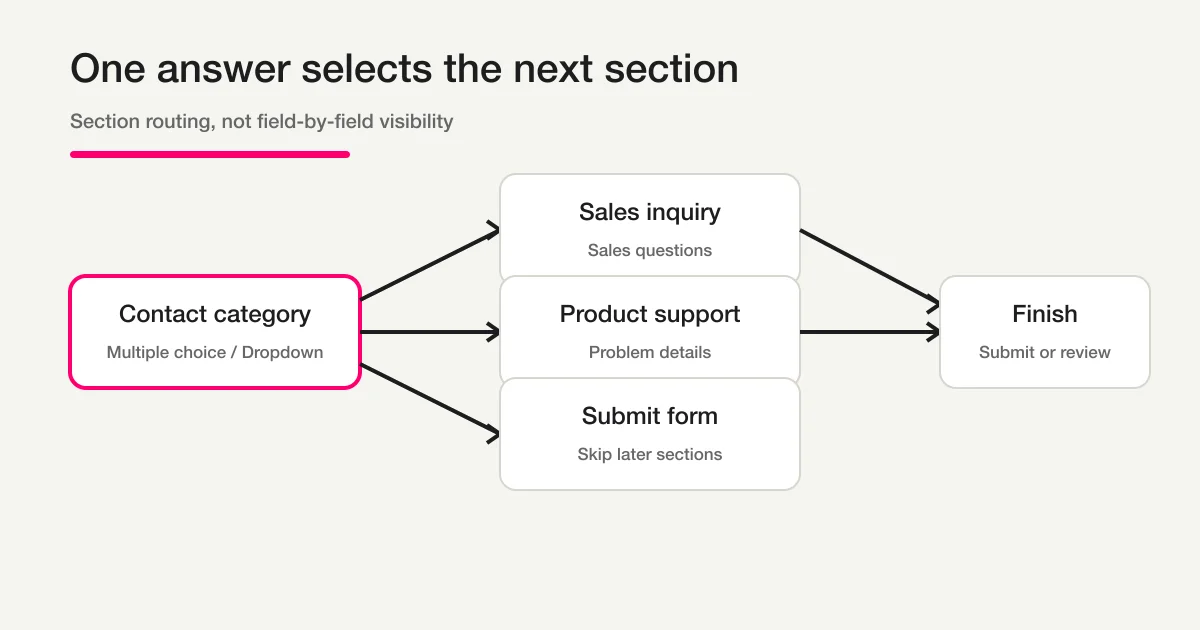
The diagram describes the real model without imitating the private editor interface. One answer chooses a destination. Questions appear because they belong to that destination section.
Step 1: create the sections before adding branching
Write the respondent journey as a small route map before touching the logic controls. For a contact form, a practical structure is:
- Contact details: name, email, and contact category
- Sales inquiry: company, goal, and intended timeline
- Product support: affected feature, problem description, and reproduction steps
- Final details: optional context and preferred contact time
In the Google Forms editor, use the section control on the right to add each section. Move the related questions into the correct section. Give every section a respondent-facing name, rather than leaving generic names such as “Section 2.” Clear names make both the form and the branching menu easier to review.
At the bottom of a section, Google Forms lets you choose what happens after that section. The Sales and Product support sections can both continue to Final details. The final section can submit normally.
Do not add complicated branches yet. First prove that the form has one complete route for each audience. If Sales and Support questions remain in the same section, the branch cannot selectively skip one group while showing the other.
This separation also makes required questions safer. A required question in a section the respondent never visits should not block another route. A required question placed in a shared section will apply to everyone who reaches that section.
Step 2: use a Multiple choice or Dropdown routing question
In Contact details, add a question such as “What can we help you with?” Use Multiple choice or Dropdown. Google's current help names these as the supported question types for Go to section based on answer.
For example:
- I want to discuss a purchase
- I need help with a product I use
- Neither of these
Do not use Checkboxes for the routing question. A checkbox answer can contain several selected values, while native section branching needs one destination. If the respondent genuinely needs to select several topics, ask for the single primary reason first. Collect additional topics with checkboxes inside the selected section.
This is more than a workaround. It improves the data model. The first answer becomes a clear route or owner category. The later checkbox answers describe secondary needs without forcing the form to choose several incompatible next sections.
Avoid options that overlap. “Sales,” “Pricing,” and “New account” may all represent the same route. If two options lead to the same section, that is allowed, but the respondent should still understand why the options are distinct. If they do not support different reporting or follow-up, merge them.
Step 3: assign Go to section based on answer destinations
Select the routing question. Open its additional settings and choose Go to section based on answer. A destination selector appears beside each answer option.
Map the contact example like this:
| Answer option | Destination |
|---|---|
| I want to discuss a purchase | Sales inquiry |
| I need help with a product I use | Product support |
| Neither of these | Submit form |
Submit form ends the path after the current page. Use it only when the current section has already collected everything required for that respondent. If everyone must see a privacy acknowledgment, contact preference, or final review question, send every route through the shared Final details section instead.
You can place another supported routing question in a later section and create a second branch. However, each extra branch multiplies the number of complete paths you must test. Start with one level. Keep a route table beside the form so reviewers can compare every option with its destination.
If you are still building the form structure, required fields, and publication settings, use the complete Google Forms setup and publishing guide before adding advanced routes.
After assigning the destinations, read the form from the respondent's perspective. Section names should not expose internal labels. A customer should see “Tell us about your purchase,” not “Route A.” A support respondent should not need to understand your department structure.
Step 4: test every answer path separately
The editor configuration is not proof that the route works. Open Preview and complete the form once for every routing option.
- Choose the purchase option. Confirm that only the Sales inquiry section appears before the shared final section.
- Choose the product-help option. Confirm that the Product support questions appear and the Sales questions do not.
- Choose Neither of these. Confirm that the form submits immediately only if that is the intended result.
- On every path, leave required fields empty once. Confirm that validation appears only for questions on that route.
- Submit harmless test values, then inspect the Responses tab or linked Sheet. Confirm that the resulting columns and blanks are understandable.
Test the Back button too. Choose Sales, move forward, go back, and switch to Support. Confirm that the respondent now sees the Support path. Review what is ultimately stored after the answer changes.
Use unmistakably synthetic data such as “Sales test” and test@example.com. Do not use a real customer's details merely to test a branch. Delete or label test responses according to your operating procedure.
For anonymous research, a route can create a smaller cohort that makes a person easier to infer. Exact timestamps and distinctive text can add further clues. The Google Forms anonymity guide explains how to test what the owner can actually see.
Record the expected routes in a table:
| Test case | Selected answer | Sections shown | Expected finish | Result |
|---|---|---|---|---|
| Sales path | Purchase | Contact, Sales, Final | Submit after Final | Pass / Fail |
| Support path | Product help | Contact, Support, Final | Submit after Final | Pass / Fail |
| Early finish | Neither | Contact only | Submit form | Pass / Fail |
This simple artifact is valuable after later edits. When someone adds an option or moves a required question, rerun the affected routes before publishing again.
Why Google Forms conditional logic is missing or not working
| Symptom | Likely cause | What to check |
|---|---|---|
| Go to section based on answer is missing | The question is Checkboxes, Short answer, or another unsupported type | Change the routing question to Multiple choice or Dropdown |
| The desired question is not a destination | It is not in a separate section | Create a section and move the question group into it |
| Every respondent sees the same next section | Option destinations were not assigned | Check the destination beside every answer option |
| The form submits too early | Submit form is selected for that answer or section | Route to the shared final section instead |
| A route is blocked by an unrelated required question | Questions from different routes share one section | Separate the route-specific questions into sections |
| Sheet output is confusing after an edit | Questions or order changed after earlier tests | Submit a new test response and document the current columns |
When the form also uses linked Sheets or Apps Script, separate an in-form routing defect from a post-submission automation defect. First prove that the correct sections appear and the response submits. Then inspect the linked Sheet and any script triggers. The Google Forms, Sheets, and Apps Script operations guide provides the broader responsibility map.
Boundaries: checkboxes, multiple conditions, and Apps Script
Checkbox conditional logic
Native Google Forms does not offer Go to section based on answer on a Checkboxes question. Asking for one primary category first is usually the cleanest redesign. Put any multi-select details in the chosen section.
If the actual rule is “show this question when A or B is checked,” section branching cannot reproduce that interaction exactly. Consider whether the extra question can be asked to everyone, whether separate forms are clearer, or whether a system with field-level conditional visibility is required.
Multiple conditions with AND or OR
The native editor routes from one Multiple choice or Dropdown answer. It is not a general expression builder for rules such as “business account AND purchase within 90 days” or “student OR nonprofit.”
Before adopting a more complex tool, see whether one explicit route question can summarize the intention. “Which application path applies to you?” may replace several hidden conditions and remain easier for respondents and operators to understand.
If the outcome must depend on already-collected values, document each condition, its priority, and the fallback route. A rule without a fallback creates an ambiguous state when none of the conditions match.
Can Apps Script add the missing in-form logic?
Apps Script is useful for work that happens after submission: checking values, writing to another file, sending a notification, or preparing an email. Treat that as a separate layer from the respondent's in-form experience.
Do not assume a submit trigger can retroactively change which questions the respondent saw. If the requirement is live field visibility during completion, the form interface itself needs to support that behavior. If the requirement is routing the submitted record to a team, post-submission Apps Script may be appropriate.
That distinction prevents a common design mistake: using back-office automation to solve an interaction that must occur before the user submits.
Choosing between Google Forms and FORMLOVA
| Decision point | Native Google Forms | FORMLOVA |
|---|---|---|
| Branching unit | Move between sections | Section routing, page skipping, and field-level visibility |
| Source values | Multiple choice and Dropdown | Single-select, multi-select, text, numeric, and other values |
| Conditions | One answer selects a destination | Equality, containment, comparisons, empty checks, and combined AND/OR rules |
| Setup workflow | Configure sections and destinations in the editor | Describe the intention in chat and verify the preview |
Native Google Forms branching is a strong choice when one answer cleanly determines the next section. Its limitations can be an advantage: a small route table is easier to explain, test, and maintain.
Consider another system only when the requirement is genuinely different, such as showing one field without moving sections, evaluating a checkbox selection, comparing a number, or combining conditions. Complexity should follow a real respondent need, not a desire to demonstrate advanced logic.
Pre-publish checklist
[ ] I drew every section and route before configuring the form.
[ ] The routing question is Multiple choice or Dropdown.
[ ] Every answer option has an explicit destination.
[ ] I reviewed every route that uses Submit form.
[ ] Required questions on one route do not block another route.
[ ] I completed every option in Preview.
[ ] I tested going back and changing the routing answer.
[ ] Test responses appear correctly in Forms and the linked Sheet.
[ ] I used synthetic data rather than personal information.
[ ] I designed response-sharing permissions separately from branching.
Conditional logic decides what a respondent sees. It does not decide who can view the collected responses. Compare collaborator access, response summaries, and view-only Sheets in the guide to sharing Google Forms responses safely.
Frequently asked questions
Can Google Forms show different questions based on an answer?
Yes. Put the question groups in separate sections, then use a Multiple choice or Dropdown question with Go to section based on answer. Each option can lead to a different section. This is section routing, not direct visibility control for an individual question in the same section.
Where is Go to section based on answer?
Select a Multiple choice or Dropdown question and open its additional settings. Choose Go to section based on answer, then assign a destination beside every option. The control does not appear for unsupported question types.
Can I use checkboxes for Google Forms conditional logic?
Not as the source of native section branching. Ask for one primary route with Multiple choice or Dropdown, then place a Checkbox question inside the destination section if you still need multiple selections.
Can one answer submit the form immediately?
Yes. Choose Submit form as that option's destination. Test the route carefully to make sure it does not skip any consent, contact, or required review question that the respondent must complete.
Can Google Forms combine several answers with AND or OR?
The native editor does not provide a multi-condition AND/OR rule builder. Simplify the routing question, redesign the sections, or use a form system with an explicit conditional rule engine when combined conditions are essential.
Why is my conditional branch not working?
Check three things in order: the routing question must be Multiple choice or Dropdown, the destination questions must be in separate sections, and every answer option must have a destination. Then complete every route in Preview rather than relying on the editor alone.
Disclosure and Verification
I work on FORMLOVA. On August 28, 2026, I verified the Google Forms behavior in this guide against Google's official Show questions based on answers and section creation help. The supported labels are Go to section based on answer, Multiple choice, Dropdown, and Submit form. Interface labels and Workspace controls can change, so test the final form in the account used by your organization. I could not obtain a reproducible authenticated Google Forms screen without personal account context; to avoid publishing a fictional interface, the article uses a flat section-flow diagram instead.
If you need field-level visibility, checkbox values, or combined conditions, try FORMLOVA for free and describe the branching intention in chat before reviewing the preview.