
Last updated: September 27, 2026
You need registration to begin at 9:00 a.m. on October 1, but the person who normally opens the form may not be available at that exact moment. You can prepare the form ahead of time and schedule a change to its response status so people can submit only when the opening time arrives.
Google's current response-management help explains how to turn off accepting responses, set a close date, or set a response limit. It does not describe a native control for scheduling the start of responses. For a scheduled opening, one option is a time-driven trigger in Google Apps Script that changes the form's response status.
This guide separates publication and audience access from accepting responses. It also treats a trigger as an automation that needs testing and monitoring, not as a strict, second-by-second scheduling guarantee. If your form also needs a closing condition or a strict capacity control, decide those separately.
First, separate publication from the response state
Responders must be able to open the form, and the form must be accepting responses. Those are related but separate conditions. Sharing or publishing settings determine who can reach the responder link. The response setting determines whether the form currently accepts submissions. The Apps Script Form API notes that changing a form’s publishing state can overwrite its response-accepting state. If you change the publishing state after setting up a trigger, recheck the form and schedule.
Google's official View and manage form responses help describes how to stop a published form from accepting responses, set a close date, or set a response limit. It does not list a scheduled opening step. That is a conclusion about the controls described in this help page, not a claim that no future product change could add one. Check the current editor before you configure a form because product interfaces can change.
| What you need | Start with | How it relates to this guide |
|---|---|---|
| Begin collecting responses now | Publish the form and turn on Accepting responses | A manual change may be enough |
| Begin collecting responses at a future time | A one-time Apps Script time-driven trigger | The main subject here |
| Stop at a date and time | Google's native close-date setting | See the close-date guide |
| Stop around a response count | Google's native response limit | See the same guide; it is not a strict seat guarantee |
| Open and close on a repeating schedule | Consider a recurring trigger or a managed workflow | Design ownership and monitoring first |
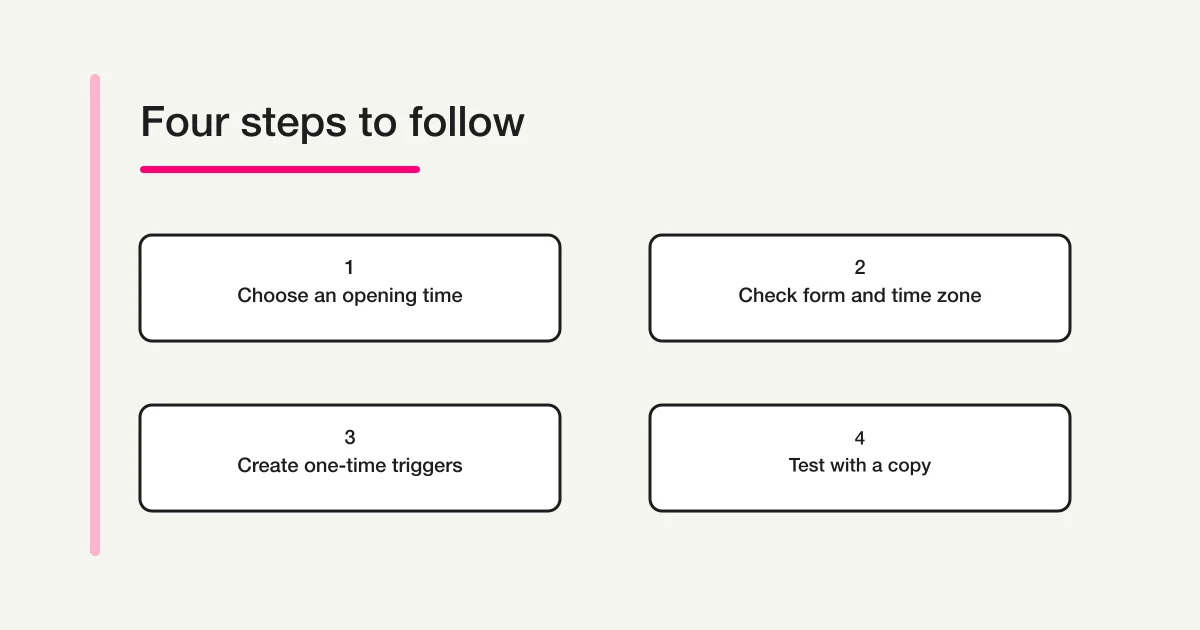
Decide four things before scheduling
Write down the responder URL, who may access it, the opening time, and the rule that will end the collection period. If the form is limited to people in an organization, an external participant may still be blocked after the opening trigger runs. If the form is broadly accessible and nobody remembers to stop responses, submissions may continue beyond the intended window.
Choose a time with an explicit time zone. For a Japan-based event, you could use 2026-10-01T09:00:00+09:00. The Apps Script project also has a time-zone setting. Set that to Asia/Tokyo and verify the trigger's execution history against the intended local time. Avoid a value such as 2026-10-01 09:00 without a zone because the environment interpreting it may not be obvious.
| Decision | Example value | Why it matters |
|---|---|---|
| Opening time | Date, time, and time zone | Avoids a mismatch between the announcement and script |
| Closing rule | Close date, response limit, or manual stop | Prevents the form from remaining open indefinitely |
| Trigger owner | One authorized Google account | Installable triggers run with their creator's authorization |
| Exception owner | A person who checks status and handles failure | A failed trigger may not be visible in the form editor |
Treat opening and closing as separate actions. A script that turns on response collection does not automatically create an end condition. A complete window may keep the form closed before the event, open it at the start, and close it later through a second trigger or Google's native close-date setting.
Schedule a one-time opening with Apps Script
The Apps Script Forms Form API provides FormApp.openById() to open a form and setAcceptingResponses(enabled) to change whether it accepts submissions. Google's installable trigger guide describes clock-based triggers and explains that an installable trigger runs with the authorization of the account that created it. The ClockTriggerBuilder reference documents at(date) for creating a one-time trigger at a specified date.
The example below schedules one opening and one closing for a single form. Replace the form ID and timestamps, and test with a disposable copy first. It removes earlier triggers in the same project only when their handler names match the two functions shown. A different account's triggers will not appear in this project's trigger list, so assign one account to own the schedule.
const FORM_ID = 'replace-with-form-id';
const OPEN_AT = '2026-10-01T09:00:00+09:00';
const CLOSE_AT = '2026-10-01T17:00:00+09:00';

function scheduleResponseWindow() {
  const now = Date.now();
  const openAt = new Date(OPEN_AT);
  const closeAt = new Date(CLOSE_AT);
  if (Number.isNaN(openAt.getTime()) || Number.isNaN(closeAt.getTime())) {
    throw new Error('Check the timestamps');
  }
  if (openAt.getTime() <= now + 10 * 60 * 1000 || closeAt <= openAt) {
    throw new Error('Allow at least ten minutes and put closing after opening');
  }

  const form = FormApp.openById(FORM_ID);
  const handlers = ['openScheduledForm', 'closeScheduledForm'];
  ScriptApp.getProjectTriggers()
    .filter((trigger) => handlers.includes(trigger.getHandlerFunction()))
    .forEach((trigger) => ScriptApp.deleteTrigger(trigger));

  try {
    ScriptApp.newTrigger('openScheduledForm').timeBased().at(openAt).create();
    ScriptApp.newTrigger('closeScheduledForm').timeBased().at(closeAt).create();
  } catch (error) {
    ScriptApp.getProjectTriggers()
      .filter((trigger) => handlers.includes(trigger.getHandlerFunction()))
      .forEach((trigger) => ScriptApp.deleteTrigger(trigger));
    throw error;
  }

  form.setAcceptingResponses(false);
}

function openScheduledForm() {
  FormApp.openById(FORM_ID).setAcceptingResponses(true);
}

function closeScheduledForm() {
  FormApp.openById(FORM_ID).setAcceptingResponses(false);
}
The form ID is the string between /d/ and /edit in the editor URL. Run scheduleResponseWindow() manually once from the script editor. Google will ask for authorization to access the form and create triggers. The authorizing account needs edit access. Then check that the function completed and both triggers appear in the trigger list. An authorization screen alone does not prove that a schedule exists.
The example requires the opening to be more than ten minutes away and the closing to occur after the opening. It creates both triggers before setting the form to closed, then cleans up these handler triggers if creation throws an error. Trigger creation and a form-state update cannot be combined into one atomic transaction. If a partial failure occurs, inspect the form and execution history before retrying. Do not assume that the schedule is complete because one trigger appears.
Handle the time zone and trigger owner
A timestamp such as 2026-10-01T09:00:00+09:00 identifies an unambiguous moment. Set the project time zone to Asia/Tokyo as well, especially when humans review the schedule in the editor. During testing, compare the chosen local time with the execution history rather than relying on the text in the script alone.
An installable trigger is not a shared job that runs with the permissions of whoever happens to edit the form. Google's documentation says it runs as the account that created it. Other accounts may not see triggers that a different account created. If the owner loses access, leaves the organization, or has their account disabled, the scheduled operation may be interrupted.
Use an account the organization can manage and document who owns its credentials and form permissions. Agree on a handoff procedure before relying on the trigger. Avoid using a personal account that no one else can access. At the same time, give the account only the access needed to operate the target form and keep the user who can edit the Apps Script project limited to trusted maintainers.
Repeated setup runs can create duplicate triggers unless you check for existing ones. The example limits cleanup to the two named handler functions, rather than deleting every trigger in the project. If a project contains unrelated automation, keep its functions distinct or separate the scheduled form into its own Apps Script project. After setup, inspect the trigger list and confirm there is exactly one opening trigger and one closing trigger for this schedule.
Test with a copy and prepare for failures
Testing against the production form can change its response state unexpectedly. Make a copy and schedule the trigger for a time far enough in the future to observe the setup. The test should confirm both the configuration and its effect:
- Open the responder link in a separate browser and verify the intended audience and closed state.
- Set a future opening and closing time, then run the setup function and confirm authorization and successful execution.
- Confirm the trigger list has one opening and one closing trigger.
- After the opening time, reload the responder link and confirm the form accepts responses.
- After the closing time, confirm the form stops accepting responses and shows the expected message.
- Check Apps Script Executions for each handler's status, time, and any errors.
If a trigger fails while no editor is watching, the form itself may not tell you what happened. Google's trigger guide explains that you can inspect execution history to troubleshoot failures. Do not rely solely on an email notification. Assign someone to verify the response state around the opening and closing times. Do not use a time-driven trigger as the guarantee for work that cannot tolerate a minute of delay.
Write down the manual fallback. If the scheduled start passes and the form remains closed, the form editor should check the time, access settings, and trigger history before turning on Accepting responses. If the form opens early, stop responses, note whether submissions arrived, and notify the operating owner. Do not delete responses or change the responder link as an improvised first step.
For a high-stakes event, the checklist can include a person who checks the form five minutes before and after the opening. This is not a substitute for understanding trigger failure; it is a way to notice a problem soon enough to act. If no one can monitor the window and the exact start time is essential, consider whether Google Forms plus a personal automation is the right operating model.
Test the opening and closing separately
A scheduled opening does not decide how the form should close. If the form must stop on a date or after a response count, first see whether Google's native setting is sufficient. The Google Forms close-date guide explains the close date, response limit, manual stop, and the possibility that simultaneous responses can take the total past a configured limit.
A whole-form response limit counts submissions. It is not a separate seat limit for each answer option, nor does it guarantee that two people submitting at exactly the same time cannot pass the configured count. If a single over-capacity registration would create a financial or safety issue, do not assume that adding an Apps Script trigger makes a response cap atomic. Use a system that reserves capacity and records the response as one operation.
If you choose both a native close date and a scripted close trigger, document which is authoritative and test the exact behavior. Two separate controls can be useful as a backup, but they can also confuse the owner when one says the form should be open and another says it should be closed. Decide whether a manual stop is allowed and who can override it.
Frequently asked questions
Does Google Forms have a native opening-time setting?
The Google response-help page reviewed for this guide explains manual stopping, a close date, and a response limit; it does not give a scheduled-opening procedure. Product interfaces can change, so check the current form editor. If you need to automate the start, Apps Script is one option.
Can I keep the form unpublished and publish it at the opening time?
Sharing and publication settings are separate from the response status. This guide assumes you configure who may access the responder link in advance, then change whether the form accepts responses. Confirm the intended audience before distributing the link. A form that is open to responses may still be inaccessible to people outside the permitted organization. If you change the publishing state after creating the trigger, verify the response state again because the API documentation says that publishing changes can overwrite it.
Can I schedule both opening and closing?
Yes, Apps Script can create one time-driven trigger for each action. Google's native close-date control may also be a simpler closing option. Choose one owner for the closing behavior and test the combination so the script, form, and announcement do not disagree.
Will a trigger always run in the exact minute I choose?
Do not treat a trigger as a guarantee of exact-second execution. Review the execution record and the form's actual state. If being late is unacceptable, assign a person to monitor the window or use an operation designed for that timing requirement. Avoid making a payment or strict capacity promise based only on the trigger.
Can I use a recurring trigger for weekly registrations?
Apps Script also supports recurring time-driven triggers, but repeated schedules bring more operational questions: holidays, exception dates, owner access, quota limits, and failure monitoring. First confirm that you need a repeating rule. Test it in a copy and document who checks each cycle. The broader boundary between Forms, Sheets, and Apps Script is covered in the Google Forms, Sheets, and Apps Script operations guide.
Disclosure and Verification
Reviewed on September 27, 2026. The Apps Script behavior described here is based on Google's Form API, installable trigger guide, and ClockTriggerBuilder reference. The description of current native controls refers to Google's response-management help. The statement that this help does not provide a scheduled-opening step is limited to the controls documented on that page. Interfaces and availability can change, so check the form editor before following the steps.
Summary
To begin accepting responses at a chosen time, set the responder access separately and call setAcceptingResponses(true) from a one-time Apps Script trigger. Confirm the form ID, trigger owner, time zone, and end condition. Test both opening and closing on a copy, review execution history, and prepare a human fallback before relying on the schedule.
If you are also reviewing how to manage responses after the opening time, you can try FORMLOVA for free.