
How to Use Branching in Microsoft Forms: Routes, Limits, and Testing
Microsoft Forms branching changes which question a respondent sees next based on an earlier answer. It is useful when a questionnaire has follow-up questions that apply only to some people—for example, asking for delivery details only after someone chooses “Ship to me.”
The most important constraint is directional: a branch can move a respondent to a later question or section, but it cannot send them back to a question they have already passed. Build the full question sequence first, then configure the routes and preview each answer path before you share the form. Microsoft’s current instructions are in Use branching logic in your form.
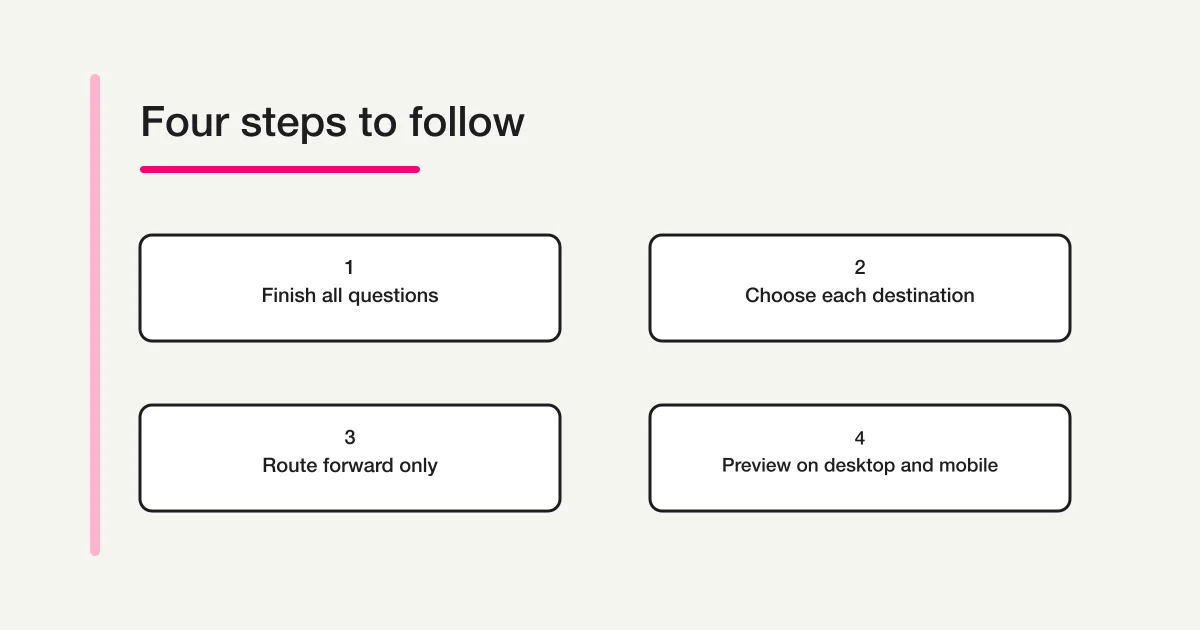
This guide focuses on branching itself. For the broader process of creating a Microsoft Forms survey, sharing it in Teams, and reviewing responses, see the Microsoft Forms survey guide. For branching, the workflow is: plan the paths, finish the questions, set destinations, and test every route.
When branching helps
Without branching, every respondent may see every question, even when a question does not apply. A well-designed route removes those unnecessary steps while keeping the form understandable.
For example, an event feedback form could ask, “Did you attend the workshop?” A “Yes” answer could lead to questions about the speaker and materials. A “No” answer could skip those questions and continue to a general question about future events. Both routes eventually arrive at a shared closing section.
Branching is a good fit when:
- A follow-up question applies only to a particular answer.
- Different respondent groups need different, clearly bounded sections.
- A respondent should skip a block that does not apply and continue to common questions.
- You can describe and test each route before publishing.
It is usually unnecessary for a short form where everyone answers the same questions. Every branch adds another route to maintain. If the route map is hard to explain on paper, it may also be hard for a respondent to understand or for the owner to check later.
Understand the forward-only rule
Microsoft Forms branching moves forward through the form. A destination can be a later question or section, or the end of the form. It cannot be an earlier question. Microsoft also cautions that trying to branch to a previous question can create a poor experience.
That rule affects how you arrange questions. Put shared questions before the point where routes diverge when all respondents should answer them. Put conditional questions after the branching question. Place any shared questions that everyone should answer after the conditional parts, so each path can rejoin at a later point.
Think of the form as a one-way route:
- Ask common questions.
- Ask the question that determines the route.
- Show the applicable follow-up questions or section.
- Continue to a later shared question or submit the form.
Do not design a respondent journey that requires returning to an earlier question to repair or change a decision. If a later answer depends on an earlier detail, collect that detail first, or redesign the questions so the respondent can choose a valid forward route.
Plan the route before editing Forms
Write down each branching question, its answer choices, and the destination for every choice. A small table is often enough:
| Question | Answer | Destination | Why |
|---|---|---|---|
| Did you attend the workshop? | Yes | Workshop feedback | Ask about the session |
| Did you attend the workshop? | No | Future topics | Skip session-specific questions |
| Workshop feedback | Any answer | Future topics | Rejoin the shared route |
| Future topics | Any answer | End of form | Finish the questionnaire |
Check the plan for unreachable questions. If every answer from a question sends respondents around a later question, that question may never be seen. Also look for routes that terminate before required common questions. A simple route map makes these errors visible before you configure the editor.
For each route, identify a realistic test answer. Do not test just the route you expect most respondents to take. Include uncommon answers, “Other” choices if present, and every route that skips a section or ends the form.
Finish the questions first
Create the complete questionnaire before you add branching. This includes the text, answer choices, required settings, and sections. Add the questions in the intended order and check that their wording makes sense even when seen without the questions that a route skips.
This order matters because destinations depend on the later questions and sections already existing. If questions are moved or inserted afterward, return to the branching rules and verify them again. Do not assume a route still points to the intended question just because its label looks familiar.
When the form has several related follow-ups, group them into sections. Sections can make a route easier to reason about and give respondents a clear transition. Microsoft’s sections guide explains how to add and organize them. One trade-off: Microsoft documents that question shuffle is unavailable when a form includes sections. If randomized question order is important, check that constraint before choosing a section-based design.
Use section titles that tell the respondent what the next group is about. Avoid labels that only make sense to the form owner, such as “Branch 2.” A respondent should understand why a follow-up appears without needing to know how the form is built.
Add branching in Microsoft Forms
Microsoft may update its screen labels. The current support steps use the question’s More settings menu and Add branching. Check the official help if the labels in your account differ.
- Open the form in edit mode after all questions and sections are in place.
- Open More settings for the question that determines the route.
- Select Add branching.
- For each answer, choose the question or section that should follow. Select the end of the form when that answer should finish the respondent’s route.
- Repeat for each question that needs a conditional destination.
- Review the entire route map, then use Preview to test it.
Choose the destination for every answer, not just the answer that needs extra questions. An omitted or incorrect destination can lead a respondent into an irrelevant question or prevent them from reaching the intended end. When all options should continue in the normal order, confirm that the default route is correct instead of adding unnecessary exceptions.
Branching to a question or section
Branch to an individual question when one or two follow-ups are conditional and the remaining form is simple. Branch to a section when the follow-up is a group of questions or needs a clear introduction.
Keep destinations after the branching question. If a respondent must skip several questions, send them to the first later question they should see. If paths rejoin, point the end of each branch to the same later shared question or section. Then verify that no route accidentally skips the rejoin point.
Sections can also make a long form easier to scan. They do not change the forward-only rule: a section destination still needs to be later in the sequence. Plan the section order before setting branching, and check each option after moving a section.
Preview every path
Use Preview to experience the form as a respondent. Microsoft Forms provides desktop and mobile preview modes; check both because labels, wrapping, and navigation can feel different on a small screen. Preview is not a substitute for inspecting every branch: it shows the route selected by the answers you enter.
For every route in your plan:
- Start a fresh preview.
- Enter the answer that selects that route.
- Confirm that the next question or section is the one you planned.
- Check that skipped questions were skipped and applicable questions appeared.
- Continue to the shared questions, then confirm that the route reaches the intended end.
- Repeat with the same route in desktop and mobile preview.
Use a checklist or route table to record which combinations you tested. For example, mark the “Yes” and “No” routes separately. If a question has three answer choices with different destinations, test all three. A successful preview of one path does not validate the others.
Also review the question wording on each route. A question that says “Which part of the workshop…” may confuse a respondent who was routed there without attending. Every question should make sense to the people who can reach it.
Before distribution, ask another person who did not build the form to follow the route map. If they cannot predict what will happen after an answer, clarify the question or simplify the branch. For distribution and audience settings, follow Microsoft’s send a form and collect responses guidance. If you distribute by QR code, see the Microsoft Forms QR code guide and test the destination on a phone.
Troubleshoot a route that looks wrong
When a preview shows an unexpected question, check the route from the beginning rather than changing a random destination.
The respondent sees a question that should be skipped
Open the branching rule for the preceding question and inspect the destination assigned to the exact answer you selected. Make sure that answer points to the later question or section where the route should resume. Then repeat the preview from the first branching question.
A follow-up question never appears
Check whether the answer choice points to the intended question and whether an earlier branch sends the respondent past it. Confirm that the destination still matches the question after any rearrangement. If a question is part of a section, check the section destination as well as the individual question rules.
The form ends too early
An answer may be directed to the end of the form. Review that answer’s destination and test the full route again. If the respondent should still answer common questions, send the route to a later shared question or section before the form ends.
The route needs to return to an earlier question
Microsoft Forms does not support a branch to an earlier question. Reorder the form so the common question comes before the decision, or redesign the question sequence so the needed information is collected before the route splits. Do not leave an earlier question in the plan and assume a respondent can go back through branching.
The branch changed after editing
Question or section rearrangement can change the path a respondent follows. Recheck every branch after changing the form’s order, inserting a question, or moving a section. A preview performed before that edit is no longer sufficient evidence for the new arrangement.
Design branches that stay understandable
Keep the question that controls a route direct and easy to answer. Use answer choices that do not overlap. If respondents may not know which choice applies, add a short explanation before asking them to choose.
Keep each conditional group focused. A branch is not a reason to create a separate questionnaire inside the same form if the audience, purpose, or completion rules are substantially different. In that case, separate forms may be easier to explain and maintain.
Do not make a required question reachable only for some respondents unless that is intentional. “Required” affects a person who sees the question; it does not make every branch visit it. If you need a piece of information from everyone, place that question on a shared route that all paths reach.
Record who owns future edits and which paths require retesting. Branch logic is part of the form’s behavior, so a small wording or order change can affect the respondent journey. Retest after any change to branch-driving answers, destinations, question order, or sections.
Quick pre-share checklist
- All questions and sections are in their final order.
- Each answer on a branching question has the intended later destination.
- No route depends on returning to an earlier question.
- Every respondent reaches required shared questions.
- No route ends before its intended completion point.
- Each answer path has been checked in preview.
- Desktop and mobile previews have both been reviewed.
- Questions make sense to respondents who skip earlier sections.
- The sharing audience and link behavior have been checked separately from branching.
If you need to check your own submission after completing a Microsoft Forms questionnaire, see the respondent response guide. For the wider creation and response workflow, return to the Microsoft Forms survey guide.
When a separate form workflow may fit better
Microsoft Forms branching is designed to guide a respondent through a questionnaire. If your requirement is a public-facing form with a distinct branded journey or follow-up workflow, compare the tools against your audience, access rules, and the work after submission. FORMLOVA is an option for teams that need a separate public form workflow; that does not mean it replaces Microsoft Forms in every environment. Start with the actual respondent path and operational requirements.
If you need to create a public form and manage its submissions in one place, you can sign up for FORMLOVA for free and try building that workflow.
FAQ
Can Microsoft Forms send a respondent back to an earlier question?
No. Microsoft Forms branching is forward-only. Reorder the shared question before the branch, or change the form design so respondents do not need to return to an earlier point.
Can I branch to a section?
Yes. Microsoft Forms supports branching to a later section. Sections are useful for related follow-up questions, but the destination still needs to be later in the form. Microsoft also notes that question shuffle is unavailable when sections are used.
Can each answer go to a different question?
Yes. Add branching to the question and select a destination for each answer choice. Review all choices, including the ones that follow the ordinary route, and test each path in Preview.
Why does Preview show only one route?
Preview follows the answers you enter. Start a new preview and choose a different answer at each branching question to check another route. Keep a checklist so no answer combination is missed.
Should I branch every question?
No. Use branching only when it removes questions that do not apply or directs a respondent to a relevant follow-up. If everyone should answer the same questions, a linear form is simpler to test and maintain.
Related guides
- Microsoft Forms survey creation, Teams sharing, and results
- Microsoft Forms QR code: download, share, and test
- How to check your Microsoft Forms response after submitting
- Form creation guide
References
- Use branching logic in your form (Microsoft Support)
- Branch your form or quiz using Microsoft Forms (Microsoft Support)
- Add sections to your survey or questionnaire (Microsoft Support)
- Send a form and collect responses (Microsoft Support)
Disclosure and Verification
This guide was checked on September 26, 2026, against Microsoft Support instructions for branching, adding sections, and previewing a form. Interface labels and product behavior may change. Confirm the current official help and preview every answer route before sharing a form.
Editorial notes
- Writer: Lovanaut, FORMLOVA editorial team
- Primary-source check: September 26, 2026
- Checked scope: Microsoft Forms branching directions, question and section destinations, section behavior, and preview guidance
- Product note: Microsoft may change interface labels and behavior; confirm the official help before a high-stakes collection.
- Search data note: Rakko Keyword estimates retrieved September 26, 2026 are planning references, not observed traffic, guaranteed demand, or a ranking forecast.