
Last updated: 2026-09-28
When a form owner changes roles or leaves a team, adding another editor may not complete the handoff. The Google Form, its linked response spreadsheet, and any Apps Script automation can have separate access and ownership details.
To transfer a Form, first give the next owner editor access. Then open the Form's sharing settings and transfer ownership from the access list. Some account combinations cannot transfer ownership, and a request may remain pending until the recipient accepts it. While it is pending, the original account can still be the owner.
This guide covers the transfer steps and the checks that follow. Treat the response sheet and scripts as separate assets. Changing the Form owner does not automatically make every related file or automation operate under the new person's account.
Start by separating editor access from ownership
An editor can work on a Form. An owner manages the file itself. If two people only need to build questions together, adding an editor may be enough; transferring ownership is a separate action.
Google's official guide to sharing a Form with collaborators says to grant editor access before transferring ownership. It also helps to distinguish starting a transfer from completing it. For personal Google accounts, Google's Drive ownership-transfer guidance says the current owner remains the owner until the recipient accepts. Avoid deleting or disabling the old account before the new owner confirms the transfer.
| Situation | Check in the Form | Next step |
|---|---|---|
| Someone needs to edit with you | They appear as an editor | Decide whether sharing is enough |
| The owner is changing | The next owner has editor access | Start the ownership transfer |
| A transfer was sent | The Form no longer shows a pending state | Wait for acceptance or ask an admin |
| The transfer is complete | The new owner can open the Form | Check the sheet and automation separately |
Transfer ownership from the Form's sharing settings
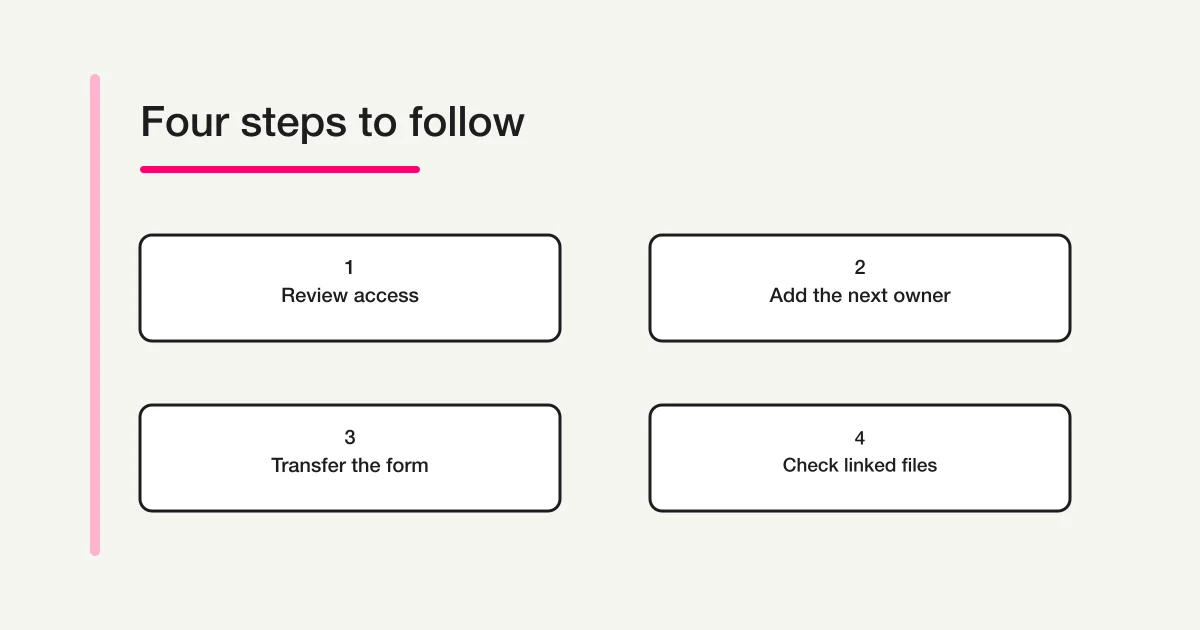
Before changing ownership, confirm which Google account should own the Form and whether it can receive ownership under your organization's rules. Add that account as an editor if it is not already listed. Then use the sharing settings on the Form to transfer ownership.
The steps in Google's current Help page are:
- Add the next owner as an editor of the Form.
- Open the Form's sharing settings and find the person in the access list.
- Open the permission menu beside their name and choose the ownership-transfer option.
- Read the confirmation prompt and confirm the transfer.
- Sign in as the recipient and verify that the transfer is complete; accept it if prompted.
The exact label can vary with interface updates and language settings. Use Google's current Help page if the menu differs. Do not mark the handoff complete just because a request was sent. Confirm that the next owner can open and edit the Form, and review whether the previous owner should remain an editor.
Check account and organization restrictions
If the ownership option is missing or an attempt is rejected, check the account types and file location before changing permissions repeatedly. Google's Drive guidance says a work or school account can transfer ownership only to someone in the same organization. It also says a personal Google account cannot transfer ownership to a work or school account. A Workspace administrator may have a supported way to transfer files when someone changes roles or leaves an organization.
A Form in a shared drive is managed differently from a file in someone's My Drive. A shared drive belongs to an organization, and individual users may not appear as file owners in the same way. If the normal sharing menu does not offer a transfer option, check where the Form is stored and ask the Workspace administrator which handoff method is permitted.
Changing ownership of a folder does not automatically change the ownership of every file inside it. Do not assume that moving a parent folder has transferred the Form or its response spreadsheet. Check the Form and each relevant file on its own.
| What you see | Where to look first | What to verify |
|---|---|---|
| No transfer option | Form sharing settings and Drive location | Is the recipient an editor? Is the file in a shared drive? |
| A transfer to another organization is rejected | Workspace sharing and transfer policy | Is the recipient in the same organization? |
| The request is pending | Recipient notifications and pending Drive items | Has the recipient accepted? |
| Only a folder was transferred | Sharing settings for the Form and each file | Check each file's owner and access |
| The interface looks different | Current Google Help and your administrator | UI changes or organization settings may apply |
If a policy blocks the transfer, ask an administrator about the specific Form, the current and next account, and whether responses are still being collected. Copying the Form may be one option when the ownership change itself is not allowed, but a copy is a new file, not a simple owner swap. Compare the behavior and links described below before choosing it.
Verify the response spreadsheet separately
Do not assume that the response spreadsheet's ownership or access changes with the Form. Google's collaborator guide says Form collaborators get access when a new response spreadsheet is created, but later permission changes on the Form do not necessarily sync to the linked sheet. When access changes, review both files.
Open the Form's Responses tab and follow the link to the spreadsheet. Note its name and URL, then confirm it is the file where the team expects responses to appear. Open that spreadsheet's sharing settings separately. Verify that the new owner can access it and decide whether the former owner still needs access. Keeping a short record of the access lists for both files makes later checks easier.
Also verify where responses currently live: in a linked Sheet or only in the Form. If you do not need to change the response destination as part of the handoff, avoid rebuilding that connection at the same time as the ownership change. First record where existing responses are stored, who can view them, and where a test response should appear.
Sharing response data and repairing the Form-to-Sheets connection are different tasks. See the guides on sharing Google Forms responses and connecting Google Forms to Sheets for those workflows.
Check Apps Script identity and authorization
If Apps Script sends notifications, replies to respondents, or processes submissions, inspect the script project and its triggers. Google's installable trigger documentation explains that an installable trigger runs as the account that created it. One account cannot see triggers installed by another account. Changing the Form owner alone does not change the trigger creator or its authorization.
Confirm that the next operator can access the Apps Script project and authorize the services it needs under their own account. Record the trigger event and function, then review execution history for failures. Keep secrets and connection details in your organization's approved secret store; do not paste them into an article, shared checklist, or transfer email.
If the next owner creates replacement triggers, coordinate the cutover so the old and new triggers do not both process the same submission. In a test Form or with an agreed test response, verify that processing succeeds once, the expected notification arrives once, and the response reaches the expected Sheet. Some services may require the new operator to sign in and approve access before they work.
Understand the tradeoffs of making a copy
A copy creates a new file. It is not a shortcut that preserves the old Form's ownership, URL, response history, connection, and triggers automatically. If a published link is already in use, building a copy is also separate from redirecting responders to the new URL.
Before copying, answer these questions:
- Do the public URL, QR codes, embedded pages, and email instructions need an update?
- Where are existing responses stored: in the Form, a linked Sheet, or another system?
- Will the new Form create a response spreadsheet or use a different destination?
- Which confirmation emails, notifications, integrations, and Apps Script triggers need to be rebuilt?
- When will the old Form stop accepting responses, and how will responders be informed?
Test the copy and its response destination before changing the production Form. Decide how to switch back and who owns that decision. Follow your organization's records and privacy rules when handling existing responses.
Plan the cutover as a small operational change
Ownership transfers are easier to verify when the team agrees on a cutover time and a short list of responsibilities. Before starting, identify who can approve the account change, who monitors new responses, and who can restore the previous operating arrangement if a dependent process stops. This does not require a complex project plan. A one-page handoff note can name the Form owner, Sheet owner, script operator, and the person who will review the first test.
If the Form is actively collecting responses, avoid changing several parts at once. Keep the public link and response destination stable while ownership is transferred, unless there is a separate reason to change them. After the new owner has confirmed access, perform the agreed test, then review the first real execution or response under the team's normal privacy rules. If the new account cannot complete authorization, pause automation changes and ask the administrator or script maintainer before disabling the old account.
It can help to separate the handoff into two checkpoints. At the first checkpoint, the new owner can open the Form and Sheet, but the existing automation remains under its current operator. At the second, the new operator has authorized and tested any replacement triggers, and the old triggers are reviewed for removal. This makes it easier to see whether a problem comes from file access, response routing, or a script execution identity. Do not leave both trigger sets active merely to avoid a gap; duplicate notifications or writes can be just as disruptive as a missed execution.
Record what changed and when. Include links to the Form and response Sheet, the relevant script project name, the new operator, the test performed, and any remaining access that is intentionally retained. Never copy respondent data or secret values into the handoff note. Restrict the note to people who need it and follow your organization's retention practices. The purpose is to make the next check repeatable, not to create another uncontrolled copy of sensitive information.
Post-transfer checklist
After the transfer, verify each route that can access or process response data:
- Sign in as the new owner and confirm the Form opens and can be edited.
- Review its published state, responder access, and whether responses are open or closed.
- Open the linked response Sheet and check its owner and sharing permissions.
- If Apps Script is present, check project access, trigger creators, authorizations, and recent failures.
- Submit one test response in a test Form and confirm it reaches the intended Sheet and automation.
- Decide whether the former operator should keep access and document the handoff.
Keep a record of the Form URL, response Sheet URL, script name, current operator, and next review date. Store sensitive information and personal response data only in an approved location with limited access.
Frequently asked questions
Does adding an editor change the owner?
No. It gives the other person editing access. To change the owner, use the separate ownership-transfer action in the Form's sharing settings and verify completion from the recipient's account.
Does the response spreadsheet transfer with the Form?
Do not assume it does. The Form and linked spreadsheet are separate files with their own ownership and access settings. Google's Help notes that later permission changes to a Form do not necessarily sync to an existing linked Sheet.
Will Apps Script triggers run under the new owner's account?
An installable trigger runs under the account that created it. Check the script, trigger creator, required authorization, and duplicate-trigger risk as part of the handoff.
Can I transfer a Form from personal Gmail to a work account?
Google's Drive Help says ownership cannot be transferred from a personal Google account to a work or school account. Ask the Workspace administrator about the allowed migration options.
Can I remove the former operator right after sending a transfer?
Wait until the recipient confirms the transfer. For a personal account transfer, the original owner remains the owner until the pending recipient accepts. Then review the remaining permissions and remove access only if it is no longer needed.
Finish by checking each file and process
To transfer Google Forms ownership, add the next owner as an editor and start the transfer from the Form's sharing settings. Check whether the account combination and organization policy allow the change, and wait for confirmation if the recipient must accept it.
Then inspect the response spreadsheet and Apps Script separately. Confirm the new operator can access each one, a test response reaches the expected destination, and notifications do not run twice or stop silently. The handoff is complete when the Form and its related work can be operated under the intended ownership and access rules.
For a broader view of team processes around Google Forms, Sheets, and Apps Script, read the Google Forms and Sheets operations guide. FORMLOVA helps teams create and manage forms through chat.
Disclosure and Verification
Reviewed on September 28, 2026. The ownership-transfer steps and account restrictions are based on Google's current Forms collaborator guidance and Drive ownership guidance. Trigger execution identity is based on the Apps Script installable triggers guide. Google may change its interface or organization policies; check the current Help pages and ask your Workspace administrator during a real transfer.
If your team wants to review how it creates and manages forms through chat, try FORMLOVA for free.