
Last updated: October 15, 2026
Original verification record (retained; this rewrite does not re-certify every historical statement): Last verified: September 4, 2026
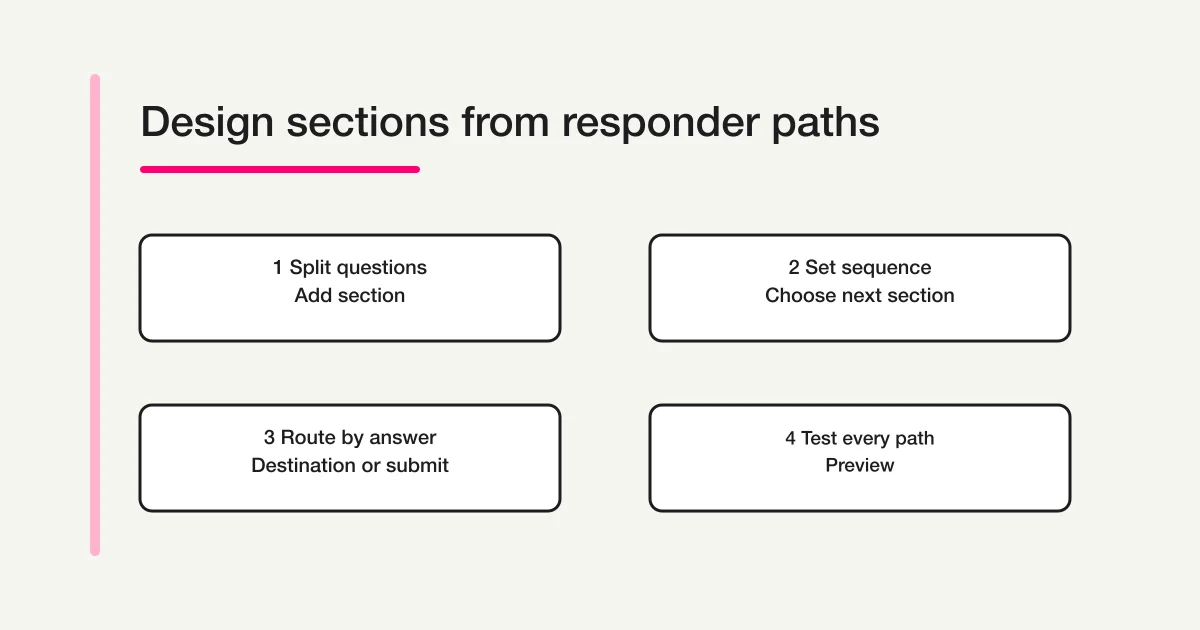
A Google Forms section starts a new responder page. Add it from the toolbar, name the page’s task, move relevant questions into it, and check the destination at its end. Answer-based destinations use multiple choice or dropdown under Google’s dedicated routing guidance.
Remove unnecessary questions before splitting pages. Then test the shortest and longest routes, Back, required fields and the final Submit action; extra pages do not by themselves reduce effort.
What is a section in Google Forms?
A section is more than a visual heading in the editor. Google Workspace Learning Center says that each section starts on a new page. A responder completes the questions on the current page, selects Next, and proceeds toward a later section or submission.
This differs from adding a title and description. A title and description can explain a group of questions on the same page. A section changes the page boundary. Use a section when you want a new responder step. Use a title and description when you only need a smaller explanation inside the current page.
Google's official editing help currently says a form can contain up to 75 sections. Treat that number as a technical limit, not a recommended target. A person should encounter only the pages needed for the task. If a form feels long, first remove questions whose answers will not change any later decision. Then group the remaining questions.
Good section names describe the job on the page. Contact details, Event choice, Delivery address, and Final review are more useful than Section 2 or More questions. A short description can tell responders what information to have ready and why the page is needed.
How to add a section
- Open the form in Google Forms.
- In the toolbar beside the form, choose Add section.
- Enter a name for the new section.
- Add a short description when the responder needs context or preparation.
- Drag questions into the intended section.
- Open Preview and confirm where the page begins.
Moving questions and moving a whole section are separate operations. Drag a question when only that question belongs elsewhere. Use the section menu when the complete page needs a different position.
Before adding another page, write one sentence that describes what the responder will finish there. If you cannot name a distinct task, a title and description on the existing page may be enough. Extra Next clicks do not automatically make a form easier.
How to move, duplicate, and delete sections
Move a section
Select the section header, open More, and choose Move section. Google's current help describes using the up or down controls to change the order. After a move, recheck both kinds of destinations: the destination shown at the bottom of the section and any answer-specific destination on a routing question.
Page order is not merely editorial. It affects the responder's route. A copied explanation may still read correctly while Next now leads somewhere unintended. Rename any section whose title no longer fits its position.
Duplicate a section
Select the section header, open More, and choose Duplicate section. This is useful when two audiences need a similar set of questions. After duplicating, edit the title, description, required settings, and wording for the new audience.
Do not assume that a copied page has the correct destinations for its new role. Inspect every answer route and the next-section selector. If two copies are almost identical, ask whether one shared section followed by a smaller audience-specific section would be easier to maintain.
Delete a section
Select the section header, open More, and choose Delete section. Before deleting it, identify every question or section that points to it. A destination can outlive the reasoning that created it, especially after several rounds of editing.
Google Forms provides Undo for a recent action, but Undo is not a substitute for a path review. Keep a small path table for forms with more than one branch. Record the starting answer, intended pages, and final outcome. Update that table whenever a section is moved, copied, renamed, or removed.
Design a simple sequential form first
At the bottom of each section, Google Forms lets the owner select where responders go next. The simplest design is a one-way sequence: section 1 leads to section 2, section 2 leads to section 3, and the final section leads to submission.
For example:
| Section | Responder job | Next destination |
|---|---|---|
| Contact details | Enter a reachable address | Request details |
| Request details | Describe the issue and urgency | Final review |
| Final review | Check the information | Submit form |
Build this straight route before adding branches. It gives you a known working baseline. If a later branch fails, you can compare it with the sequential path instead of debugging several choices at once.
The page title and the next destination should form a sensible pair. Contact details followed by Request details is predictable. Contact details followed unexpectedly by an unrelated marketing questionnaire is not. If the content must change topic, explain the transition before the responder selects Next.
The final page deserves special attention. A responder who sees Next but never reaches Submit may be caught in a stale section destination, a required-question issue, or another form-state problem. The separate missing Submit button diagnosis covers that troubleshooting intent; this guide stays focused on section design.
Use Go to section based on answer
Google Forms can choose a destination from one answer. Google's dedicated branching help currently identifies Multiple choice and Dropdown as the question types that support Go to section based on answer. It also says that an answer may lead to a specific section or to Submit form.
Use this setup order:
- Create and name every destination section first.
- Add the routing question as Multiple choice or Dropdown.
- Open the question's additional menu and select Go to section based on answer.
- Assign a section or Submit form to every option.
- Preview one complete submission path for every option.
This feature routes between sections. It is not the same as independently showing one field inside the current page, and it is not a rule engine for arbitrary combinations of many answers. For supported question types, checkbox boundaries, and alternative designs, use the dedicated Google Forms conditional logic guide.
A branch should hide irrelevant work, not conceal important terms. Put information that every responder must understand before the routing question. Put audience-specific questions after the branch. If one answer ends the form with Submit form, make sure the responder has already seen and completed every required item for that outcome.
Avoid backward routes and loops
The vertical order in the editor does not prove that every route moves forward. A section can have a destination that points elsewhere, and answer choices can have their own destinations. Review the actual path rather than reading the cards only from top to bottom.
A backward destination can create a loop. For example, if an answer in section 1 sends someone to section 2 and section 2 sends the person back to section 1, the responder may never reach a valid ending. Google's help explains how to select destinations, but it does not promise that a circular design will be made safe for you. Treat loop prevention as your publication responsibility and test it in the responder view.
If responders need to add several similar records, avoid an open-ended cycle. Consider one submission per record or create a finite number of clearly named pages. A fixed structure is easier to test, understand in exported data, and support when someone reports a problem.
Draw the route on one line before editing:
Start -> eligibility answer -> relevant details -> review -> submit
For each answer option, replace the arrows with the real destination names. If a route points backward, explain why and prove that it can still terminate. Usually, a forward-only redesign is clearer.
Progress display and shuffled questions
Google Forms includes presentation controls for showing progress and shuffling questions. The screen-reader help lists Show progress bar and Shuffle questions among presentation settings. Do not infer exactly how the progress indicator will feel across a branched route. Open the actual preview and test each major path, because different responders may visit different pages.
Google's editing help also warns not to shuffle questions when they must appear in a specific order. That warning matters when later questions depend on earlier context, consent must come before details, or a page is written as a short sequence. Keep the order fixed in those cases.
Shuffling answer choices is a separate control for supported choice questions. It does not replace section design. If one option has a special meaning such as None of the above, review whether random placement would confuse the responder. Test the exact combination you plan to publish instead of assuming that a section boundary protects every internal order.
Progress should set a helpful expectation, not make a form appear shorter than it is. Check the page count, question count, and time required together. If a short route and a long route differ greatly, tell responders what may affect completion time in plain language.
When sections help a long form
Sections reduce the amount visible on one screen, but they do not reduce the number of questions. Use this sequence:
- Remove questions whose answers have no owner or later use.
- Put universal questions before audience-specific branches.
- Group the remaining questions by one responder task.
- Give each page a descriptive name.
- Keep destinations moving toward a clear ending.
- Test the shortest, longest, and most common paths.
A section works well when a responder needs a different kind of information next. Contact details followed by project requirements is a natural split. One short name field on page 1 and one short email field on page 2 usually adds effort without adding clarity.
Also check the mobile experience. A desktop editor can make a section appear compact while one responder page is still long on a phone. Preview the form at a narrow width and read every title, description, question, error, Back, Next, and Submit control.
For the complete creation, publication, and response workflow, use the Google Forms how-to guide. For Sheets and Apps Script responsibilities after collection, use the Google Forms operations guide. These pages own the broader intents; this article owns sections.
Test every responder path before publishing
Open Preview from the top of the form and run a small path matrix. Do not stop when the correct page first appears. Continue until the route submits successfully.
Test at least these cases:
- the normal sequential route;
- every option on each answer-based routing question;
- the route that skips the most pages;
- the route that displays the most questions;
- any answer that uses Submit form directly;
- Back after visiting a branched page;
- required questions on both visited and skipped pages;
- phone-width navigation and the final submit control.
Write the expected result before each run. For example: Sales should see Contact details, Sales request, and Review, then Submit. Support should see Contact details, Support issue, and Review, then Submit. This makes a wrong destination visible immediately.
After changing a section, rerun the matrix. Moving a page can affect a default sequence, while renaming a page can make a previously understandable path ambiguous. Duplicating a page can introduce a destination that points to the old copy. Deleting a page can remove a route target. Each operation is small, but its effect belongs to the whole path.
How FORMLOVA handles pages and section-like content
Google Forms and FORMLOVA do not use the same structure. FORMLOVA groups questions by page number; a section_break is a visual divider inside a page. Field display, page skipping and early completion are separate conditional actions. They are not a direct copy of Google’s section interface. Keep routing decisions before dependent pages and use forward destinations.
FORMLOVA preview does not save responses. On actual submission the server reevaluates visible/reachable fields. Skipping a page removes its required check, but does not imply every supplied value is silently discarded: supplied values may still be validated and saved under the visibility rules.
Compare a short request with a detailed-consultation route
This is a proposed trial, not an operation or result measured for this rewrite. Use a private test draft first.
Draft a private three-page inquiry. Page 1: request type Short question/Detailed consultation and contact. Page 2: optional project context for Detailed consultation only. Page 3: final message. Skip page 2 for Short question using an earlier-answer condition. Keep navigation forward. Do not publish; return both previews.
Before proceeding, check:
- Map both routes and confirm the correct final action.
- Test Back and changing the branch answer; inspect remaining values and actual stored test data after controlled publication.
- Separate page breaks from visual dividers, and compare phone/desktop progress without claiming a conversion improvement.
Try page routes before publishing the inquiry
Free supports page grouping, conditional paths and response collection. Inspect previews first, then verify storage in a controlled published test.
Register free and draft the page routes
Register, verify your email, connect a supported AI client, and paste the proposed request above. Check the saved draft before publishing. AI-client account and usage requirements apply separately.
Frequently asked questions
Does each Google Forms section become a separate page?
Yes. Google Workspace Learning Center says each section starts on a new page. If you only need a heading within the current page, use a title and description instead.
Can I route an answer directly to submission?
Yes. Google's branching help says an answer destination may be Submit form. Test that path to ensure the responder has already completed every question required for that outcome.
Why is Go to section based on answer missing?
Check the question type. Google's dedicated help currently limits that control to Multiple choice and Dropdown. Also create the destination sections before assigning them.
Should I enable shuffled questions in a sectioned form?
Only when question order is genuinely interchangeable. Google's editing help warns against shuffling when a specific order matters. Preview the final combination of settings and routes.
Do more sections make a form shorter?
They make each page visually shorter, but do not reduce the questions or total input. Remove unnecessary questions first, then divide the remaining work into meaningful steps.
Primary sources
- Google Docs Editors Help: Edit your form
- Google Docs Editors Help: Show questions based on answers
- Google Workspace Learning Center: Create your first form
- Google Docs Editors Help: Use Google Forms with a screen reader
Pre-publication checklist
- Every section name describes the page's job.
- Questions are in the intended section.
- The destination at the bottom of every section is correct.
- Every answer-specific destination has been tested.
- No backward destination traps responders in a loop.
- Progress, Back, Next, and Submit were checked at phone width.
- Every required responder path reaches submission.
What to do next
Keep a route table with the form. Any move, copy or deletion should trigger a check of the whole affected path, including the values after Back and the final stored response.
Disclosure and Verification
I work on FORMLOVA. Google Forms labels and behavior in this guide were checked against official Google help on September 4, 2026. Interface labels, Workspace controls, and presentation behavior can change. Recheck the live editor and responder preview in the account your organization will use.