
Last updated: October 15, 2026
Google Forms normally shows Submit at the end of the final section. If you see Next, continue along the route; if it stops, correct the red required or validation errors first. Owners should inspect section destinations when the route loops, then check publishing, response collection and the distributed link.
The order matters: identify the screen state, recover the Google submission path, and test it outside the owner account before considering another tool.
Quick diagnosis: match the screen to the cause
| What you see | Likely cause | First action |
|---|---|---|
| Next appears, but Submit does not | You have not reached the final section | Continue with Next |
| Next or Submit exposes red messages | A required answer or validation rule is unresolved | Correct every highlighted question |
| Next returns to an earlier page | Section routing sends this answer backward | Ask the owner to audit that route |
| The question page never appears | The form is unpublished, closed, restricted, or the link is wrong | Use the visible message to choose the owner-side check |
| The bottom of the final page is cut off | Zoom, an extension, an in-app browser, or rendering is interfering | Reset the display and retest in another browser |
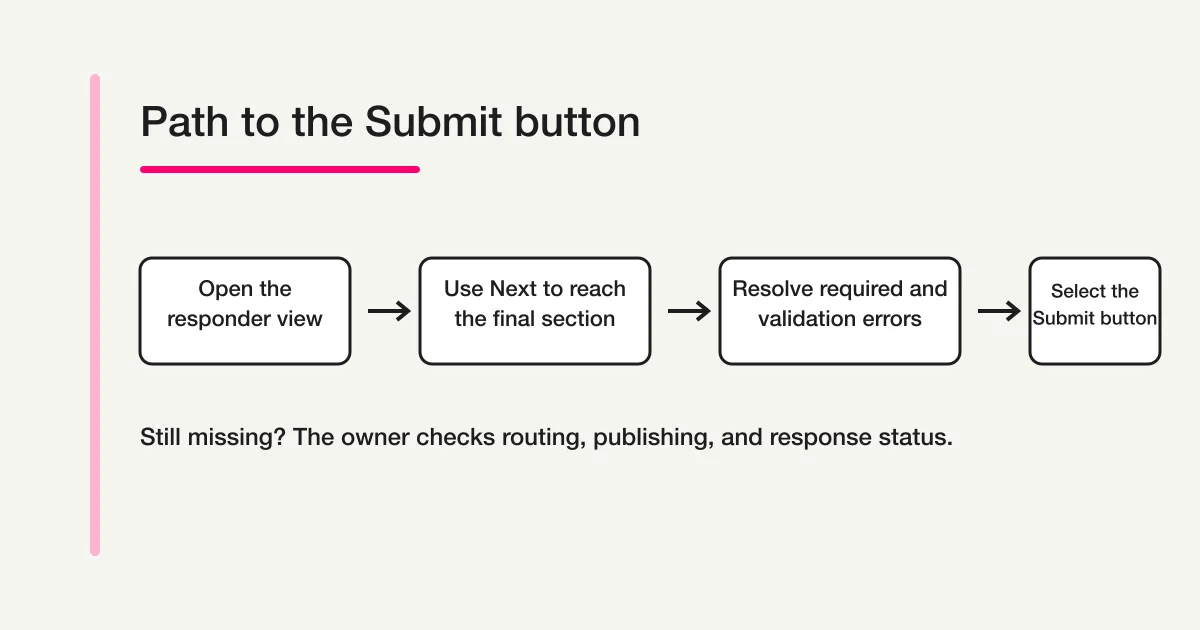
Google’s official responder troubleshooting page uses the same first distinction. If Next cannot be selected, required questions may be incomplete or a response-validation error may still be unresolved. Checking the form’s intended path before treating the browser as broken avoids a lot of unnecessary resets.
Step 1: Open the responder view and reach the final section
Confirm that you opened the responder view, not the form editor. If you can edit question cards, answer choices, and settings, you are on the owner surface. Test submission from a responder link copied through Preview, Published, or Share.
When a form contains multiple sections, each section begins on a separate page. An intermediate page ends with Next because the complete response has not reached its submission point. Submit appears after the final section in the route selected for that responder. There is no separate Submit question or button that a responder needs to create.
If the form displays progress, compare the current page with the total. Then scroll all the way below the last visible question. A long description, image, grid, or open mobile keyboard can make the navigation area feel absent even when it is simply below the viewport. On a phone, close the keyboard before scrolling to the bottom.
Select Next once. If a new section opens, continue normally. If the same section or an earlier section appears, record the section heading and the answer that led there. This behavior can come from intentional answer-based routing, so repeatedly selecting Next will not necessarily escape it.
Do not rewrite the URL or switch to an edit link to force progress. The owner needs to test the exact responder URL distributed through email, a QR code, a site, or a learning platform. That is the surface whose route matters.
Step 2: Resolve required-question and validation errors
If Next or Submit does nothing useful, scroll upward on the current section and find every question highlighted in red. A required question is the most common blocker, but a question that already contains an answer can also fail a validation rule.
Response validation is a rule chosen by the owner. It can require a correctly formatted email address, a number within a range, a maximum text length, a certain checkbox count, or a selection in every grid row. Filling a box is therefore not always enough. The entered value must match the rule and any custom error text shown below the question.
Use this order so you do not overlook a second blocker:
- Complete every question marked as required.
- Correct email, date, number, and text formats named in red.
- Check minimum, maximum, or exact selection rules for checkboxes.
- Inspect every row of a multiple-choice or checkbox grid.
- For a file-upload question, verify Google Account sign-in and the allowed file type, count, and size.
After correcting an item, return to the bottom and select Next or Submit again. If another red error appears, resolve that one as well. On a long section, there may be more than one error outside the current viewport.
Some problems cannot be fixed by the responder. The owner may have configured a rule that conflicts with the requested information, written an unclear error message, or required a file that the responder cannot provide. Google’s official help tells responders to contact the owner when a validation rule is incorrect or prevents the required information from being submitted.
When contacting the owner, share the question label, the exact error message, the section heading, and the time of the attempt. Do not send the answer itself if it contains private information. A cropped screenshot can help, but hide account details and unrelated responses.
Step 3: Check section routing as the form owner
This step is for the owner. When a responder reports that Next loops, skips the expected finish, or never reaches Submit, open the Questions tab and review where every section leads.
Google Forms lets an owner choose the next destination at the bottom of a section. Multiple-choice and dropdown questions can also use “Go to section based on answer.” Google’s official routing documentation says an answer can point to a specific section or to Submit form. These controls are useful, but a stale destination can make the end unreachable for one answer path.
Audit each route for four common mistakes:
- A section believed to be final is configured to continue to another section.
- One answer points backward to an earlier section and creates a loop.
- Questions or sections were reordered, but old destinations were not retested.
- The destination contains a required or validated question that the intended respondent cannot satisfy.
Write the route as a small table: starting answer, destination, next destination, and expected finish. Test every answer that changes sections, not only the default or most common path. A form can work for the owner’s sample answer while failing for another audience segment.
If a route should finish early, deliberately choose Submit form for that answer. If all responders should continue, point each answer to the correct next section. For a complete routing setup and test matrix, use the Google Forms conditional logic guide. This article stays focused on recovering the missing Submit path.
After saving the correction, copy the responder link again and test outside the editing session. The owner account has different privileges and cached context from a real responder, so an editor-only preview is not sufficient evidence that distribution works.
Step 4: Retest publishing and the responder link
If no question page appears, the Submit button itself is not the active problem. The form’s entry or response state is preventing the normal answering surface from loading.
Under Google’s current publishing model, the form must be published before responders can use it. Once published, the owner can copy a responder link from Preview, Published, or Share. The owner should verify the following in order:
- The top-right status says Published.
- The intended person or audience has responder access.
- Accepting responses is enabled.
- A close date or response limit has not closed the form.
- The distributed URL is a responder link, not an editor link.
- A signed-out window or a separate permitted account can complete the full route.
When response collection is off, Google Forms shows a closed-response message instead of the ordinary path. Google’s current help also documents automatic closure by date or response count. If that is what the responder sees, follow the Google Forms deadline and response-limit guide rather than changing section routing.
If the screen says “You need access,” use the separate Google Forms access-required troubleshooting guide. Changing validation or browser zoom will not grant responder permission.
Retest the same URL used in the real channel. An owner may fix the form but leave an old edit URL, obsolete QR code, or previous responder link in a message or web page. Confirm that the opening screen, every branch, the final Submit button, and the confirmation screen all belong to one current route.
Isolate a browser-only display problem
Only move to browser troubleshooting after the final section is reachable, no red errors remain, and the same path shows Submit for another responder. That evidence makes a local display issue more plausible.
- Reset page zoom to 100 percent.
- Close the mobile keyboard and scroll below the final question.
- Save any answer text elsewhere before a risky reload.
- Temporarily disable translation, ad-blocking, or appearance-changing extensions.
- Open the responder link in a current version of Chrome, Safari, or Edge.
- Leave an in-app browser and open the URL in the device’s regular browser.
Avoid clearing all cookies as the first step. That can remove a useful draft or change the signed-in account without addressing a routing error. If several respondents fail on the same answer path, investigate the form. If only one device fails while the identical account and answers work elsewhere, continue with device-level checks.
The owner can make this diagnosis easier by asking for structured evidence: device and browser, section heading, selected answer, visible error text, and whether Next or Submit appeared. “The button is gone” describes the symptom, but the route and screen state identify the cause.
How FORMLOVA exposes the submission path
FORMLOVA standard forms use page navigation before the last page and a submission action at the end. Ordinary validation uses the product’s fixed messages; labels, help text and actual constraints should explain the required input. Form and thank-you previews let you inspect both surfaces, but do not establish that a response was stored.
Inspect a two-path inquiry form before distribution
This is a proposed trial, not an operation or result measured for this rewrite. Use a private test draft first.
Draft a private inquiry form with a single-choice topic: Product question or Other. Show a product-name field only for Product question; ask for a message on both paths. Keep email optional. Explain each required field. Do not publish or send mail.
Before proceeding, check:
- Try both branches and an empty required field; confirm the actual error and that other entered values remain.
- Check Back, Next, the final action, and privacy consent on phone and desktop.
- Review both previews first. After approval, publish under controlled conditions and verify a test response and the completion screen; do not assume a preview stored it.
Check both inquiry routes in a free draft
Free supports form creation, conditional display and response collection. Custom reply emails require Standard or above and are outside this first test.
Register free and draft the inquiry routes
Register, verify your email, connect a supported AI client, and paste the proposed request above. Check the saved draft before publishing. AI-client account and usage requirements apply separately.
Unpublished, full or expired forms use a different answering state. When a privacy-policy URL is configured, check the required consent before final submission. These mechanisms do not guarantee the absence of submission errors.
Frequently asked questions
Where do I add a Submit button in Google Forms?
You normally do not add the responder Submit button as a question. It appears at the end of the responder’s final section. If you see Next, continue to the final section or ask the owner to correct the route.
Why do I only see Next instead of Submit?
The form has another section on your current route, or answer-based routing points somewhere other than the finish. Resolve current-page errors first. If the route loops or never ends, the owner must review section destinations.
Why can’t I submit after completing every required question?
Check response validation on answered questions, unselected grid rows, and file restrictions. A non-required question can still block progress if it contains an invalid answer. Remove or correct that answer according to the visible rule.
Does closing responses only hide the Submit button?
The ordinary question-and-submit path is replaced by a message that responses are no longer accepted. The owner should check Accepting responses, the close date, and the response limit rather than looking for a button setting.
Why can the owner submit in Preview while a responder cannot?
The owner may be testing with stronger access, a different account, or a different route. Test the distributed responder link in a signed-out window or with a separate account that matches the intended audience.
What to do next
For the existing Google Form, finish by retesting every distributed responder route. For a new form, use the same route table and record what actually happened on phone and desktop.
Related Guides and References
Disclosure and Verification
This article was verified on September 4, 2026 against Google’s official guidance for common responder errors, answer-based section routing, publishing and responder links, and response collection controls, plus the current FORMLOVA specification and public-form implementation. Google may change labels or setting locations. Test a non-sensitive response through your own responder link before distribution. The author develops FORMLOVA.
If you want to review both the answering screen and the post-submit screen before publishing, create a free form with FORMLOVA and try the preview-led workflow.