
Last updated: October 15, 2026
“You need access” is an account or permission problem. Open the invitation with the intended Google Account, then request access and contact the owner if it still fails. Owners should check publication, responder access and the responder link separately; making a confidential form public is not the default fix.
Use the checks below to recover access first. A later FORMLOVA example is for readers who also create future public forms; it cannot open or recover someone else’s Google Form.
The short answer: responders and owners have different checks
| Your role | Check first | If it still fails |
|---|---|---|
| Responder | The signed-in Google Account and the link you received | Request access and contact the owner |
| Form owner | Published state, responder access, and the shared audience | Correct access and retest the responder link |
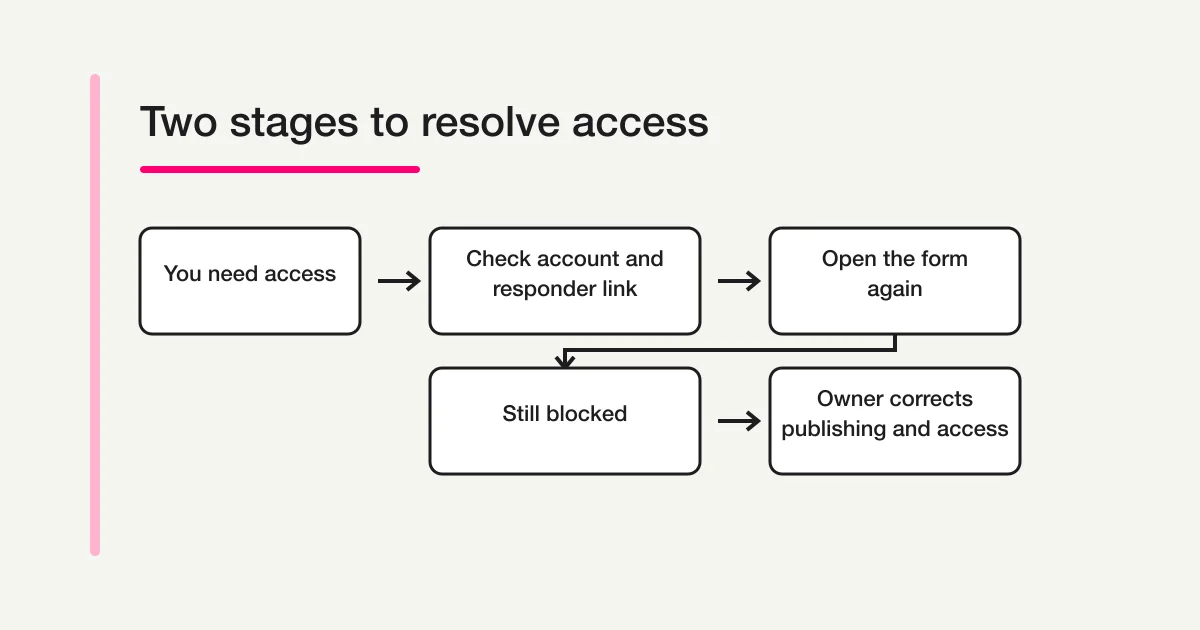
Google's current help separates the usual causes into two groups: the person does not have permission, or the browser is signed in to a Google Account that does not have access. Start with identity and permission before clearing browser data or repeatedly requesting a new link.
Step 1: Check the responder link and signed-in account
Look at the profile image in the upper-right area of the Google page and confirm which Google Account is active. If you use personal, school, and work accounts, switch to the account that received the form invitation.
A common example is an internal employee survey. The owner gives responder access only to company accounts, but the invitation opens under a personal Gmail account. The form is working as configured; the active account simply is not in the permitted audience. The reverse can also happen when a managed work account is prevented from reaching an external resource by an organizational policy.
Next, confirm that you received a responder link. If the owner accidentally copied an editing or collaboration link, a responder will be asked for a level of access they should not have. Google's publishing help tells owners to copy the responder link from Preview, Published, or Share. Do not guess a corrected URL by changing its ending. Ask the owner to copy the proper responder link again.
Multiple signed-in accounts can make the result confusing. Use a browser profile where only the intended account is active, or explicitly choose the work or school account from Google's account menu. A private or incognito window can help isolate saved sessions, but it cannot bypass access controls. If the form requires an invited account, that account still has to sign in.
Record the exact message you see. “You need access,” “This form is no longer accepting responses,” and a general sign-in request describe different states. Keeping the wording prevents the owner from changing unrelated settings.
Step 2: Request access and contact the form owner
If the correct account still cannot open the form, select Request access on the “You need access” page. Google's help says to watch for an email confirming that the owner granted access. Reopen the form under the same account after approval.
For an application, registration, attendance check, or other time-sensitive form, do not assume the request will be noticed before the deadline. Reply to the original invitation or use the organizer's official support channel. Include only the information needed to locate the problem:
Form title:
Date and time the invitation arrived:
Google Account that should receive access:
Exact message: “You need access”
Date and time access was requested:
Response deadline:
Never send your password, one-time code, or a screenshot that exposes unrelated account details. If a screenshot helps, hide the profile menu, email addresses that are not relevant, and unnecessary parts of the URL.
The owner or the organization that distributed the form controls the audience. Google Support cannot decide that an individual should be admitted to someone else's restricted form. If you do not know the owner, contact the school, employer, event organizer, or service named in the invitation.
Request access with the account you actually plan to use. Sending requests from several personal and work accounts can make approval harder to interpret and may cause the owner to grant access to the wrong identity.
Step 3: Correct publishing and responder access settings
This step is for the form owner. Open the form and first confirm that the upper-right status says Published. Under Google's current publishing model, responders need the form to be published before they can access it. If the form is unpublished, people with the old link cannot open it as responders.
Open Share, or open Published and then Manage, and inspect who can respond. Match the setting to the actual audience:
- Add the exact Google Account when one named person should respond.
- Add the correct Google Group when membership is managed as a team.
- Use a target audience when your Google Workspace edition and organizational setup support it.
- Consider Anyone with the link when the form is genuinely intended for broad public response access.
Give ordinary participants the Responder role, not Editor access. Editors can change questions and settings. An urgent access request is not a reason to grant a broader role than the person needs.
Check group membership and address spelling. A person may be using an alias while the permitted group contains a different primary address. Group membership may also have changed after a job move, graduation, or contractor offboarding. Resolve the identity deliberately instead of adding several guessed addresses.
Google changed Forms access control beginning in fall 2024. Its current update notice says older forms were automatically upgraded from December 2025 to support more granular responder access. Google also removed the former trusted-domain access behavior on September 8, 2025. If people in an external trusted domain used to open a restricted form but can no longer do so, review the upgraded sharing configuration. Google's recommended current choices include individual responders, Google Groups, target audiences where available, or Anyone with the link when public access is appropriate.
Do not confuse responder access with response-result sharing. A person who can fill out a form does not automatically need access to the collected response spreadsheet or to edit the form. Keep responding, editing, and viewing results as separate permissions.
Step 4: Retest the responder link under a separate account
After saving the correction, copy the responder link from Preview, Published, or Share. Test under conditions that resemble the affected responder rather than relying on the owner's editing session.
- For an internal form, open the link with an allowed test account.
- For a public form, check it in a signed-out or private window.
- For individual sharing, use the exact address that was granted responder access.
- Confirm that the questions load and that the test can reach the point before submission.
- When appropriate, send one non-sensitive test response and verify that collection is open.
“It opens for me” is not enough when “me” is the owner. Ownership can hide the responder-side restriction that caused the report. Testing with one allowed account and one account outside the audience makes the boundary visible.
If the form link is distributed through a QR code, intranet page, calendar invitation, or automated email, update that surface too. Correcting permissions does not repair an old editing link or an outdated destination that people continue to open.
When access expires on a scheduled date, test the date rule as well. A correctly invited responder can still lose access after the configured expiration. If an event date changed, update both the deadline described in the invitation and any access-expiration setting.
Common causes of the “You need access” screen
| What you observe | Likely cause | Who acts |
|---|---|---|
| Google suggests another account | The active account differs from the permitted identity | Responder |
| The page offers Request access | The person is outside the individual, group, or target audience | Responder and owner |
| Nobody with the link can respond | The form is not published or publication was stopped | Owner |
| The owner can open it but participants cannot | Responder access was not granted to the intended audience | Owner |
| Only some external users fail | Sharing, group membership, or an upgraded access rule excludes them | Owner |
| The page asks for editing access | An editor or collaborator link was distributed instead of a responder link | Owner |
More than one cause can apply. A responder may switch to the correct work account and then discover that the form itself is unpublished. Check account, published state, responder access, and link type in that order.
Avoid changing every control at once. If the owner makes the form public, adds several accounts, changes the one-response rule, and replaces the link simultaneously, nobody knows which correction mattered. A narrow change followed by a separate-account test creates a useful record.
This is different from required sign-in, closed responses, and response review
Similar screens need different fixes.
A sign-in prompt may be caused by a feature such as Limit to 1 response or a file-upload question. It does not always mean the owner forgot to grant access. The Google Forms anonymous response guide separates sign-in from what the owner actually records. If file upload is the reason, use the dedicated Google Forms file-upload sign-in guide.
“This form is no longer accepting responses” describes the collection state, not a sharing permission. The owner must reopen responses or provide another submission route. Granting a person access will not reopen a closed form.
Difficulty finding answers after submission is also separate. The guide to checking your own Google Forms response explains confirmation pages, response receipts, and edit-response links. This article ends once the responder can open the unanswered form.
Before choosing Anyone with the link
Broad access is useful when the form is meant for public registrations, open surveys, or general inquiries. It is not the automatic answer for every access complaint.
For an internal request, customer-only questionnaire, recruiting stage, or confidential review, decide whether access should be maintained through named people, a Google Group, or a target audience. Add group membership reviews to offboarding and role changes. Removing someone from an operational team should also remove access where the form remains sensitive.
For a public form, Anyone with the link means anyone who obtains that link can reach the questions. Limit the information you request, explain the purpose and contact point, and plan for duplicate or unwanted responses. URL possession is not identity verification.
If accountless response access is essential, test it while signed out before announcing it. A form can be broadly shared but still require sign-in because another feature imposes that requirement. Access scope and feature-specific authentication are separate decisions.
The complete Google Forms creation and sharing guide covers the broader setup. For the boundary between Google Forms, Sheets, Apps Script, and operational ownership, return to the parent Google Forms, Sheets, and Apps Script operations guide.
If you also organize an event: test public intake separately
This is a proposed trial, not an operation or result measured for this rewrite. Use a private test draft first.
Create a private draft for a public workshop interest form. Ask for the preferred topic and attendance format, plus an optional question. Do not request a Google login, identity document or confidential information. Explain that submitting interest does not reserve a seat. Do not publish or send invitations.
Before proceeding, check:
- Confirm that the saved fields match the public audience and do not imply identity verification.
- Review the form and thank-you previews while signed out; a preview does not prove a stored submission.
- Before actual distribution, review privacy and unwanted-response settings, publish under controlled conditions, then verify one non-sensitive test response.
Try an event-interest draft without responder accounts
Free covers drafting, publishing and collecting responses. A public link is not access control or identity verification; choose it only for genuinely public intake.
Register free and draft event-interest questions
Register, verify your email, connect a supported AI client, and paste the proposed request above. Check the saved draft before publishing. AI-client account and usage requirements apply separately.
Frequently asked questions
Does Request access open the form immediately?
No. The request alerts the owner, but the form opens only after the owner grants the requesting account suitable responder access. If a deadline is close, contact the organizer directly with the request time and deadline.
Do all Google Forms require a Google Account?
No. A form configured for anyone with the link and using ordinary questions can be made available without a respondent account. Features such as one-response limiting or file upload can still require Google sign-in. Test the actual responder link while signed out.
Can an incognito window bypass the restriction?
No. It separates saved cookies and account sessions, which makes it useful for testing. It does not grant permission to an account that the owner excluded.
Should I change the end of the URL to make it a responder link?
No. Ask the owner to copy the responder link again from Google's Preview, Published, or Share controls. Guessing a URL can lead to an invalid page or the wrong permission surface.
Why did a form that worked yesterday suddenly require access?
The owner may have stopped publishing, removed an account, changed a group, set an access expiration, or updated responder access. The active Google Account may also be different. For older forms, the owner should review the upgraded access-control configuration rather than assuming a previously trusted external domain still has access.
Should the owner grant Editor access to solve the problem?
Not for a person who only needs to answer. Grant Responder access. Editor access allows changes to the form and should be limited to actual collaborators.
Summary: check account, publication, permission, and link
The “You need access” message is not just a browser problem. A responder should verify the signed-in account and received link, then request access if needed. The owner should verify publication, responder access, the exact audience, and the responder link.
The fix is complete only after someone without owner privileges can open the form under the intended conditions. If broad access is selected, make sure it matches the sensitivity of the questions and the way the link will be distributed.
What to do next
Resolve the original Google access issue with its owner. If you also run public intake, compare the draft against your audience and privacy requirements before choosing a service.
Disclosure and Verification
I reviewed Google's current help for getting permission to open a form, publishing and sharing with responders, Google Forms access-control updates, and migration from trusted-domain responder access on September 4, 2026. Labels can vary by Workspace edition, administrator policy, locale, and staged product updates. I work on FORMLOVA.
If you need a public form that does not require responders to create a dashboard account, you can start FORMLOVA for free.