Last verified: August 31, 2026
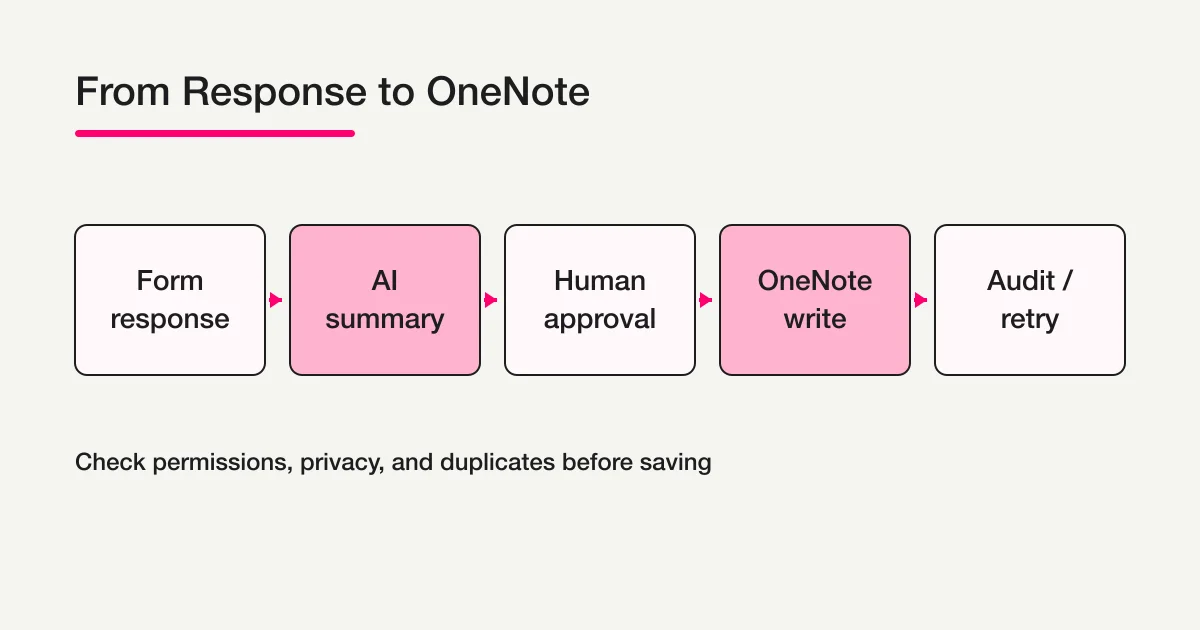
You can summarize form responses with ChatGPT and save the approved result in OneNote. The important detail is that ChatGPT is not automatically a OneNote connector. The source system, summarizer, approver, and OneNote write path each have their own permissions and failure modes.
In practice, choose between two architectures:
| Route | Flow | Best fit |
|---|---|---|
| A | Microsoft Forms → Power Automate → AI Builder or another approved summarizer → OneNote connector or Graph | Microsoft 365 is the source of truth and a team owns the flow |
| B | FORMLOVA → ChatGPT/MCP summary → human approval → an authorized OneNote write path | You want to search and prepare responses conversationally before saving them |
FORMLOVA can help retrieve, filter, export, and operate on form responses through its own product surface and MCP client sessions. It does not, by itself, provide a native OneNote writing connection. Likewise, a ChatGPT app or MCP server is not a substitute for permission to write to a particular notebook. This guide keeps those boundaries visible.
Decide what the OneNote page is allowed to contain
Start with the storage rule, not the model. Decide whether OneNote should hold the original response, a short summary, or a link back to the source record. Ask these questions first:
- Which fields are necessary for the team to act?
- Should names, email addresses, phone numbers, or company details be removed?
- Who approves a summary before it becomes a shared note?
- Is a repeat run expected to update one page or stop as a duplicate?
- Which notebook and section may the connection read and write?
A small, stable page template is easier to audit than a copied response dump:
Title: [Form name] response summary - [submitted time]
Source response ID: [stable ID]
Summary: Three factual lines or fewer
Themes: Up to three
Needs review: Missing evidence or ambiguity
Next action: The accountable follow-up
Saved at: Timestamp with timezone
If the original response is not needed in OneNote, keep it in the authorized form system and store the response ID with the summary. A reviewer must still be able to find the evidence later. Do not use a shared notebook as an uncontrolled copy of the entire response database.
Route A: Microsoft Forms, Power Automate, and OneNote
Microsoft’s Forms connector for Power Automate documents one trigger, “When a new response is submitted,” and an action that gets response details. The official Forms and Power Automate overview is the starting point for this route.
1. Set the purpose and input boundary
Tell respondents, where required by your policy, that their response will be summarized and saved for the stated operational purpose. Define the form owner, the flow owner, the target notebook, the target section, and the fields that may leave the source system.
An input instruction might look like this:
Summarize this response for the support team. Exclude direct contact details, separate observed facts from assumptions, and hold the result for human approval before writing to the shared OneNote section.
The expected setup check is not a finished page. It is a confirmation of the form identifier, response identifier, selected fields, and destination section. In the Power Automate canvas, verify that the response-detail action refers to the same form as the trigger. Labels and layout can change, so use the current Microsoft connector display when configuring the flow.
2. Retrieve details and run the summarizer
Pass only the fields needed for the task. Microsoft documents AI Builder prompts as a Power Automate action called Run a prompt; its availability can depend on region, capacity, and usage conditions. The AI Builder prompt documentation also describes incorporating human review.
Input: response ID, submitted time, and response text
Instruction: Return factual summary in three lines or fewer, up to three themes,
an evidence gap, and one next action.
Guardrails: Do not output names, email addresses, or phone numbers. Do not invent
deadlines, sentiment, or customer attributes that are absent from the response.
Output: response_id, summary, themes, needs_review, next_action
A useful result is explicit about uncertainty:
response_id: R-1042
summary: The team wants pricing and data-migration conditions before adoption.
themes: [implementation, migration]
needs_review: false
next_action: An owner should confirm migration requirements.
On the flow screen, inspect the prompt inputs, the redaction step, and the branch that sends uncertain output to review. Do not treat a fluent paragraph as verified data. A person still needs to compare important summaries with the source response.
3. Approve before writing to OneNote
Make approval an explicit state. If the summary contains direct identifiers, has needs_review set to true, lacks evidence, or has no destination section, stop before the write action. The person approving the page may be the same person who reviews the response, but the approval event should still be recorded.
There are two common write choices:
- Use Microsoft’s OneNote (Business) connector in Power Automate.
- Use an approved application that calls Microsoft Graph with delegated authorization.
The OneNote (Business) connector reference lists page and section actions and notes that the connection uses a notebook available through OneDrive for Business. Confirm the connection account and section rather than assuming that a notebook visible to one person is visible to the flow.
For Graph, the stable page-creation shape is a request such as:
POST https://graph.microsoft.com/v1.0/me/onenote/pages
Content-Type: text/html
Authorization: Bearer [delegated user token]
The Microsoft Graph OneNote page-creation documentation describes HTML or XHTML page content, a successful 201 response, and a least-privilege example such as delegated Notes.Create for the operation. Microsoft’s OneNote API overview describes app-only authentication as unsupported, while the page-creation reference lists Application Notes.ReadWrite.All. The official materials therefore have a scope difference. This guide takes the conservative path: delegated authorization for a signed-in user and the least privilege that fits the operation. Before implementation, check the target endpoint, tenant, and current official reference; do not assume that an app-only service-account design will work.
4. Prevent duplicates and handle failure
Neither ChatGPT nor the OneNote page endpoint should be assumed to make your business process idempotent. Build a processing ledger in the flow or its approved data store. A practical key is:
idempotency_key = form_id + ":" + response_id + ":" + prompt_version
If the key has a successful page record, do not create another page. Increase prompt_version only when you intentionally want a new reviewed summary. Store the page identifier after a successful write.
Retry only transient failures such as a throttling response or a temporary server error, and use a bounded backoff. A 401 or 403 needs authorization or permission work, not a blind retry. A malformed HTML payload or missing section needs correction. After the retry limit, put the item into a failure queue with a reason and a safe reference to the source response.
Route B: FORMLOVA and ChatGPT, followed by an approved OneNote path
Route B is useful when responses live in an external-facing form or when a team wants to search and prepare the work in conversation. It is a coordination pattern, not a claim that FORMLOVA writes to OneNote.
1. Search and minimize the response set
Use the form, date range, category, or response status to narrow the input. Remove direct identifiers before giving the data to the summarizer when they are not needed.
Find this form’s responses from August 2026.
Return only response ID, submitted time, and inquiry text.
Do not include names, email addresses, or phone numbers in the summary input.
FORMLOVA returns the matching response data or an export that you can review. It does not invent missing records and it does not grant OneNote permission. For a large set, split by date or category, count each batch, and reconcile the totals before summarizing.
2. Ask for a reviewable draft
Use a prompt contract that defines the output and prohibits external actions:
Summarize the supplied form responses for an internal team.
Separate observed facts from inferences. Limit the summary to three lines and
themes to three items. Mark missing evidence as needs_review.
Do not invent a deadline, owner, customer attribute, or sentiment.
Do not send messages or write to OneNote yet. Return a draft for human approval.
An appropriate response is short and traceable:
Summary: The respondent wants migration conditions before considering adoption.
Themes: implementation / migration
Needs review: The target system and requested timeline are not stated.
Next action: Confirm the migration scope with the assigned owner.
Source response ID: R-1042
The reviewer compares this draft with the source response, checks that no unnecessary personal data remains, and approves or rejects it. For prompt patterns and batching details, see ChatGPT form response analysis prompts. For the connection between ChatGPT and the FORMLOVA MCP server, see How to use FORMLOVA with ChatGPT.
3. Hand off only the approved payload
After approval, pass the summary, source response ID, prompt version, destination section, and approval timestamp to a separately authorized OneNote path. That path may be a Power Automate flow, a OneNote connector action, or an application using Microsoft Graph delegated authorization.
OpenAI’s official documentation describes ChatGPT Apps and custom MCP apps as capabilities that vary by workspace, permissions, and product availability. Full MCP support with write or modify actions is rolling out under specific conditions, and administrators may control which actions are enabled. Read Developer mode and full MCP connectors in ChatGPT and Apps in ChatGPT before relying on a write action. An enabled ChatGPT app does not remove Microsoft’s OneNote consent requirement. If the approved app cannot write, return to the Power Automate or Graph path rather than treating a chat response as a saved page.
A storage template that remains useful later
Use a consistent page title so a person can find a period or form quickly. A practical page body is:
FORM: Customer onboarding survey
RESPONSE ID: R-1042
SUBMITTED: 2026-08-20 14:32 JST

SUMMARY
The respondent wants migration conditions before adoption.

THEMES
Implementation; migration

REVIEW
Approved by: [internal user ID]
Approved at: [timestamp]
Prompt version: v3

NEXT ACTION
Confirm migration scope and record the answer in the source system.
If the summary is later challenged, the source response ID, approval record, and prompt version tell you what was used. Keep the audit record separate from the page text when the notebook audience is broad. Avoid putting connection tokens, raw email addresses, or private debugging output in the page.
Privacy, consent, and least privilege
Summarization moves data across boundaries, so a useful checklist is:
- Collect only the fields required for the stated purpose.
- Explain AI summarization and OneNote storage where your policy requires notice or consent.
- Mask direct identifiers before the model sees them when they are not needed.
- Confirm which people can read the notebook and section.
- Use delegated Graph authorization and the lowest permission that completes the job.
- Keep a person in the loop for sensitive, ambiguous, or externally consequential results.
- Log the operation without copying the entire response or any secret.
- Make deletion and retention follow the source system and your organization’s policy.
Microsoft Graph’s guidance is to choose the lowest level of permission needed. In the page-creation example, delegated Notes.Create is a starting point; the correct permission still depends on the target and account type. Do not request a broad application permission merely because it is convenient. OneNote permissions, ChatGPT app permissions, and FORMLOVA response access are separate decisions.
Which route should you choose?
| Situation | Starting design |
|---|---|
| Microsoft Forms and OneNote are the team’s systems of record | Route A with Power Automate, an approved summarizer, review, and the OneNote connector or Graph |
| Responses need conversational search before a team member approves the summary | Route B with FORMLOVA and ChatGPT, then a separately authorized OneNote write |
| The team cannot approve a OneNote permission yet | Stop at a local draft; do not save externally |
| The original response must not be copied to a shared notebook | Store only the summary, source ID, review data, and a controlled source link |
Start with a small sample. Verify the summary against the source, approve one page, replay the same input, and force a permission or throttling failure in a safe test environment. Expand only after duplicate prevention, failure recovery, and access review are observable.
Common failure modes
The summary sounds confident but is wrong
Define the fields and output schema, require evidence gaps, and compare the draft with the source before approval. A fluent sentence is not a record of fact.
The same response creates several pages
Use a ledger keyed by form ID, response ID, and prompt version. Check it before creating a page, and save the resulting page ID after success.
The Graph request keeps returning authorization errors
Check the signed-in user, delegated consent, target tenant, notebook, and section access. The official OneNote materials describe app-only scope differently, so use delegated authorization conservatively and verify the current reference for the target endpoint. Do not rely on changing only an application secret, and do not retry 401 or 403 blindly.
ChatGPT returns a summary but nothing appears in OneNote
The summary and the write are separate steps. Verify that an approved write-capable app, connector, or Graph application is available in the workspace. Otherwise, hand the approved payload to Power Automate or stop at the draft.
A Google Sheets Workflow is described as a OneNote integration
Do not substitute one destination for another. A Workflow that saves an AI response report to Google Sheets does not prove that a OneNote write path exists. Document the actual destination and permissions.
FAQ
Can ChatGPT save form responses directly to OneNote?
Not in every environment. ChatGPT Apps and MCP write capabilities depend on the workspace, enabled actions, and administrator controls. OneNote still requires its own authorized connection. Use an explicitly approved Power Automate, OneNote connector, or Microsoft Graph delegated path.
Does FORMLOVA have a native OneNote integration?
This article does not present one. FORMLOVA can help search, filter, export, and prepare form-response work through its product and MCP surface. OneNote writing must be provided by a separately authorized connector, flow, or application.
Can I use Microsoft Graph app-only permissions for OneNote pages?
Do not assume a single answer. Microsoft’s OneNote API overview describes app-only authentication as unsupported, while the page-creation reference lists Application Notes.ReadWrite.All. Because the official materials differ in scope, this guide conservatively recommends delegated authorization for a signed-in user and the least privilege appropriate to the page operation. Check the target endpoint, tenant, and current reference before implementation; delegated Notes.Create is an example of a least-privilege choice, not a universal permission rule.
Should the raw response be copied into OneNote?
Only when the purpose, audience, retention, and access policy allow it. In many operations, a factual summary plus response ID is safer and easier to audit than a second copy of the entire response.
Is AI Builder’s Run a prompt always available?
Microsoft notes that prompt capabilities can be subject to regional availability, capacity, and usage limits. Check the current Power Automate and AI Builder experience in your tenant, and keep a human-review branch for uncertain output.
If you want to search and organize the source responses before handing an approved summary to your authorized OneNote path, you can start FORMLOVA for free. The OneNote connection remains a separate setup.
Read next
- FORMLOVA Form Automation Guide: the broader map for reply, routing, sharing, and post-submit automation.
- ChatGPT Form Response Analysis Prompts: reusable input, output, privacy, and review contracts.
- How to Use FORMLOVA with ChatGPT: connect ChatGPT to the FORMLOVA MCP server.
- Survey Response AI Analysis Guide: methods for survey-specific analysis and interpretation.
- Post-submit workflow guide: a broader model for notification, approval, and external processing after a form is submitted.
Official references
- Overview of using Microsoft Forms and Power Automate
- Microsoft Forms connector
- Use your prompt in Power Automate
- OneNote (Business) connector
- Create OneNote pages by using the OneNote API
- Use the OneNote REST API
- Developer mode and full MCP connectors in ChatGPT
- Apps in ChatGPT
Disclosure and Verification
This article separates product behavior from an implementation pattern. Microsoft Forms, Power Automate, AI Builder, the OneNote connector, Microsoft Graph, and ChatGPT Apps/MCP were checked against official documentation on August 31, 2026. Product labels, availability, permissions, and workspace controls can change. Recheck the linked documentation and your organization’s privacy and access requirements before moving real responses.