
Last updated: August 31, 2026 Last verified: August 31, 2026
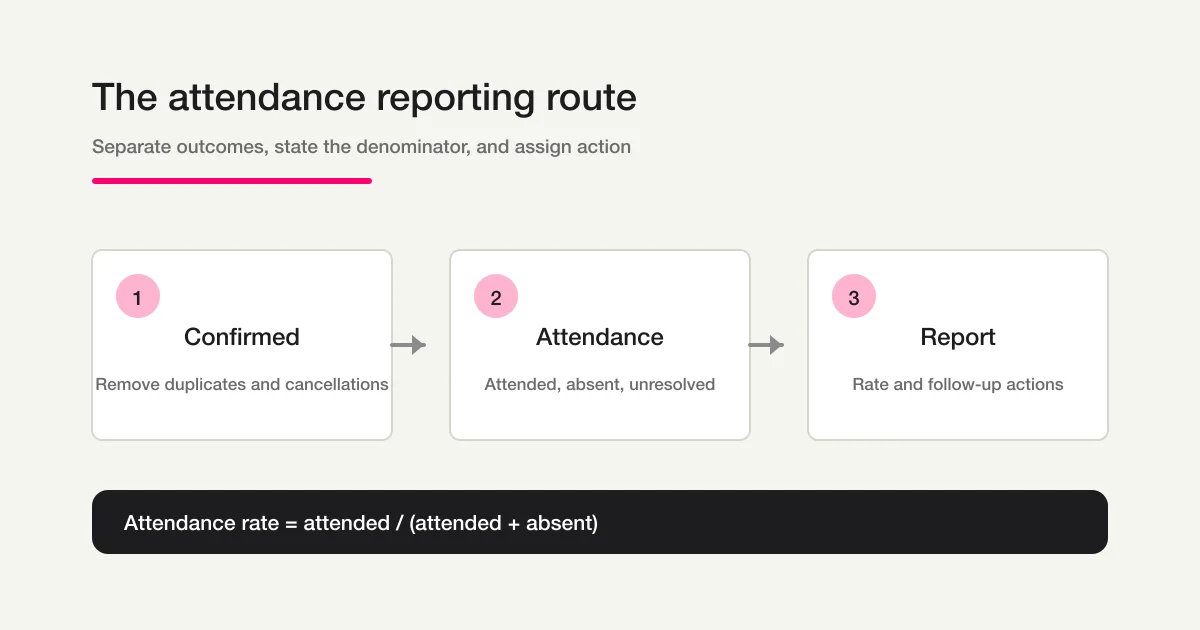
An event attendance report is more than a registration count. After the event, you need to remove duplicates and cancellations, reconcile attendance evidence, separate attended, absent, and unresolved people, state the denominator behind the attendance rate, and assign the next action.
This guide starts after registration. It explains how to create a post-event report and operate the responses in FORMLOVA. The official Event Attendance Report Workflow is included as a reusable prompt template. It is not an automatic attendance detector, a Zoom or Teams synchronization, or a PDF auto-save system.
The short answer: separate four outcomes before calculating a rate
Do not place registration and attendance in one ambiguous “participant” column. Define the outcomes first:
| Outcome | Meaning in the report | Example evidence |
|---|---|---|
| Registered | A person submitted a valid registration for the target event | Form response matches the event and date |
| Attended | Participation has been confirmed | Check-in record, attendee list, or staff confirmation |
| Absent | Non-attendance has been confirmed | Reconciled attendee list or a message from the person |
| Unresolved | Attendance cannot yet be confirmed | Missing record, name mismatch, or reconciliation pending |
A registration is not proof of attendance. A missing attendance record is not automatically proof of absence. Keep unresolved records visible until someone checks the evidence. Put the definition, data source, and report cutoff time at the top of the report so a later change is explainable.
Why registration and attendance reporting belong in different articles
An event workflow changes as the date approaches and passes:
- Before registration, collect the information needed to accept and prepare a booking.
- Before the event, send confirmation, access information, reminders, and change instructions.
- After the event, reconcile registrations with attendance evidence and decide who needs follow-up.
For registration fields, capacity, and check-in planning, read the event registration form guide. For webinar links and reminders, use the webinar registration management guide. This page owns the reporting and reconciliation that begins after the event ends.
Step 1: Fix the event scope and reporting cutoff
Start by naming the event, period, and point in time represented by the report.
Event: Customer briefing, September 15, 2026 at 7:00 p.m.
Collection period: Registration opening through the end of the event
Report cutoff: September 16, 2026 at noon
Decision: Choose the next-event audience and no-show follow-up
The report immediately after an event and the report the next morning may not contain the same numbers. Record who owns the attendance evidence, when unresolved records will be checked, and when the report is considered ready for review.
Decide these four things before counting:
- Which event name, date, format, and time zone identify the target.
- Which submissions count as valid registrations.
- What evidence is enough to call someone attended or absent.
- How long an unresolved record remains open and who checks it.
Step 2: Turn raw submissions into confirmed registrations
Clean the registration list before building the denominator. Removing duplicates by email alone can merge two people from the same organization, while keeping every repeated submission can inflate the count. Use the event date, respondent name, registration quantity, and other context that your process actually collects.
| Record | Example treatment | Report effect |
|---|---|---|
| Duplicate submission | Keep the latest valid response under a documented rule | Count one confirmed registration |
| Cancellation before the event | Record cancellation time and reason | Exclude from the denominator if that is your stated rule |
| Date change | Move the person to the correct event scope | Do not mix event dates |
| Group registration | Keep registration count separate from attendee count | State whether the report counts people or submissions |
| Irrelevant or spam response | Review and exclude | Keep it outside attendance totals |
Registration count and attendee count are not interchangeable. If one response represents several people, use the number of people only when the form and reconciliation record support that count. The examples in this guide use one response per person to keep the arithmetic clear.
Step 3: Reconcile attended, absent, and unresolved records
Choose a source of truth for attendance evidence. It might be a check-in list, a meeting participant list, or a staff-maintained record. If multiple sources are necessary, write down which source wins when they conflict. Do not assume that an external meeting service will be synchronized automatically.
Use this order:
- Match each confirmed registration to the available attendance record.
- Mark a person attended only when the evidence is sufficient.
- Mark a person absent only when non-attendance is confirmed.
- Keep missing or conflicting evidence as unresolved.
- Note the source and confirmation time for each change.
An absent record is not simply a person whose name was not found. A display-name variation, proxy attendee, late check-in, or staff omission can create a false absence. An unresolved bucket protects the report from turning a data gap into a business conclusion.
Step 4: State the denominator and calculate attendance rate
Always publish the formula and denominator, not only a percentage. If unresolved records are excluded, say so explicitly.
Attendance rate = Attended ÷ (Attended + Absent) × 100
Suppose 40 confirmed registrations produce 28 attended, 8 absent, and 4 unresolved records. If unresolved records are excluded, the rate is:
28 ÷ (28 + 8) × 100 = 77.8%
If all 40 confirmed registrations are the denominator, the result is 28 ÷ 40 = 70.0%. Neither number is universally correct. The correct choice depends on whether you are measuring the outcome among reconciled records or the current share of all confirmed registrations. Show the unresolved count beside the rate either way. If duplicates and cancellations were removed before reaching 40, show that rule as well.
Step 5: Build a report table with sample data
Create the table with dummy data before the next event. This prevents a rushed post-event report from omitting a definition or owner.
| Metric | Count | Definition or treatment |
|---|---|---|
| Confirmed registrations | 40 | One duplicate and three cancellations excluded |
| Attended | 28 | Registration matched attendance evidence |
| Absent | 8 | Non-attendance confirmed |
| Unresolved | 4 | Evidence still being reconciled |
| Attendance rate | 77.8% | 28 ÷ (28 + 8); unresolved excluded |
The summary is only useful when it leads to a list of people and actions:
| Segment | Selection rule | Next action |
|---|---|---|
| Unresolved | No confirmed attendance or absence evidence | Check the source record |
| Absent with follow-up consent | Absence plus permission to contact | Send the appropriate material or next-event notice |
| Attended with an interest topic | Attendance plus a selected topic | Prepare a relevant follow-up |
| Irrelevant response | Not related to the target event | Exclude from the denominator and mark as spam |
Include the event, cutoff time, definitions, denominator, exclusions, unresolved list, owner, and one next action. “Attendance was high” is not an operating report until someone knows what to change or who to contact.
Use FORMLOVA to review responses and assemble the report
FORMLOVA supports reviewing a response list, searching its text, narrowing the set of responses, and exporting CSV/Excel for further work. A practical post-event sequence is:
- Search for the event name or date to isolate the target responses.
- Separate valid registrations from duplicates, cancellations, irrelevant entries, and spam.
- Review the attendance evidence and add a status and note to each operationally relevant response.
- Count attended, absent, and unresolved records, then write the formula and denominator into the report.
- Export only the rows needed for a working file, and record the export time and selection criteria.
Response status represents the work state of a response, not the existence of a report. FORMLOVA’s native statuses are new, in_progress, resolved, and spam. For example, use new before reconciliation, in_progress while a staff member checks evidence, resolved after the required follow-up is complete, and spam for an irrelevant response. Do not create report_created or needs_review as native statuses. The official Workflow uses in_progress while attendance evidence is being checked. Put the report creation time and reporting period in the report or an internal note instead.
Use notes to record the attendance source, the check date, the follow-up owner, and any decision about future contact. A status without its reason is hard to audit later. The response status guide covers the general response-management operation.
Example input for FORMLOVA
After reviewing the response list, you can provide an instruction such as:
Create an event attendance report from this form’s responses for the September 15, 2026 customer briefing.
Exclude duplicate submissions and cancellations before calculating confirmed registrations.
Separate attended, absent, and unresolved records. Do not count unresolved records as absent.
Calculate attendance as attended / (attended + absent), and show the denominator and exclusions.
Finish with a list of unresolved checks and the next follow-up for no-shows.
Example response
Event: Customer briefing, September 15, 2026
Report cutoff: September 16, 2026 at noon
Confirmed registrations: 40 (one duplicate and three cancellations excluded)
Attended: 28 / Absent: 8 / Unresolved: 4
Attendance rate: 77.8% (28 ÷ 36; four unresolved records excluded)

Next actions:
- Check the attendance evidence for four unresolved records.
- Contact no-shows who requested follow-up with the approved material.
- Save the cutoff time and denominator definition with the report.
This is a report-writing example based on the responses and evidence supplied by the operator. FORMLOVA does not infer attendance from a meeting platform that has not been connected or from a missing row. Keep an insufficiently supported person unresolved rather than making the percentage look cleaner.
How to use the official Event Attendance Report Workflow
The official Event Attendance Report Workflow is a reusable FORMLOVA prompt template for turning form-response information into an operations report. Its declared fields include respondent email address, response body, and target date and time. Its description asks for attendance type, company, notes, counts, an attendance rate, an unresolved list, and next actions.
Treat that Workflow as a repeatable request structure, not as an attendance integration. It does not fetch an external participant list, synchronize Zoom or Teams, determine attendance without evidence, or save a PDF automatically. The operator still supplies or confirms the attendance record and reviews the output.
The official Workflow sets the response status to in_progress while attendance evidence is being checked. The phrases “report created” and report_created, as well as needs_review, are not native response statuses. Keep response work in new, in_progress, resolved, or spam; keep the report period, cutoff, and creation time in the report or note. If your team wants a separate report lifecycle, document it in the report header instead of changing the response-status vocabulary.
For the broader post-submit map, read the form automation guide. For a pre-event reminder flow, compare the target fields and purpose with the event reminder and follow-up Workflow rather than assuming that the attendance report will send a reminder by itself.
Follow up no-shows and unresolved records
The report becomes useful when it prevents the next task from disappearing.
No-show follow-up
Do not send the same message to every absent person automatically. Check the consent and purpose stated at registration. Send materials, a next-event notice, or a personal contact only when the recipient’s consent and the operating purpose support that action. A person who did not attend is not automatically a sales lead.
Unresolved follow-up
Turn unresolved records into an explicit review queue. Assign a person, source to check, and deadline. If evidence is still unavailable at the cutoff, keep the record unresolved and state why. The report then shows a measurement gap instead of silently converting uncertainty into absence.
Improve the next event
A low attendance rate alone does not identify the cause. Compare event format, reminder timing, access instructions, and cancellation reasons. Ask a short post-event question to attendees and no-shows if that is appropriate. For free-text response themes, use the survey response AI analysis guide as a separate analysis path.
Common mistakes
Calling every registrant an attendee
Registration expresses intent, not observed participation. Keep the labels separate so the report and follow-up list are accurate.
Treating a missing record as an absence
Missing evidence may reflect a name mismatch or an incomplete source. Keep the person unresolved until the evidence is checked.
Publishing a rate without a denominator
Excluding cancellations, duplicates, or unresolved records changes the meaning of a percentage. Put the formula, count, and exclusion rule together.
Using report creation as the response status
Report completion and response handling are different dimensions. Use the native response statuses for the work state and a note or report header for the reporting lifecycle.
Treating CSV/Excel as the source of truth
An export is a useful working snapshot. Record its timestamp, filters, and reporting cutoff, then retain a path back to the response list and evidence used to reconcile it.
FAQ
What should an event attendance report include?
Include the event identity, reporting cutoff, confirmed registrations, attended, absent, unresolved, the attendance formula and denominator, exclusions, the review owner, and next actions. Add format or attendee-count breakdowns when they change the decision.
Should unresolved records be included in the attendance rate?
It depends on the decision, but the report must say what you did. If unresolved records are excluded, use attended ÷ (attended + absent) and show the unresolved count separately. If all confirmed registrations are the denominator, state that instead and show the exclusion rules for duplicates and cancellations.
Does a registration form automatically tell me who attended?
No. A registration is the entry point. Attendance needs a separate source of evidence and a reconciliation rule. Keep unsupported records unresolved instead of labeling them absent.
Does the official Workflow detect attendance automatically?
No. It is a reusable prompt template that organizes the supplied response information into an attendance report. It does not promise an external meeting-service sync, automatic attendance detection, or PDF auto-save.
Should “report created” be a response status?
No. report_created and needs_review are not native response statuses. The official Workflow uses in_progress while attendance evidence is being checked. Keep the native statuses new, in_progress, resolved, and spam for response work. Record the report period, cutoff, and creation time in the report or an internal note.
If you want to search post-event responses and keep the next review in one response workflow, you can start FORMLOVA for free.
Read next
- Form automation guide
- Event registration form guide
- Webinar registration management guide
- Response status guide
- Form response dashboard guide
Implementation references
- Event Attendance Report (official FORMLOVA Workflow)
- FORMLOVA form automation guide
- FORMLOVA response status guide
Disclosure and Verification
- Writer: Lovanaut, FORMLOVA editorial team
- Verification date: August 31, 2026
- Checked scope: The official Workflow’s fields, prompt, actions, and related links; FORMLOVA response search, statuses, notes, CSV/Excel export; adjacent event, dashboard, and survey-analysis articles; and Search Console snapshots.
- Data note: Counts and percentages in the report table are dummy examples. The 97- and 104-impression values from Search Console are not search-volume estimates.
- Product boundary: The Workflow is a prompt template. It does not promise external participant-list synchronization, automatic attendance determination, or PDF auto-save. Confirm real evidence and the latest product behavior before operating a high-stakes event report.