
If you searched for a “Forms” survey guide, first confirm which product you mean. This article is about Formzu, the email-form service at the Formzu official site. Microsoft Forms is a separate Microsoft service, and its official help uses that product name consistently.
That distinction matters because the editor, settings, response destination, and sharing flow are different. A tutorial for the wrong service can leave you looking for buttons that do not exist.
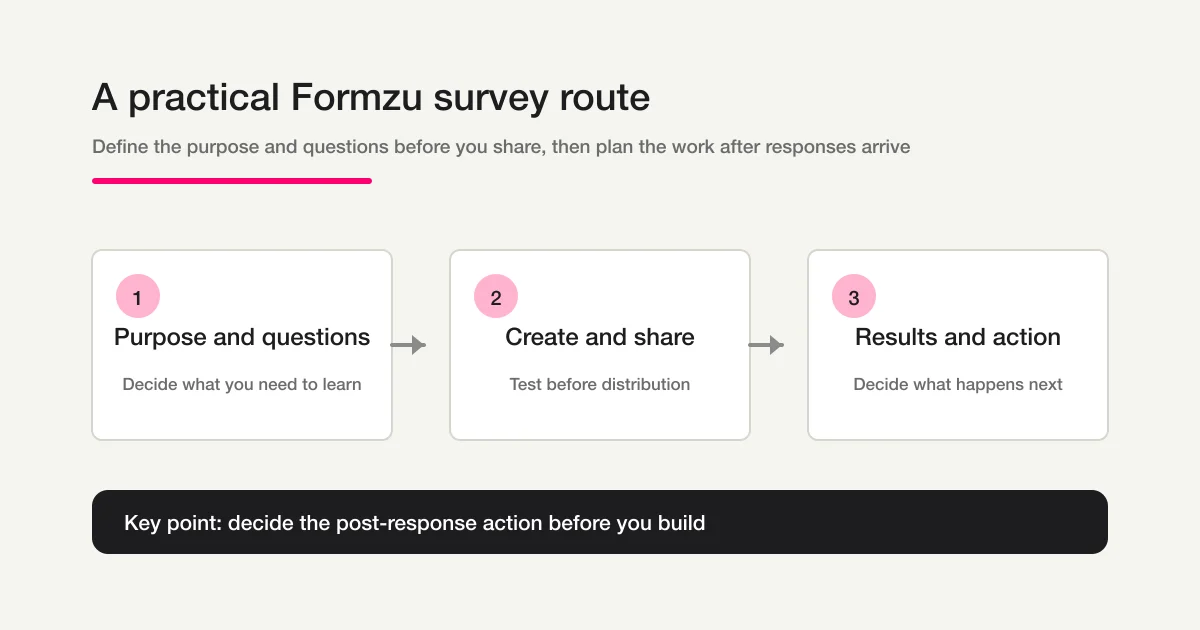
The practical Formzu survey flow is:
1. Decide what you need to learn and what happens after each answer.
2. Plan questions, answer formats, required fields, and any branches.
3. Build the form in Formzu and review its settings.
4. Test the public URL on the devices your respondents will use.
5. Share the form, review results, and turn the findings into an action.
The order is more important than memorizing the exact label of every control. Product screens can change. A clear decision about the response and the next action remains useful.
First, tell Formzu from Microsoft Forms
Japanese searches often mix the spellings “フォームズ” and “フォームス.” Depending on the context, “フォームズ” may refer to Formzu or to Microsoft Forms. Confirm the product before following a tutorial.
Formzu’s current official site describes a cloud email-form service that can be used for surveys. Its published feature information includes survey statistics, CSV output that can be opened in Excel, conditional branching, PC and mobile support, SSL, auto-reply email, and design controls. Check the official page again before publishing because product features, wording, and screen labels can change.
Microsoft Forms is a different service associated with the Microsoft ecosystem. Microsoft’s official form-creation help covers forms, quizzes, themes, sections, and branching for that product. Do not substitute its steps for Formzu steps.
| Search phrase or need | Product or route | Where to start |
|---|---|---|
| “Formzu” or a Formzu survey | Formzu | Formzu official site |
| Microsoft Forms survey | Microsoft Forms | Microsoft Forms official help |
| Choosing among form services | A comparison decision | Form service comparison guide |
Once Formzu is the service you want, plan the survey before opening the editor.
Step 1: Define the goal and the post-response action
Write one sentence that explains what the survey will help you decide.
Find the clearest improvement for the next event from people who attended.
Separate people interested in a product explanation from people who are not.
Learn which type of support a new customer needs after onboarding.
This sentence is a filter. If a question does not help answer it, remove the question or move it to a separate survey.
Also decide whether you need a named response. If you only need an overall pattern, collecting a name or phone number may add unnecessary effort. If you want to contact people who request follow-up, ask for contact details only when they opt in and explain why the information is needed.
| Decision | Example | Formzu check |
|---|---|---|
| Audience | Customers, event attendees, or staff | Who will receive the public URL? |
| Learning goal | Satisfaction, obstacles, or interest | Which answers will you compare? |
| Next action | Improve, send information, or follow up | Do you need an optional contact field? |
For general survey planning and question design, see the survey design guide. This article keeps its attention on Formzu’s execution order and the decision after the answers arrive.
Step 2: Plan questions and answer formats
Do not add questions at random while building the form. Draft the question roles first. A short post-event survey might look like this:
Q1. What best describes your participation? (Single choice)
Q2. How would you rate the event overall? (Rating or single choice)
Q3. Which parts were useful? (Multiple choice)
Q4. What should we improve? (Optional open text)
Q5. Would you like a follow-up message? (Single choice)
Q6. Enter an email address if you requested follow-up. (Optional)
Fixed choices are easier to count. Open text explains why someone selected an answer. Use both, but give each format a clear job.
| What you need to learn | Useful format | Design check |
|---|---|---|
| Main usage or audience segment | Single choice | Keep options distinct |
| Several problems or useful parts | Multiple choice | Explain whether multiple selections are allowed |
| Satisfaction or confidence | Rating scale | Keep the positive direction consistent |
| Reasons and concrete examples | Open text | Keep it optional unless essential |
| Follow-up permission | Single choice plus contact field | Ask for contact details only when needed |
Avoid leading and double-barreled questions. “What did you think of our well-received new feature?” suggests a positive response. “What did you think of the new feature?” is neutral. “Were you satisfied with the speed and helpfulness of support?” combines two topics; ask about speed and helpfulness separately.
If the survey needs branches, write the route before configuring it:
“I want more information” -> show the topic and contact questions.
“I found an issue” -> show an optional explanation question.
“No follow-up needed” -> skip contact details and finish.
The point of a branch is not to make the form look sophisticated. It is to show each respondent only the questions that are relevant to their answer.
Step 3: Build the survey in Formzu
Open Formzu and assemble the form from the design note. Follow this short sequence:
- Open the Formzu new form page from the official site.
- Follow the current page guidance and enter your email address.
- Select the current create-form action to begin creating the form.
- Confirm the management name and the respondent-facing title and description.
- Add the questions and choices, then confirm which fields are required or optional.
- Configure conditional branching and auto-reply only where they support the survey.
- Test the public URL on the devices your respondents will use.
The exact labels and screen order can change, so do not rely on a fixed button name; use the current official on-screen guidance as the final authority. The following sections explain the same checks in context.
Name the form and write the introduction
Use a management name that identifies the audience and purpose, such as “Autumn event attendee survey.” Write a separate respondent-facing introduction that states the purpose, expected effort, and any deadline. If the survey is anonymous, say so. If a contact field is optional, explain what follow-up means.
Add questions, choices, and required settings
Enter each question with its intended response format. Make a field required only when it is necessary for the result, the reply, or the next operation. Names, phone numbers, and long comments should not become required by habit.
Keep choices at the same level. For example, “price,” “support,” “easy to use,” and “I felt uncertain” mix product factors with an unclear feeling. Rewrite the choices so that respondents can compare like with like, then use an optional comment for context.
Configure branching and auto-reply only where they help
If a selected answer should lead to a different question or explanation, configure the branch and test every route. A small route table is useful:
| Answer | Next question | Completion path |
|---|---|---|
| Wants information | Topic and optional email | Follow-up confirmation |
| Reports a problem | Problem details | Support review |
| No follow-up | None | Standard completion |
If you use auto-reply email, include the information a respondent needs next: confirmation that the response was received, an expected response time if relevant, and a contact route for questions. Avoid promising an individual reply when your team has not assigned one.
Review the visual experience
Formzu’s official information includes PC and mobile support, SSL, and design controls. Use those capabilities to keep the form readable, but do not trade clarity for decoration. Review the question labels, descriptions, required markers, error messages, branch destinations, and submit action.
The following checks catch common problems:
Can a respondent understand each question without extra explanation?
Are choices and the submit action easy to use on a phone?
Can respondents tell required fields from optional fields?
Is the reason for collecting personal information clear?
Does every branch end at the intended completion or follow-up path?
Step 4: Test the public URL before sharing it
A form is not ready because the editor looks complete. Test it as a respondent.
1. Open the public page on a computer and a smartphone.
2. Leave required fields empty and confirm the guidance is understandable.
3. Submit realistic single-choice, multiple-choice, and open-text answers.
4. Test every branch, including the shortest and longest path.
5. If auto-reply is enabled, check the recipient, subject, and message.
6. Confirm that the test response appears in the result view or export.
7. Decide how test responses will be excluded from the live result.
Do not send an editor or preview link just because it is convenient. Copy the public URL that respondents are meant to use, then open it from a separate account or device. If you distribute a QR code, scan the printed code after it has been produced. A QR code that worked in the design file can still be damaged by printing, cropping, or a quiet-zone problem.
Distribution copy should explain why the survey matters, how long it should take, and when it closes if there is a deadline. Email, a website, a social post, and an event handout can point to the same form while using different introductions.
Step 5: Review results and turn them into an action
Decide how to treat test responses, duplicates, incomplete answers, and answers outside the target audience before reading the result. This keeps the analysis consistent.
Formzu’s official page describes statistics and CSV output that can be opened in Excel. Use the simplest view that supports the decision you made in Step 1.
| What you need to see | Useful approach |
|---|---|
| Overall choice pattern | Review statistics and distributions |
| A single respondent’s context | Read the response record |
| Differences by event, plan, or audience | Export and keep comparison columns consistent |
| Reasons behind a rating | Read open text alongside the fixed-choice result |
| Follow-up candidates | Match opt-in answers with the requested contact field |
Keep a short analysis note with the audience, collection period, exclusions, and the action selected. “Satisfaction was 4.1” is less useful than “People who attended online most often cited audio quality; test the new audio check at the next event.”
When the next step is a recurring operation, such as assigning an owner, tracking status, classifying open text, or generating a report, the survey form guide explains how to connect collection and analysis in FORMLOVA.
When to stay with Formzu and when to consider an alternative
Choosing a form service is an operating decision, not a feature-count contest. Ask which system owns the answer and who owns the next action.
| Formzu may be a good starting point when | Consider another service when |
|---|---|
| You want a standalone survey page to distribute | Several forms must be managed as one operational dataset |
| Statistics or CSV output that can be opened in Excel is enough | Responses need an ongoing owner, status, and handoff |
| You need branching or auto-reply within a focused survey | Different answers should trigger maintained team workflows |
| The survey is occasional and has a clear finish | You need recurring classification, reporting, or follow-up |
If a short survey only needs a public URL and an occasional export, keeping the current setup can be the clearest choice. If the responses repeatedly become tasks, support cases, applications, or reports spread across separate tools, compare a service designed around the full response operation.
FORMLOVA can be useful when the form is one part of a larger conversation: create a draft, collect answers, search and classify responses, manage status, and continue to a reviewed follow-up. It is not a promise to replace every Formzu feature or every channel. The right boundary is the one that keeps the system of record and the next action clear.
For a broader set of selection criteria, use the form service comparison guide. For the general map of form use cases, start with the FORMLOVA form creation guide.
Common mistakes and fixes
Following the wrong product tutorial
If a screen or button does not match, stop and confirm whether the service is Formzu or Microsoft Forms. Do not force a different product’s steps onto the form you are editing.
Asking every question as required
Required fields should support the result or the next operation. Make context and contact questions optional when you can. If two goals require two different audiences or privacy choices, split the survey.
Collecting answers without defining a decision
A result becomes hard to use when no one decided what an answer should change. Before the next survey, write a simple mapping from response pattern to action.
Exporting data without preserving its meaning
Keep the original export and document the survey name, collection period, option meanings, exclusions, and any transformations. Work on a copy so the source remains available for a later check.
FAQ
Is Formzu the same as Microsoft Forms?
No. Formzu and Microsoft Forms are separate services. Search wording can be ambiguous, especially in Japanese, so confirm the product name and official domain before using a tutorial. This page covers Formzu.
Can people answer a Formzu survey on a smartphone?
Formzu’s official site describes PC and mobile support. Test the published page on the actual device and browser mix used by your audience before distribution.
How should I review Formzu survey results?
Start with the statistics for the overall pattern, then use individual responses or CSV output that can be opened in Excel for comparison and context. Read open text next to the fixed-choice answer that prompted it, and record the action selected from the result.
When should I move from Formzu to FORMLOVA?
Consider the move when collection is no longer the hard part and the repeated work after submission is: ownership, status, classification, reports, or follow-up. If an occasional export is enough, Formzu may remain the simpler choice.
Summary: plan the next action before you build
The reliable way to create a Formzu survey is to work backward from the decision after the answers arrive:
Confirm Formzu rather than Microsoft Forms.
Define the audience, learning goal, and post-response action.
Choose question formats and required fields deliberately.
Test every branch, reply, device, and public URL before sharing.
Use statistics and CSV output that can be opened in Excel to make one clear improvement action.
If you want to turn the same planning note into a form draft and a response operation, start FORMLOVA for free and keep the next action visible as you build.
Reference links
- Formzu official site (Japanese)
- Formzu official blog: Survey design guidance (Japanese)
- Microsoft Forms official help: Create a form
Read next
- FORMLOVA Form Creation Guide
- How to Design a Survey
- Survey Form Guide: Build, Aggregate, and Organize Responses
- Form Service Comparison Guide
Disclosure and Verification
This guide focuses on the Formzu-specific order of work: product disambiguation, question planning, construction, public testing, distribution, and result-based decisions. I checked the Formzu official site, the Formzu survey-design blog, and Microsoft Forms official help on August 31, 2026. Product features and admin-screen labels can change, so confirm the latest official information before publishing. Check current Formzu pricing and usage conditions on the official site before committing to a plan.