
Last updated: October 15, 2026
Original verification record retained: Last verified: September 22, 2026
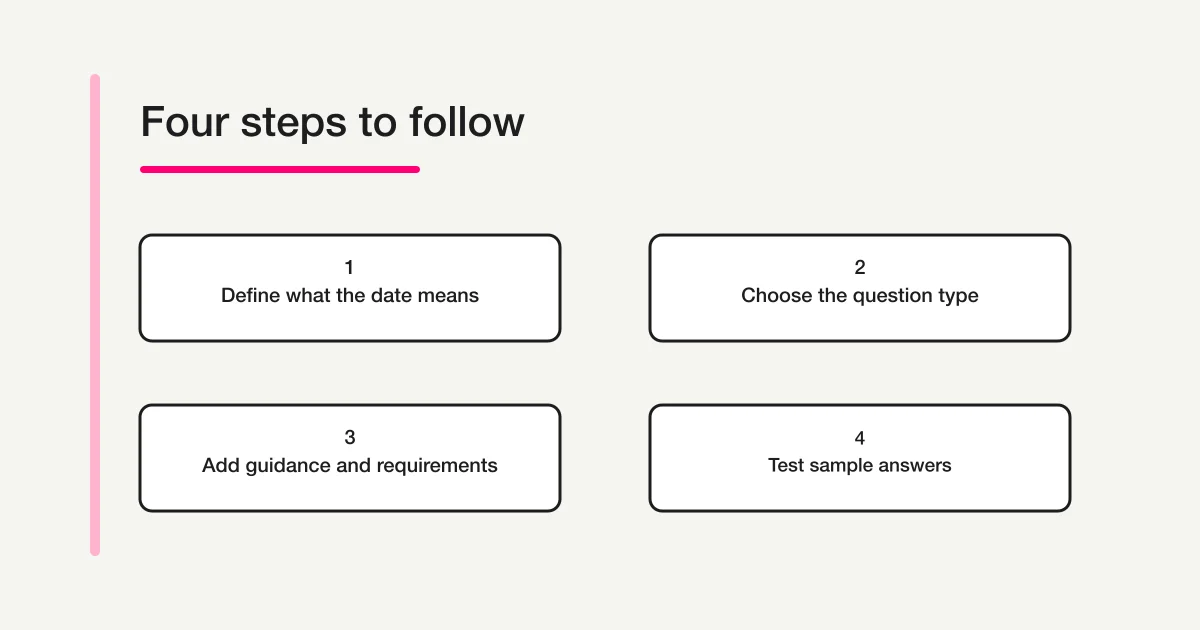
Choose Date for a calendar day and Time for a clock time or duration in Google Forms. Inspect year/time options on the date question and duration mode on the time question. Name the answer’s meaning: preferred date, occurrence date and elapsed time are different data.
State the time basis and an honest way to answer “unknown.” A requested date does not reserve availability, and a date question does not set the form’s collection deadline.
Decide whether you need a date, clock time, or duration
A date identifies a day. A clock time identifies a point within a day. A duration describes how much time elapsed. Start with that distinction rather than choosing whichever control looks easiest to add.
| Information you need | Example answer in ordinary language | Suitable starting point |
|---|---|---|
| When an event happened | September 22, 2026 | Date |
| When someone would prefer a visit | October 6, 2026 | Date, with request wording |
| When a task started | 2:30 in the afternoon on the stated date | Clock time with date context |
| How long a task lasted | One hour and twenty minutes | Duration |
| An annual month-and-day reference | April 12, without a year | Date configuration after checking the purpose |
These are illustrative values, not available appointments or recommendations for a particular schedule. Name the meaning in the question label so an exported answer remains understandable later.
For example, replace “Date” with “Date you first noticed the issue.” Replace “Time” with “Approximate time the issue began.” If the participant may not know the exact answer, explain how to indicate uncertainty rather than encouraging a made-up value.
Add the question and inspect its options
Google's question-type help describes date options for including a year or time through the question's More menu. It also describes switching a time question between clock time and duration. Google's date and time question help
The Forms API separately represents the date settings as includeYear and includeTime, and the time distinction through duration. This confirms that a calendar date, an added clock time, and elapsed time are different configuration decisions. Google Forms API DateQuestion and TimeQuestion
Choose the type that fits your answer, then check the displayed options rather than relying on an older screenshot. Add a description where the field label alone cannot explain the intended value.
After setup, read the question as a participant. If the label says “How long did it take?” but the control looks like a time-of-day input, revisit the configuration. An example in the description can help, but it should not be used to compensate for the wrong type.
For the broader creation process, the Google Forms setup guide covers the steps beyond this particular field choice.
Include the year when the record needs it
A year is essential when records may refer to different years or need to be understood later. Incident dates, visit requests, and event records usually need a complete date to avoid ambiguity.
An annual reminder might only need a month and day, but do not omit the year merely to make the question shorter. First decide whether the missing information would change how the answer is used.
Imagine a coordinator reviewing requests in January. An answer showing only “December 20” could refer to a past event or a future preference. The form's surrounding explanation may have been obvious when the participant answered, but the exported record needs enough context to remain useful.
A practical question-review note could say: “Include the year because staff compare requests across calendar years.” That makes the design decision easier to maintain when someone copies the form for the next cycle.
Avoid collecting a full birth date when the task only needs an annual month-and-day reference. Match the detail requested to the actual purpose instead of assuming every date question should collect the same information.
Explain the time basis
A clock time such as 14:30 needs context when people may be in different places. State whose local time applies or identify the relevant time zone in the question or description.
For a local event, a label such as “Preferred start time, venue local time” may be clearer than an unexplained time field. For an international audience, provide an explicit convention and enough information to identify the event location or time basis.
Do not assume the input control automatically converts a participant's answer to the organizer's time zone. This article does not verify automatic conversion, device-locale formatting, or stored-response representation for every environment.
A copy example for a Japan-based workshop could be:
Preferred start time in Japan Standard Time. This is a request; the organizer will confirm the date and time separately.
If your task spans locations whose offsets change during the year, review the date and time basis together. The form should not require the participant to guess which seasonal offset the organizer intends. Use a clear scheduling process for that situation rather than an unlabeled clock time.
Example 1: collect a preferred visit date
Suppose an organizer wants two possible dates before contacting a participant. Use distinct labels such as “First preferred visit date” and “Second preferred visit date.” Make clear whether the second option is optional.
The introduction could say:
Tell us your preferred dates. We will check availability and contact you with a proposed appointment. Sending this form does not reserve a time.
Keep the answer structure aligned with the decision. If you need several candidates, use separately labeled candidate questions or a suitable list of specific choices. Do not imply that one date question automatically collects a ranked set of dates.
Before sharing, decide what staff should do when the first and second preferences match, when only one is provided, or when both fall outside the period you intended. Instructions, available choices, and review procedures should agree.
The Google Forms booking guide covers the larger reservation process. A date question can support that process, but it does not itself provide capacity management or booking confirmation.
Example 2: record when a problem occurred
For a support report, separate the date of the event from the date the person is filling out the form. “Date you first noticed the issue” expresses that difference more clearly than “Today's date.”
If time matters, explain whether an estimate is acceptable. Someone reporting an intermittent problem may know that it happened during the afternoon but not the exact minute. Requiring false precision can make a record appear more reliable than it is.
One design is to collect the date, make the precise time optional, and provide a short place to describe uncertainty. Whether that fits your process depends on what the support team actually needs.
Do not combine “When did it start?” and “How long did it last?” into one field. A start time and an elapsed duration answer different questions. The distinction becomes especially important when a problem begins on one day and continues into the next.
Example 3: collect elapsed time
For a training exercise, you may want to know how long a participant spent on a task. A duration question is more appropriate than asking for the clock time at which they finished.
State the measurement rule. For example: “Time spent on the practice task, excluding the break.” Without that explanation, one participant may report active work while another includes the entire session.
Choose the level of precision your decision needs. If approximate minutes are sufficient, do not imply that participants must reconstruct exact seconds. Conversely, if a timed exercise has a formal measurement procedure, give that procedure separately from the form control.
Use sample answers to test interpretation. “One hour and twenty minutes” should be understood as elapsed time, not 1:20 in the morning. The field label, selected mode, and helper text should all communicate the same meaning.
These examples are questionnaire-design suggestions, not measured task-performance results. Collecting a duration does not by itself establish productivity or explain why two participants took different amounts of time.
A date question is not a collection deadline
A deadline controls when the form accepts responses. A date question records an answer within a response. Adding a question labeled “Deadline” does not automatically close collection at that date.
If your goal is to stop accepting submissions, use the separate Google Forms deadline and response-limit guide. Keep the closing rule and the participant's requested date distinct in both your instructions and your records.
For example, a workshop may accept requests until one date while asking participants to choose a later visit date. Those two dates belong to different parts of the process. Calling both of them “registration date” can confuse staff as well as respondents.
Likewise, do not describe a requested future date as available merely because the form accepted the answer. Availability requires a separate check of the schedule and whatever constraints govern the event.
Test realistic cases and record the result
Create a short test plan before sharing. Use the exact configuration and instructions you intend to publish, including required status and any added time component.
| Case | What to verify |
|---|---|
| A normal complete date | The participant can enter the intended day and year |
| A date near the end of a year | The year remains unambiguous |
| An empty optional candidate | The intended optional path works |
| An empty required date | The participant receives understandable guidance |
| A date with a clock time | Both parts are clear and captured as intended |
| A duration example | It is interpreted as elapsed time rather than a clock reading |
| A phone used by the audience | The actual input interaction is usable |
The table contains checks to perform, not verified Google outcomes. Fill in observed results after testing. Include the device or browser context when a problem depends on the input interaction.
If you perform a submission test, inspect the resulting record and distinguish it from real requests. A successful on-screen entry does not establish that downstream staff will interpret the value correctly. Check the labels and context in the place where the response will be reviewed.
Do not assume identical pickers on every device
The way a date or time input appears is not the whole feature. A calendar picker, typed entry, and a mobile input interface may present different interaction questions that need testing with the intended audience.
Google's iPhone and iPad creation help includes a note about date and time picker support. That limited note should not be expanded into a claim that people can never answer date or time questions on an iPhone. Google Forms iPhone and iPad help
I have not tested the device combinations for this article. Use the participant-facing form on the devices you expect people to use, and describe any actual limitation narrowly. If an alternative answer route is necessary, explain it clearly rather than telling people to invent a placeholder date.
Also distinguish the displayed format from your intended meaning. An English help example does not establish that every locale displays month, day, and year in the same order. Clear labels and a realistic test reduce the chance of relying on an ambiguous numeric date.
FORMLOVA date settings have validation boundaries
FORMLOVA supports date, time and combined datetime fields. The datetime UI can show time and date-bound guidance, but its current server schema does not guarantee every date-range or time-component condition. Do not use a visible picker boundary as a verified business rejection rule. Explicit offered-date choices or human review may fit a narrow acceptance window better.
Draft visit preferences with a clear time basis and unknown route
This is a proposed trial, not an operation or result measured for this rewrite. Use a private test draft first.
Create a private visit-request draft. Ask whether a date is decided, then show first and optional second preferred dates when decided; otherwise accept an optional period description. If a time is requested, label it Japan Standard Time. State that staff confirms availability later. Do not publish, reserve slots or promise server-enforced date bounds.
Before proceeding, check:
- Try undecided, optional second date, year boundary and a time value.
- Check the phone input and the saved representation, including whether date and time are both present as intended.
- Use controlled publication for storage tests. Review out-of-range cases against the actual implementation rather than assuming the UI rejected every invalid business date.
Try date wording without promising an instant booking
Free covers these fields, conditional display, collection and export. Calendar synchronization and time-slot inventory are not included in this request form.
Register free and draft visit preferences
Register, verify your email, connect a supported AI client, and paste the proposed request above. Check the saved draft before publishing. AI-client account and usage requirements apply separately.
What to do next
Check meaning in both the input and the reviewed record. Confirm time basis, year and unknown handling before using a requested date in a staff confirmation message.
Related Guides and References
Disclosure and Verification
I develop FORMLOVA. I checked Google's question-type help, DateQuestion and TimeQuestion API definitions, iOS help, and FORMLOVA's date/time renderers and validator on September 22, 2026. I did not configure or submit a live Google date/time question while preparing this article. The examples are proposed wording and test cases, not available bookings. Device-specific picker behavior, locale display, and every stored-value format were not tested.